Send an email campaign
You can launch email campaigns to your contacts saved under My Audiences, allowing you to send survey invitations and follow-up reminders through Conjointly at an affordable rate without needing an external mail platform.
Set up a campaign
You can set up an email campaign in three ways:
- Within a launched experiment.
- When launching an experiment.
- Within an audience page.
Set up an email campaign for a launched experiment
To add a campaign to a launched experiment:
- On the Manage experiments page, select the experiment for which you want to set up an email campaign.
- Under the Participant sources tab, click the button.
- On the pop-out, select send an email campaign.
- Select the desired audience from the drop-down list.

Set up an email campaign when launching an experiment
You can also set up an email campaign when launching an experiment.
- On the Choose participants tab, select Send an email campaign.
- Select the desired audience from the drop-down list.

Campaigns added within the experiments are also accessible under the Campaign tab on the audience page.
Add a campaign within an audience page
Alternatively, you can add an email campaign for an audience by following these steps:
- On the My audiences page, select the audience for which you want to set up a campaign.
- Inside the audience page, select the Campaign tab and click the button.
- In the pop-out window, fill in the campaign name and the linked experiment. Please note that only launched experiments can be linked.
- Click .

Edit a campaign
Each campaign includes the following default steps that you can customise. Move, duplicate, or delete using the controls on each step.
You can also add new steps by clicking above or below existing steps.
Email cleanup
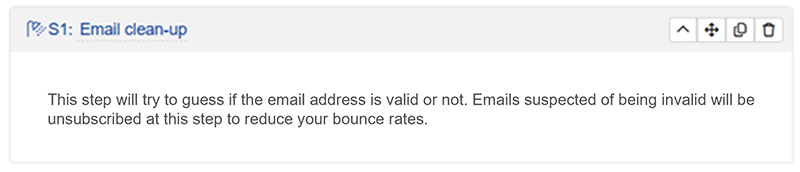
The email cleanup step helps you validate email addresses before sending. Invalid emails are automatically unsubscribed to reduce bounce rates.
You can set up to 2 email clean-up steps per campaign. Please note that invalidated contacts are counted in campaign pricing but won’t receive subsequent emails. You can view results in the Review tab of the audience page.
Initial survey invitation
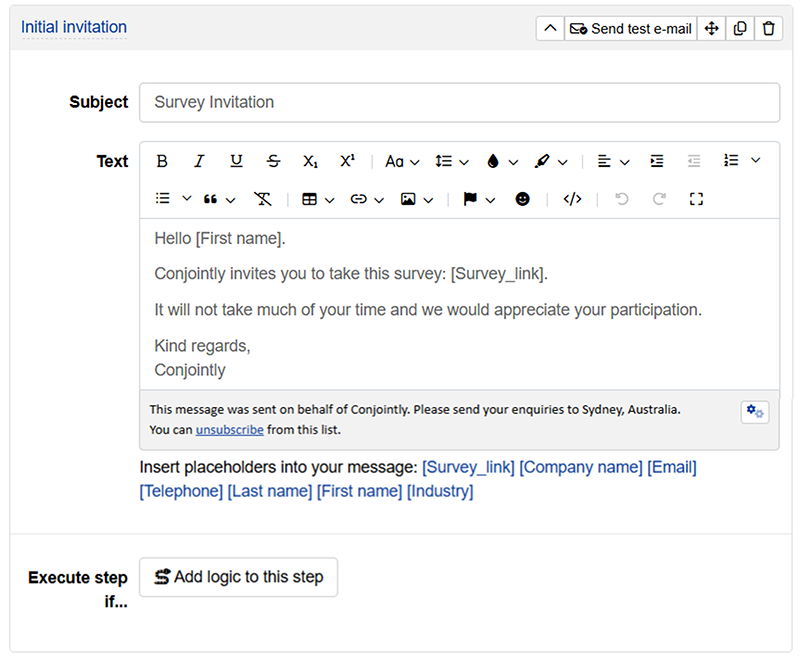
This step sends the first survey invitation email to your contacts.
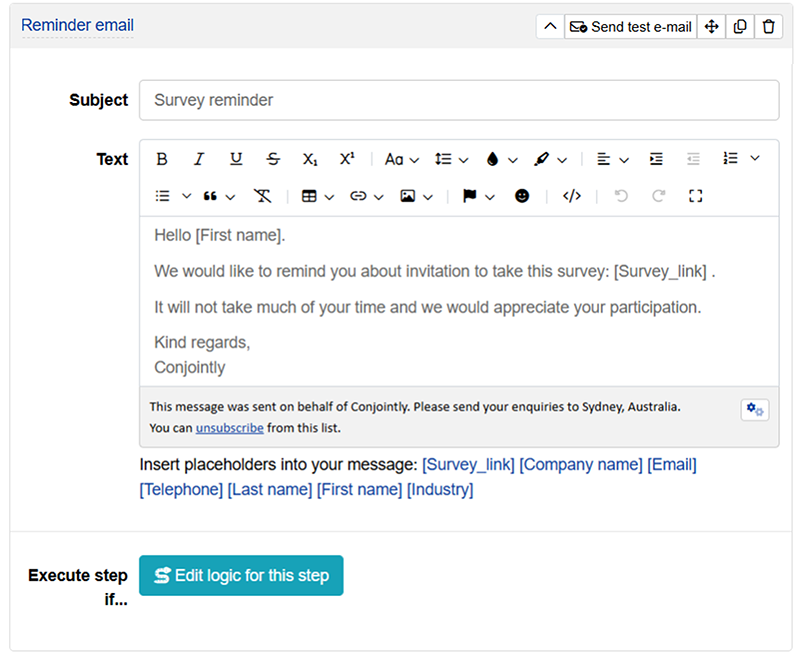
For each email in your campaign, you can configure the following settings:
- Subject line
- Message text
You can include formatting, tables, images, and insert placeholders like[Survey Link],[First Name],[Country],[Industry]to automatically populate contact data - Conditional logic
Set rules for which contacts receive the email (e.g. only contacts who haven’t completed the survey or based on previous email status)
You can send a test email to yourself before launching to verify formatting and placeholders display correctly.
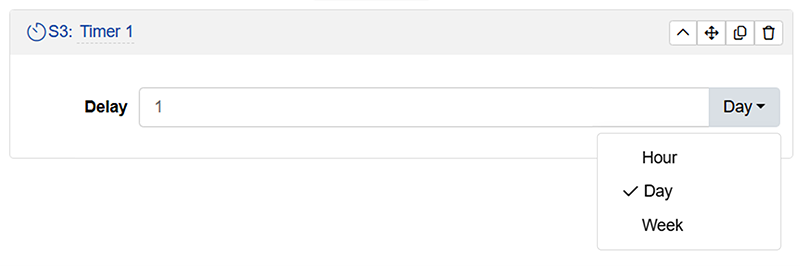
Timer
Survey reminder
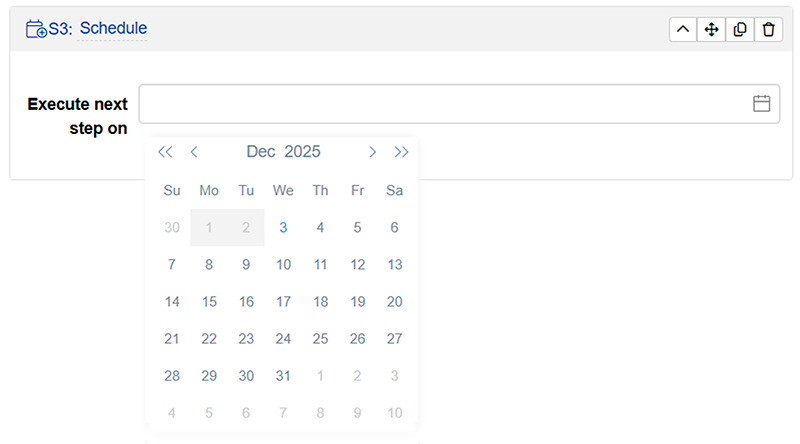
Schedule
Save and launch a campaign
Click after completing the settings. You will be prompted with the total charges for the campaign and confirmation. The status of the launched campaign can be viewed under the Campaigns tab.
As an additional precautionary measure, Conjointly will send emails in small batches (e.g. batches of 21 emails per minute) to give you the opportunity to monitor the campaign’s performance and make any necessary adjustments.
View and manage launched campaigns
You can view the status of each step of the campaign, including the number of messages sent and opened by contacts, the number of contacts that opened survey links and answered the survey, and the steps yet to start. To edit a launched campaign, you will need to pause the campaign.
Alternatively, you can view the status and manage the settings of the launched campaign under the Participant sources tab within the linked experiment.

Next steps
Do you have questions about sending email campaigns? Get in touch with a research expert today. Schedule a consultation.
We also recommend reading a note on how to optimise email survey campaigns for better response rates.
You can also read about: