Audit your survey for errors with AI Helper
Catching survey design flaws before launch prevents unusable datasets and eliminates unnecessary re-fielding costs. AI Helper’s survey review audits your survey script within minutes, flagging typos, broken scales, missing answer options, biased questions and more.
AI Helper is available on every licence tier with no setup required. Basic licences include limited usage, while Professional and Ultimate tiers enjoy unlimited access (subject to fair use). The feature is unavailable if your organisation has disabled LLM features.
What a survey review typically catches
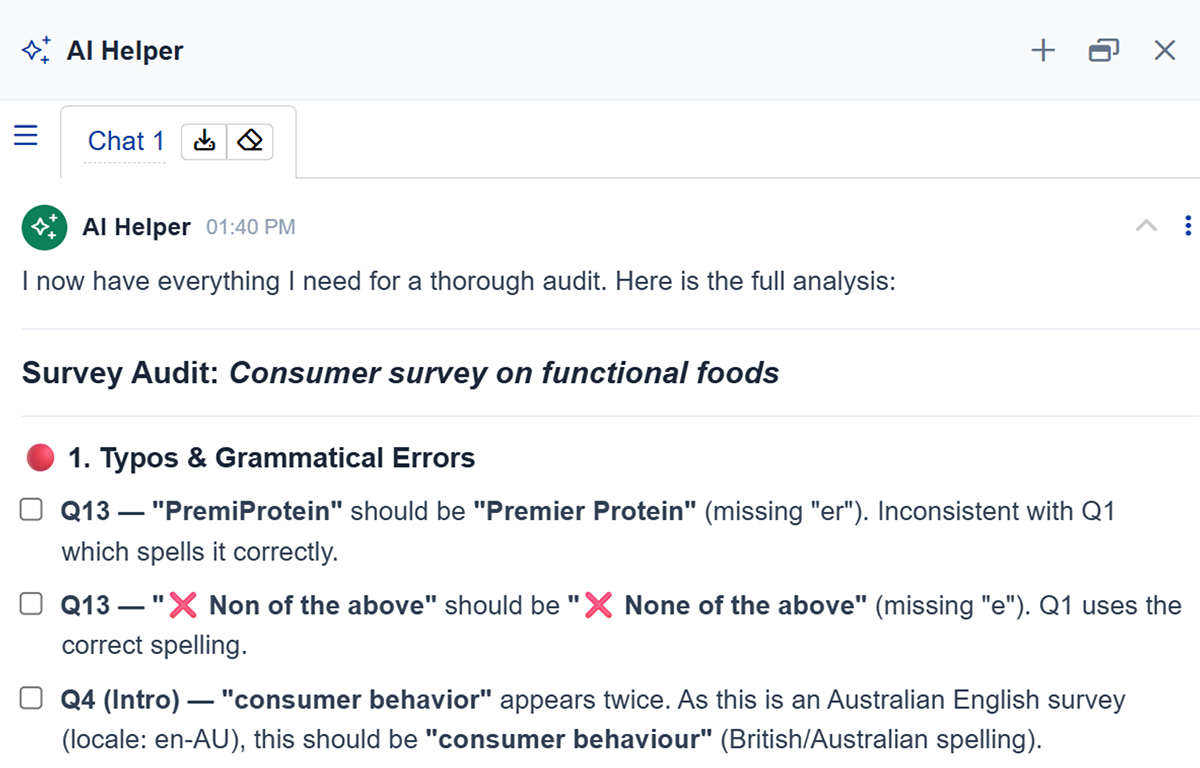
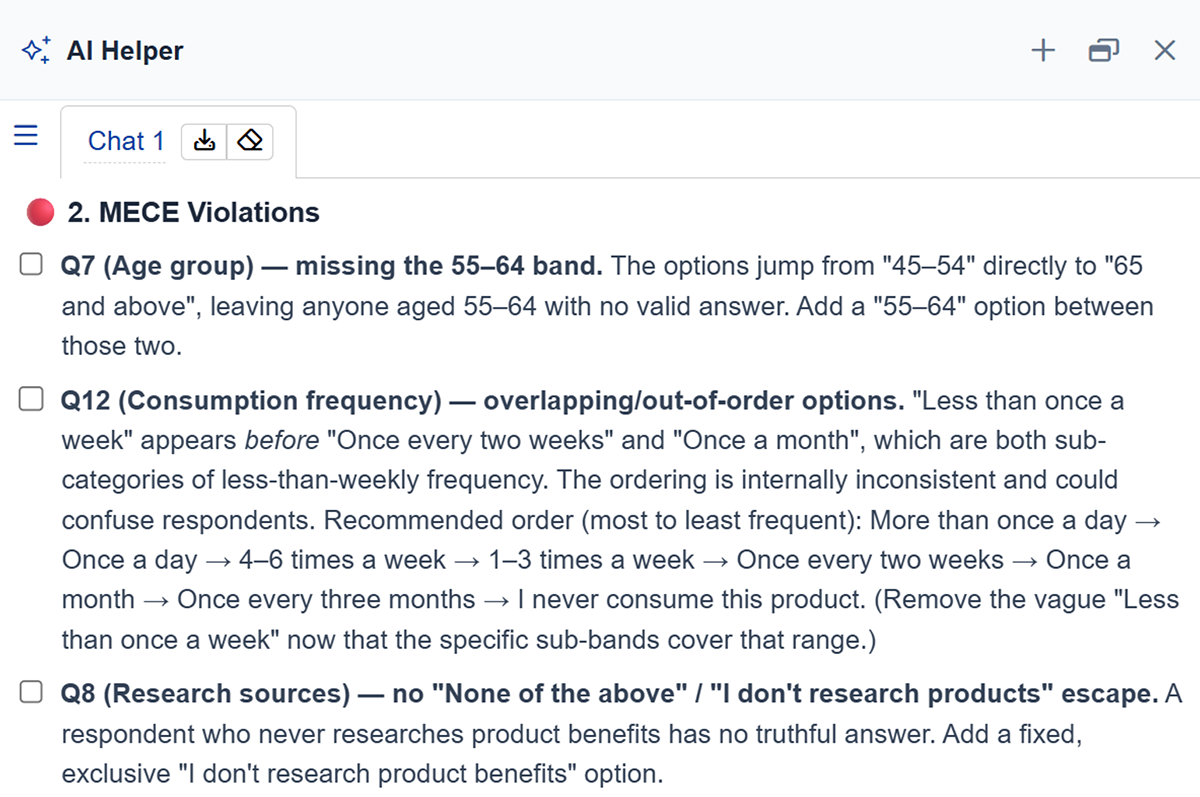
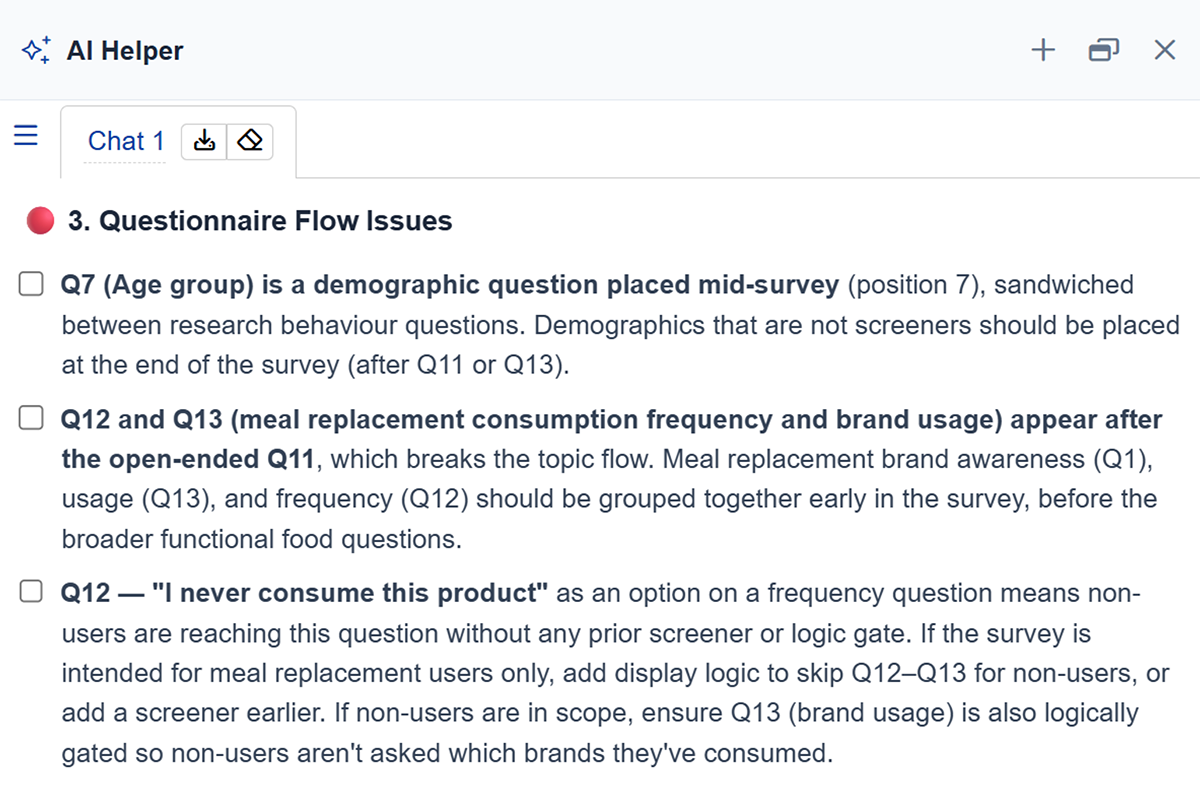
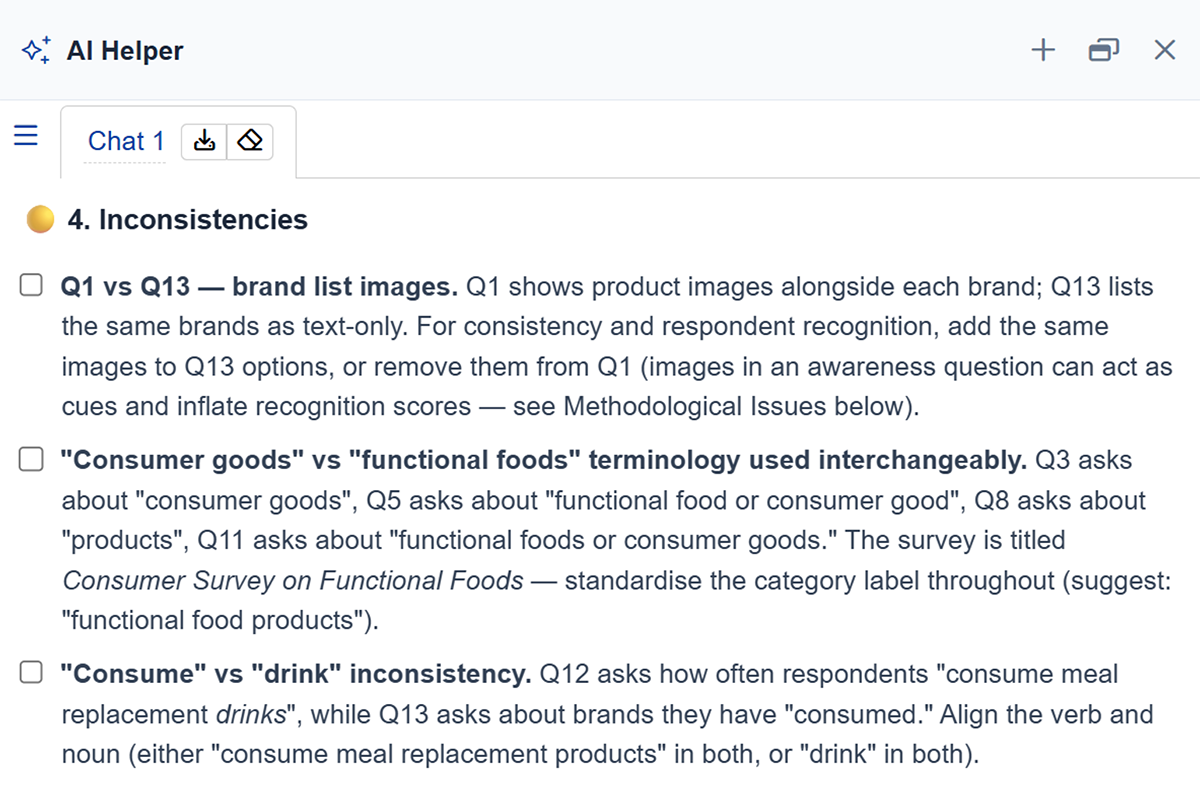
The examples below are taken from an AI Helper review of a draft “Consumer survey on functional foods”. Your review follows the same layout, though the specific categories and flagged issues will vary based on your script.
1. Typos and grammatical errors
Catches spelling and grammar slips in question text, answer options and labels.
Identifies answer options that are missing, overlapping, or leave respondents no valid choice.
3. Questionnaire flow issues
Detects misplaced questions, along with missing skip logic or display gates.
4. Inconsistencies
Flags inconsistencies in content, formatting, or logic across questions.
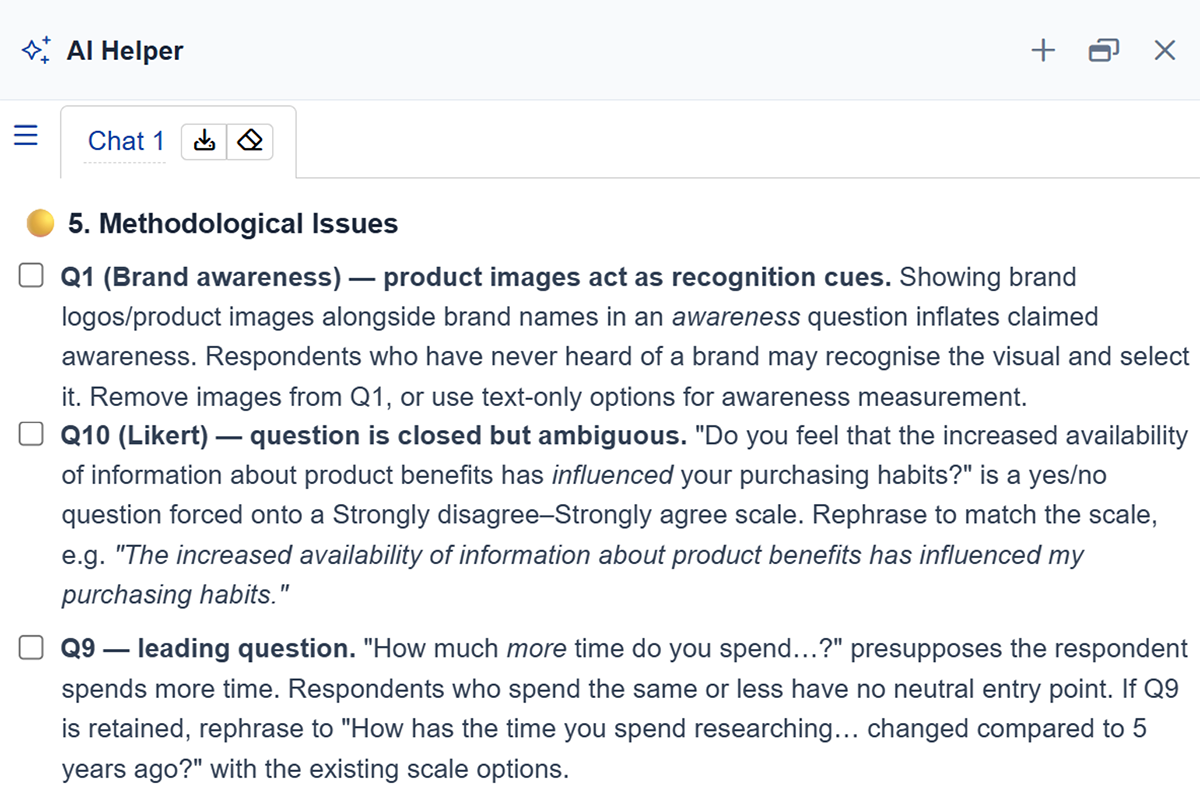
5. Methodological issues
Identifies potential methodology issues, such as leading questions, biased phrasing, and mismatched scales.
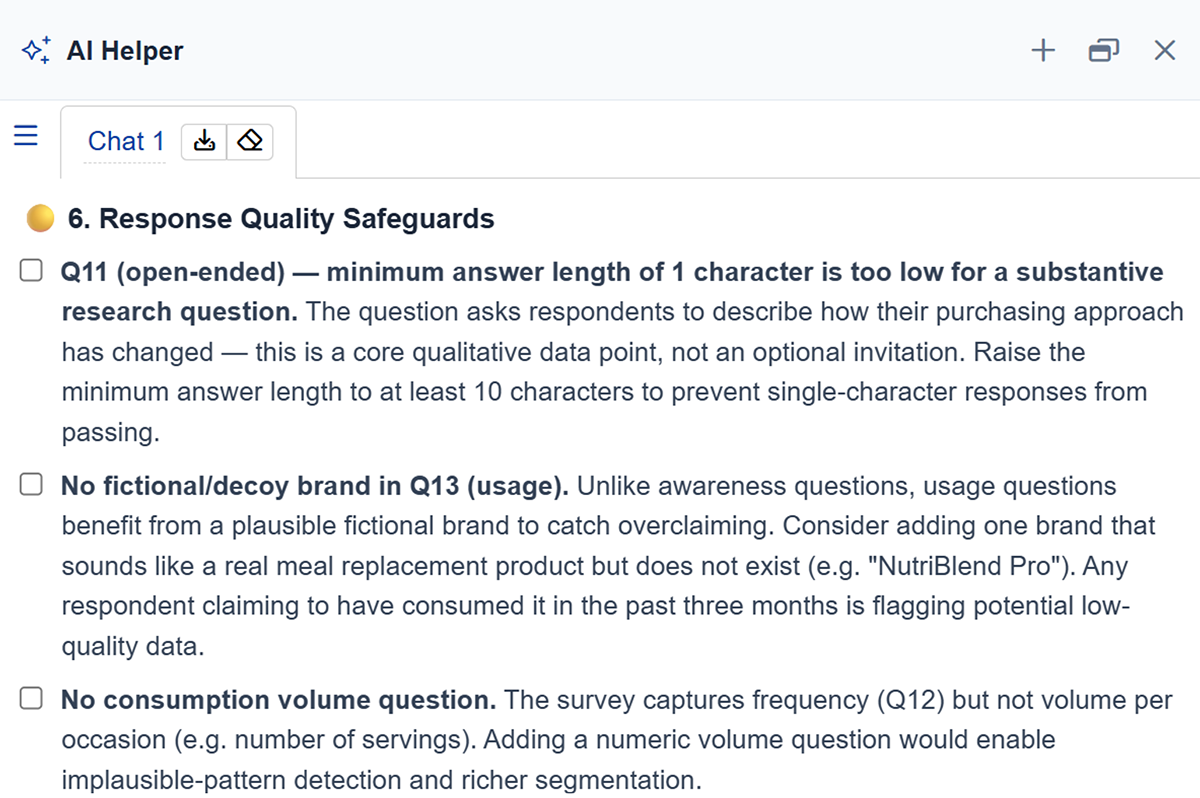
6. Response quality safeguards
Recommends screening questions, along with quality management options and settings that protect your data.
You can also work with AI Helper to fix what it finds.
Running a survey review
Start the review from your survey setup page in one of two ways:
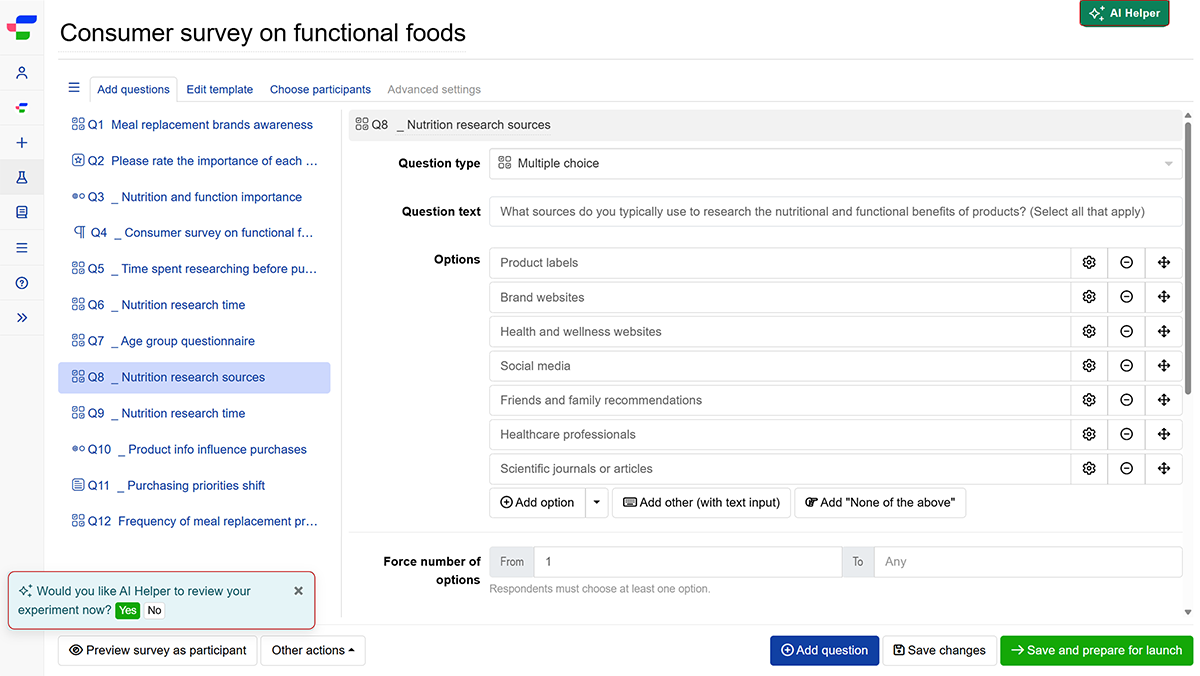
- Click Yes on the prompt in the bottom-left corner (“Would you like AI Helper to review your experiment now?”). The analysis begins immediately.
- Or click the button in the top-right corner, then in the chat panel.
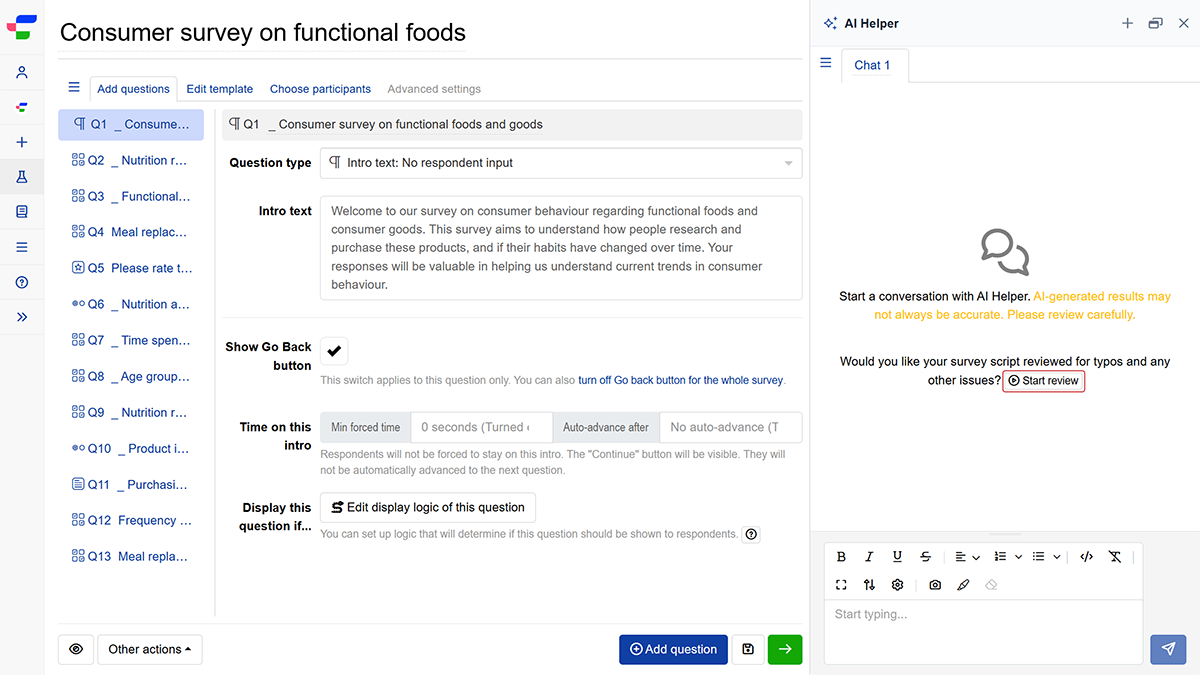
AI Helper automatically submits a prompt asking for typos, inconsistencies, errors and opportunities for improvement, then returns its findings grouped by category.
Evaluate the suggestions. AI Helper is built to search for issues and will always find something. Treat findings as questions worth asking rather than mandatory edits.
Ask follow-up questions in the chat, and run another review once you have made your changes.
Fixing issues with AI Helper
If you would like AI Helper to apply changes automatically, follow these steps:
- Select or tick the findings you wish to resolve.
- Ask AI Helper in the chat window to address the selected issues.
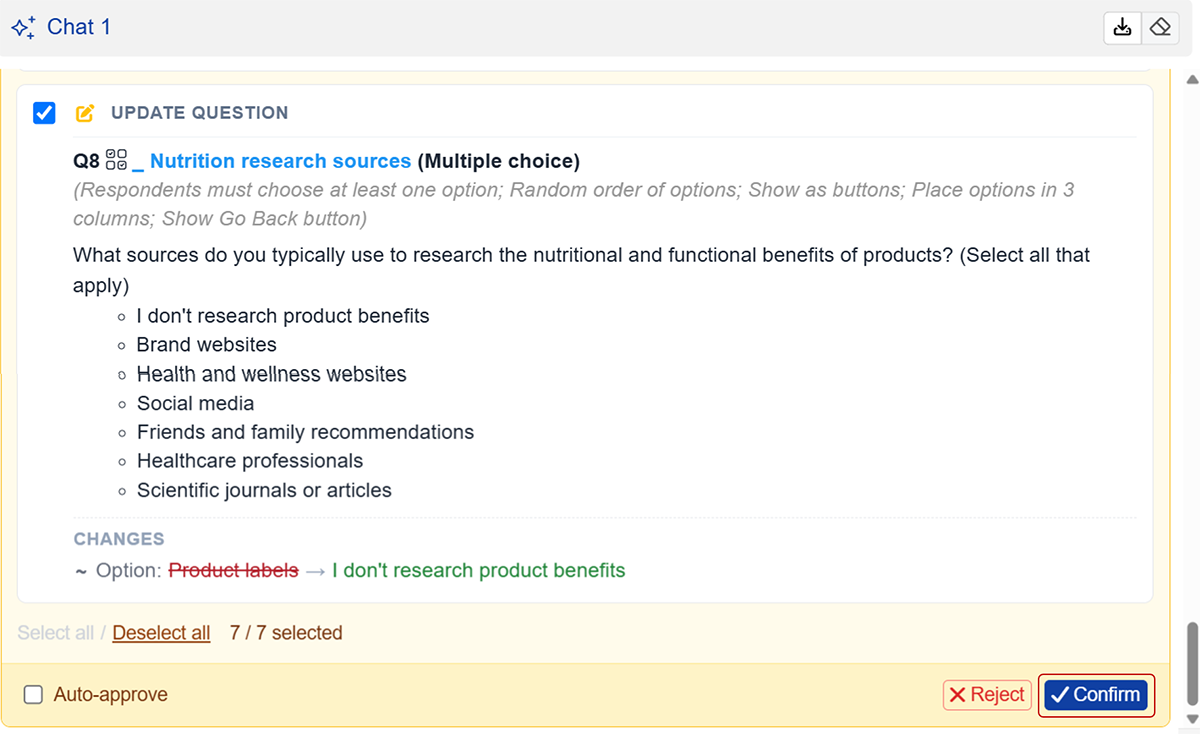
- Carefully review the proposed edits. A suggested fix can be technically correct while remaining unsuitable for your research objectives.
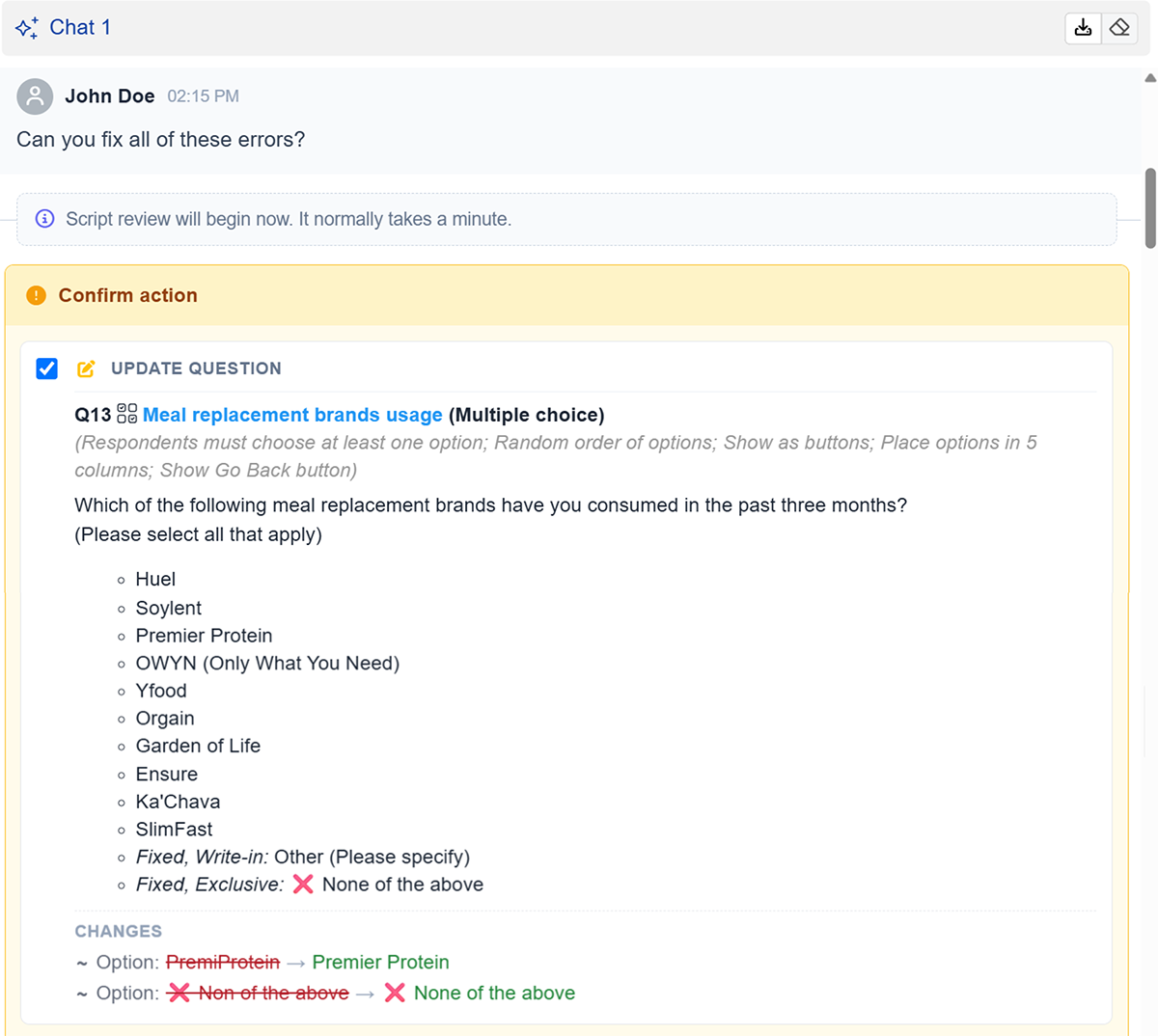
- Click to apply the changes to your survey.
Getting the most out of AI Helper
Share your current screen. The camera icon in the chat toolbar sends AI Helper what you are looking at, and the marker icon lets you draw on it to point at the exact question or setting you mean. Both are quicker than describing the problem in words.
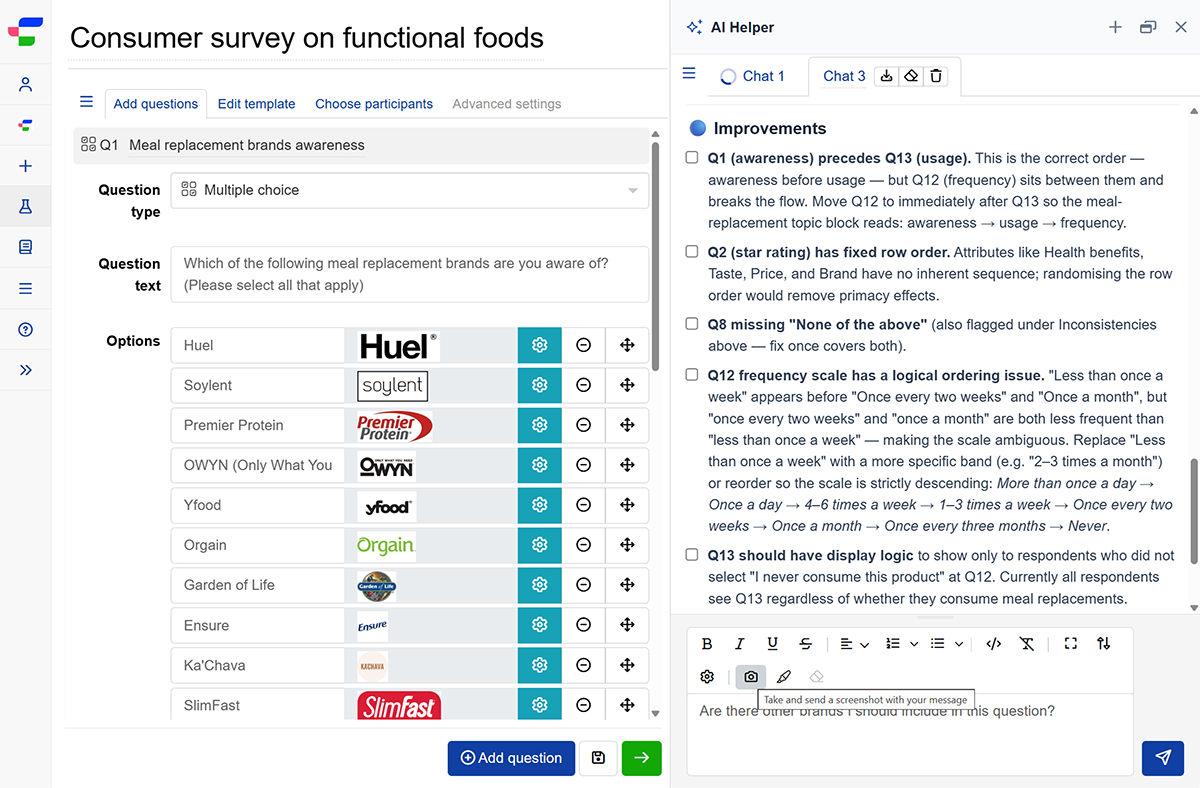
Ask what it can do for you. Type “What can you help me with?” at any time. AI Helper is continuously updated with new capabilities between releases, so supported features and assistance options expand regularly.
What the suggestions are based on
AI Helper’s review applies established questionnaire design principles. The guides below cover the same ground, and knowing them makes its findings easier to judge and easier to overrule when your study calls for something different.
- Survey scripting best practices
- Drafting surveys for optimal data quality
- Guidelines for surveying children
Have questions about optimising your questionnaire design? Schedule a consultation with a research expert.