Ensuring quality responses with multi-layered protection
Conjointly uses the Swiss Cheese model for response quality management, with multiple defensive layers working together to prevent unreliable data from reaching your final results. Whether you source respondents through Conjointly or bring your own, you can apply the same multi-layered quality controls, ensuring your data meets the same rigorous standard regardless of where your sample comes from.
The Swiss Cheese model of quality management
The Swiss Cheese model, developed by Professor James Reason, likens organisational systems to multiple slices of Swiss cheese stacked together. Each slice represents a protective barrier, and the holes represent potential weak points in the layer. Because the holes in different slices don't align perfectly, even if one barrier fails, the other layers prevent problems from getting through.
Rather than relying on one single control for every issue, Conjointly adopts the Swiss Cheese model to safeguard your response quality. Each layer catches different issues that others might miss, and you can combine multiple layers to create a robust defence system that minimises the chances that poor responses slip through.
Below is an illustrative example of layered protection with various response quality management options:
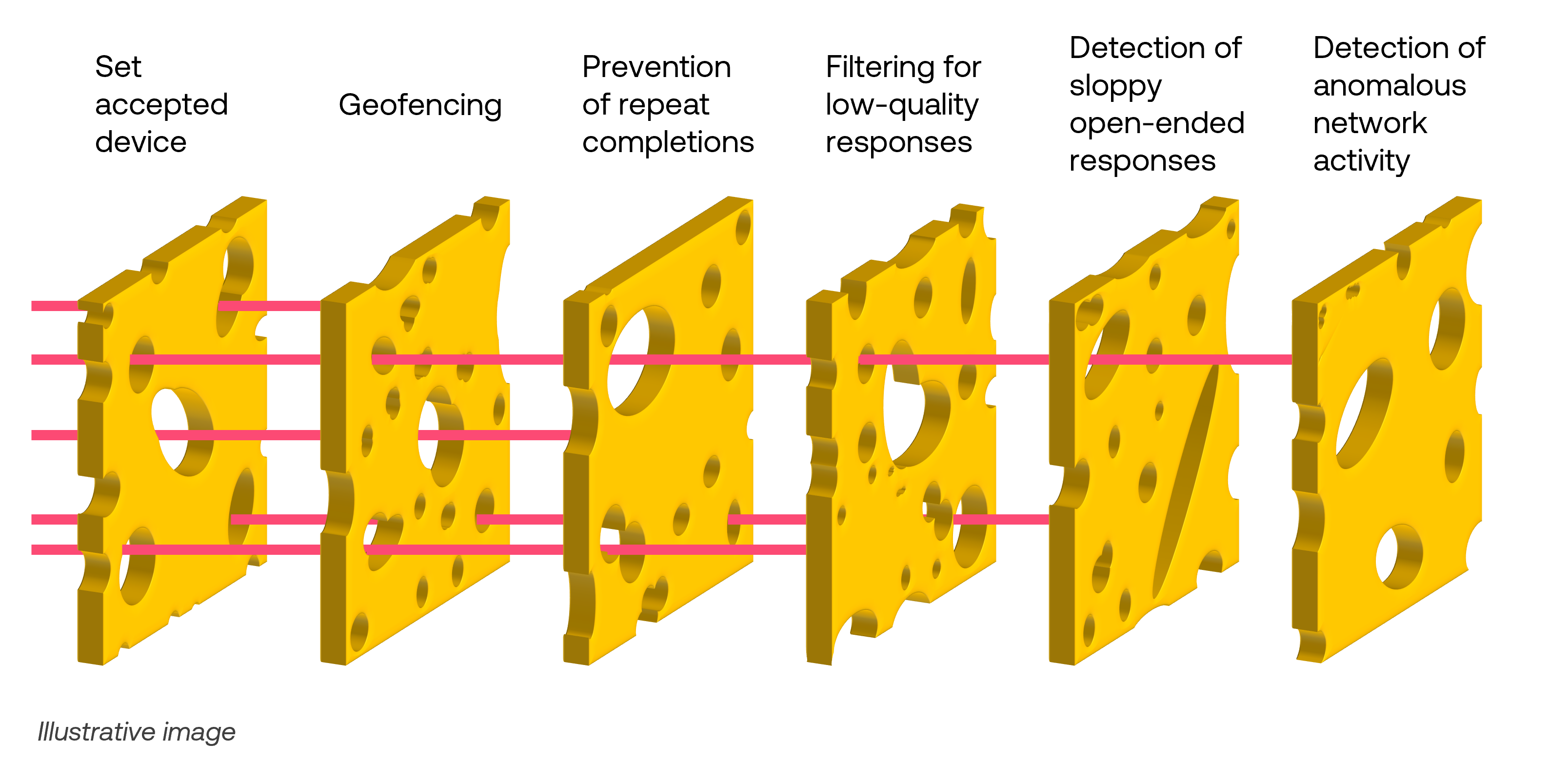
Response quality management options
When you recruit respondents through Conjointly, all response management options are enabled by default at no additional cost.
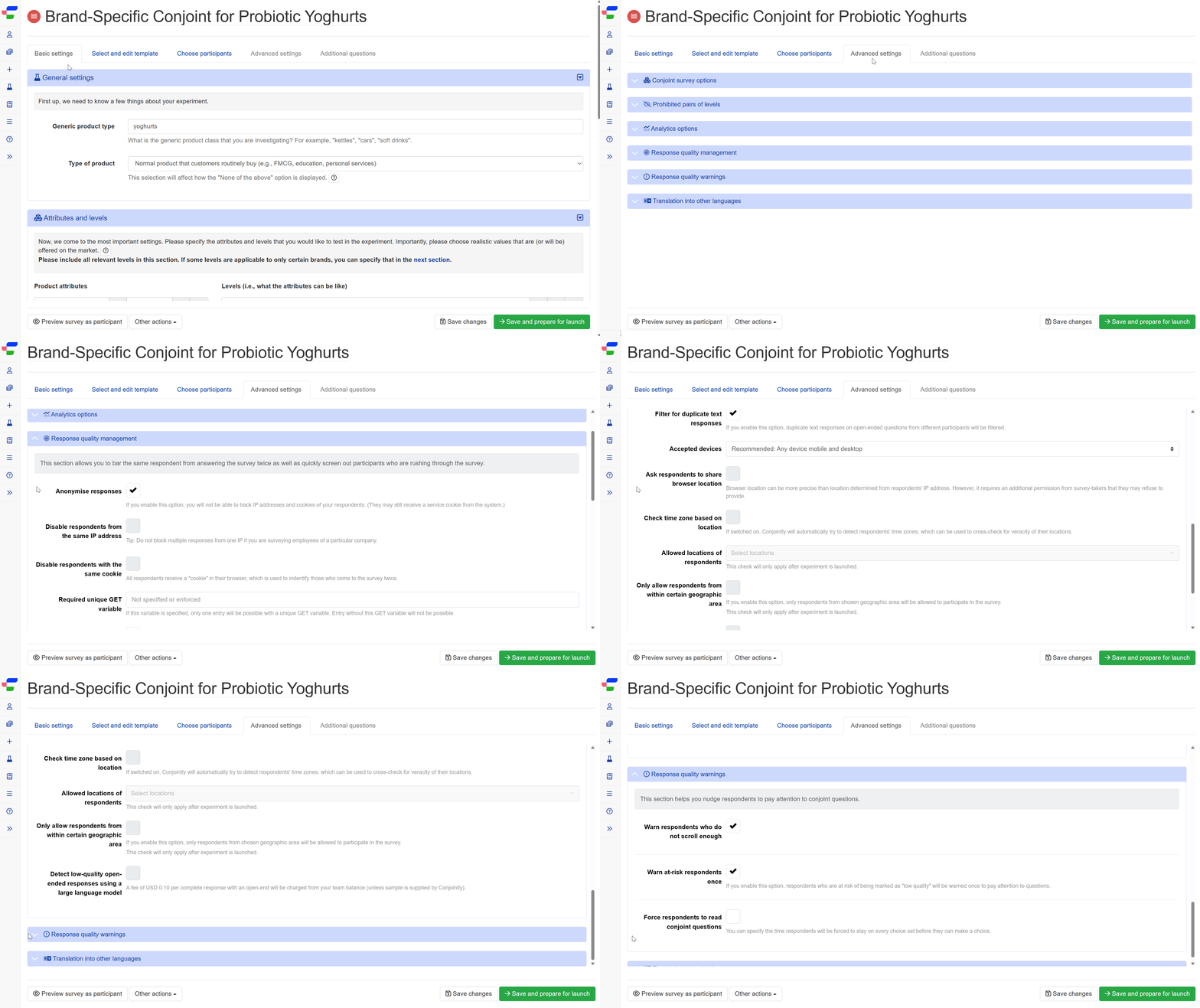
When you invite your own respondents, the full response management options remain available within the Response quality management and Response quality warnings tabs under Advanced Settings . Most checks are free to configure, and two of Conjointly’s most powerful detections can be unlocked for a small fee.
| Feature | Conjointly Sample | Your Own Sample |
|---|---|---|
| Blocking bots and challenging suspicious entries with Captcha | Included | Included |
| Prevention of repeat completions | Included | Available for free |
| Filtering for low-quality responses | Included | Available for free |
| Engagement checks in conjoint questions | Included | Included |
| Set accepted device | Included | Available for free |
| Geofencing | Included | Available for free |
| Detection of anomalous network activity | Included | Available for USD 0.05 per survey entry |
| Detection of sloppy open-ended responses | Included | Available for USD 0.10 per complete response |
| Warnings to respondents | Included | Available for free |
Blocking bots and challenging suspicious entries with Captcha
This setting is switched on by default. Conjointly uses a firewall technology that will block definite bots and, if it suspects that an entry is automated, it will show a Captcha or perform an invisible Captcha in the background.
If you need to switch this setting off, you will first need to have a branded domain name for your surveys.
Prevention of repeat completions
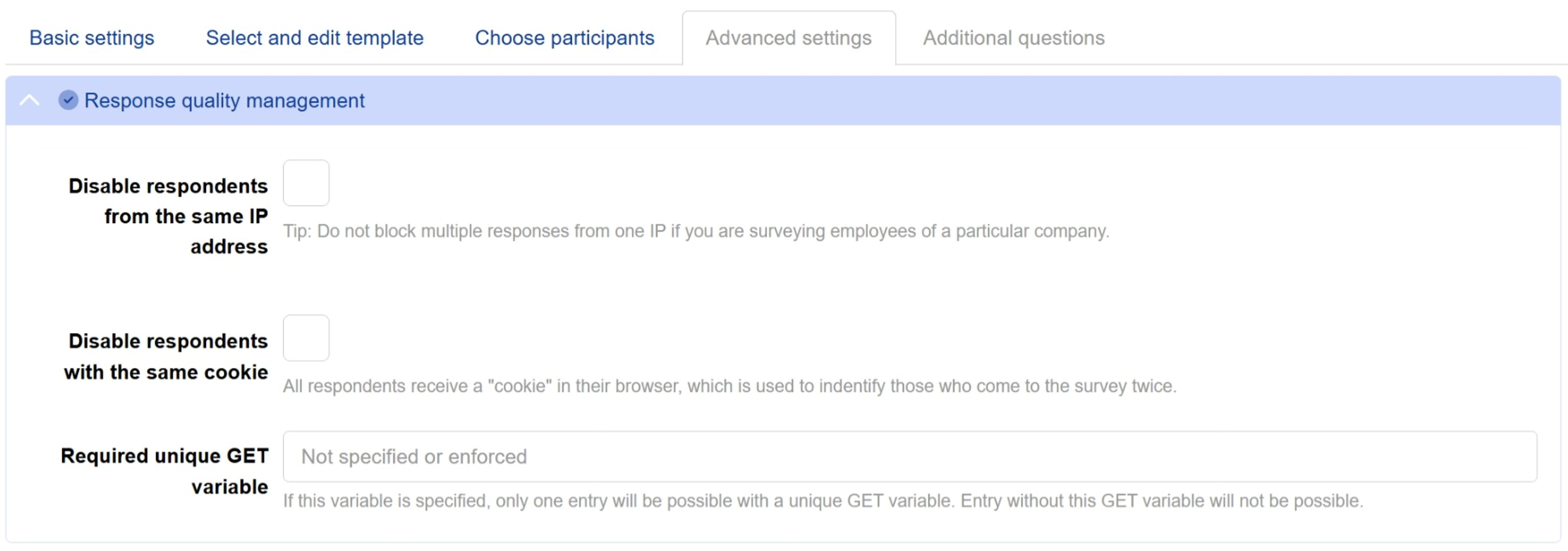
- Block respondents from the same IP address
Prevent duplicated or fraudulent responses from the same IP address. Note that this setting should not be used when surveying employees of the same company. - Block respondents with the same cookie
Prevent duplicated or fraudulent responses by assigning unique “cookies” to each respondent. - Require a unique GET variable
Specify a unique GET variable to allow only one unique entry. The survey cannot be accessed without this GET variable. Neither the variable name, not the value can be any unique identifier (e.g. email, respondent ID, or random code) is case-sensitive. This setting is particularly useful for preventing survey link sharing and ensuring that only invited respondents can access the survey.
Filtering for low-quality responses
- Terminate low-quality respondents early
Prevent respondents marked as low-quality by the system from continuing with the survey. - Extra hard exclusion rules
Enable this option to filter out suspicious responses from online panels. The set of extra hard rules is continuously updated and purposely kept undisclosed to maintain their effectiveness against evolving fraudulent behaviours. Note that this option is not compatible with anonymise responses and cannot be used simultaneously.
Engagement checks in conjoint questions
These settings automatically appear in conjoint experiments. All engagement checks are enabled by default.

Please note that when engagement checks are enabled along with Terminate low-quality respondents early, respondents who violate these checks will be terminated early and marked as incomplete. When the terminate setting is disabled while these checks are active, respondents can continue but will be flagged as low-quality responses.
Here are some of the common engagement checks, how they appear in the status column of your Review Participant dashboard, and their corresponding signals in the Quality checker dashboard:
| Engagement check | Description | Quality checker signal |
|---|---|---|
| Insufficient scrolling in conjoint | Identifies respondents who don’t scroll to view all available conjoint options before making their selections | INSUFFICIENT_SCROLLING_IN_CONJOINT |
| Insufficient mouse movement in conjoint | Identifies respondents who show minimal mouse movement during conjoint tasks. Desktop users only | INSUFFICIENT_MOUSE_MOVEMENT_IN_CONJOINT |
| Short average duration in conjoint | Identifies respondents whose average time per conjoint question is too short to reasonably read and consider the options | SHORT_AVERAGE_DURATION_IN_CONJOINT |
| Short duration in some conjoint questions | Identifies respondents who complete several individual conjoint questions too quickly | SHORT_DURATION_IN_SOME_CONJOINT_QUESTIONS |
Set accepted device
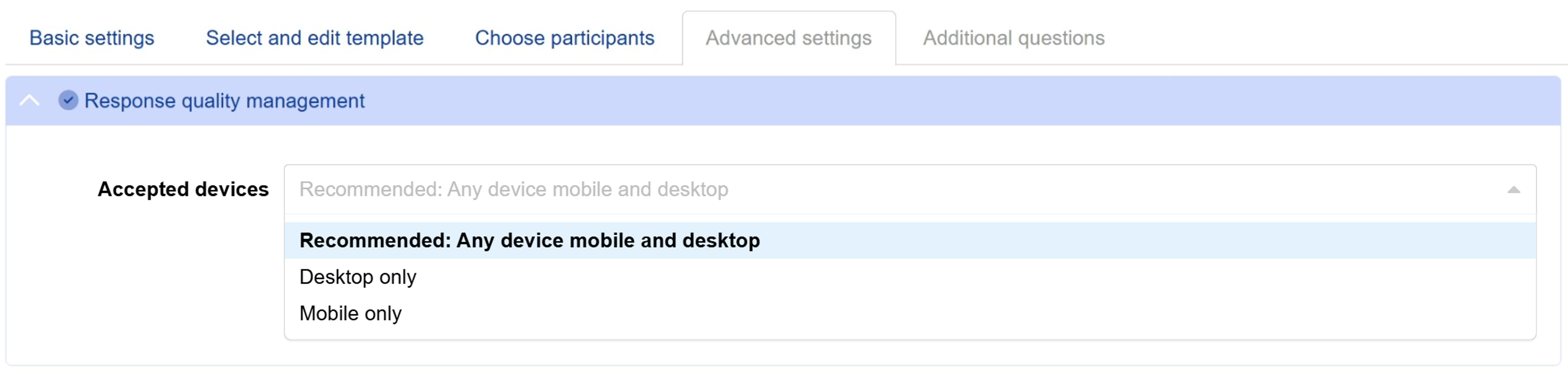
Specify the device type respondents can use to answer the survey by choosing an option from the dropdown menu next to Accepted device. By default, any mobile device and desktop are accepted.
Geofencing
Specify the geographic locations where respondents are allowed to participate in your survey.
- Ask respondents to share browser location
Browser location is usually more precise than location determined from respondents’ IP addresses. However, it requires an additional permission from respondents, which they may refuse to provide. This setting is automatically selected when you select the Only allow respondents from within a certain geographic rectangle option. - Check time zone based on location
Automatically detect respondents’ time zones to crosscheck the veracity of their locations. - Allowed countries
This option allows you to limit your survey to respondents from specific countries based on their location determined from IP addresses. You can use the field as a search bar to find and select your desired countries. This setting is automatically activated for paid sample sources. Please note that the check will only apply after the experiment is launched.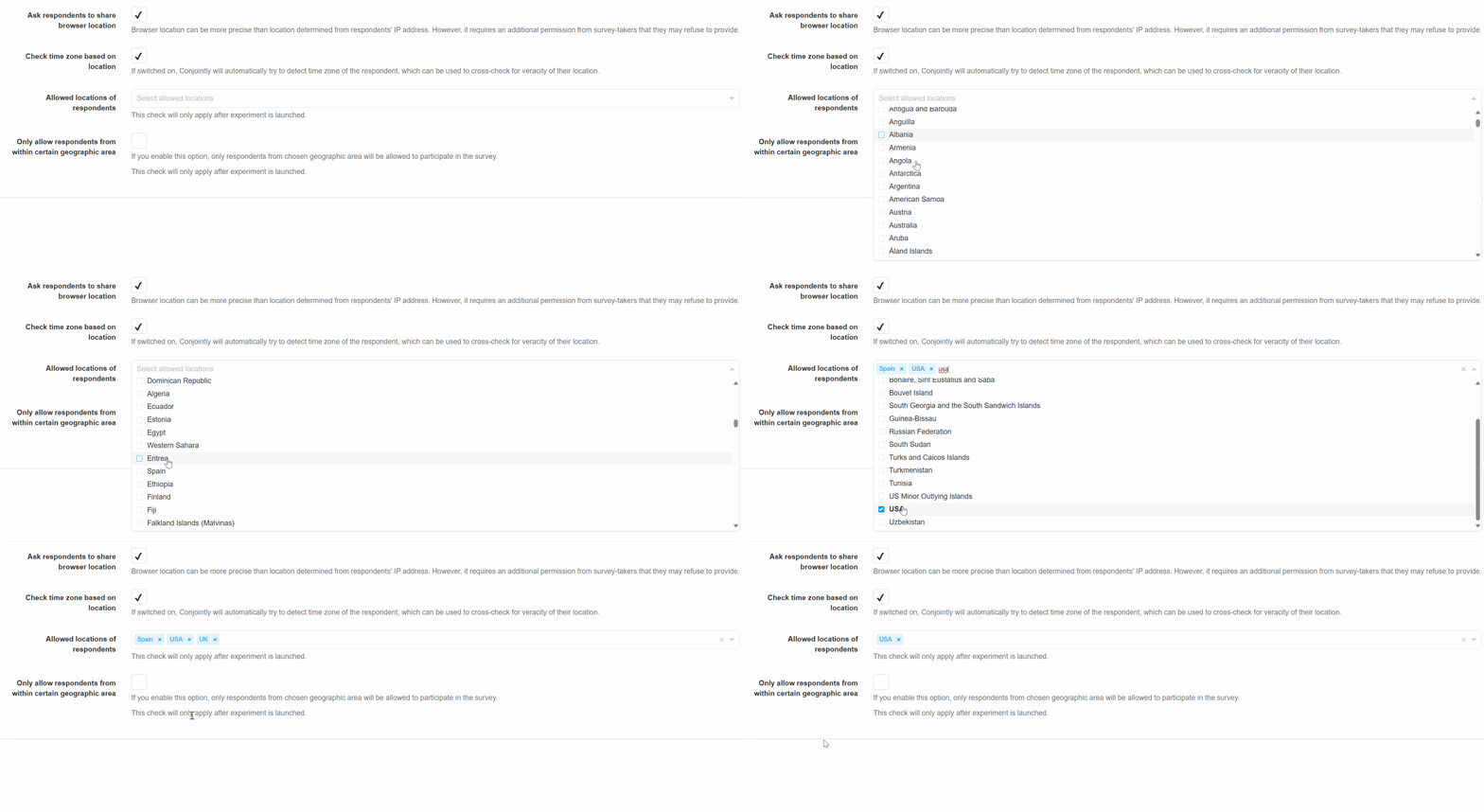
- Only allow respondents from within a certain geographic rectangle
This option provides an alternative approach to geofencing your survey based on respondents’ device location. It allows you to define a rectangular area on the map where only respondents within this region can participate in the survey. This check will only apply after the experiment is launched.
Detection of sloppy open-ended responses
Easily identify and exclude low-quality open-ended responses such as careless, copy-pasted, or gibberish answers using a large language model (LLM).
Pricing:
- This option is available for free when you source respondents through Conjointly’s Predefined panels and Self-serve sample.
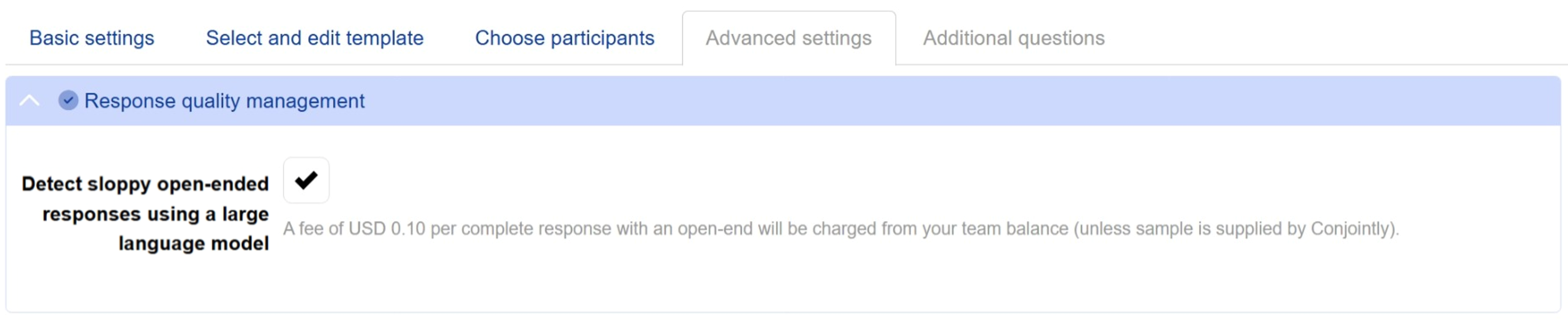
- When you bring your own respondents or send an email campaign, you have the option to enable this quality check. A fee of USD 0.10 per complete response with an open-end will be charged from your team balance. In order to activate this option, a minimum team balance of USD 100 or its equivalent is required.
Once enabled:
- The system automatically analyses and categorises open-ended responses, saving you time and effort in manually reviewing responses.
- Classifications are available in the Quality Checker by individual participant, or grouped by check result in the Sloppy Open-end Classification tab.
- Additionally, the Open-end pattern analysis tab shows patterns across respondents, helping you manually review similar or repeated responses.
Detection of anomalous network activity
This option allows you to track respondents’ network activities in the background. Respondents with suspicious network activities such as the usage of VPNs, browser spoofing, and other network tricks are automatically marked and excluded from analysis, with “Anomalous network activity detected” displayed in the status column of your Review Participant dashboard and data exports.
Pricing:
- This quality check is complimentary and automatically enabled when you source respondents through Conjointly.
- When you bring your own respondents or send an email campaign, you have the option to enable this quality check. A fee of USD 0.05 will be charged from your balance for each survey entry attempt (not per completion). In order to activate this option, a minimum team balance of USD 100 or its equivalent is required.

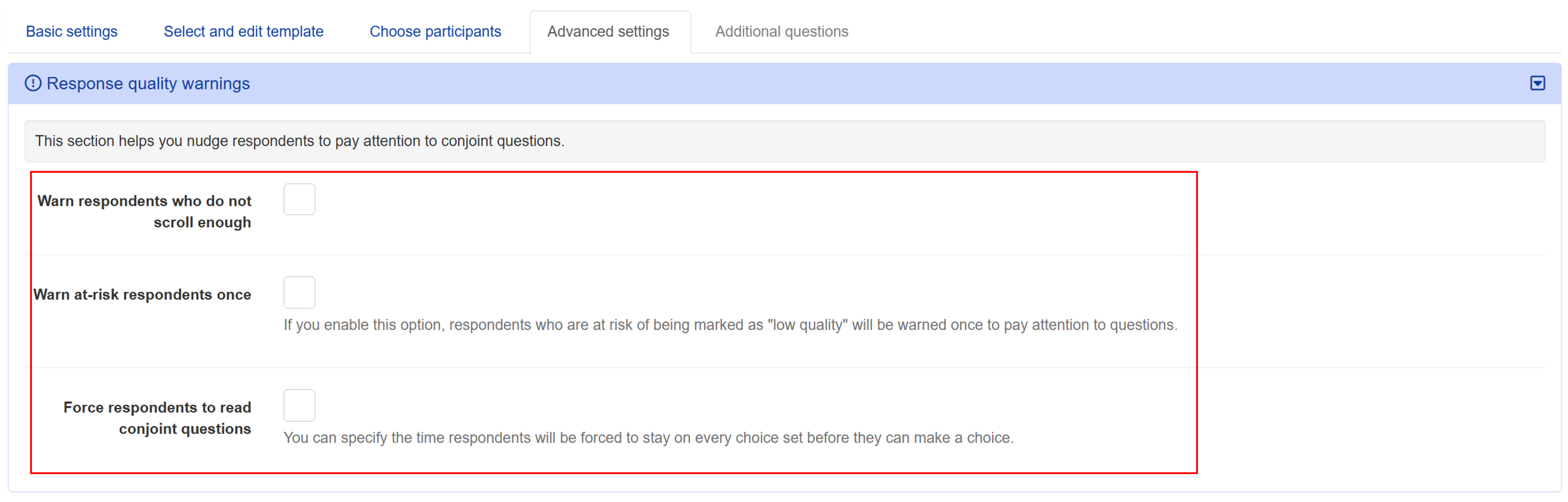
Warnings to respondents
- Warn respondents who do not scroll enough
Prompt respondents to attentively consider the questions and choices. - Warn at-risk respondents once
Warn low-quality respondents once before termination. - Force respondents to read conjoint questions
Force respondents to stay on each choice set for a specified duration before they can make a choice.
Redirect for low-quality responses
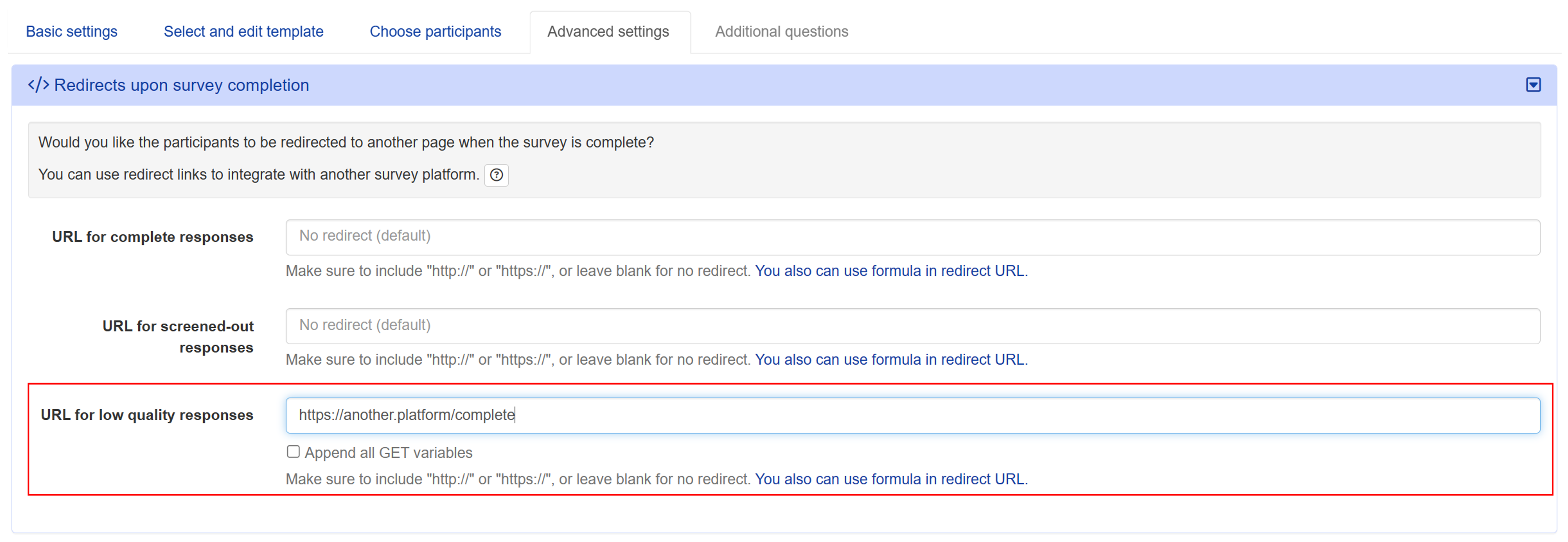
You can also specify a separate redirect for respondents who have given low-quality responses:
- Open the Redirects upon survey completion module under the Advanced settings tab.
- Insert the redirect URL in the URL for low quality responses field.
- Click the button at the bottom of your screen.