Setting up redirects and integrating with third-party research platforms
Conjointly lets you redirect respondents to a custom URL after they complete, are screened out of, or submit a low quality response to your survey. You can use this on its own or as the basis for integrating with panel providers and other survey platforms.
Redirecting respondents upon survey completion
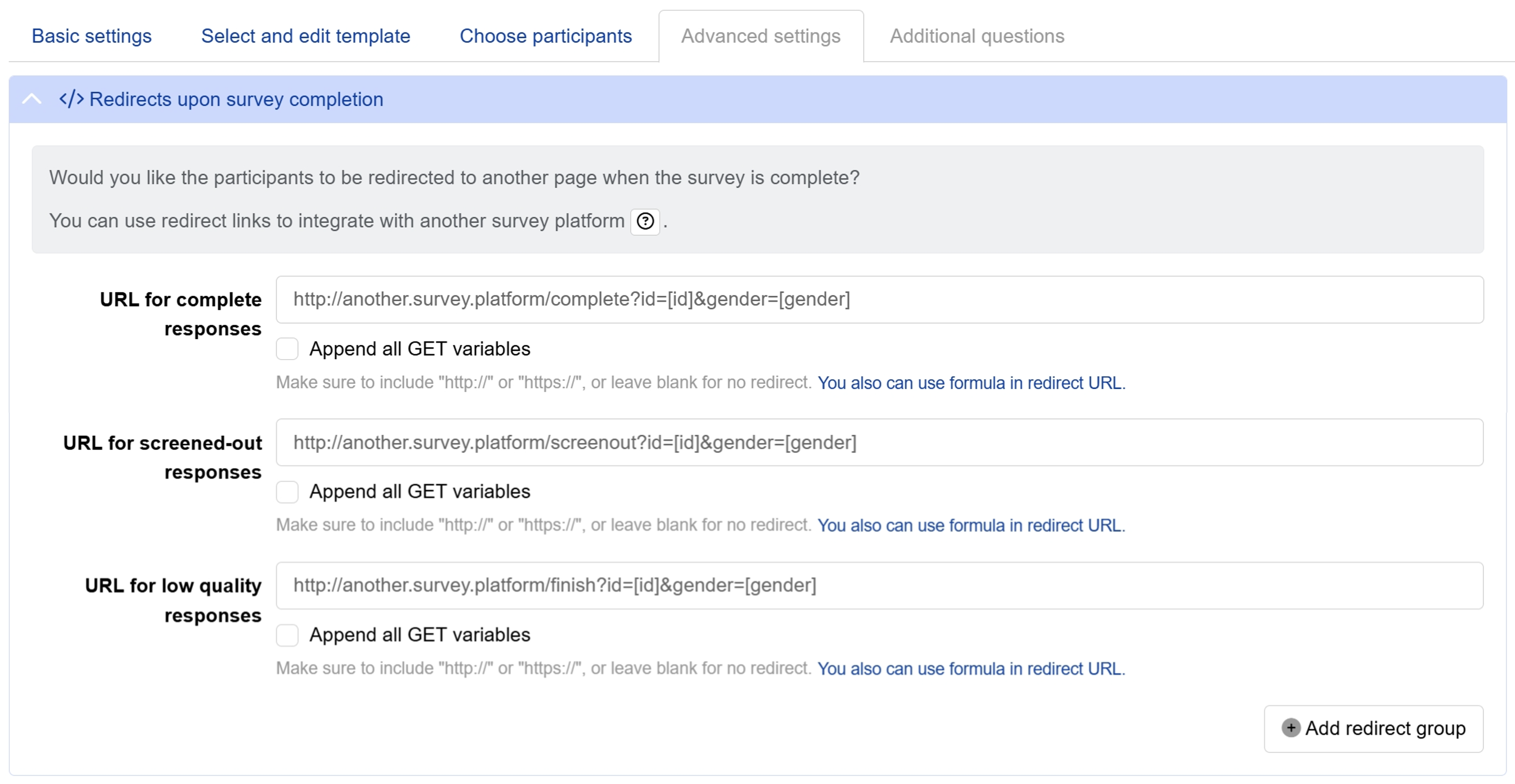
Redirect settings are found under Redirects upon survey completion in your study within the Advanced settings tab of your experiment.
To configure where respondents are sent after completing your survey:
- Enter a URL in the URL for complete responses field for respondents who finish the survey.
- Enter a URL in the URL for screened-out responses field for respondents who do not qualify.
- Enter a URL in the URL for low quality responses field if you want to separately handle flagged responses.
- You can automatically append all GET variables passed into Conjointly rather than listing each one manually.
You can also use formulas in any redirect URL for more advanced logic. Leave any field blank to apply no redirect for that response type.
Setting up multiple redirect groups
If you need different respondents sent to different URLs based on conditions, you can add multiple redirect groups.
- Click the button to add a conditional redirect group.
- Specify the condition for that group. Conditions can be based on:
- How respondents answered survey questions.
- Conjoint top-level choices.
- Any GET variables passed into the survey.
- Respondent information recorded by Conjointly, including participant source.
- A JavaScript function (for advanced users).
- A group of conditions.
- Enter the redirect URL for that group, following the same format as above.
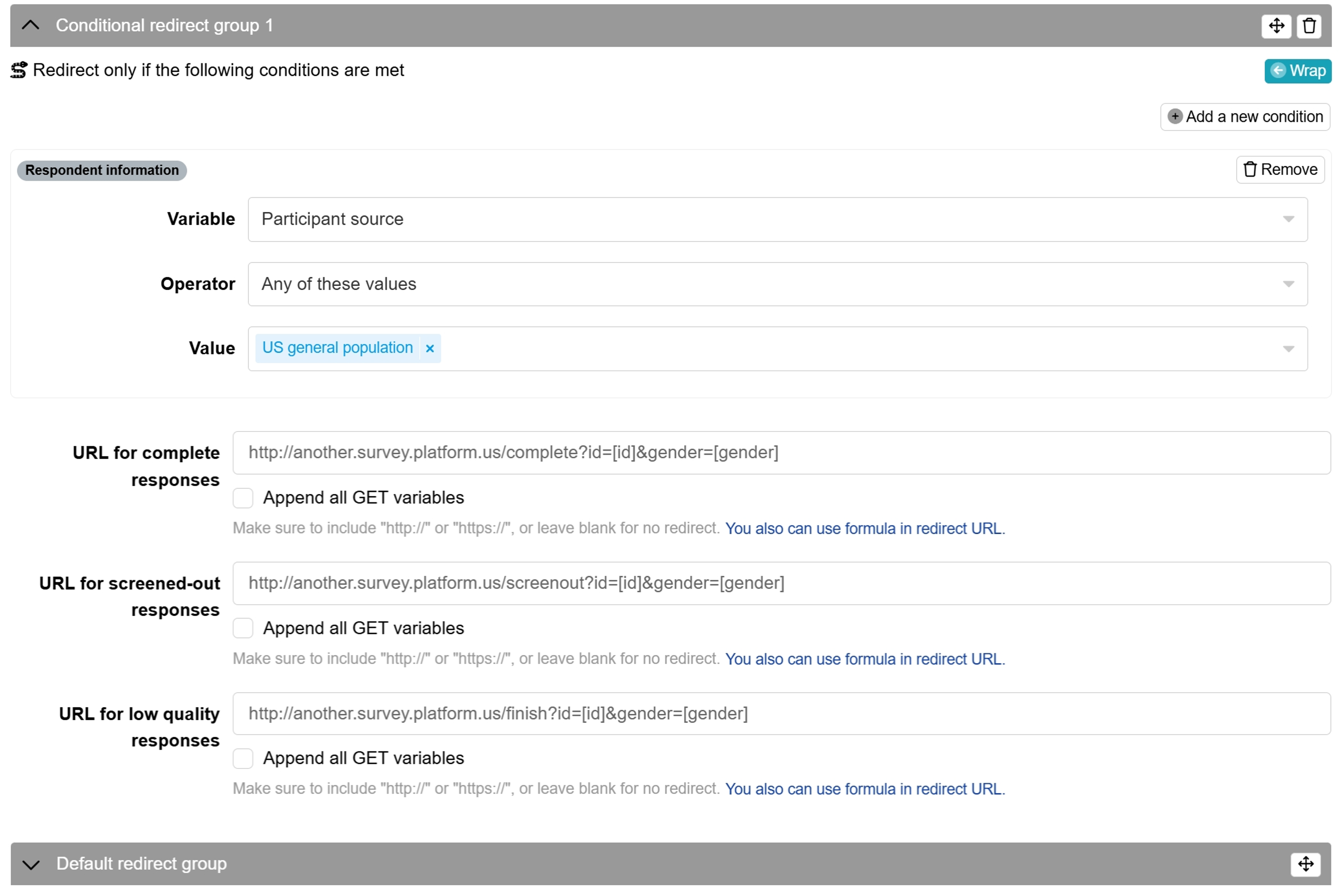
Redirect groups are processed in order from top to bottom. The first matching condition is used. The final (default) group acts as a catch-all and does not require a condition, it will be used if no earlier group matches.
Redirecting respondents when a quota is full
You can also set up redirects based on your desired quota, either through survey flow controls or question-level quotas. In each case, specify your redirect URL in the provided field. GET variables and formulas are supported.
Integrating with third-party research platforms
Redirects are the mechanism that makes integration with panel providers and other survey platforms possible. The general flow is:
- Respondents start on the external platform (e.g. a panel provider or survey tool).
- At a defined point, they are redirected to Conjointly with relevant variables passed in the URL.
- They complete the Conjointly experiment.
- Conjointly redirects them back to the external platform, passing the variables back.
To make this work, you need to ensure respondent IDs and any other required variables travel to Conjointly and back. Here is how to set this up:
- Make sure you have a shareable link enabled on Conjointly. For example:
https://conjointly.online/study/970/7txubkovie. - Identify the variables your external platform needs to pass to Conjointly and receive back. For example:
idandstatus. - In your external platform, configure the redirect to Conjointly with those variables appended. Refer to your platform's documentation for the correct syntax for passing variables (also known as GET variables). For example:
https://conjointly.online/study/970/7txubkovie?id=[id]&status=[status]. - In Conjointly, set up your redirect URLs to send respondents back, with those same variables included in square brackets. For example:
https://your-panel-provider.com/complete?id=[id]&status=[status]. - Launch your study. Conjointly will handle passing the variables back to your platform automatically.
Please note that if a variable is included in your redirect URL but was not passed into Conjointly, it will appear as undefined in the redirect. For example, if id is 12345 but gender was not passed, the respondent will be sent to: https://your-panel-provider.com/complete?id=12345&gender=undefined.
Kindly refer to your external platform’s documentation to verify the correct syntax and run multiple tests before launch to ensure everything works as intended.
Panel providers
Most panel providers support URL-based redirects and can pass respondent data, such as respondent ID to Conjointly via GET variables.
If you need to pass the data back to the destination, include those variables in the URL using square brackets. For example: https://your-panel-provider.com/complete?id=[id].
The exact variable names and URL format vary by provider, kindly refer to your panel provider’s documentation for their required redirect structure. The general setup follows the steps described above.
Fuel Cycle
Conjointly supports full integration with FC Exchange, allowing you to launch surveys with your community members. Fuel Cycle has a detailed guide on how to fully integrate your surveys with the community.
For more information, you can check out this video about integrating Fuel Cycle with Conjointly.
SurveyMonkey
Please refer to SurveyMonkey docs on redirecting values from Conjointly to SurveyMonkey.
Redirecting from SurveyMonkey to Conjointly is possible, but passing custom variables and using advanced branching to trigger the redirect are paid features. Check your SurveyMonkey plan before setting this up, and refer to their documentation for details.
Given the plan restrictions, we recommend running your entire survey on Conjointly, where advanced survey logic, redirects, segmentation, and many other advanced features are free.
For more information on how to get started, check out our starter guide, or book a call with one of our experts.
You can cancel your SurveyMonkey subscription.
Qualtrics
Qualtrics has a compatible method for redirecting to and from studies. Please refer to Qualtrics docs for details. Particularly, if you want to save Qualtrics ID to Conjointly and pass it back to Qualtrics, you will need to:
- In Qualtrics (to redirect to Conjointly), specify
https://conjointly.online/study/970/7txubkovie?IDpassedFromQualtrics=${e://Field/ParticipantID}. - In Conjointly (to redirect back to Qualtrics), specify
http://survey.qualtrics.com/jfe/form/SID=SV_1234?incomingQualtricsID=[IDpassedFromQualtrics].
To cancel your Qualtrics licence, you may need to call them.
Alchemer
Please refer to Alchemer for information on passing values from Alchemer to Conjointly. With Alchemer, there is no way for respondents to return to the same survey. Instead, if you want respondents to come back to Alchemer, you can redirect them to a different survey. Alchemer supports GET variables in a similar fashion to Conjointly.
You can cancel your Alchemer subscription.
Are you looking for other ways to integrate Conjointly? Please get in touch, and we'll be happy to help.