Ranking
Ranking questions ask respondents to rank items according to the question. They are commonly used to compare and rank preferences on different options. Conjointly allows respondents to rank the options by click-and-drag, clicking the up and down buttons, and direct input.
Respondent view

Ranking question outputs
Ranking questions produce several outputs:
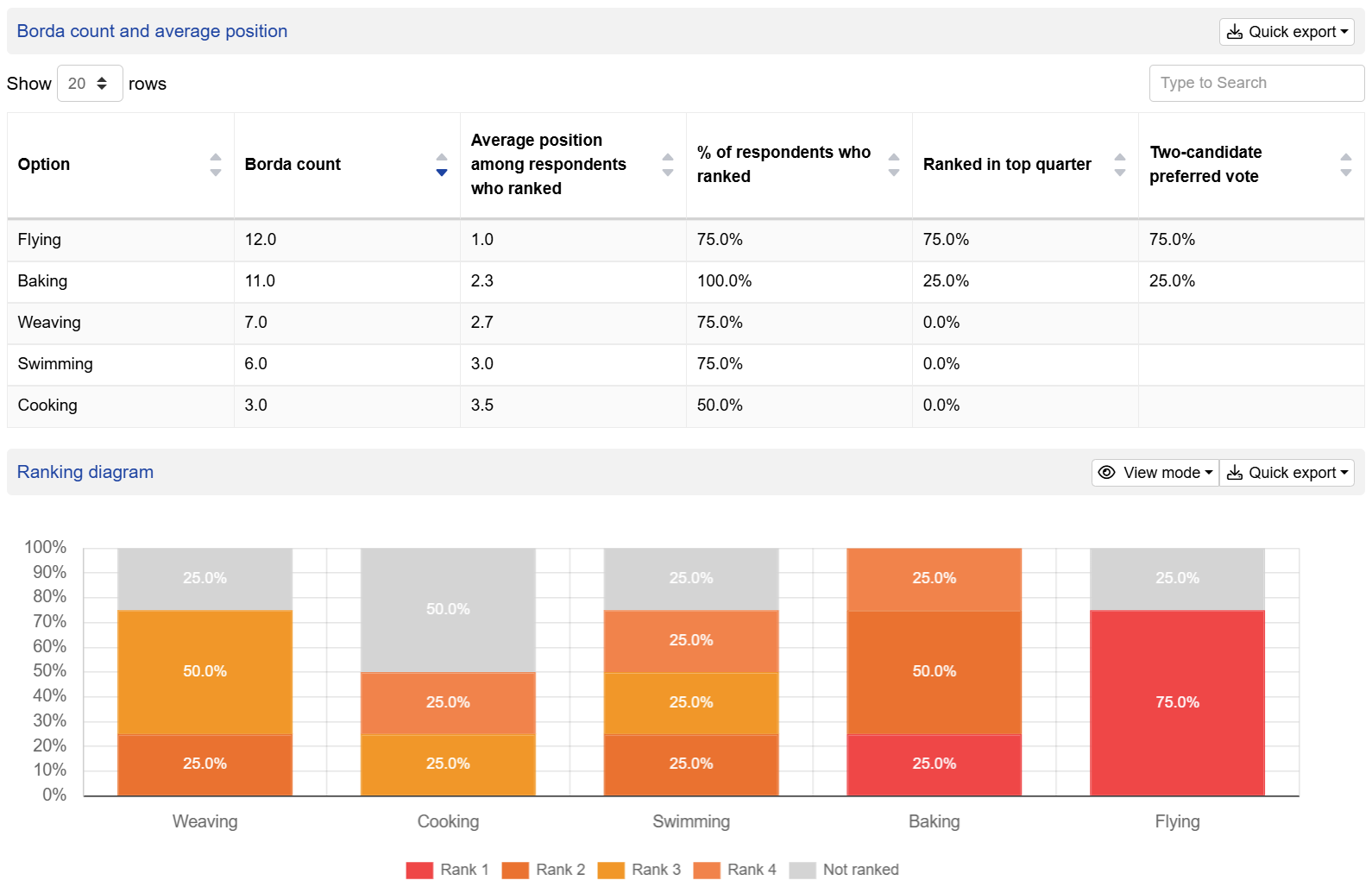
- The “Borda count and average position” table, which contains:
- Borda count: A higher number means a better position. Options that are not ranked are given the weight of 0 (same as the lowest rank). For example, if there are 3 options, the option ranked first gets a score of 2, the second gets a score of 1, the third gets a score of 0, and if an option is not ranked, it also gets a score of 0.
- Average position among respondents who ranked: A lower average means a better position.
- % of respondents who ranked.
- Ranked in top quarter: The percentage of respondents who ranked the option in the top quarter of their ranking.
- Two-candidate preferred vote redistributes the votes of the least popular option to the remaining options until there are only two options left. The option with the higher percentage of votes is the winner. It is useful for deciding a compromise option when there are multiple options that are popular among respondents.
- The ranking diagram is a histogram that shows the percentage of ranks for each option.
- Individual responses show the positions that each respondent ranked each option.
- The number of participants who saw the question.
Setting up a ranking question
Follow these steps to set up a ranking question:
1. Add question
Navigate to the Add questions tab and click on the button at the bottom of the page.
On the Add or import questions pop-out, select the Add a new question tab and click on the question card to add it to the experiment.

2. Edit question options
Once you add the question, you can adjust the following settings:
- Insert the question text in the text box. You can also include formatting and images.
- Edit the text boxes next to the bottom and top to change the hints for extremes. To add formatting or images to each hint, click on the settings for that hint. Then check the “Add fancy formatting and pictures to card” checkbox. You can then add formatting or images to the hint.
- To change the option text, edit the text box next to each option. Similar to the hints, click on the settings for each option and check the “Add fancy formatting and pictures to card” checkbox to include formatting or images to the option.
- Click on to add additional options.
- Specify the order of options shown to respondents as fixed, random, flip (left-to-right and right-to-left), alphabetical, or rotate.

If you have a list of items such as claims, features, flavours, etc. that you would like to rank, we recommend checking out our Claims Test template, which is a more robust methodology for prioritising a list of items.