Quota check
Quota check lets you inspect quota fulfilment status at any point in the survey flow. Unlike other survey flow controls, it is entirely informational and does not redirect, terminate, or otherwise affect the respondent’s path on its own. If you want to act on quota status (such as to screen-out, redirect, etc.), you must set that up separately by referencing it in display logic, specific survey flow controls, or formulas in subsequent questions.
What does Quota check do?
The Quota check provides two outputs:
Quota status (TRUE/FALSE):
- Returns
TRUEif the respondent is over quota (i.e. the quota is already full). - Returns
FALSEif the respondent is under quota (i.e. the quota is not yet full).
- Returns
Quota counter:
- Outputs the respondent’s sequential quota number (essentially a running counter for that quota).
- Accessible via the
sequentialNumberfunction for use in calculated variables or pipe-in formulas. - Please note that the quota counter is cached for 60 seconds, so some respondents may receive the same sequential number if they reach the Quota check within the same caching window.
Using Quota check outputs
In display logic
You can use the Quota check output in display logic to conditionally show or hide questions depending on quota status. For example:
- Show a bonus question only if the respondent is within quota (
FALSE). - Display a different message if the quota is full (
TRUE).
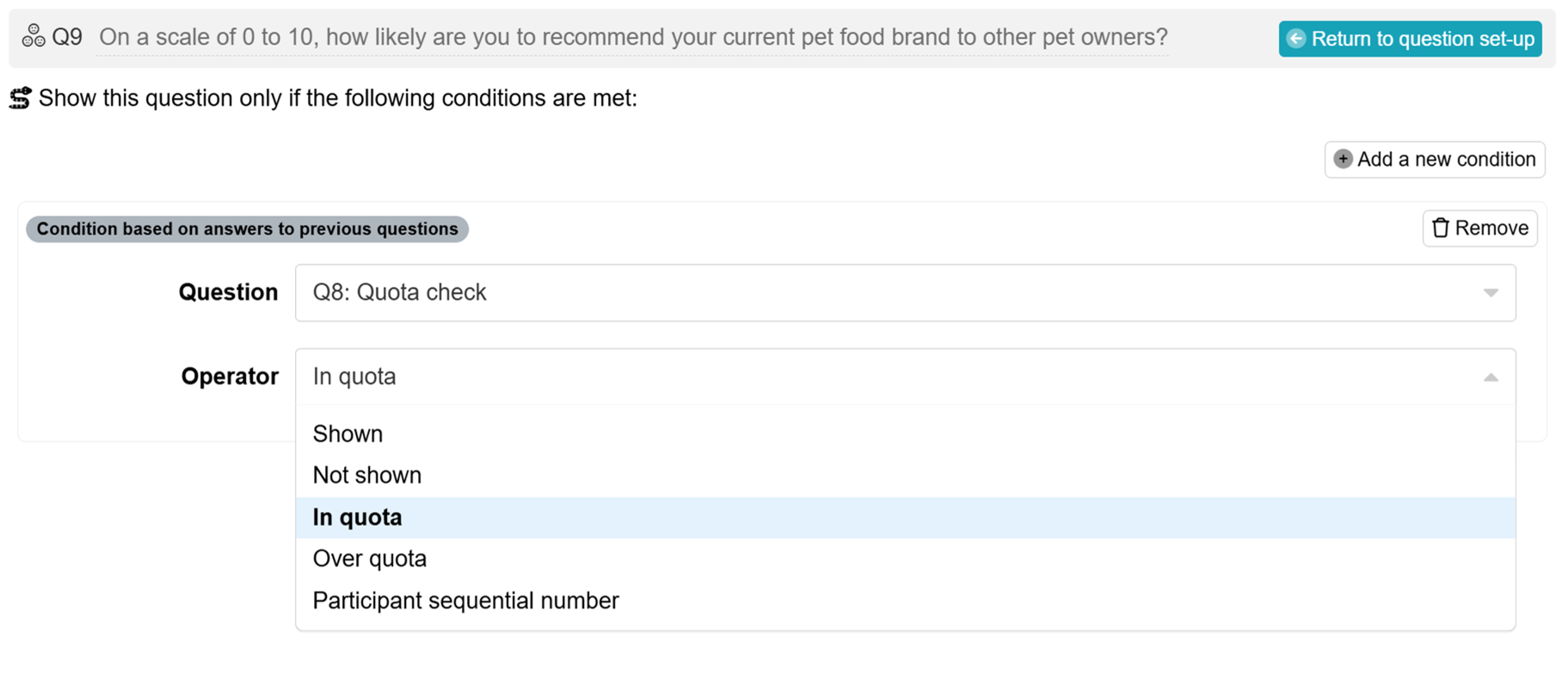
You can also set a display logic using the subsequent Quota check flow control. For example:
- Add a quota check flow control after a monadic block and set up a logic to be triggered, when
Astimulus was shown to a participant. - Add logic for the
Astimulus to be displayed only if the participant’s sequential number is less than some value.
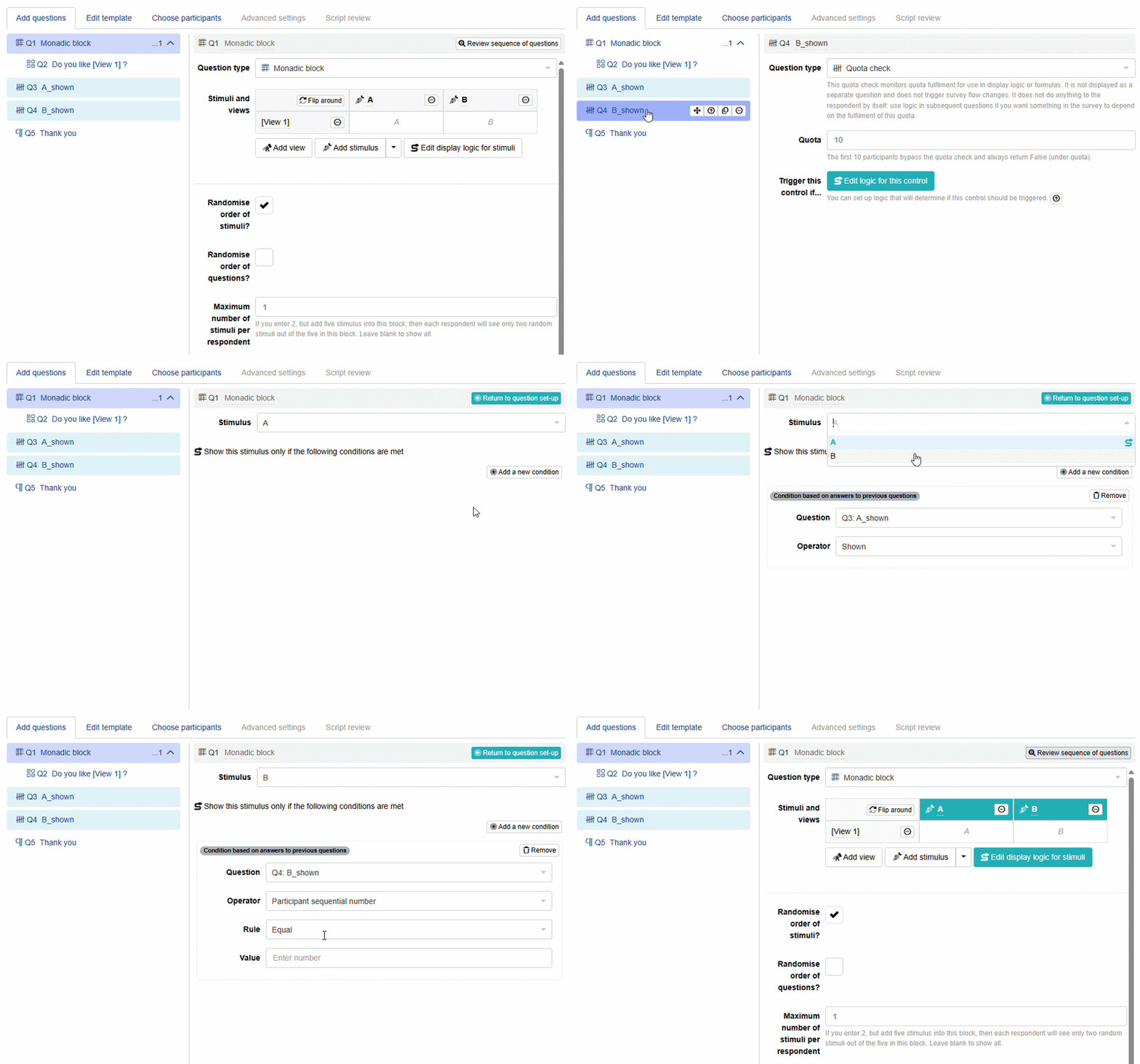
In formulas
The answer function can be used to detect if participant is: in quota (returns FALSE), over quota (returns TRUE) or a Quota check was not triggered for them (returns undefined).
The sequentialNumber function can be used in calculated variables or pipe-in formulas to perform calculations or assign respondents to different groups based on the respondent’s position in the quota sequence.
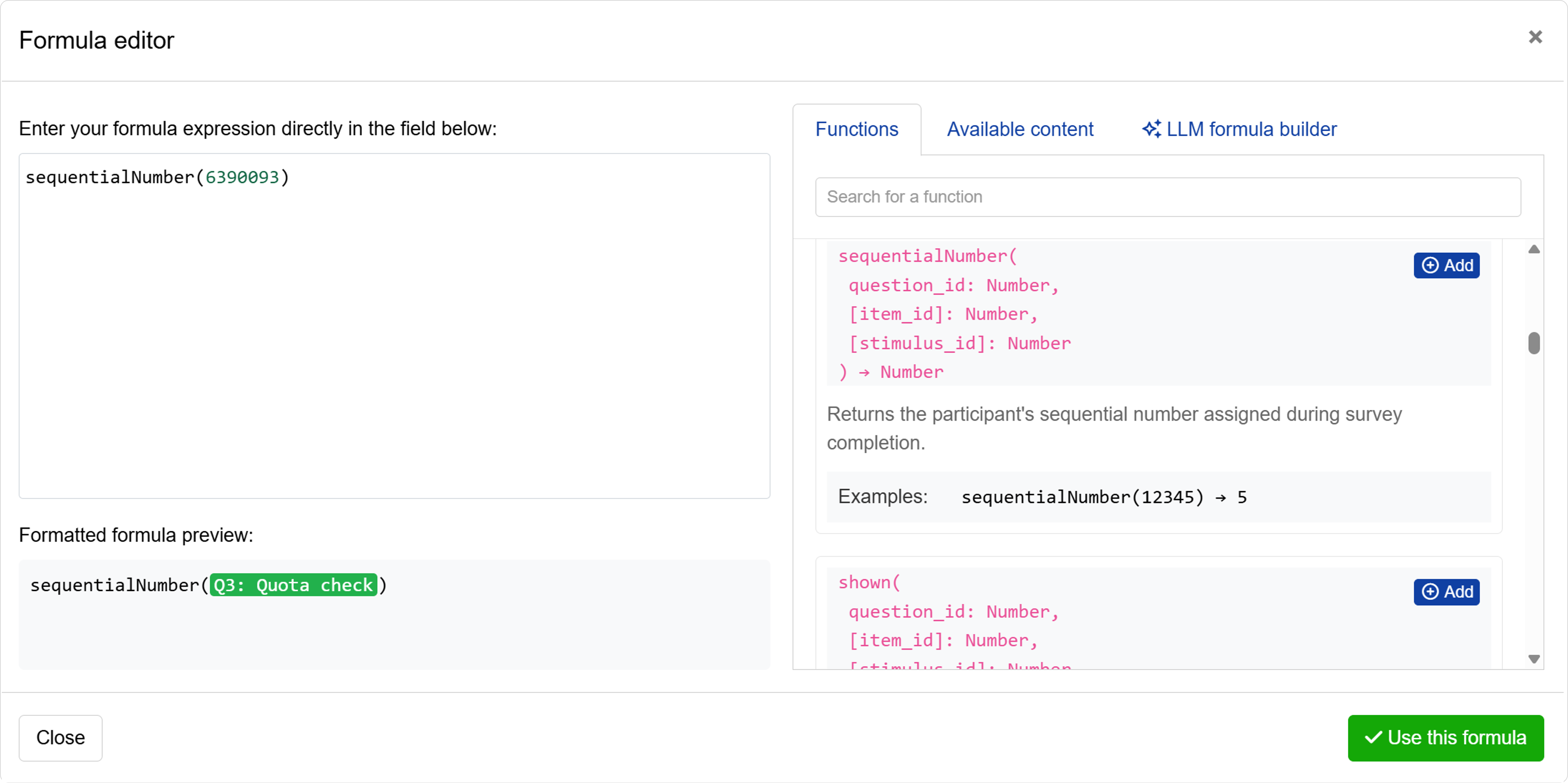
You can use sequentialNumber function with subsequent quota check to find out how many participants were already triggered, and change the survey logic. Note that you should subtract 1 to get a number of participants who already finished a survey, because this function returns a sequential number of current participant.
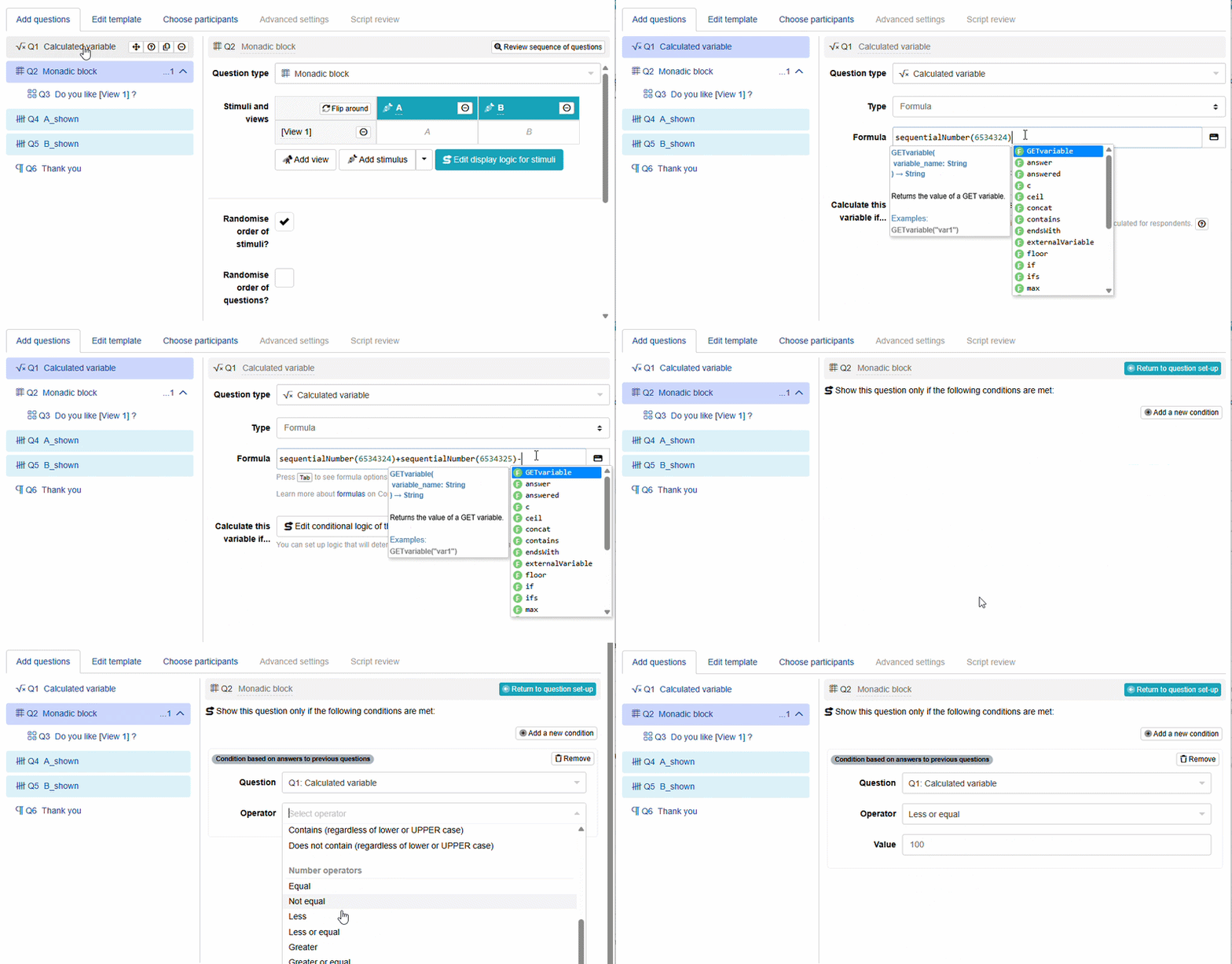
Adding a Quota check
To add a Quota check to your experiment:
- Navigate to the Add questions tab.
- Click on the button at the bottom of the page.
- In the Add or import questions pop-out, select the Add a flow control or a block tab.
- Click on the card.
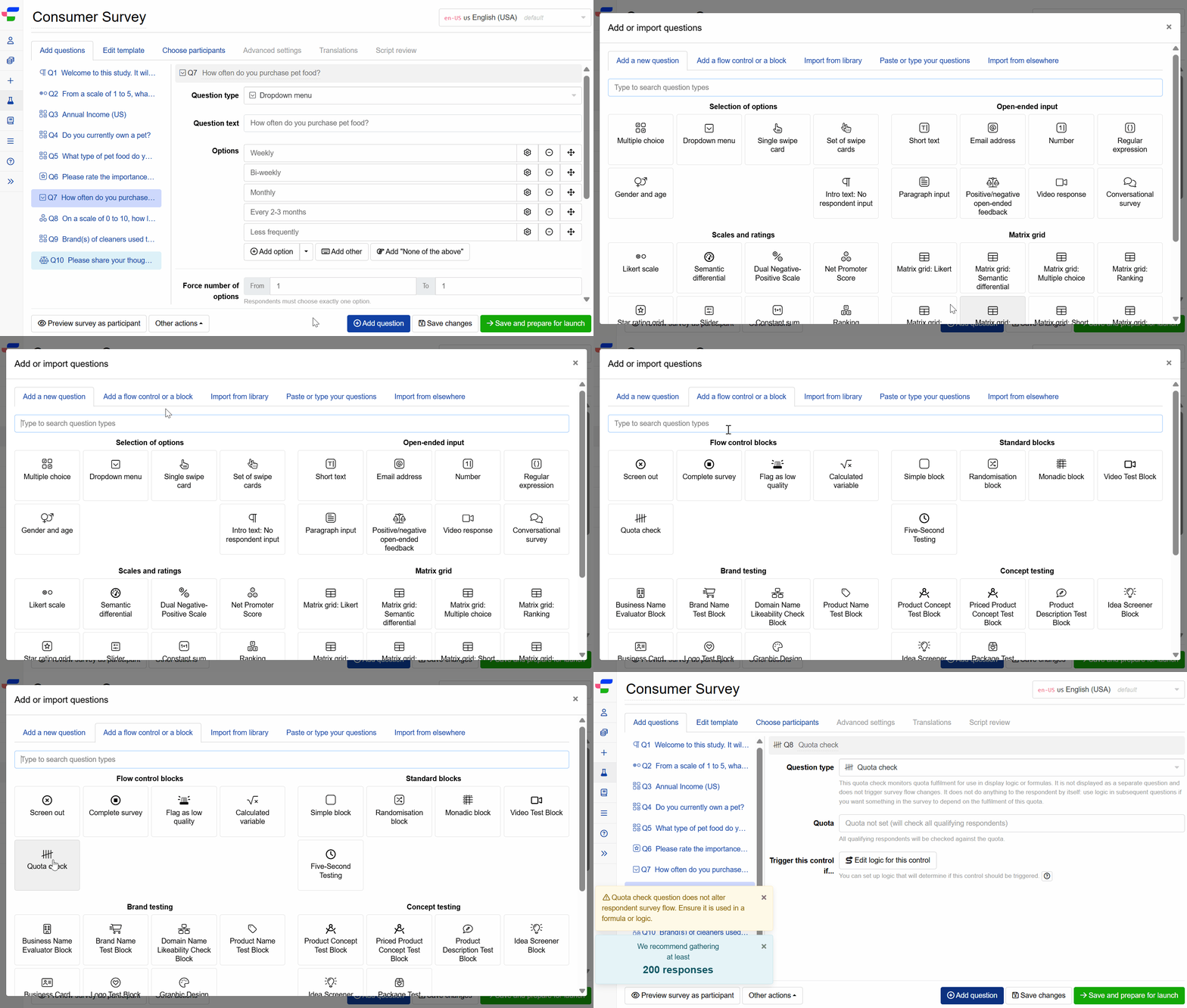
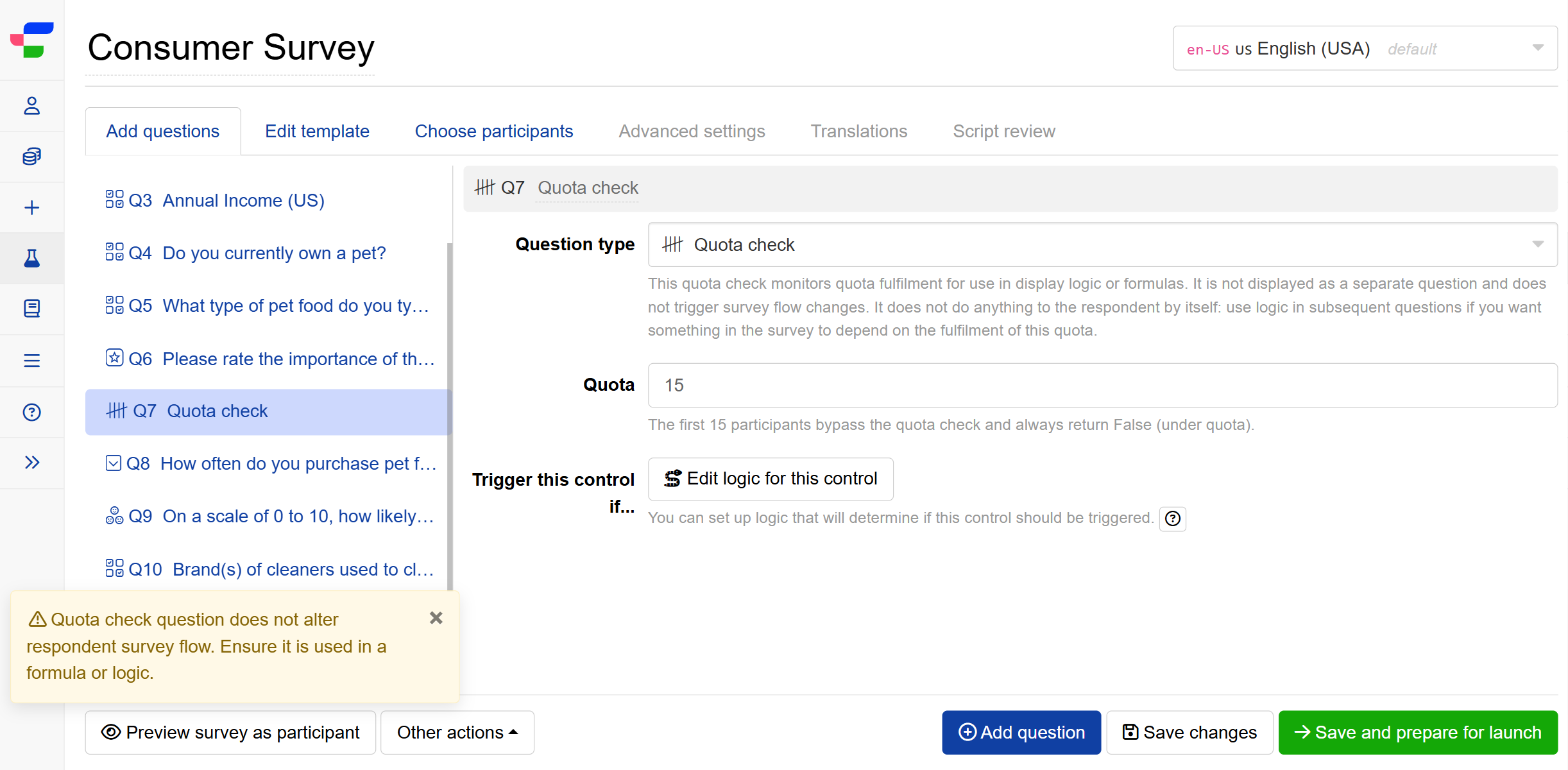
Once added, configure the following fields:
- Quota: Determine the number of participants who bypass the quota check. These respondents always return
FALSE(under quota) and are not counted toward quota fulfilment. - Trigger this control if: Define conditions under which this quota check is activated. If left empty, the quota check applies to all respondents reaching this point in the survey flow.
Please note that Quota check does not alter the respondent’s survey path on its own. To act on the quota status, ensure it is referenced in display logic or formulas in subsequent questions.
FAQs
Is it possible to place this question inside a block?
This question can be used only within the following blocks due to complications and uncertainties when displaying it with the stimuli or conjoint sets (consistent with other flow controls):