Quality Checker for survey responses
The Quality Checker view provides a comprehensive overview of each individual response in your experiment, allowing you to review survey answers, detailed status, and a summary table of risk signals. With this information, you can assess response quality and manually include or exclude specific responses in your analysis.

Accessing the Quality Checker view
There are multiple ways to access the Quality Checker view of your launched experiment:
- Via the experiment setting page.

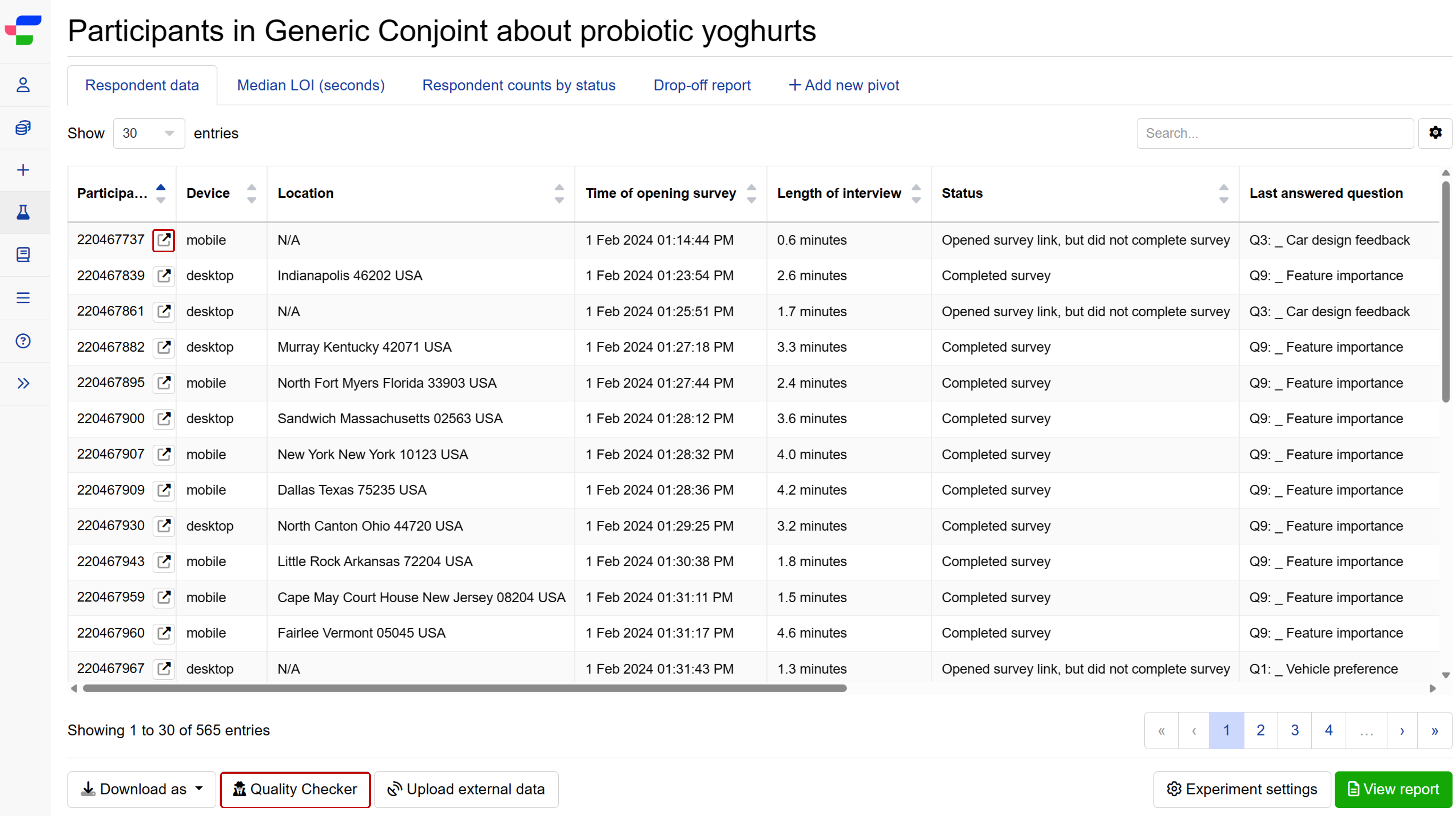
- Via the Review participants page. You can also click on the icon next to each participant to directly access the Quality Checker view for that specific participant.
Viewing only responses used in analysis
The Quality Checker view includes all recorded responses for your experiment, even those automatically filtered out based on automated checks and your response quality management settings, which are labelled with a red cross ❌. To view only the responses used in your analysis, tick the checkbox labelled Viewing only responses used in analysis.

Reviewing response status
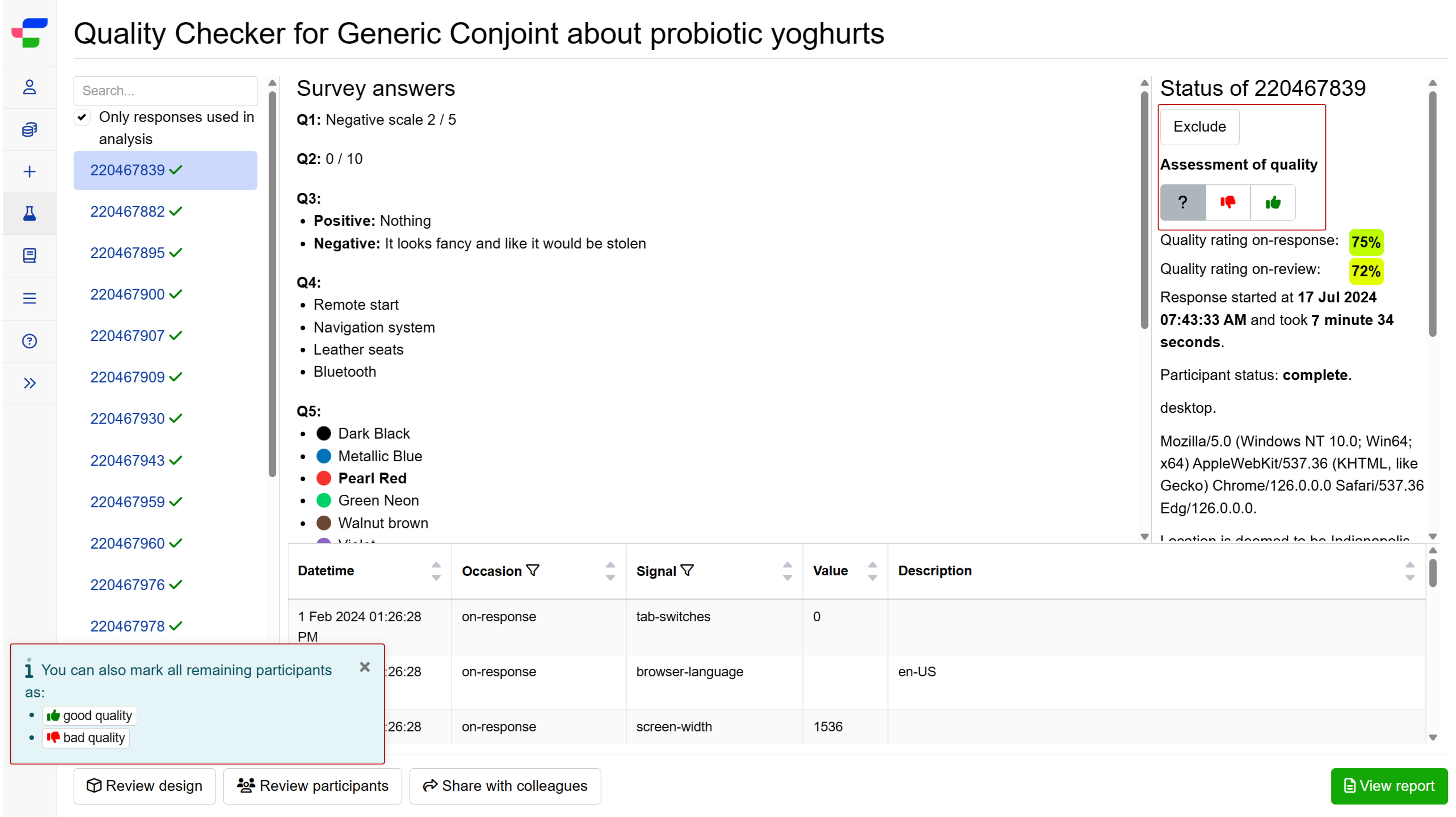
The top-right corner of the Quality checker view displays detailed information about each response, including:
- Participant ID: A unique identifier for each respondent (e.g., 220467839).
- button: Allows manual exclusion of a response from the analysis.
- Assessment of quality: Three options for determining whether to include or exclude a response from the analysis:
- : No decision made yet and requires further review.
- : Mark as low quality and exclude from analysis.
- : Mark as good quality and include in analysis.
- Quality rating: The system provides an automated score, taking into account risk signals to help evaluate response quality.
- Starting time and survey duration.
- Status: Opened or completed.
- Risk signals (if detected): Low quality, avoidance of network detections, duplicate IP, duplicate cookie, duplicate GET variable, touch screen.
- Device type.
- Browser details.
- Location signals.
Reviewing sloppy open-ended response categories
When you have enabled the detection of sloppy open-ended responses, the Quality Checker will display the categorisation results for each respondent’s open-ended responses.
At the bottom right of the Quality Checker page, you will find the Risk signals tab that lists all risk signals recorded for each respondent.
To identify the categories of the open-ended responses, find the on-review label in the Occasion column. The corresponding categories will be listed in the Signal column next to this label, as shown in the table below.
| Category of responses | Signal | Description |
|---|---|---|
| Careless | open-end-careless | Responses that are overly brief, vague, or fail to address the question adequately |
| Copy-pasted | open-end-copy-pasted | Responses that appear to be copied and pasted from other sources |
| Keyjamming | open-end-keyjamming | Responses containing nonsensical or gibberish characters |
| Good | open-end-good | Responses that are relevant and related to the survey question |
Use the icon or button described in the following section to exclude any low-quality open-ended responses from your analysis.
You can also find results grouped by check result in the Sloppy Open-end Classification tab.
Manually exclude or include response
To ensure accurate results, you can manually assess the quality of each completed response and decide whether to include or exclude it from your analysis through one of the following options:
- The or icon
You can find these icons below Assessment of quality section. Click the icon to mark response as high-quality and include it in analysis or the icon to mark response as low-quality and exclude it from analysis. Using these icons helps train our system for more accurate quality assessments in the future. After assessing a few responses, the system will generate a prompt that allows you to mark the remaining participants as having either good or bad quality responses. - The button
Conjointly recommends using the ‘Exclude’ button in the top-right corner to remove responses due to non-quality issues, such as quota fulfilment or ineligibility.
These options only apply to completed responses. Incomplete responses (status Opened survey link, but did not complete survey) cannot be included in the analysis or the online report.
These options are also available on the Review Participants page.
Alternatively, you can include or exclude respondents in bulk from the analysis by uploading a special external variable called CONJOINTLY_ACTION.