Piping in previous answers or respondent information
You can use formulas to pipe in answers to previous questions, GET variables, and respondent information to create responsive and customised surveys for each respondent.
The pipe-in formulas can be used in any field that uses Conjointly’s text editor, including:
- Question texts
- Question options
- Conjoint questions
- Conjoint level attributes
- Survey flow controls
- Redirect URLs
Depending on where you are inserting the formula, you will use one of two interfaces:
- The formula editor modal in question text editors and fancy formatting editors.
- A formula dropdown list in other areas of the platform.
Check out the formula editor guide for a full walkthrough of both. You can also learn more about formulas and functions available on the Conjointly platform.
Example 1: Piping answers from previous questions
Piping in respondent answers from a previous question allows you to ask respondents follow-up questions on the answers given. Depending on the piping question type, different answer functions may be used.
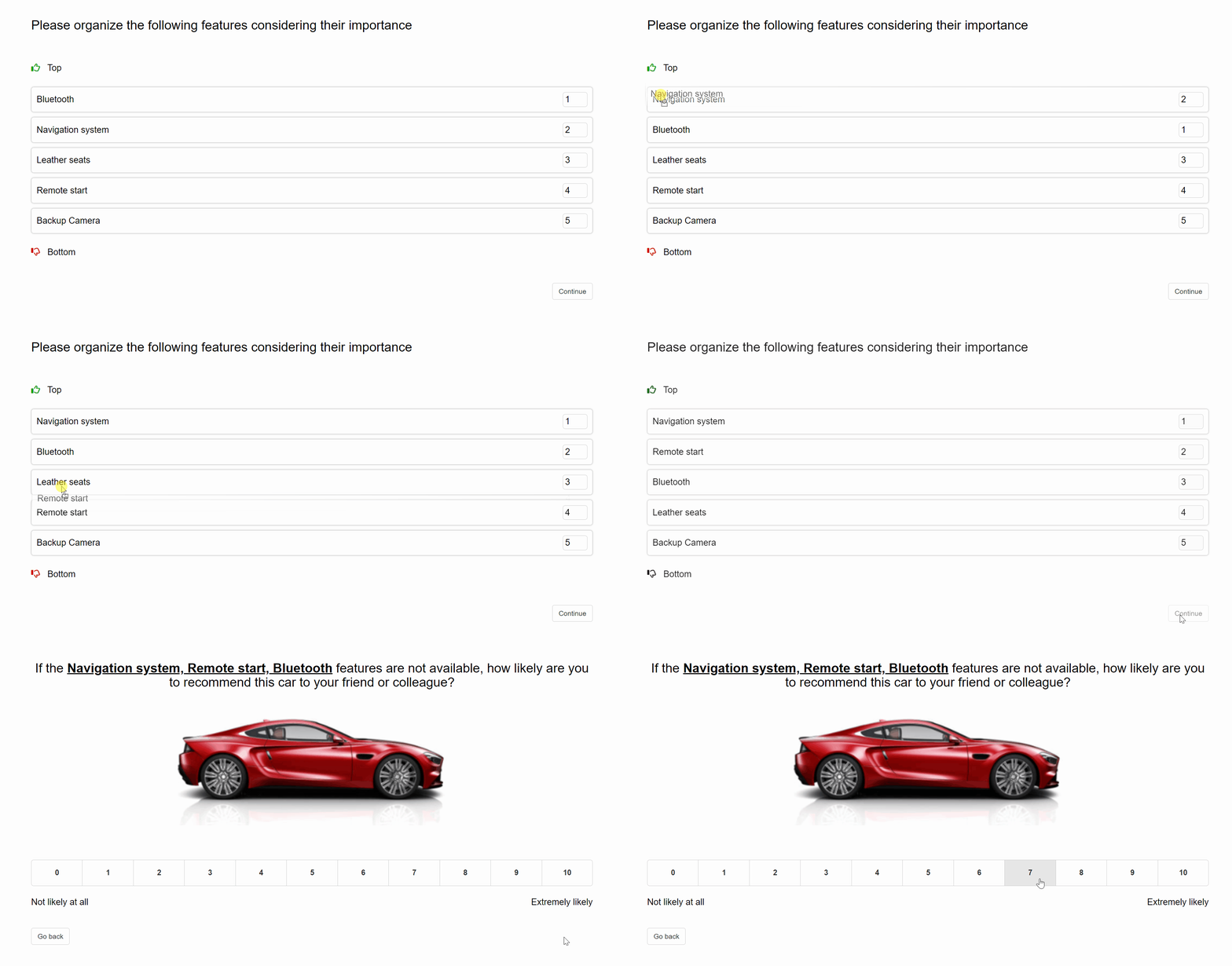
For example, you are interested to find out if respondents are still willing to recommend their new car model if their top three most important features are not offered. You can ask respondents to rank the features according to importance, and use piping to import the top 3 choices in the next Net Promoter Score question with the formula:
top(question_id, 3)


Respondents will see their answers to the ranking question piped in the NPS question:
Respondent view 1
Respondent view 2

For questions that require multiple items and options set up, you may import items used in previous experiments or questions without having to input them again.
Example 2: Piping GET Variables
GET variables are effective in recording respondent data through custom survey links. You can also pipe in these variables in your survey to help engage survey participants and make them feel truly valued.
One common application is piping in GET variables to set up customised intro text to welcome respondents.
In the following example, the intro text is set up to welcome respondents with GETvariable('occupation')=='hcp'.

The pipe-in formula entered:
if (GETvariable('occupation') == 'hcp', 'Hello, healthcare practitioners! ',)
HCP respondents
Other respondents


Example 3: Piping respondent information
Conjointly records respondent information that you can use in your data analyses or in formulas to create conditional URL redirects upon survey completion.
Use the respondentInfo() function to access data such as locale, device, browser, location, and timestamps. This allows you to redirect different respondent groups to specific URLs based on their attributes.
Example formula for conditional redirects:
if (respondentInfo('locale') == 'es-ES', 'example.es/', 'example.com/')
This formula redirects respondents that completed Spanish surveys to a localised page while sending others to the main website.