Piping in previous answers or respondent information
You can use formulas to pipe in answers to previous questions, GET variables, and respondent information to create responsive and customised surveys for each respondent.
The pipe-in formulas can be used in any field that uses Conjointly’s text editor, including:
- Question texts
- Question options
- Conjoint questions
- Conjoint level attributes
- Survey flow controls
- Redirect URLs
Depending on where you are inserting the formula, you will use one of two interfaces:
Formula editor modal
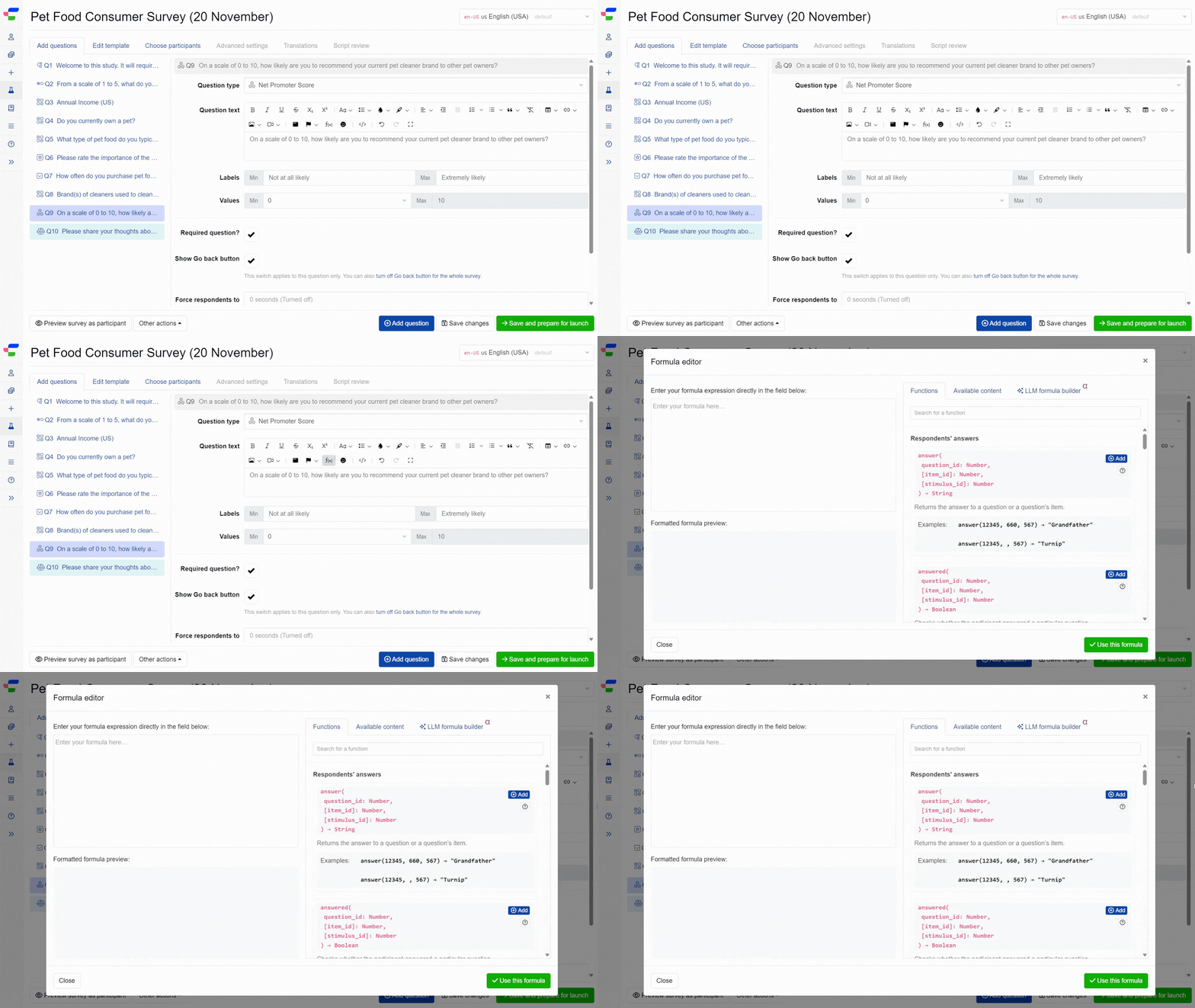
When working in question text editors and fancy formatting editors (for question options and conjoint experiment attributes), click the button in the toolbar to open the formula editor modal. You can also click on an existing formula to edit it.
Formula input section
The left panel contains the main formula field for entering formula expressions. Select your desired formula from the dropdown list of available formulas.
The editor validates formulas in real-time and displays any errors as you type. The Formatted formula preview shows your formula in a readable format with syntax highlighting.
The right panel provides reference materials and tools to help you build your formula:
Functions tab
The Functions tab (the default tab in the right panel) displays all available formulas organised into categories:
- Respondents’ answers
- Date and time formulas
- Text formulas
- Respondent properties
- Maths and logical functions
Each formula shows its syntax, description, and example.
You can use the search field at the top to quickly find specific functions.
Click the next to any formula to insert it into your expression.
Available content tab
The Available content tab shows all content that can be referenced in your formulas:
- Available questions: Questions from your survey with their question items displayed as subpills
- GET variables: Custom variables passed through survey links
- External variables: Variables available in reports
- Respondent information: Data such as locale, device, browser, location details, timestamps, and more
Click the next to any item to automatically insert it into your formula with the appropriate function wrapper.
LLM formula builder tab
The LLM formula builder tab helps you create formulas using AI assistance. Simply describe what you want your formula to do, and the system will generate an expression for you.
To use the LLM formula builder:
- Describe your requirement (e.g. “get answers from Q3”).
- Click .
- Review the generated expression in the preview area.
- Click to add it to your formula.
Please remember to always review AI-generated formulas carefully before using them in a live survey.
Dropdown formula list
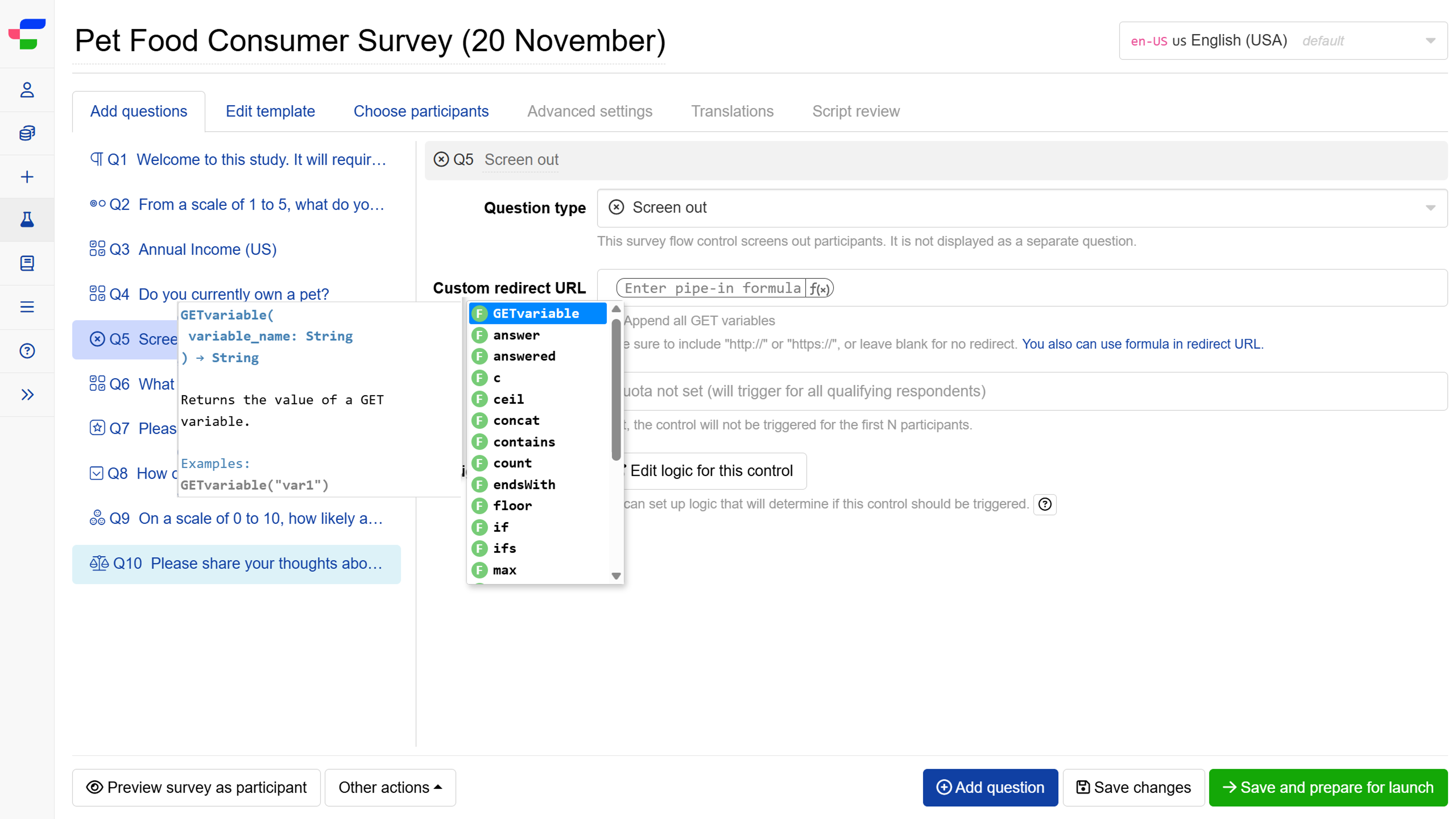
In other areas of the platform, clicking the displays a dropdown list of available formulas. Select the formula you want to add, and press the tab key to see available inputs, then click to add your desired input.
When you hover over each formula in the dropdown, a tooltip appears showing what the formula does, required inputs, and examples.
Want to learn more about these and other functions used on the Conjointly platform? Check out the guide to formulas in Conjointly.
Example 1: Piping answers from previous questions
Piping in respondent answers from a previous question allows you to ask respondents follow-up questions on the answers given. Depending on the piping question type, different answer functions may be used.
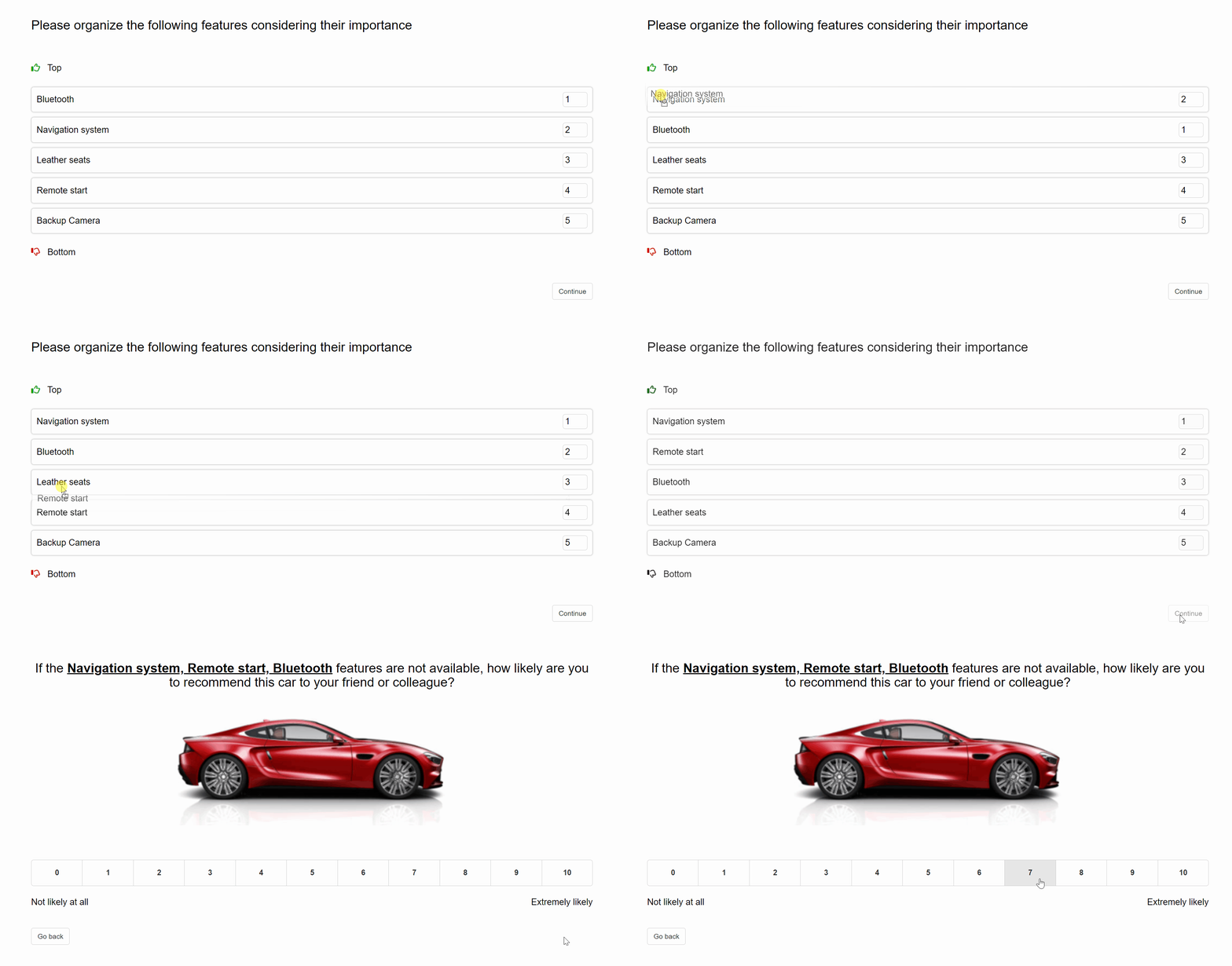
For example, you are interested to find out if respondents are still willing to recommend their new car model if their top three most important features are not offered. You can ask respondents to rank the features according to importance, and use piping to import the top 3 choices in the next Net Promoter Score question with the formula:
top(question_id, 3)


Respondents will see their answers to the ranking question piped in the NPS question:
Respondent view 1
Respondent view 2

For questions that require multiple items and options set up, you may import items used in previous experiments or questions without having to input them again.
Example 2: Piping GET Variables
GET variables are effective in recording respondent data through custom survey links. You can also pipe in these variables in your survey to help engage survey participants and make them feel truly valued.
One common application is piping in GET variables to set up customised intro text to welcome respondents.
In the following example, the intro text is set up to welcome respondents with GETvariable('occupation')=='hcp'.

The pipe-in formula entered:
if (GETvariable('occupation') == 'hcp', 'Hello, healthcare practitioners! ',)
HCP respondents
Other respondents


Example 3: Piping respondent information
Conjointly records respondent information that you can use in your data analyses or in formulas to create conditional URL redirects upon survey completion.
Use the respondentInfo() function to access data such as locale, device, browser, location, and timestamps. This allows you to redirect different respondent groups to specific URLs based on their attributes.
Example formula for conditional redirects:
if (respondentInfo('locale') == 'es-ES', 'example.es/', 'example.com/')
This formula redirects respondents that completed Spanish surveys to a localised page while sending others to the main website.