Running your study in multiple languages
Conjointly’s multilingual translation functionality offers you several quick and easy options to create and distribute your survey globally in multiple languages, including:
- Adding your own translations.
- Automated pre-translations using an LLM.
- Engaging professional translators through Conjointly.
- Importing an XML or Excel translation file.
You can easily add a new language version of your experiment by navigating to the Translation into other languages tab within Advanced settings of your experiment and click on .

1. Add your own translations
Follow these steps to add your own survey translations:
- Click on “Add language by copying from an existing language within this experiment”.
- Select the language that you would like to base your translations on. In the example below, we have set “English (USA)” as the base language.
- Select the new language. In the example, we are going to create a French version.
- Click .
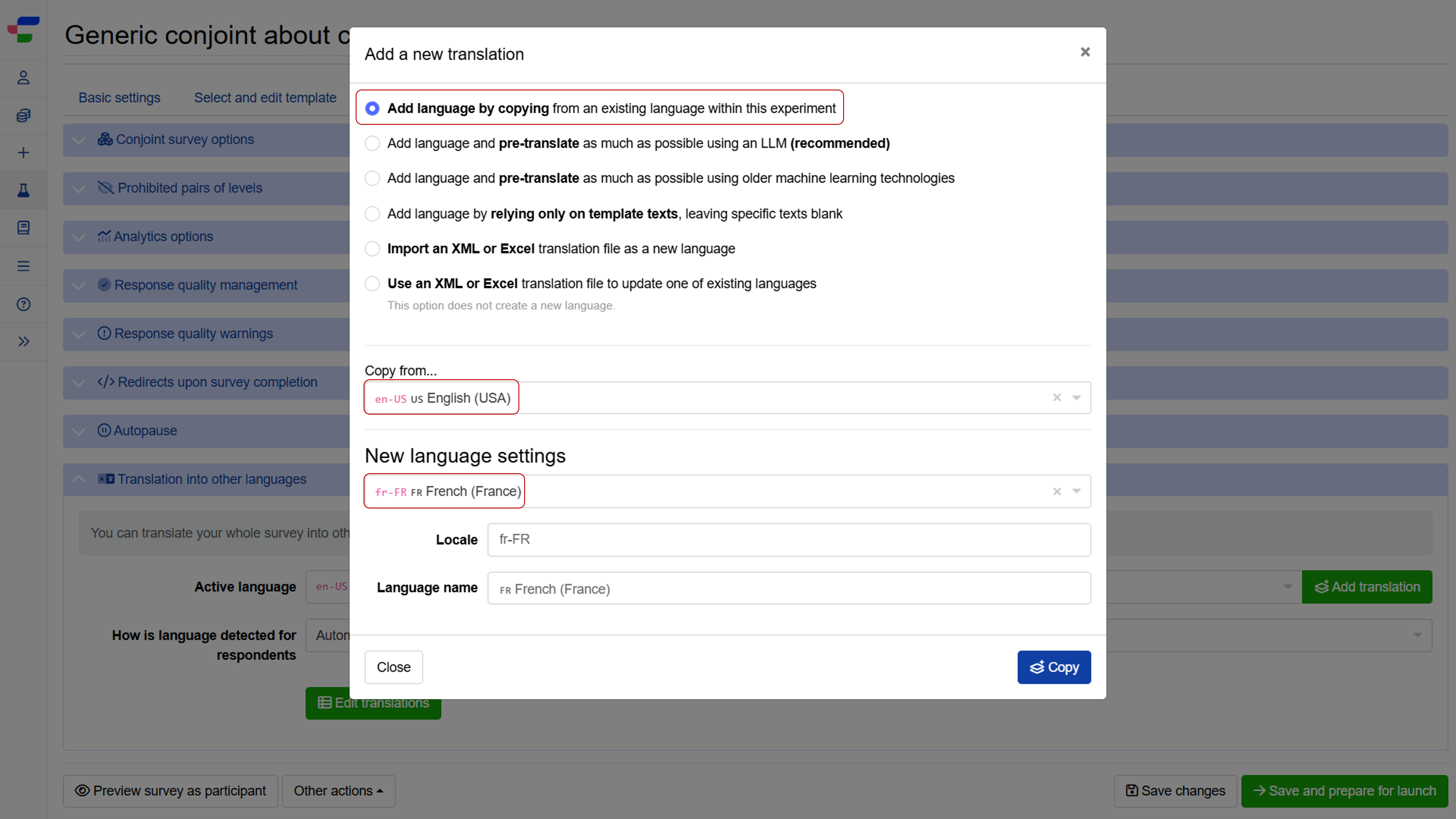
Other than different language versions, this option is also suitable to be used to show some respondents a variation of the question text.
2. Automated translations using a LLM
To help you accelerate the translation process, either when manually translating or before engaging professional translators, Conjointly offers four options for automatically pre-translating your experiment:
- Pre-translate as much text as possible using an LLM (recommended): Translates both template and custom text, including experiment fields, question text, answer options, and additional questions using a Large Language Model (LLM). This option provides more contextually aware translations, particularly useful for nuanced or complex text.
- Pre-translate as much text as possible: Translates both the experiment template text and custom text, using Conjointly’s older machine learning technologies.
- Pre-translate individual fields: Translate specific fields on-demand using an LLM. Ideal for updating individual questions or translating new fields added after initial translation.
- Pre-translate experiment template text: Translates only the standard experiment template text, such as page title, common text, response quality text, and hints.
The experiment template text, including all default text and buttons, have been professionally pre-translated for various languages: , , , , , , , , , , , , , , , , , , , , , , .
Pre-translate as much text as possible using a LLM
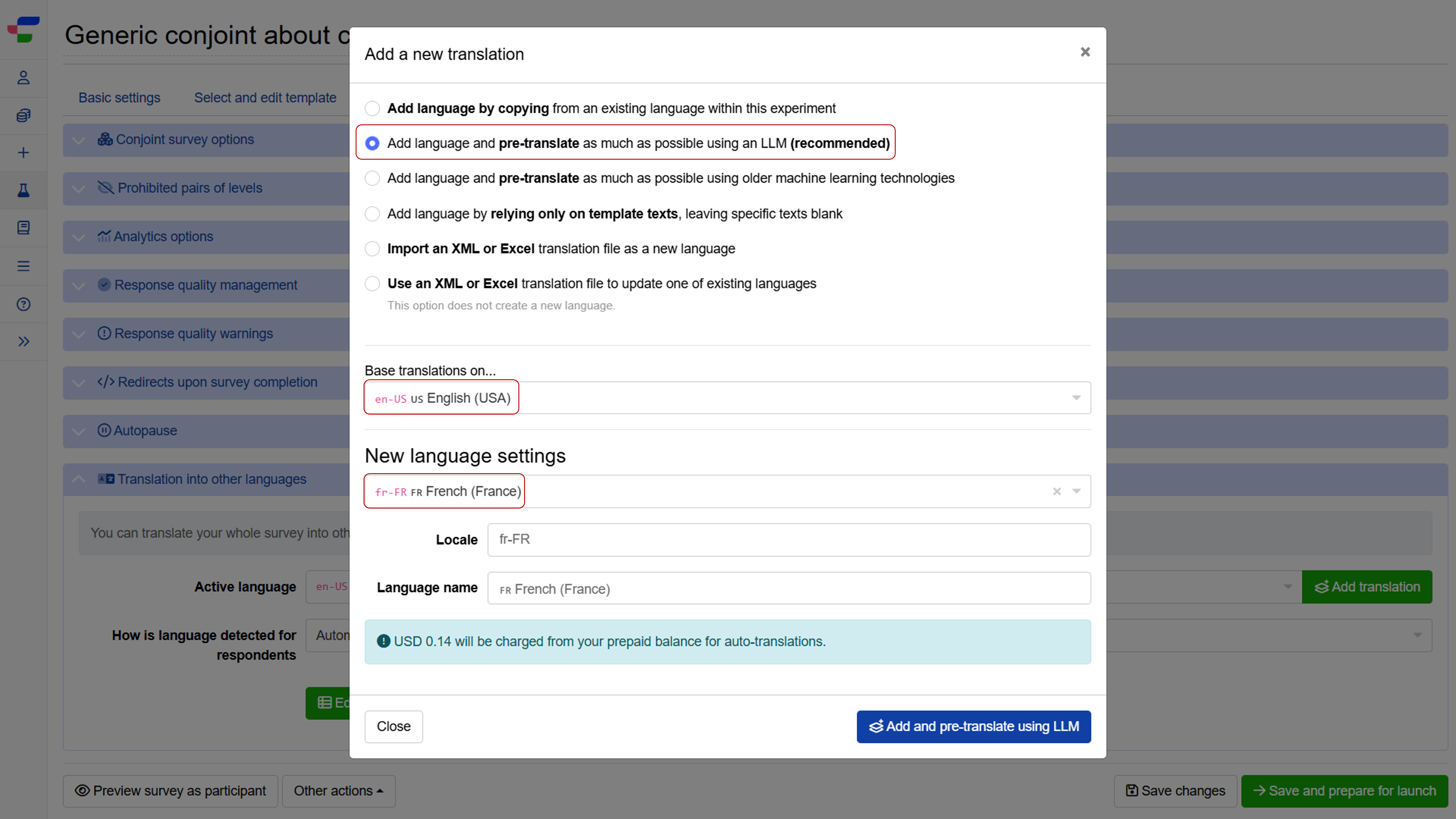
- Click on “Add language and automatically pre-translate as much as possible using a LLM”.
- Select the language that you would like to base your translations on. In the example below, we have set “English (USA)” as the base language.
- Select the new language. In the example, we are going to create a Greek version.
- Click .
Please note that the option is not available if your team has disabled LLM features.
Pre-translate as much text as possible using older machine learning technologies
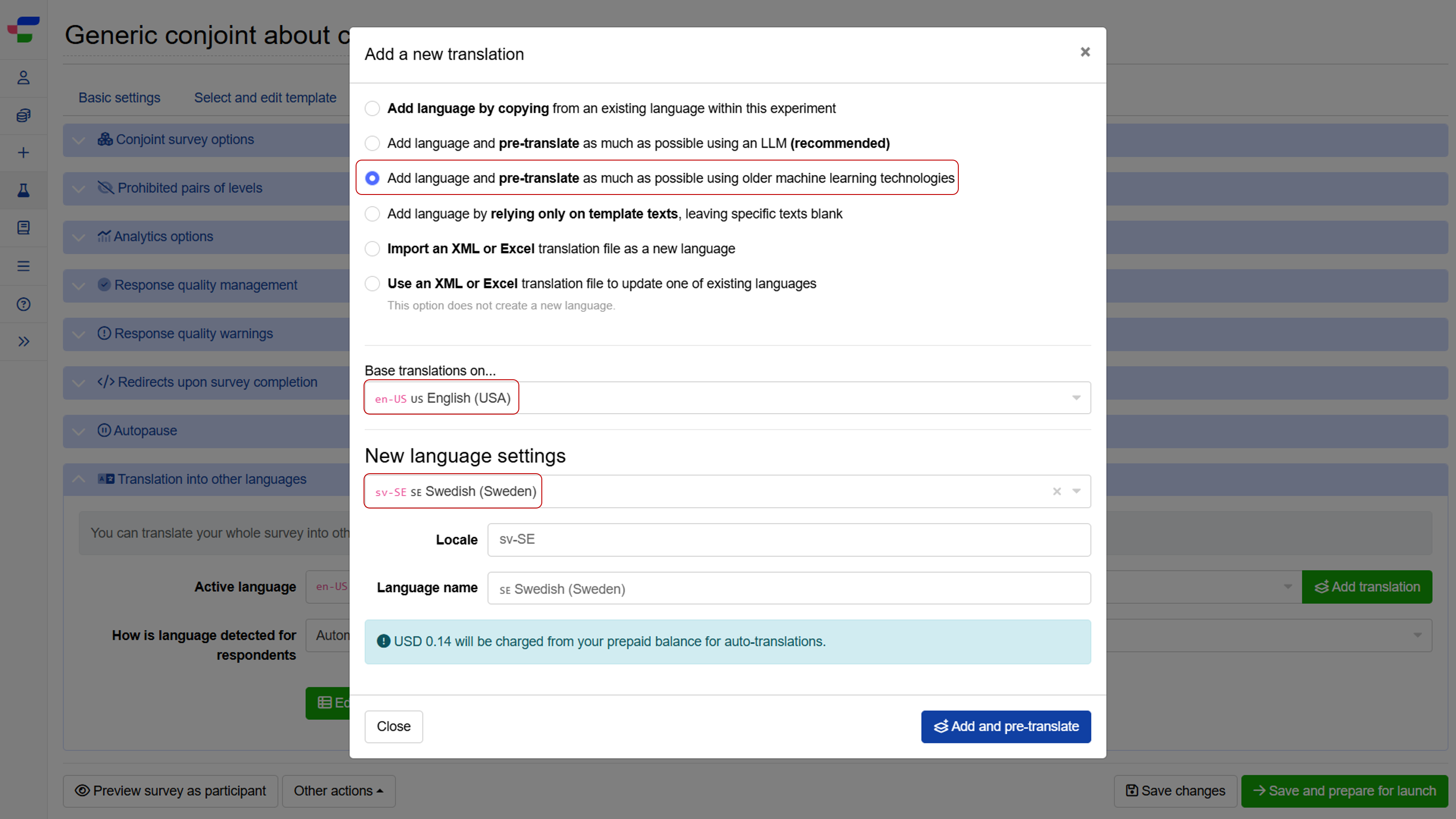
- Click on “Add language and automatically pre-translate as much as possible using older machine learning technologies”.
- Select the language that you would like to base your translations on. In the example below, we have set “English (USA)” as the base language.
- Select the new language. In the example, we are going to create a Sweedish version.
- Click .
Pre-translate individual fields
You must have at least 2 languages already created in your experiment to use this feature.
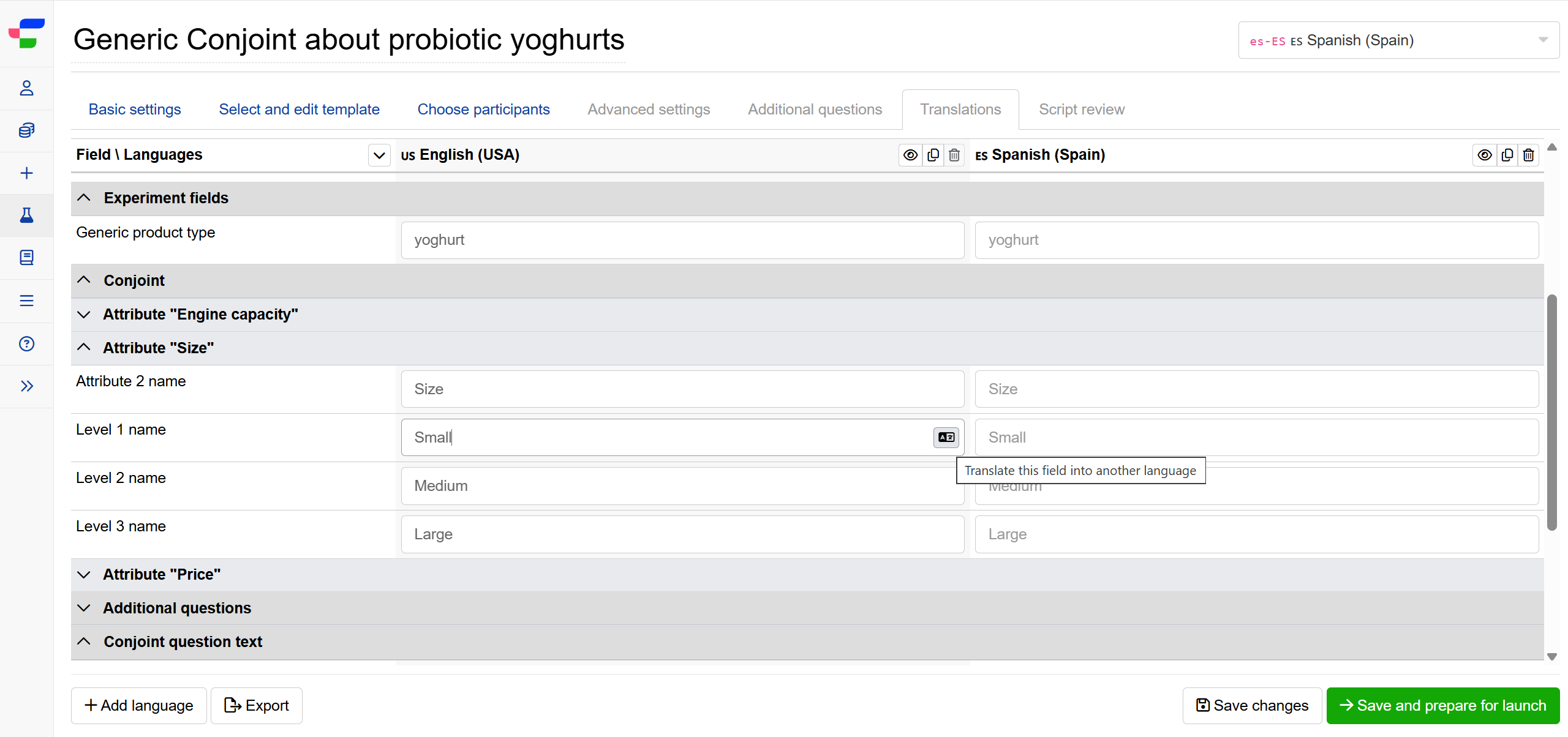
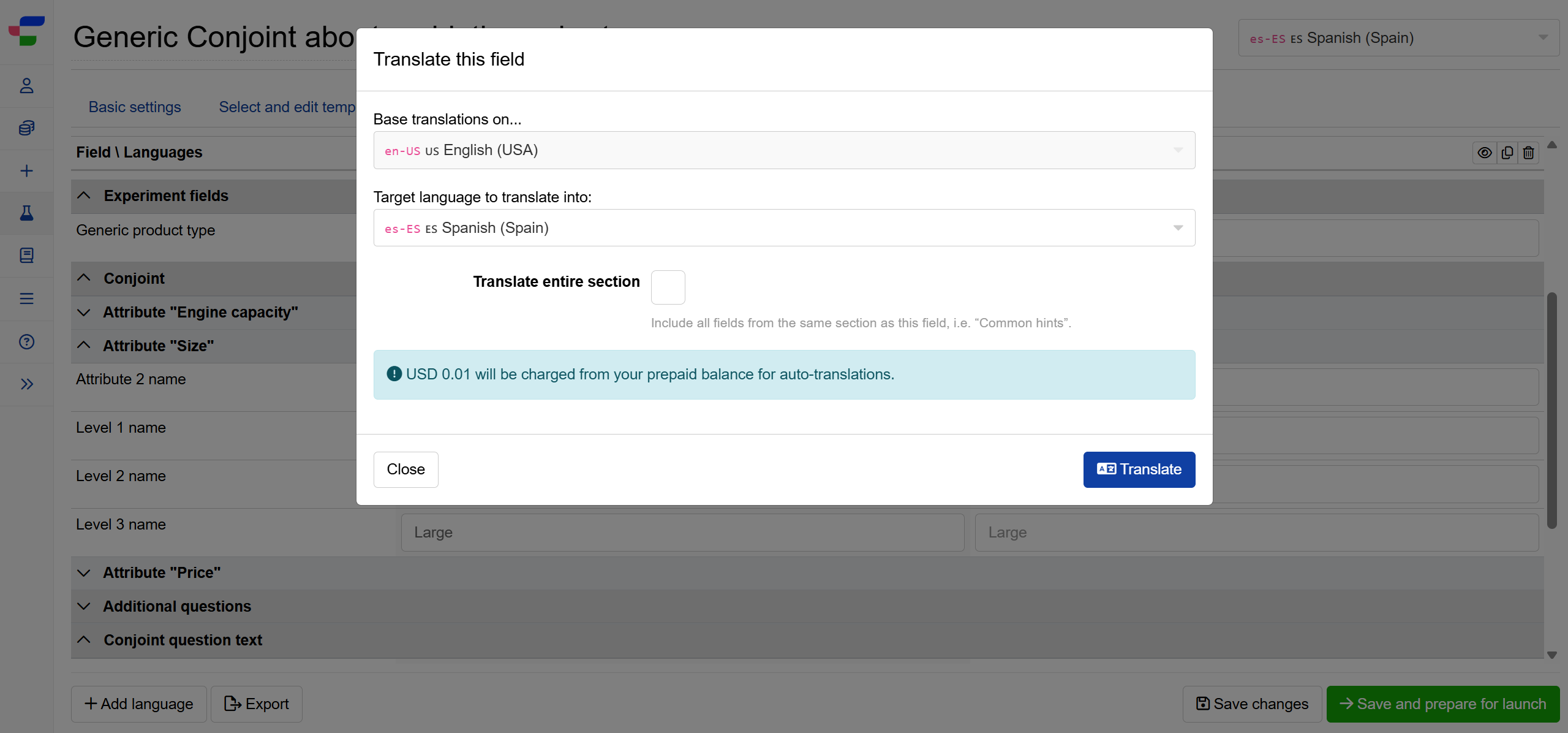
- Hover over any field containing text to reveal the translate button and click on the button.
- In the pop-up modal, select the target language you want to translate into.
- Optionally, tick Translate entire section to include all fields from the same section.
- Review the displayed cost and click to proceed.
Pre-translate experiment template text
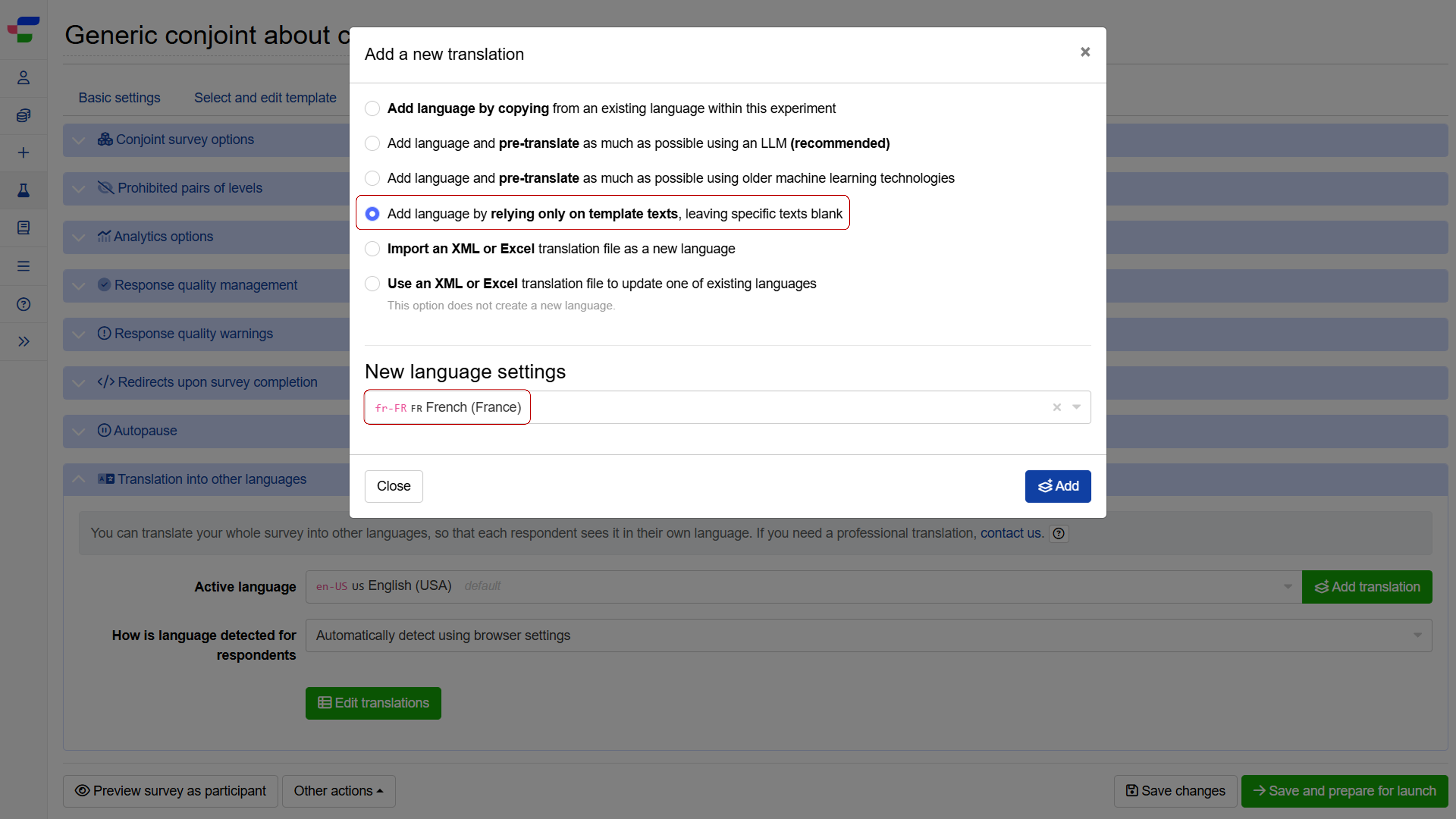
- Click on “Add language by relying only on template texts, leaving specific texts blank”.
- Select the new language. In the example, we are going to create a French version.
- Click .
Notes on automated translations
- The automatic pre-translations will be charged to your prepaid balance from USD 0.01 based on length of text. You will be prompted to top up your prepaid balance if it is insufficient to cover the translation cost.
- All automated translations (both LLM and older machine learning technologies) are machine-generated, not human translations. User-added text, such as conjoint attributes and levels, additional questions, and question options, should be reviewed carefully.
- You will need to update your translations whenever you add new questions to your survey.
3. Get professional translation through Conjointly
Should you require professional translation of your survey into other languages, please do not hesitate to get in touch with us. We can organise a speedy, high-quality translation. The approximate timeframe is 3 to 5 business days (depending on complexity). Translations typically cost from $800 per language per study.
You can also export the survey in XML format and send to your own preferred translation agency.
4. Import an XML or Excel translation file
With Conjointly, you can upload an XML or Excel translation file as a new language or to edit an existing language version of your experiment.
As a new language
- Click on “Import an XML or Excel translation file as a new language”.
- Drag and drop the translation file on “Please supply a translation file” field.
- Click .
Important notes:
- The translation file must be based on an exported language version of your experiment.
- When importing an Excel translation file, ensure it contains column formatted as
[locale-code] Locale name, e.g.[en-US] English (USA). If the file contains multiple locales, you will be prompted to select the locale to import.

To update one of existing language versions
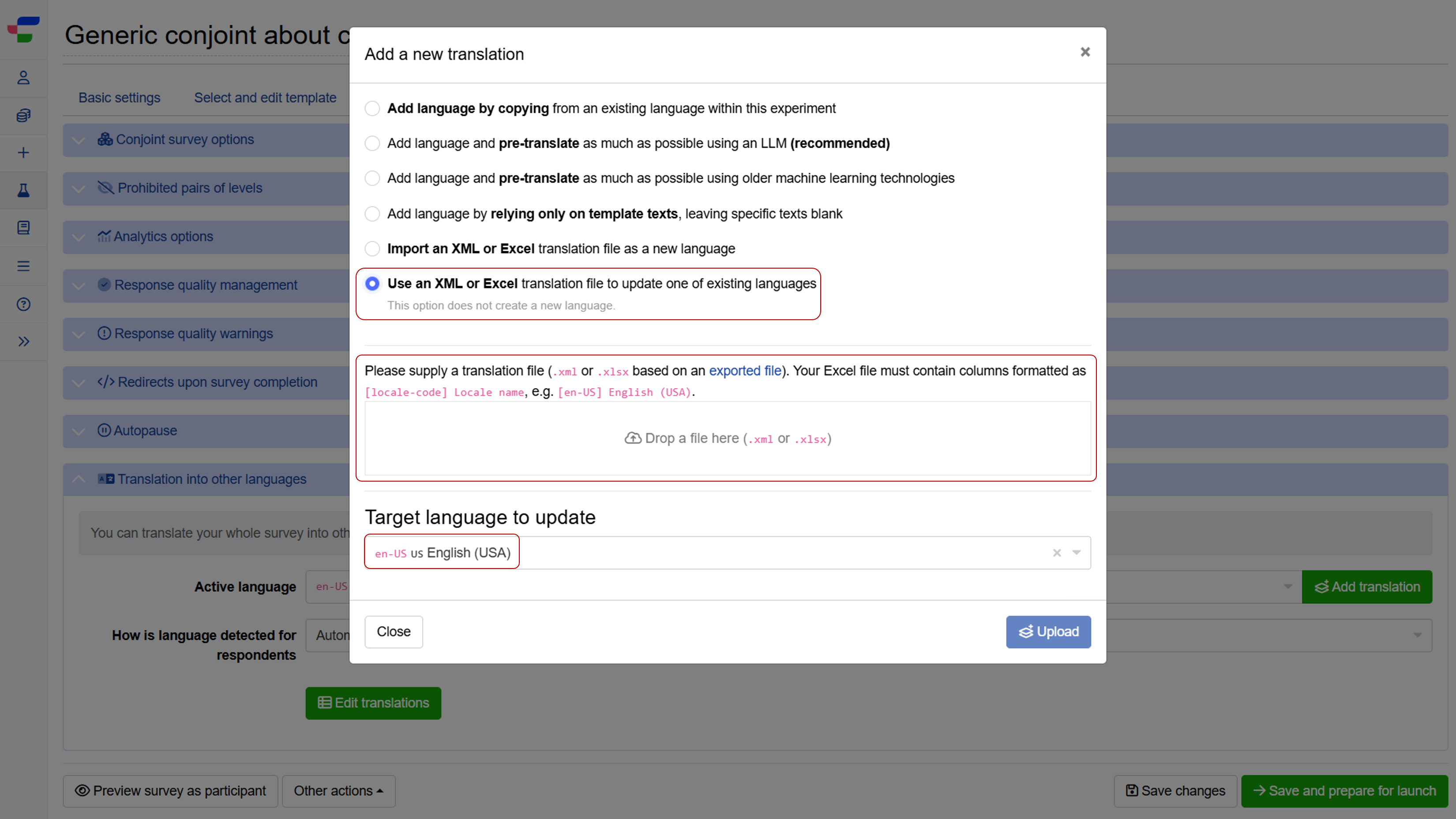
- Click on “Use an XML or Excel translation file to update one of the existing languages”.
- Drag and drop the translation file on “Please supply a translation file” field.
- Select the target language to update. In the example, we are going to update the French version.
- Click .
Edit translations of your experiment
After adding the new language, you can switch between different language versions using the language filter or edit them all at once in the Translations tab.
Using language filter
Use the language filter in the top-right corner of your page to select the language version you want to review and edit.
Within the Translations tab
The Translations tab is available when you add a language. This interface lists all text in the survey, including conjoint inputs, additional questions, options, and experiment template text, allowing you to review and manage all the translations in one place.
You can preview your survey to see how translations are displayed to respondents by clicking on the preview buttons.

The interface also allows you to apply the following settings as desired:
Hyphenation checkbox: When this checkbox is ticked, the survey text will be automatically adjusted to fit the text into the area/page, even if it needs to break some words and hyphenate them. If you prefer to present whole words, you can untick this checkbox.
Right-to-left (RTL) text direction: This checkbox should be ticked when the language is written from right to left (e.g. Arabic).
Default experiment language: Default experiment language affects the language used in the reporting interface. If you want the report to be displayed in English, then the default language needs to be set to English.
Select how language is selected for respondents
There are two options for how language is selected for respondents:
Automatic detection using browser settings: In this case, Conjointly will direct the respondents to the right language based on their browser locale setting.
Manual choice of language to the respondent: In this case, each respondent will need to select the right language for themselves (see example).
However, both settings will be overridden if the link contains the GET variable “locale”. For example, to display a survey in Russian, you can add ?locale=ru-RU to the survey link (e.g. https://conjointly.online/study/8356/ts1kg8ri1i?locale=ru). To display it in US English, add ?locale=en-US.
