Matrix grid
Matrix grid questions are advanced survey questions that display multiple options or statements arranged in rows and columns, allowing respondents to evaluate several items at once.
How to use matrix grid questions effectively
As matrix grid questions show much more information to a respondent at once than other available question types, it is important to keep the questions clear and concise to avoid overwhelming respondents with information.
Specifically, it is important not to treat matrix grid questions as a catch-all for multiple questions. An example of an ineffective matrix grid question is as follows:

In comparison, the following is an example of an effective matrix grid question because the most effective presentation of the options naturally is a matrix grid format:

If you have to use a matrix grid question, avoid using an excessive number of rows and columns in matrix grid questions. This helps to both ensure high-quality responses by not overloading respondents with information, as well as provide a positive survey experience for respondents on smaller devices. Column labels should be easily readable and represent consistent units.
Matrix grid question subtypes
Matrix grids support 8 distinct subtypes, with each operating similarly to its standard question counterpart. However, unless your survey strictly requires matrix grid layout, replacing it with individual questions nested in a monadic block improves mobile usability, reduces respondent fatigue, and yields higher-quality data.
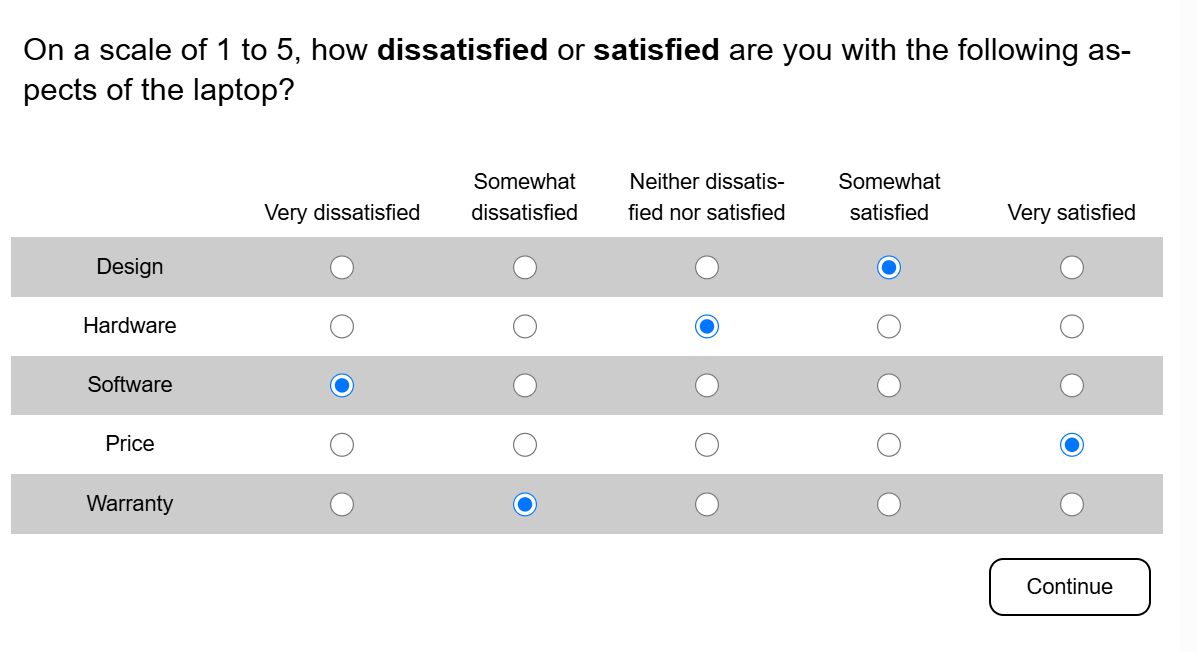
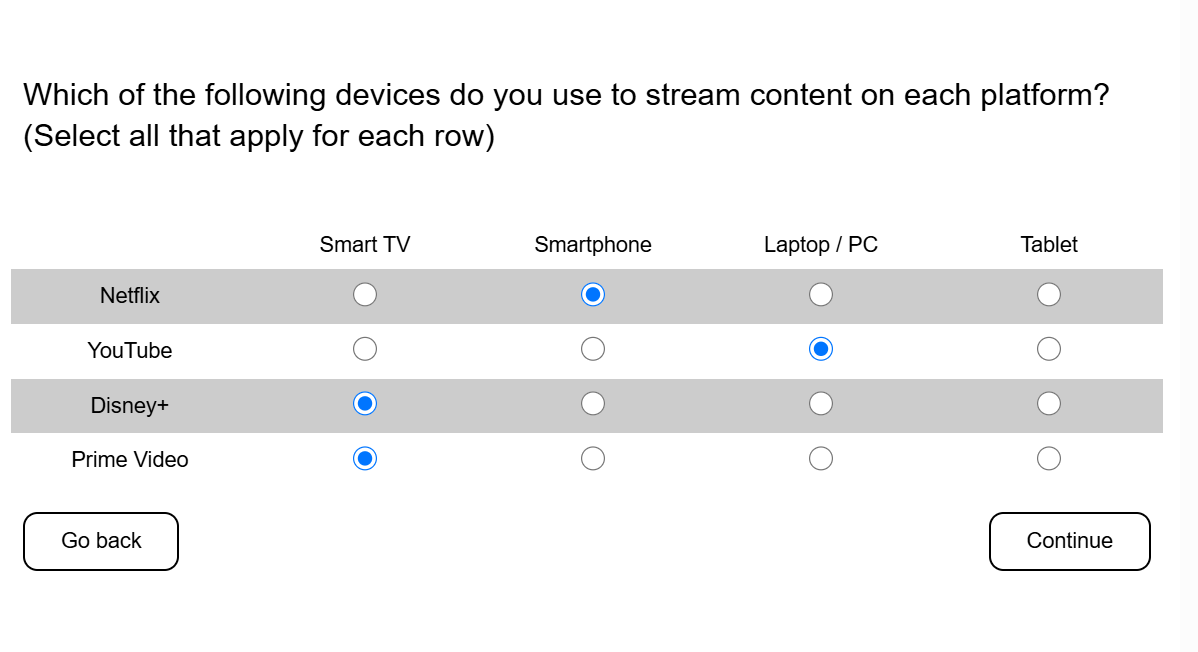
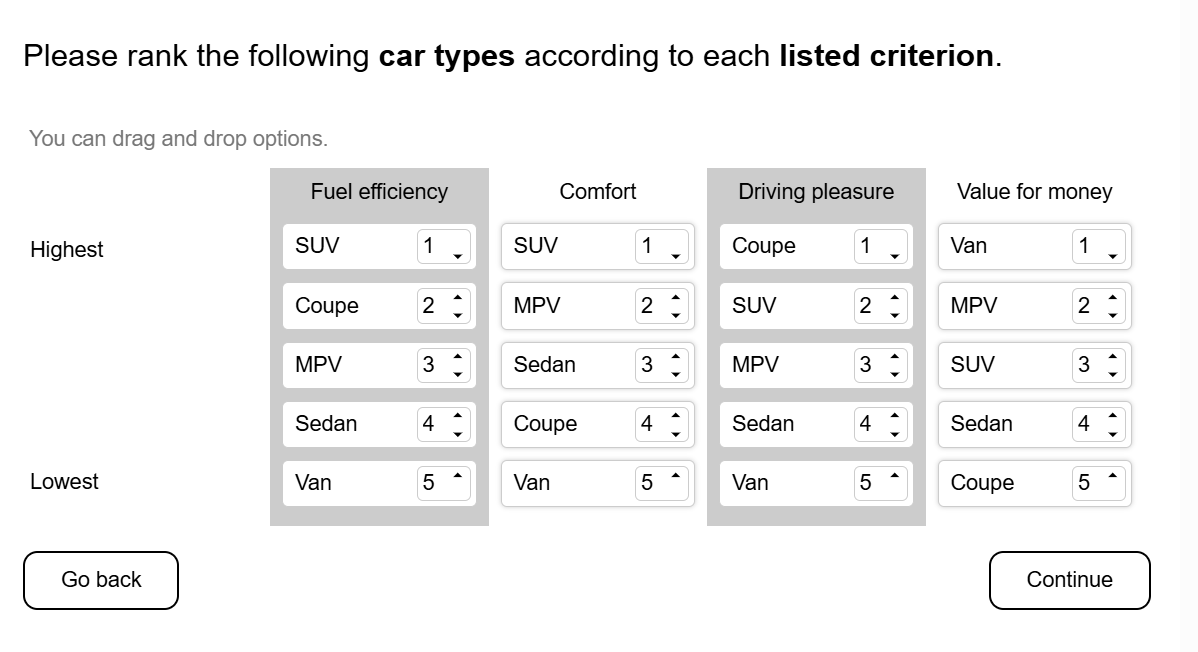
4. Categorisation
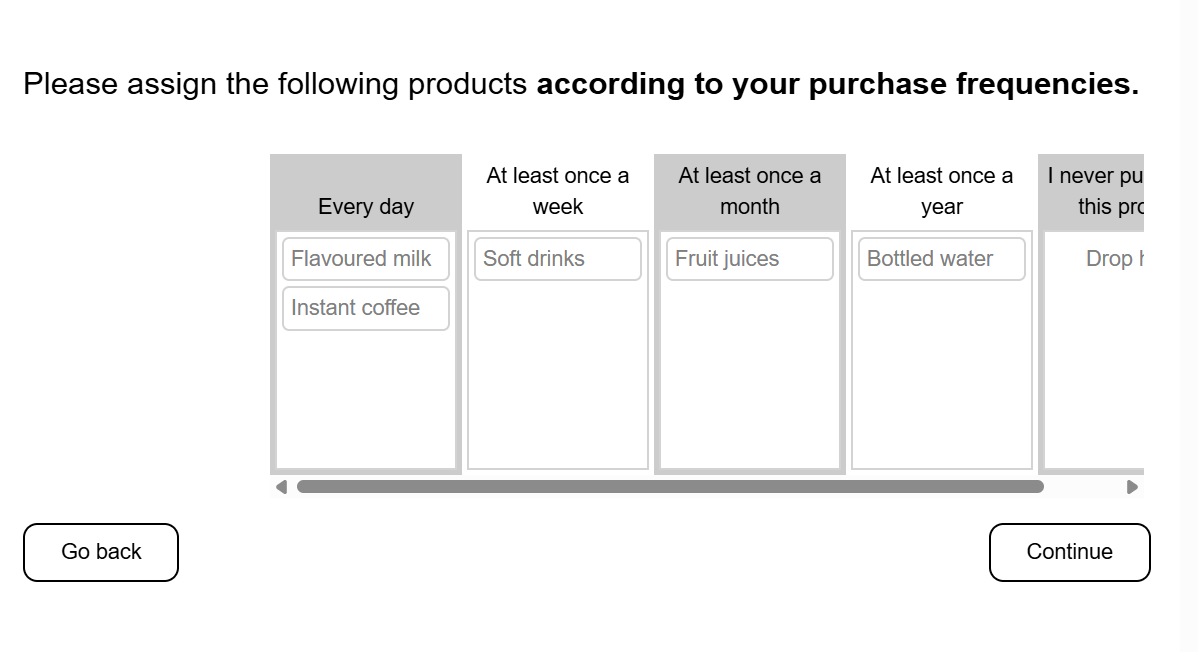
Assigns multiple items into pre-defined categories .
5. Constant sum
Allocates a fixed total (e.g. points, percentages, or currency) across multiple rows.
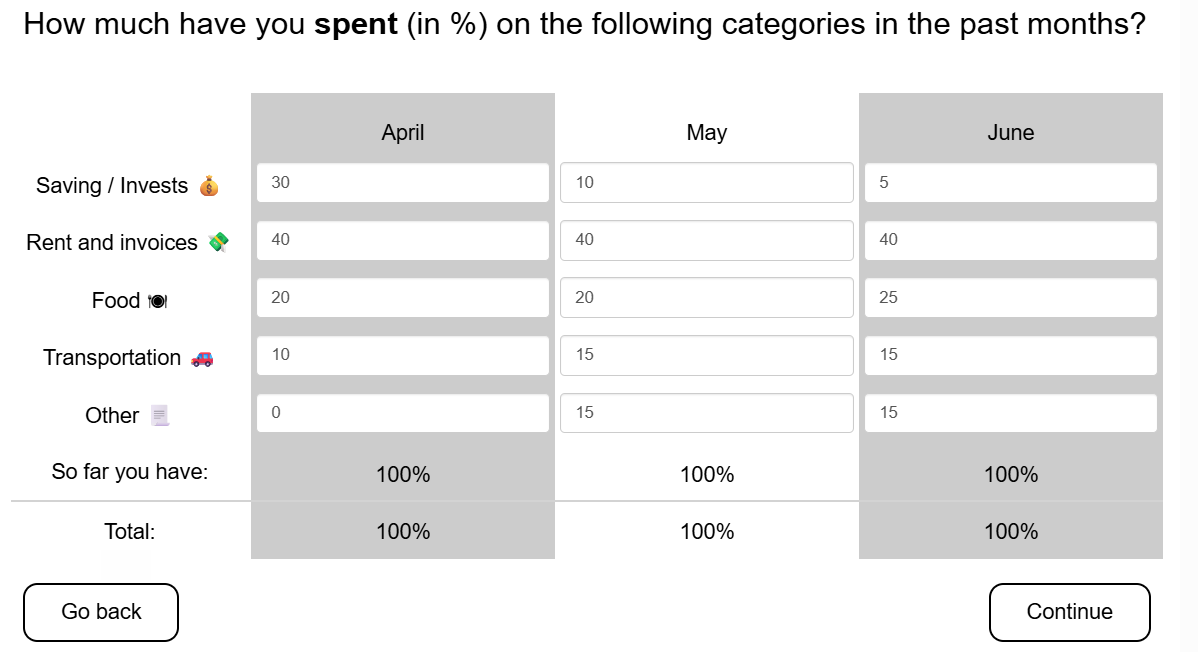
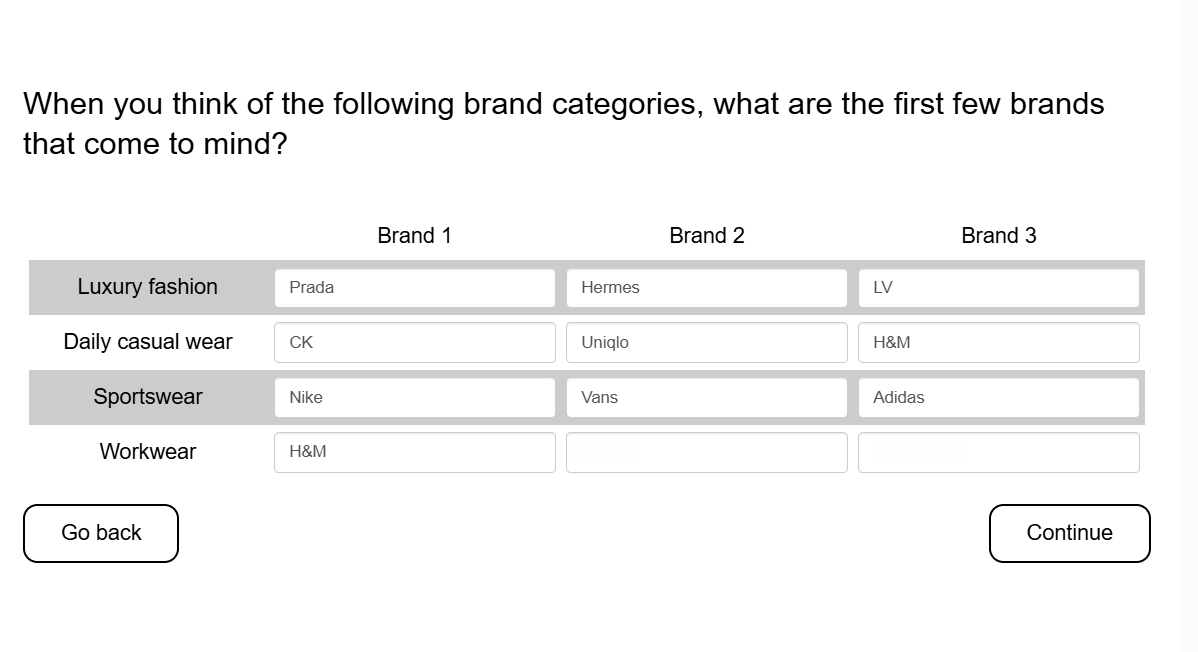
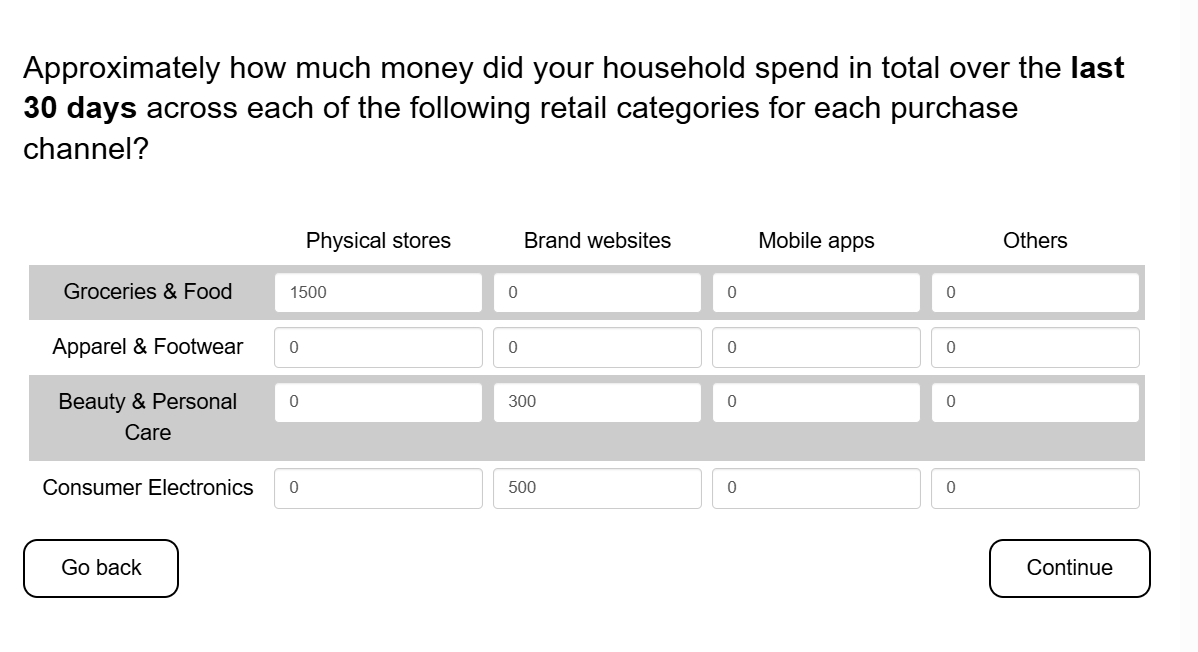
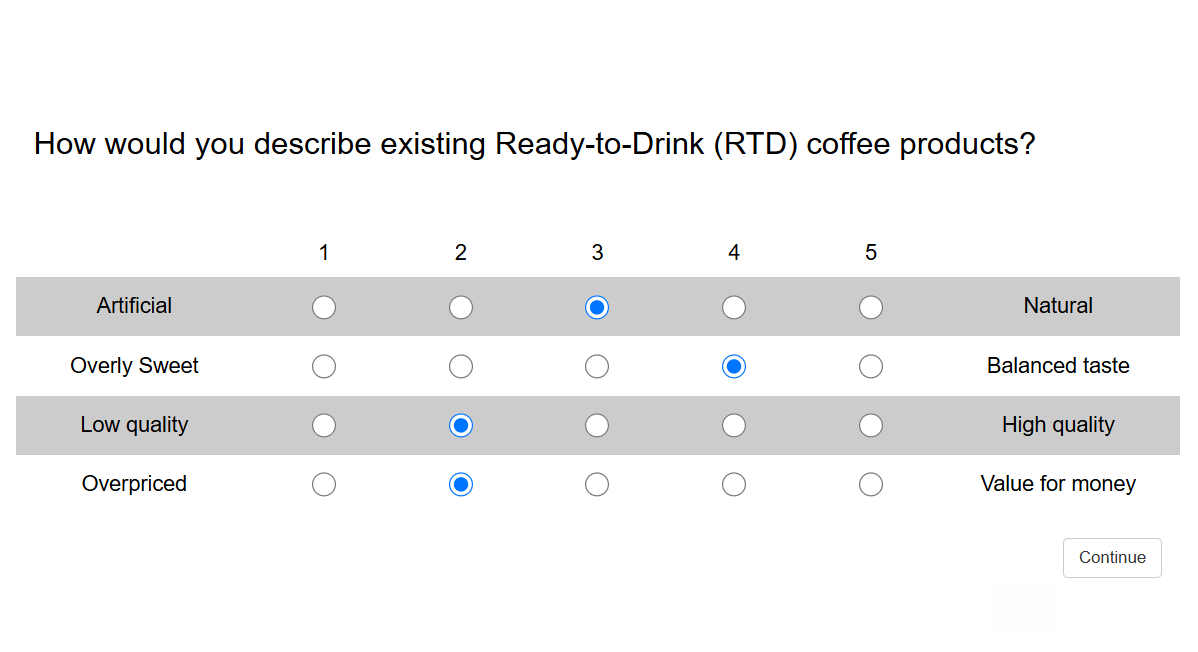
Matrix grid question outputs
The matrix grid question outputs differ slightly based on the question subtypes.
Distribution of responses (table)
For multiple choice, ranking, and categorisation question subtypes, the matrix grid questions produce a table showing the distribution of responses.

Distribution of responses (chart)
For Likert scale, semantic differential, constant sum, and number question subtypes, the matrix grid questions produce a table and a chart displaying the distribution of responses.

Analysis of short text responses
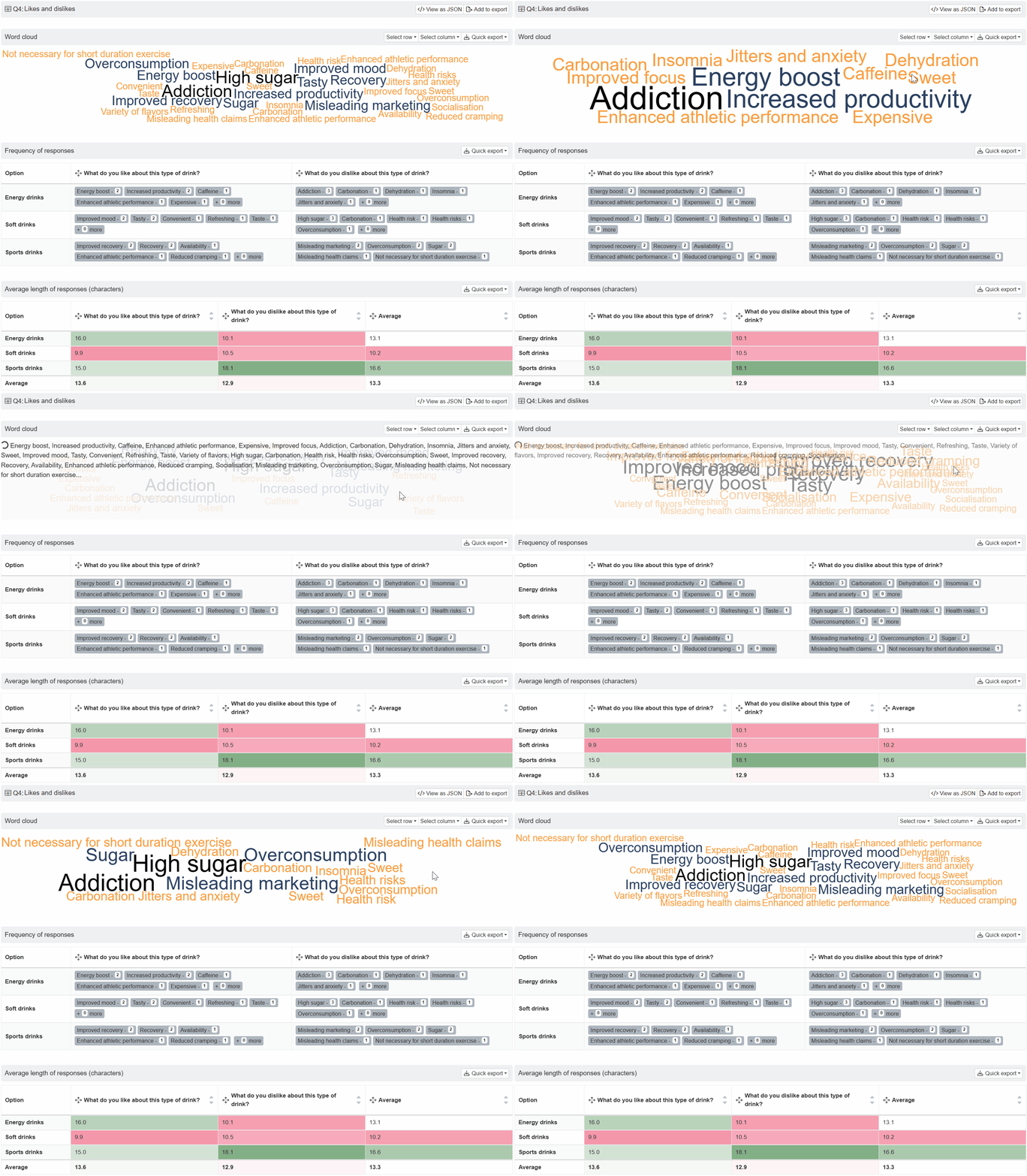
For short text question subtype, the matrix grid produces the following outputs:
- Word clouds that show the most frequent words used in respondent comments. Click or to filter the responses for specific row or column.
- The frequency of responses for each row.
- The average length of responses (in characters) for each row and column.
Setting up a matrix grid question
Follow these steps to set up a matrix grid question.
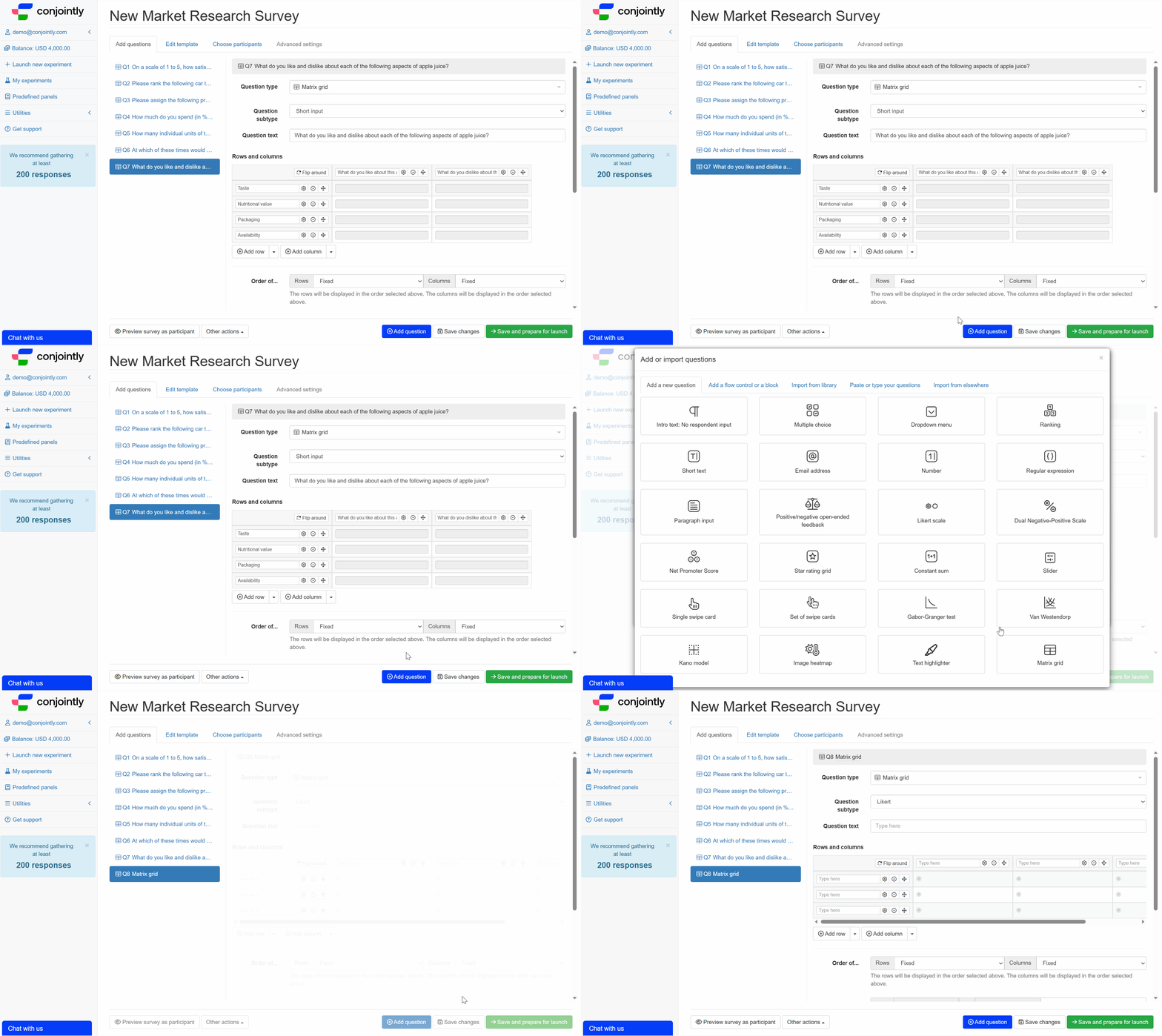
1. Add question
Navigate to the Add questions tab and click on the button at the bottom of the page.
On the Add or import questions pop-out, select the Add a new question tab and click on the question card to add it to the experiment.
2. Edit question options
Once you add the question, you can adjust the following settings:
- Select the question subtypes.
- Insert the question text in the Question text field. You can also include formatting and images.
- Set the rows and columns based on the question subtype you choose.
- Specify the order of columns and rows shown to respondents as fixed, random, flip (top-to-bottom and bottom-to-top), alphabetical, or rotate.
- You may also specify the number of responses required per column or per row.
- In the Mobile view field, select how the matrix grid is displayed on mobile devices:
- Single file: Rows are displayed as individual columns, navigated horizontally one at a time.
- Carousel: One row is shown per screen, with navigation arrows to move between rows.
- Tabs: Rows are displayed as collapsible accordion sections, expanded one at a time.
To see how the question appears on mobile, use the mobile preview before launching the experiment.

- For categorisation question subtype, you can check the box next to all options need to be categorised to ensure respondents must categorise all options before proceeding.


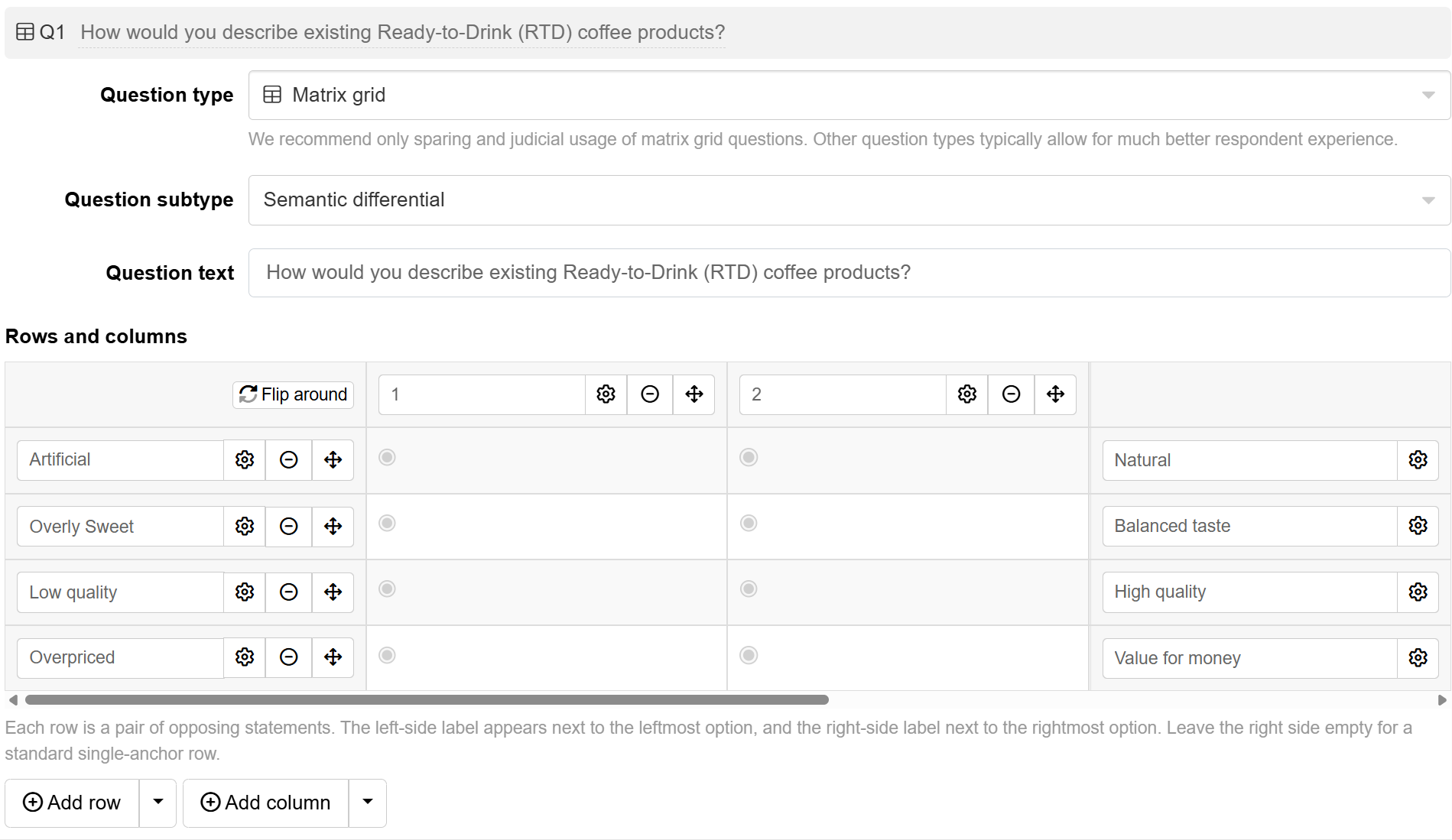
- For Semantic differential question subtype, each row includes two text input fields:
- Left-side label (Required): Displays at the starting endpoint of your rating scale.
- Right-side label (Optional): Displays at the opposite endpoint.
Entering labels in both fields creates a bipolar pair (e.g. “Slow” vs “Fast”). If you leave the right-side label empty, the row automatically defaults to a single-anchor display (e.g. “Quality” rating only).
Alternatives to matrix grid questions
The best alternative to matrix grid questions is nesting multiple questions within a monadic block. This allows you to easily ask multiple questions per stimulus, while not overloading the user with information.
Common questions to be nested within a monadic block are:


For more information regarding monadic blocks, check out our guide on monadic testing and how to use them.