- Quality assurance for Predefined panels
- Quality assurance for Self-serve sample
- Multi-layered response quality protection
- Reviewing survey participants
- Checking response quality
- Evaluating responses with Quality Score
- Reviewing quality across panels
- Reviewing sloppy open-end classifications
- Analysing patterns in open-ends
- Survey drafting tips for response quality
- Introduction to question types and blocks
- Intro text: No respondent input
- Multiple choice
- Dropdown menu
- Ranking
- Short text
- Email address
- Number
- Image heatmap
- Video response
- Positive/negative open-ended feedback
- Likert scale
- Semantic differential
- Dual negative-positive scale
- Net Promoter Score
- Star rating grid
- Constant sum
- Slider
- Single swipe card
- Set of swipe cards
- Regular expression
- Text highlighter
- Paragraph input
- Matrix grid
- Implicit test
- Calculated variable
- Gender and age
- Closed card sorting
- Signature input
- File upload
- Recall test
- Simple block
- Randomisation block
- Survey flow controls
- Quota check
- Enrol into audience
- Camera verification
- What is conjoint analysis?
- Classification of conjoint
- Alternatives to conjoint
- Technical notes on conjoint
- Setting up a conjoint analysis study
- Setting up a Brand-Price Trade-Off study
- Partial profile conjoint analysis
- Tips for setting up conjoint studies
- Display logic for conjoint experiments
- Partworth utilities
- Marginal willingness to pay
- Manual calculation of partworth utilities
- Price Elasticity of Demand
- Covariates in conjoint
- Offline data collection for conjoints
- Create a MaxDiff experiment from a file
- Introduction to preference share simulations
- Top simulator usability tips
- Calculating volume, revenue, and profit
- Scale factor adjustments
- Models for calculating preference shares
- Margin of error in simulations
- Availability adjustments in the simulator
- The segregate function
- The source of business function
- Correlation matrix for simulations
- Sensitivity to adding or removing concepts
- Adding groups of concepts
- Using adcepts in simulations
- Interactive Excel simulator
- Comparison against the TURF simulator
- Setting up a conversational survey
- Multiple languages in one study
- GET variables
- External variables
- Display logic for survey questions
- Survey flow of a monadic block
- Setting up quotas
- Passing on options from previous questions
- Piping in previous answers or other data
- Displaying modal windows to respondents
- Anonymising responses and protecting privacy
- Setting up redirects and third-party integrations
- Generating surveys from briefs or files
- Automated survey review and audit
Intro text: No respondent input
The intro text serves to present information only and doesn’t require input from participants. It is useful to introduce concepts or describe the purpose of the survey/product before proceeding with other questions.
Respondent view

Setting up an intro text
Follow these steps to set up the intro text:
1. Add the intro text
Navigate to the Add questions tab and click on the Add question button at the bottom of the page.
On the Add or import questions pop-out, select the Add a new question tab and click on the Intro text: No respondent input question card to add it to the experiment.

2. Add content
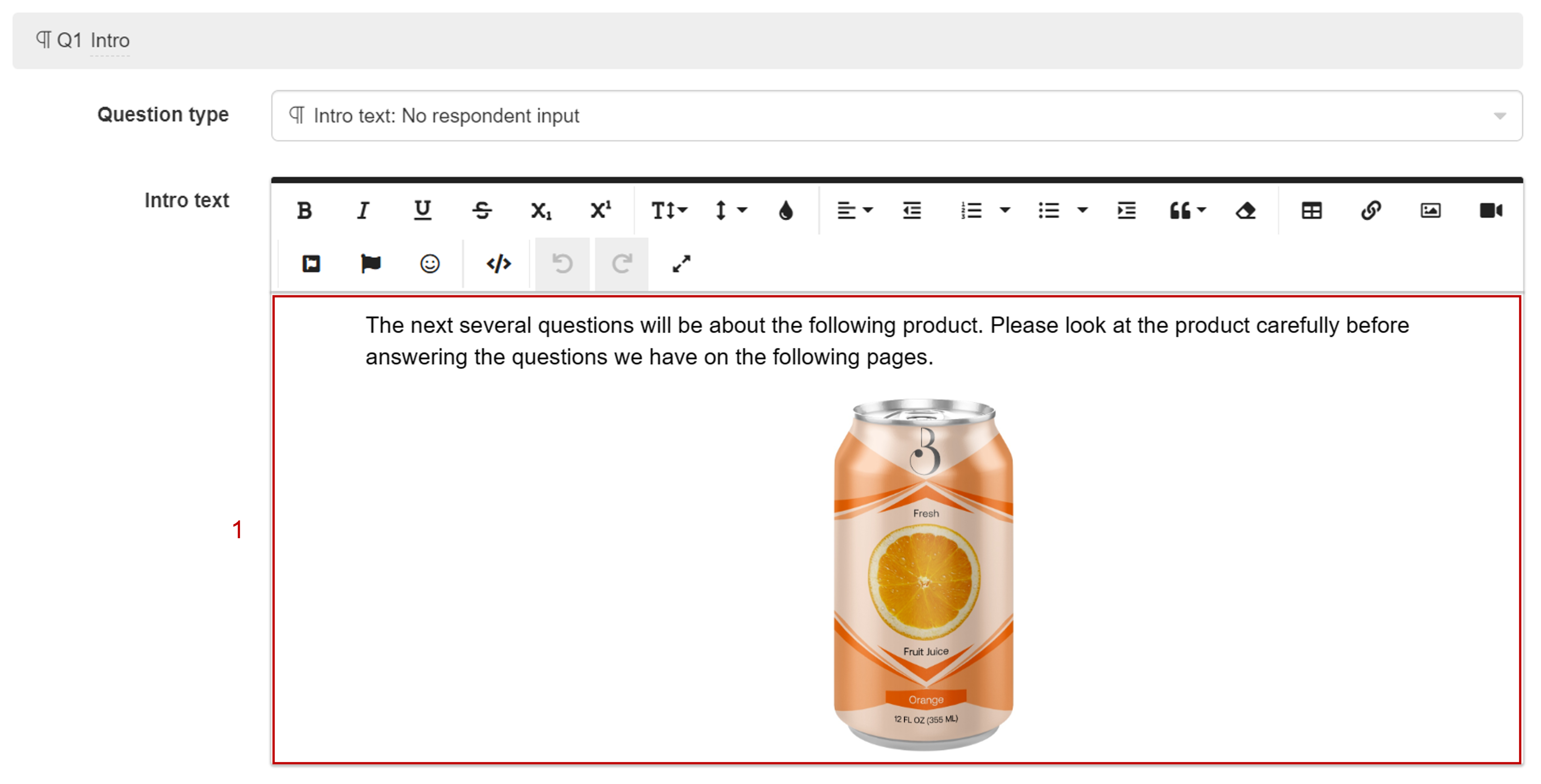
Once you add the intro text, you can include the text you want to show to participants. If you need to include images, you can paste them directly into the field.
Which one are you?
We (Conjointly) collect your personal details and other information in accordance with the Conjointly Privacy Notice. It is needed to talk to you via teleconference and subsequent communications. If you don’t provide this information, we may not be able to talk to you. You have rights to correct your information, to make a complaint, and other rights, as per the Privacy Notice.