Implicit test
The Implicit Test question type measures the strength of respondents’ associations between concepts by recording reaction times across rapid categorisation tasks. Faster, more consistent responses indicate stronger associations between the paired concepts.
The following guide assumes familiarity with reaction time testing methodology and is intended for users configuring their own studies on the platform. As the question type is still in early access, the reporting is currently in development. In the meantime, results are available via R export.
If you are new to reaction time testing or looking for a custom solution for your projects, get in touch with our team for a full-service project tailored to your needs, or visit our Implicit Testing solution page to learn more.
How it works
The Implicit Test functions as a block question type, rather than a standalone question. Each block may contain one or more implicit test exercises.
The block’s configuration is managed through two main components:
- Concepts: The items included in the test
- Exercise layouts: How those items are presented and categorised
Within each exercise, respondents see items appear on screen and press a key to assign them to a left or right category. Their response times are recorded and used to calculate association scores.
The format is not fixed to a single template. Categories, concepts, and exercise structure can be configured to align with different reaction time testing approaches and research designs.
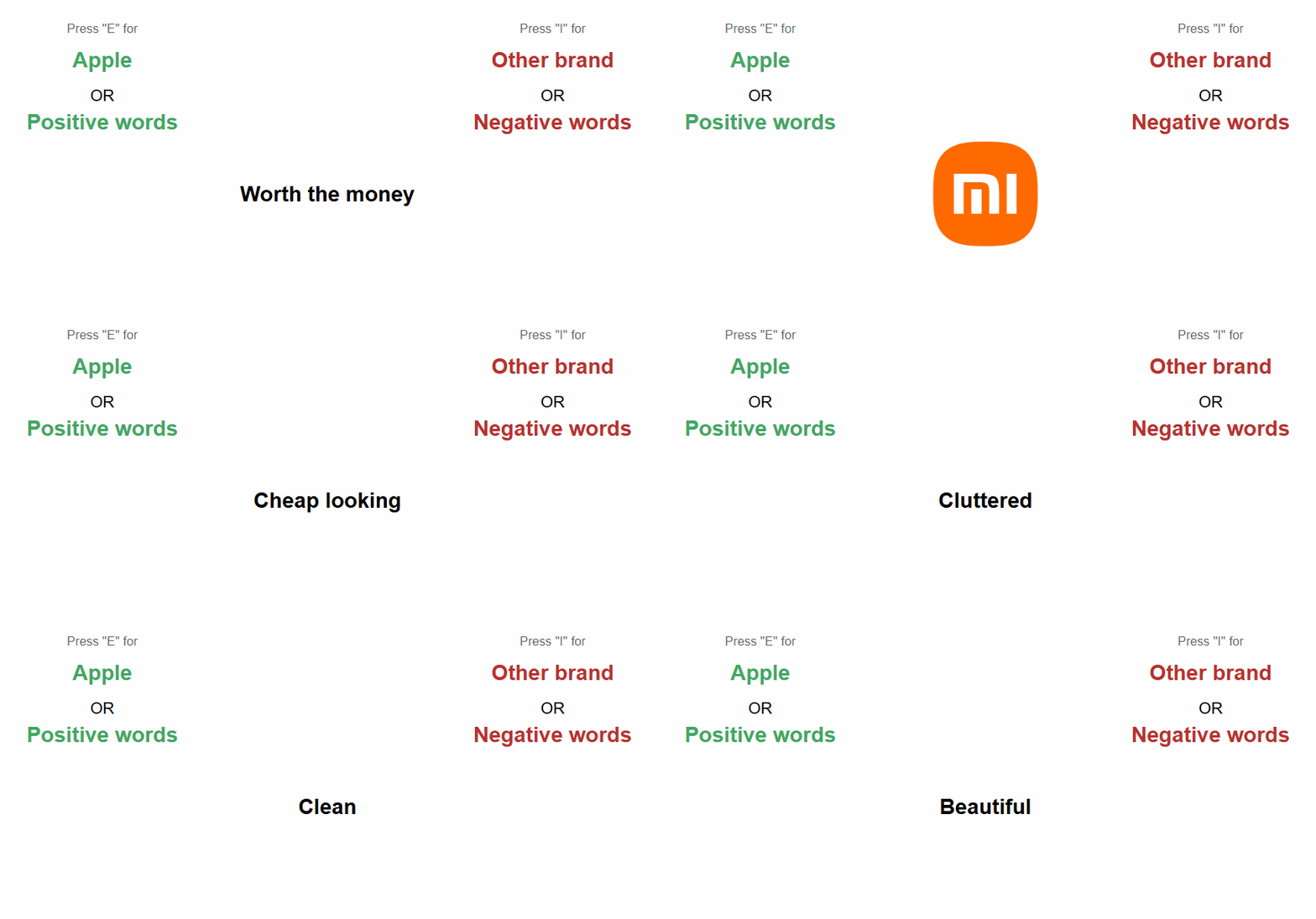
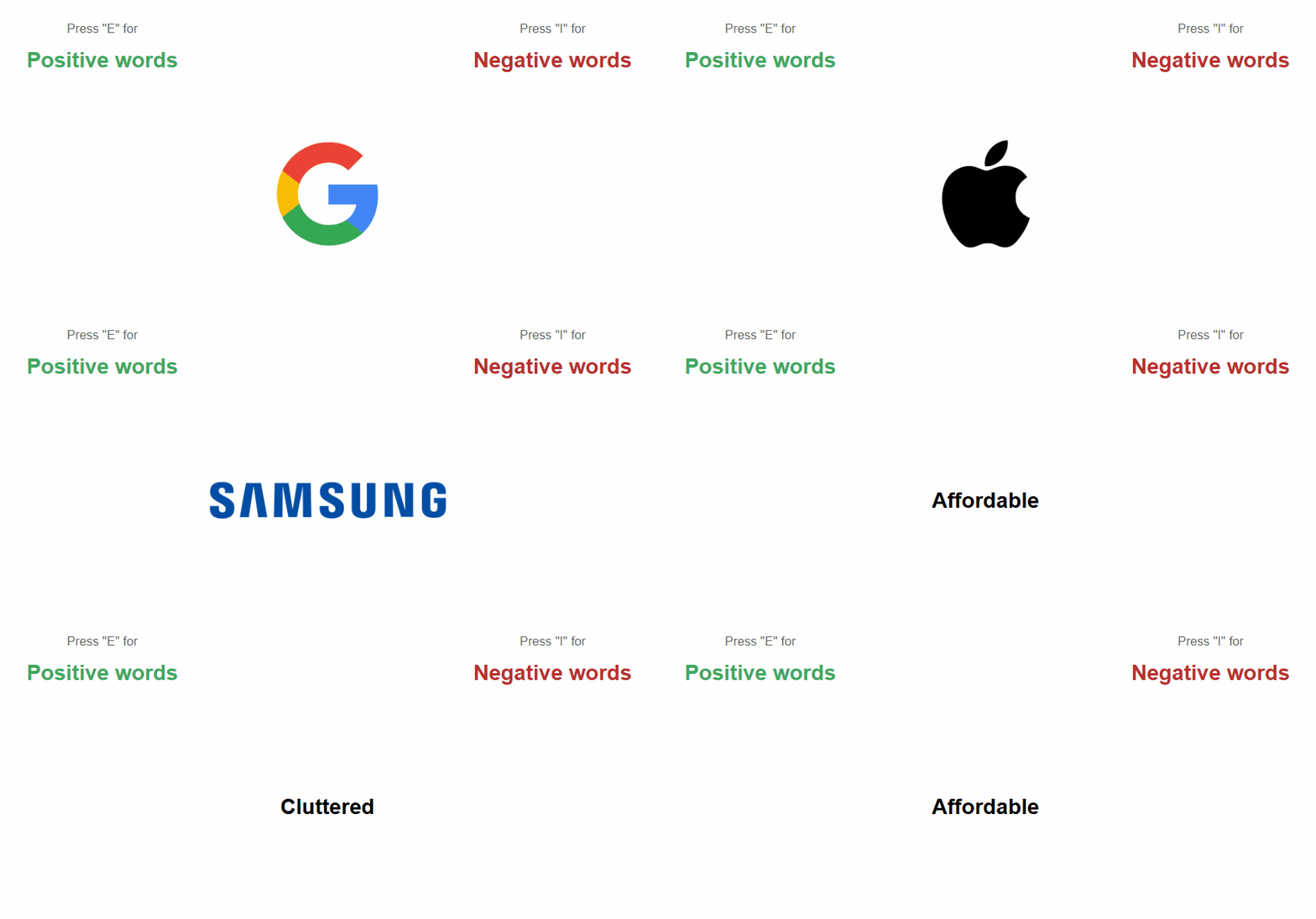
The following are some examples of formats you can set up, your actual configuration can vary well beyond these:
Attribute concept-fit test
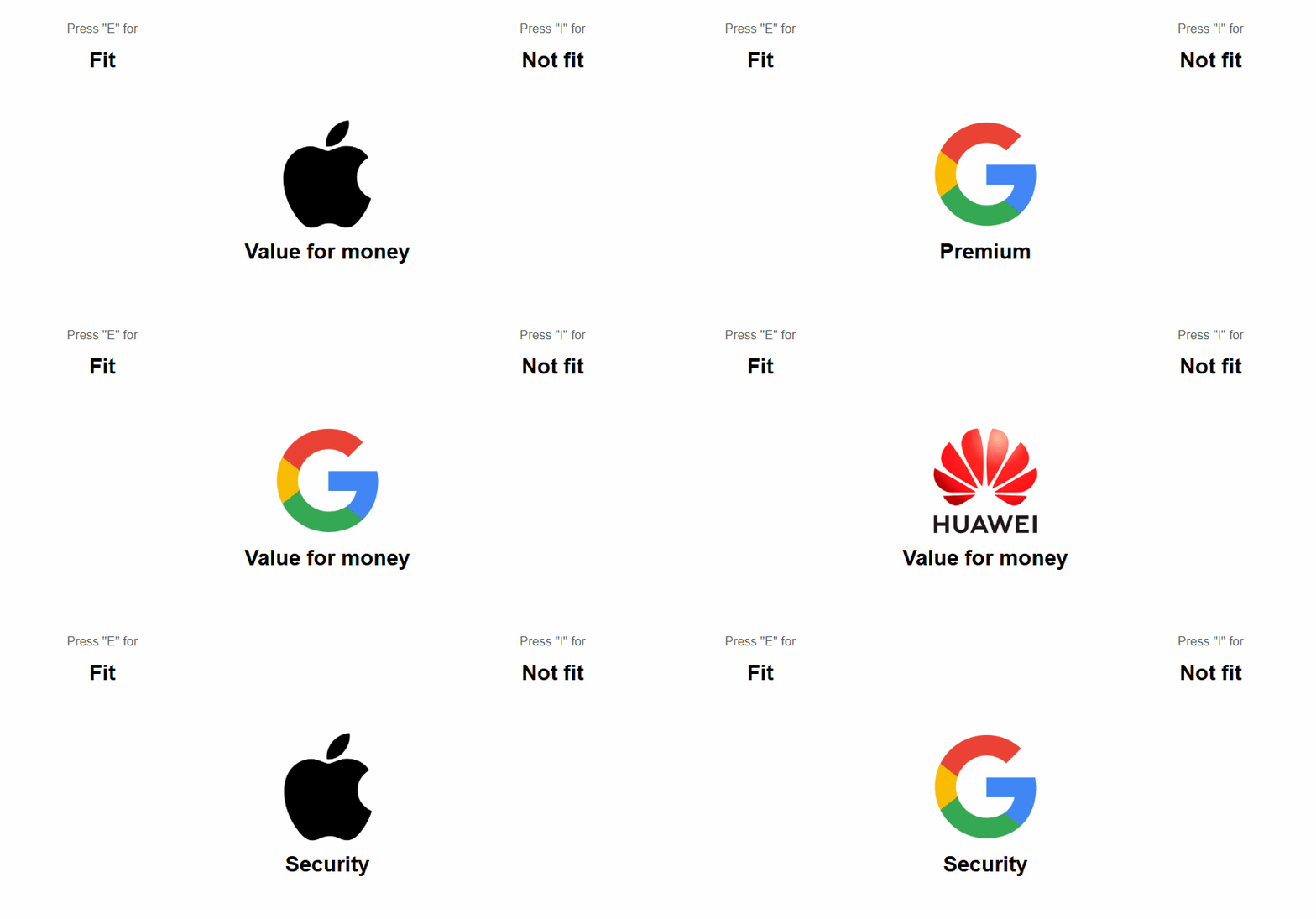
Left/right word categorisation

Combined categorisation task
Prime before classification
Setting up an implicit test
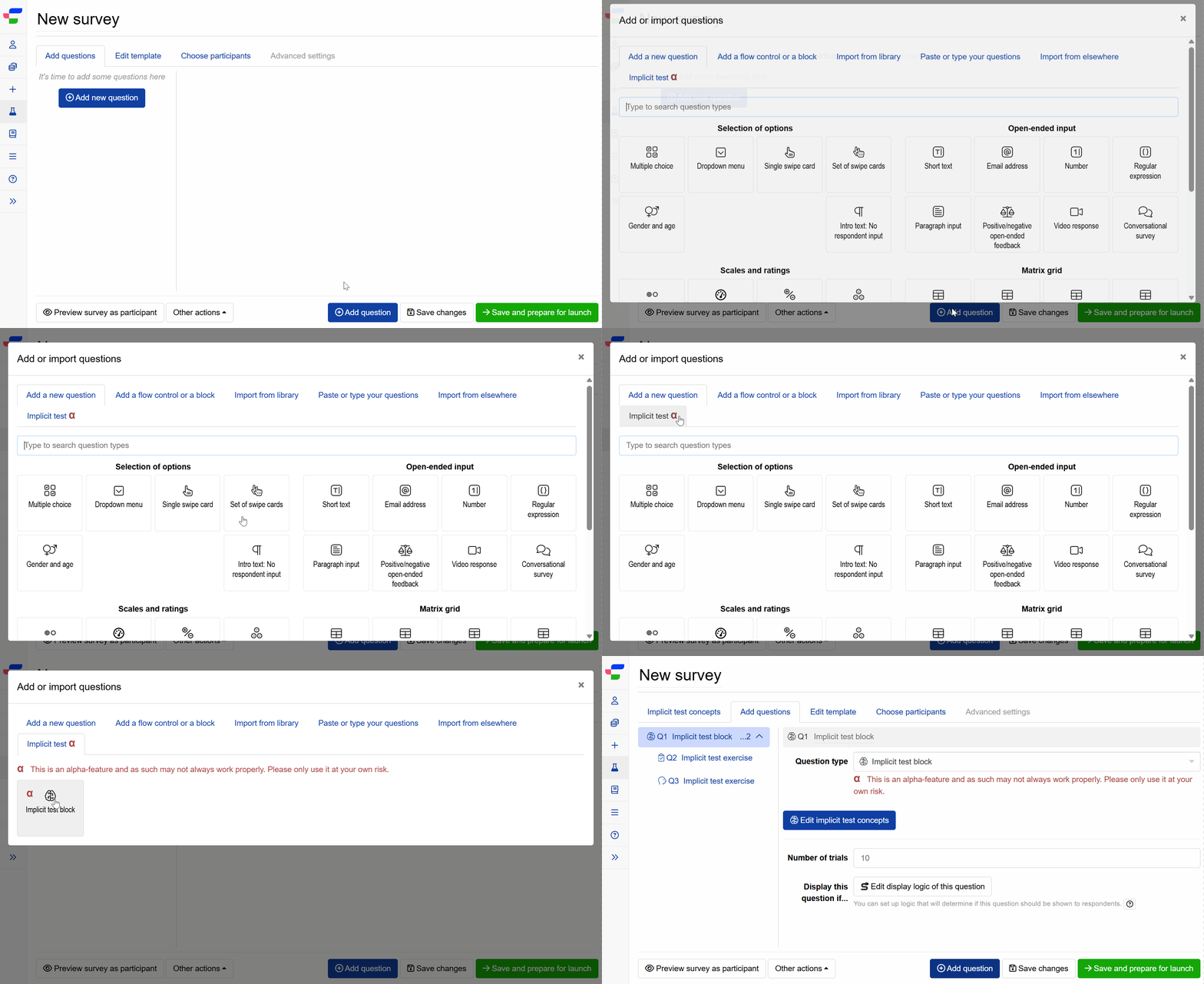
1. Add the block
Navigate to the Add questions tab and click at the bottom of the page.
On the Add or import questions pop-up, select the Implicit test α tab, then click the card to add the block to your experiment.
2a. Configure the block
Once the block is added, you will see the block setup screen. From here you can:
- Click to define the concepts and examples used across all exercises in the block.
- Set the Number of trials. It is the number of individual categorisation screens each respondent completes per exercise. Defaults to 10.
- Configure Display this question if… to control whether the block is shown to specific respondents based on logic you define.
2b. Set up concepts
In reaction time testing, constructs are broken down into concepts and examples:
- Concept: The construct or category being measured in the task (e.g., a brand, product, or attribute). A block can include multiple concepts.
- Example: A specific stimulus (word, phrase, or image) that represents the concept and is presented to respondents during the task. Each concept can have multiple examples.
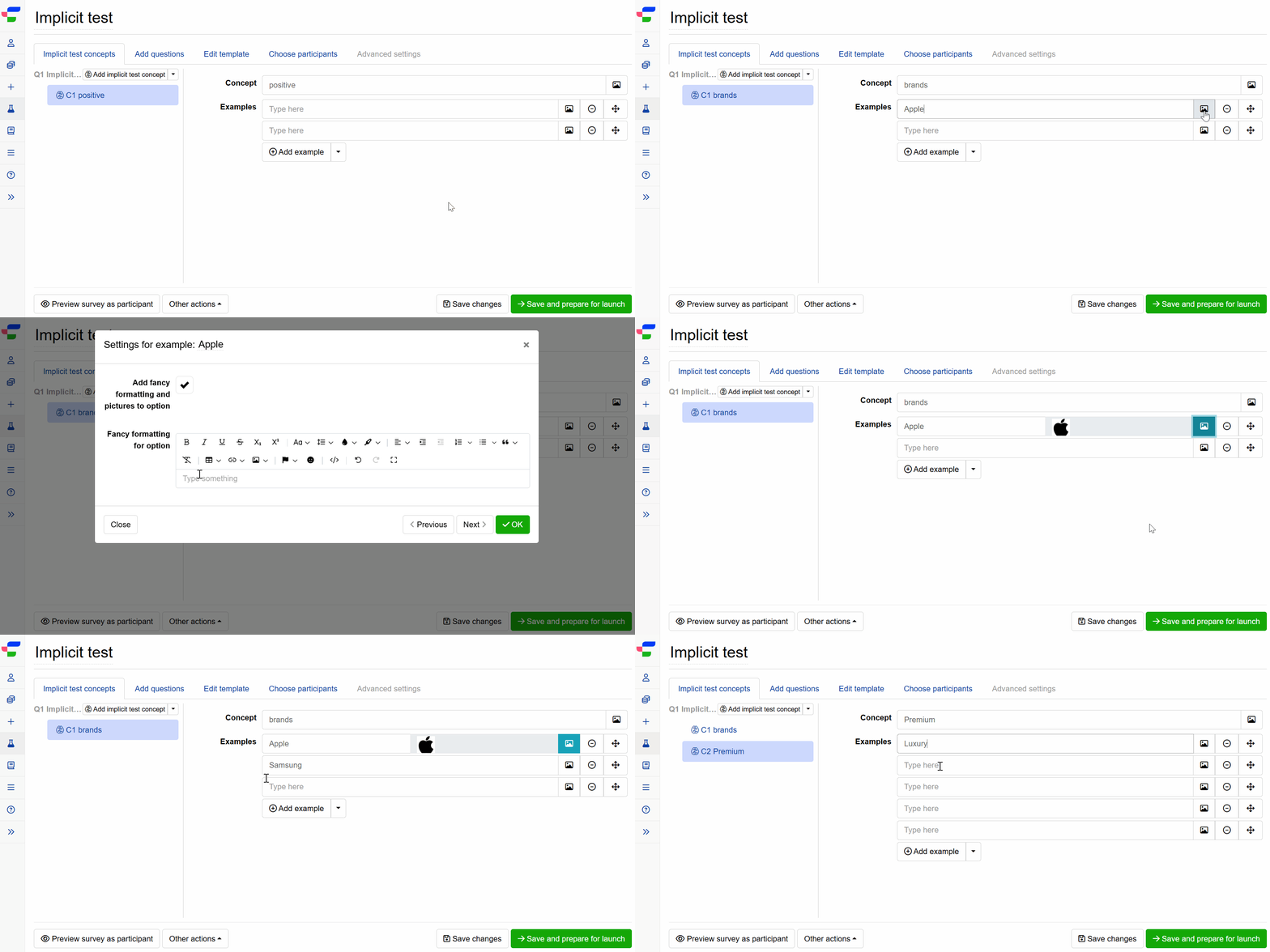
Click on the implicit testing block or navigate to the Implicit test concepts tab to define the concepts used across all exercises in the block.
The left panel lists all concepts. Click any concept to edit it in the right panel, where you can:
- Enter or edit the concept name.
- Add one or more examples. Use the image icon next to each example to add fancy formatting or upload an image.
- Click to add further examples.
- Reorder examples by dragging the move icon, or remove them using the minus icon.
To add a new concept, click at the top of the left panel.
Concepts and examples must be unique within the same block. You can specify whether concepts, examples, or both are displayed to respondents during the task. This is configured in the exercise layout.
2c. Setting up the implicit exercises
Once your concepts and examples are configured, you can set up the implicit test exercise. Each exercise appears as a child question under the block.
For each exercise, you can configure the following:
- Exercise type: Set to Practice or Test.
- Practice exercises familiarise respondents with the task before the real test begins. Their results are not included in analysis. It is recommended to include at least one practice in each test.
- Test exercises capture the data used in analysis.
- Number of trials: Overrides the block-level default for this exercise only. If left blank, the number of trials is inherited from the parent implicit test block.
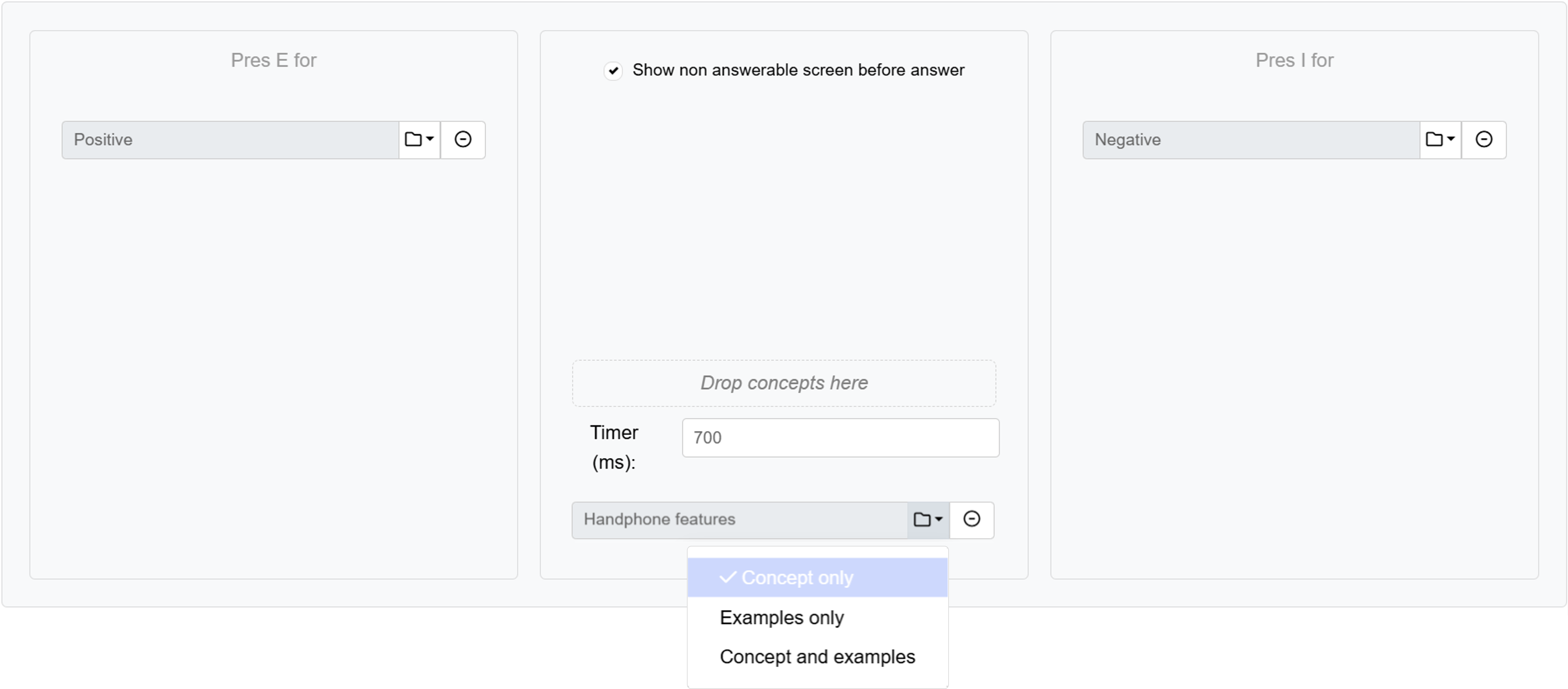
Below the settings, you will see the exercise layout, a three-panel canvas where you assign concepts to each response key.
All concepts you defined in the Implicit test concepts tab appear as draggable tiles at the top. Drag them into the layout:
- Left panel (Press E for): Concepts assigned here are categorised by pressing
E. - Right panel (Press I for): Concepts assigned here are categorised by pressing
I. - Centre panel: Stimuli will be shown here. Tick Show non-answerable screen before answer to display a prime screen before each trial. This is used for priming study designs and is optional.
Within any panel, you can drop multiple concept tiles. How they are stacked determines the behaviour:
- Same slot: concepts alternate between trials.
- Separate slots within the panel: concepts appear together, with an optional separator between them.
For each concept dropped into a panel, you can choose what respondents see during the trial:
- Concept only: Shows the concept name.
- Examples only: Shows the examples you defined for that concept, one at a time.
- Concept and examples: Shows both the concept name and its examples.
For further customisation of the test, including testing types and exercise layout, please contact Conjointly support and we’ll be happy to provide a quote for our development team to perform it for you.
Frequently asked questions
Can reaction time tasks be used to assess individuals, i.e. to measure individual differences in the strength of associations?
Not recommended. The existing body of research affirms that reaction time tasks reliably reveal trends across a sample or population, but are far less reliable for assessing any single person due to measurement error. Use the method to understand your audience, not to assign a score to any one respondent.