Implicit "Fit / Does not fit" Test
The Implicit “Fit / Does not fit” Test measures the strength of associations between the brands, products or ideas you test and the attributes you care about, by recording respondents’ choices and reaction times. This guide covers how the test works, how to set it up, and how to interpret your results.
How the test works
The Implicit “Fit / Does not fit” test shows participants a single stimulus alongside a specific attribute. The participant then presses a key to indicate whether they feel the pair fits together or not.
For example, a researcher wants to measure how consumers associate three sportswear brands (Nike, Adidas, and Reebok) with five attributes: cushioned, lightweight, durable, stylish, and good value.
In each trial, participants see one brand paired with one attribute. They tap a button on mobile or press a key on desktop to select Fit or Does not fit as quickly as possible.
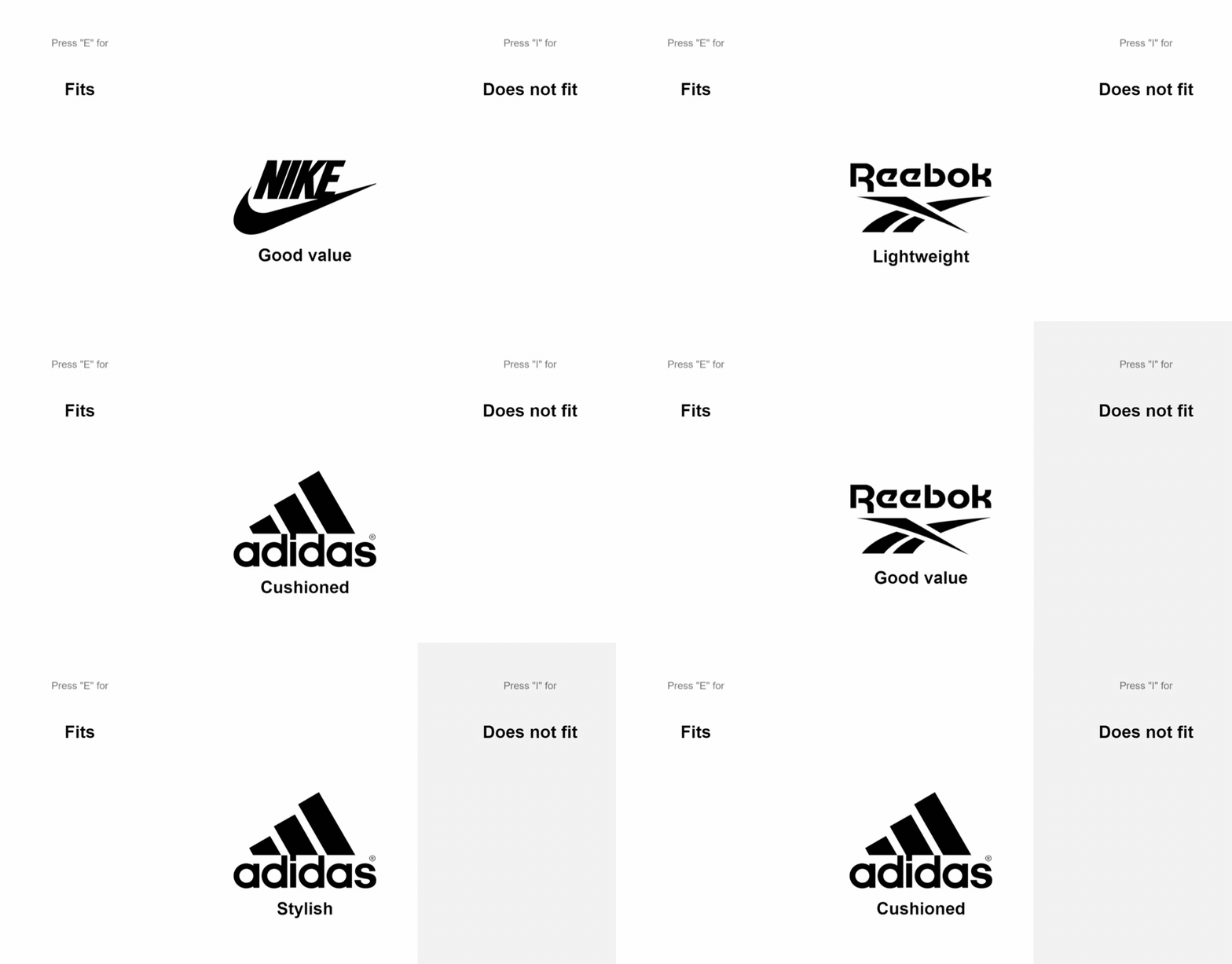
The test records both the chosen answer and the response time in milliseconds. An automated report then presents the results as a clear data story, highlighting association strength, reaction times, and core insights.
You can configure the test by replacing the brands and attributes with any concepts, images, or messaging you want to evaluate. If you want the Conjointly team to run the project for you, get in touch for a full-service project tailored to your needs, or visit our Implicit Testing solution page to learn more.
Set up the Implicit “Fit / Does not fit” Test
On the Launch a new experiment page, click on the Implicit “Fit / Does not fit” Test to create a survey with the test block added.
Alternatively, you can add the test into your existing experiment with the following steps:
- Navigate to the Add questions tab and click on the button at the bottom of the page.
- On the Add or import questions pop-up, select the Add a new question tab and click on the card to add the block to your experiment.
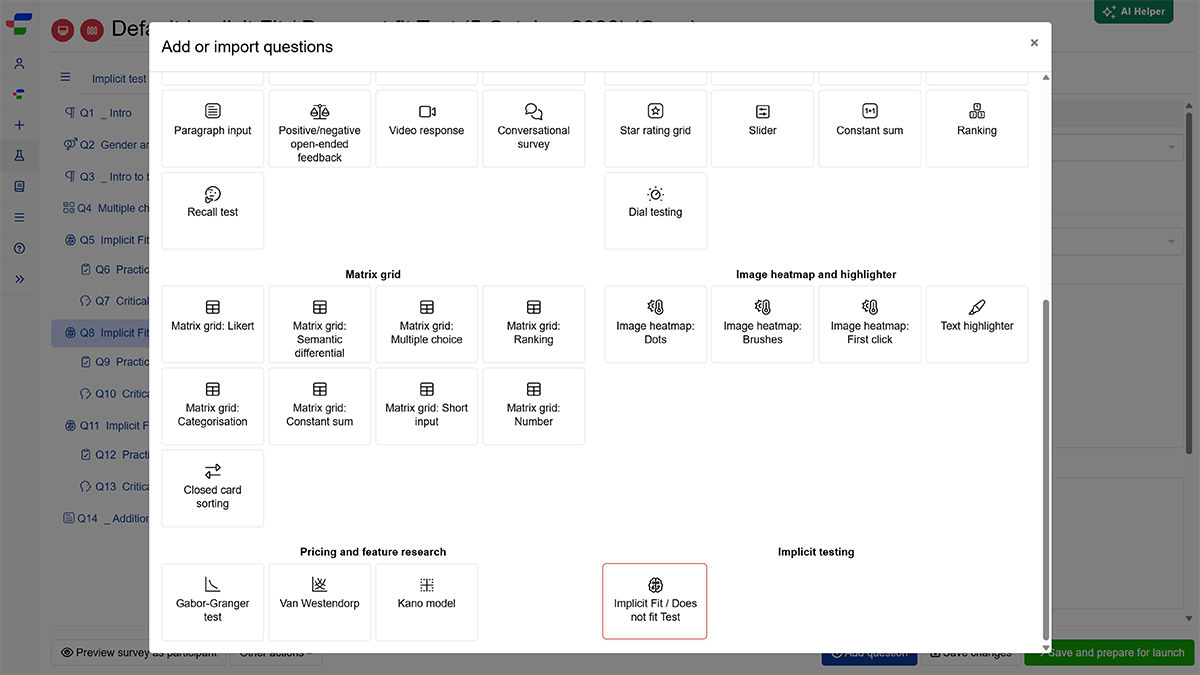
When setting up your test, you will configure the core test elements, including your stimuli, associations, response labels, test settings and layout through two main areas:
- The Implicit test concepts tab: This is where you upload and manage your practice and actual stimuli (e.g. your brands or products), associations (e.g. your attributes or messaging), attention check items, and the “Fit” / “Does not fit” labels.
- The Implicit Fit / Does not fit Test block within the Add questions tab: This is where you configure your overall test settings and layout (such as timing rules, trial counts, and display formats).
Add your stimuli and associations
Once the question is added, a 4-step setup wizard pops up automatically. You can follow it, or click Close at any time to set up the test manually. If you close it before adding your own lists of stimuli and associations, check the Implicit test concepts tab and replace any sample items before you launch.
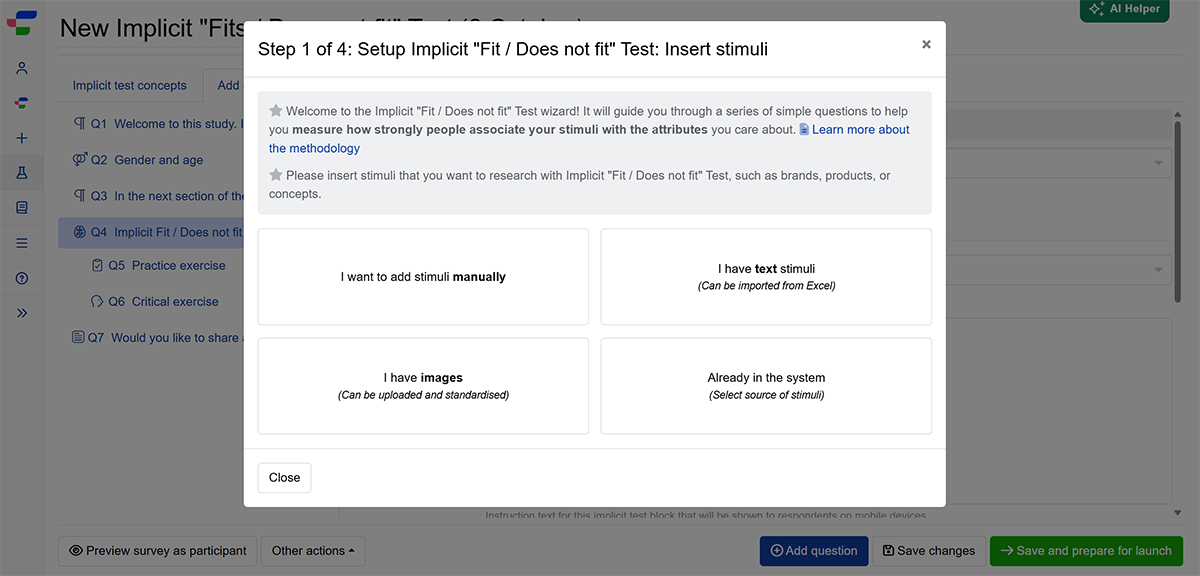
The setup wizard guides you through the following steps to insert your stimuli and associations:
- Choose how to enter your stimuli: type them in manually, enter text (you can import it from Excel), upload images, or select items already in your system.
- Add your stimuli: enter or upload the brands, products or ideas you want to test.
- Choose how to enter your associations: the same four ways.
- Add your associations: Enter the words or attributes respondents will judge each stimulus against, such as “cushioned”, “lightweight”, and “durable”.
The wizard turns your lists into a stimuli concept and an association concept, and your items become their examples.
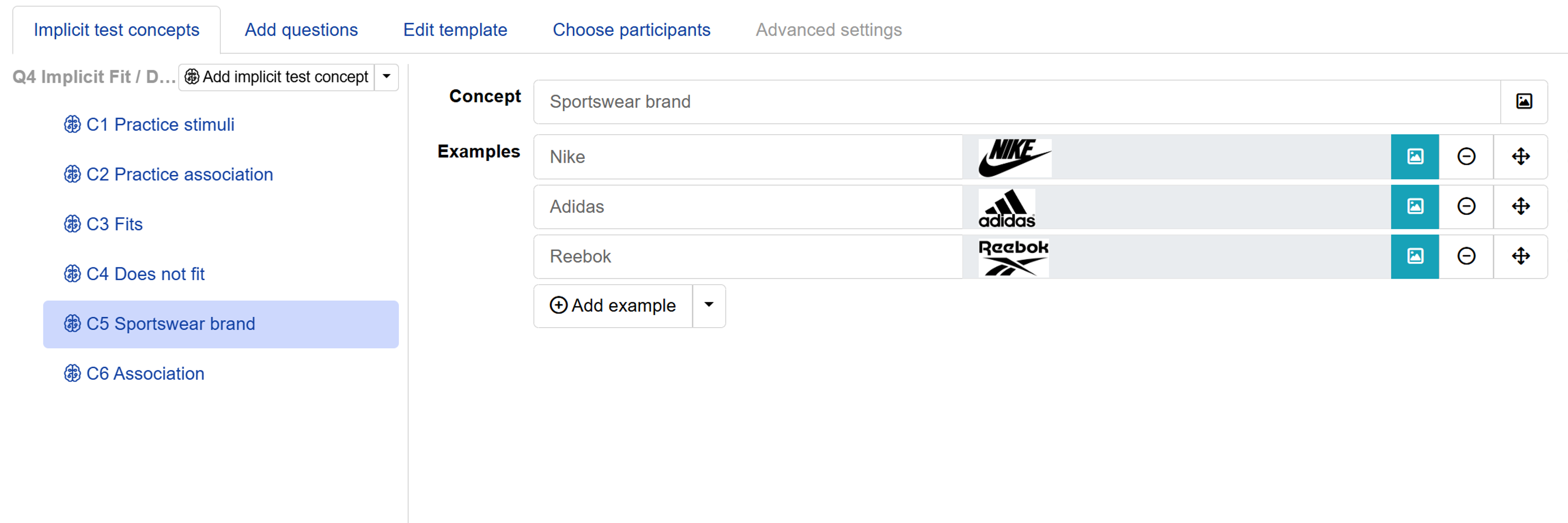
You can add, remove, or edit the items in your test, including your stimuli and associations, the auto-generated “Fit” and “Does not fit” labels, and practice stimuli and associations on the Implicit test concepts tab.
Put Fits above Does not fit. The data story reads the upper concept as positive and the lower as negative, so this order decides which answer counts as a strong association.
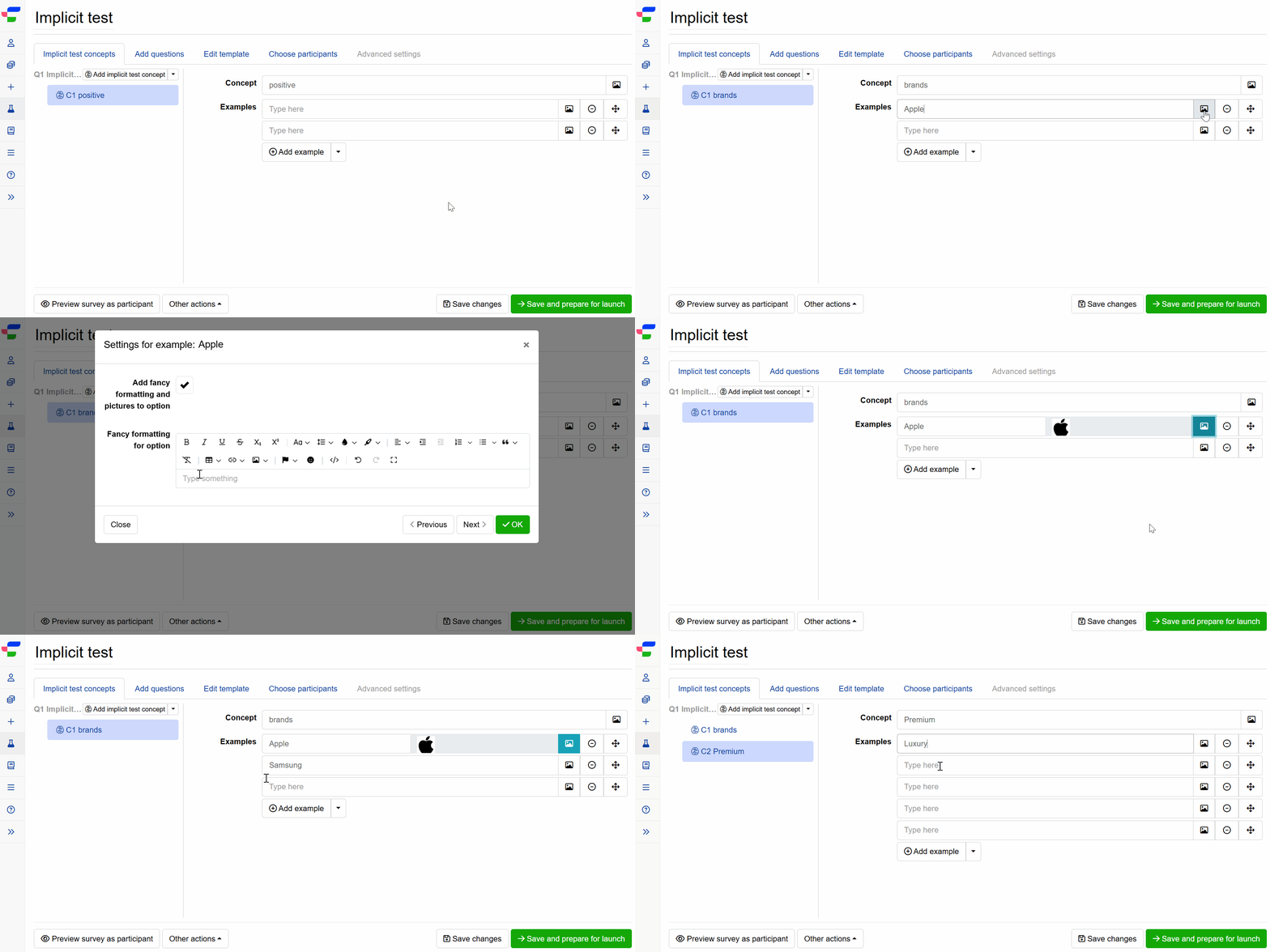
The left panel lists all concepts. To add one, click at the top of the panel.
Click any concept to edit it in the right panel, where you can:
- Enter or edit the concept name.
- Add one or more examples, and use the image icon beside an example to format the text or upload an image.
- Click to add further examples.
- Reorder examples by dragging the move icon, or remove them using the minus icon.
Concept names and example names must be unique within the block.
Set up the test
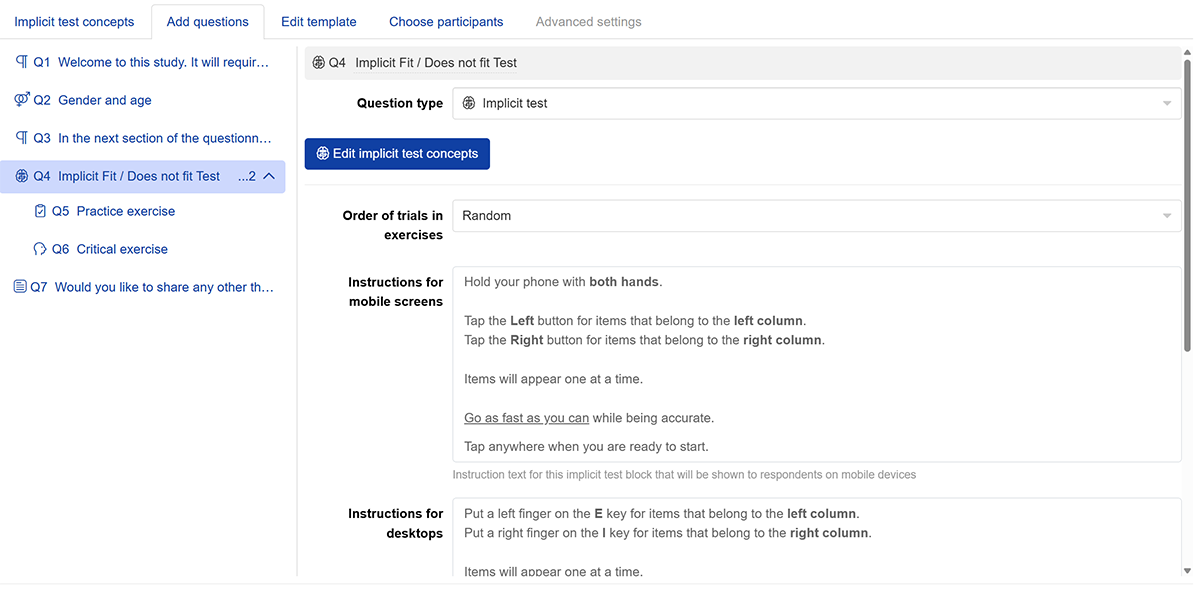
The “Implicit Fit / Does not fit Test” operates as a block, with individual exercises listed as child items underneath it. From here, you can:
- Click to define the concepts and examples used across all exercises in the block.
- Choose the Order of trials in exercises. Options include “Random” or “All combinations for one item, then next item”.
- Write Instructions for mobile screens and Instructions for desktops. Exercises inherit them unless you override them.
- Choose the Control keys. Exercises inherit these too.
Every new block comes with a Practice exercise and a Critical exercise. A block must keep at least one exercise.
Set up the exercises
For each exercise, you can configure the following:
- Exercise type: Practice or Critical.
- Practice exercises teach respondents the task and controls with dummy stimuli, such as flowers and insects, so give them their own concepts. Practice answers are not analysed. Conjointly recommends at least one practice in each test.
- Critical exercises record the actual data across your stimuli and associations.
- Number of trials: The number of screens each respondent answers in this exercise, from 1 to 300. Leave it blank to inherit the default you set on the block setup screen.
- Control keys: Choose the left and right keys from A to Z, or the Left and Right arrow keys. They default to
EandI, and the two keys must differ. - Key hints: The labels above each side, such as
Press "E" for. You can edit them, and they show on desktop only. - Flip right and left sides: Tick this box and some respondents, chosen at random, see the left and right sides swapped. The keys stay the same.
Check the exercise layout
Below the settings, you see the exercise layout, a three-panel canvas where you assign concepts to each response key. All concepts from the Implicit test concepts tab appear as draggable tiles at the top.
Each of the three panels needs at least one concept:
- Left panel (Press
Efor): Concepts assigned here are categorised by pressing the left key. - Right panel (Press
Ifor): Concepts assigned here are categorised by pressing the right key. - Centre panel: Stimuli will be shown here.
Within any panel, you can drop multiple concept tiles. How they are stacked determines the behaviour:
- Same slot: Concepts are pooled, and each screen shows one item from the pooled examples.
- Separate slots within the panel: Concepts appear together on the same screen, one item each, with an optional separator between them. The separator text defaults to “OR”.
To have the data story analyse your results automatically, ensure your exercise layout is configured as follows:
- Left panel: Contains the Fits concept.
- Right panel: Contains the Does not fit concept.
- Centre panel:
- Position your Stimuli concept in slot 1 and Association concept in slot 2.
- Set both Stimuli and Association concepts to Examples only. The headers of the left and right panels are locked as Concept only and cannot be changed.
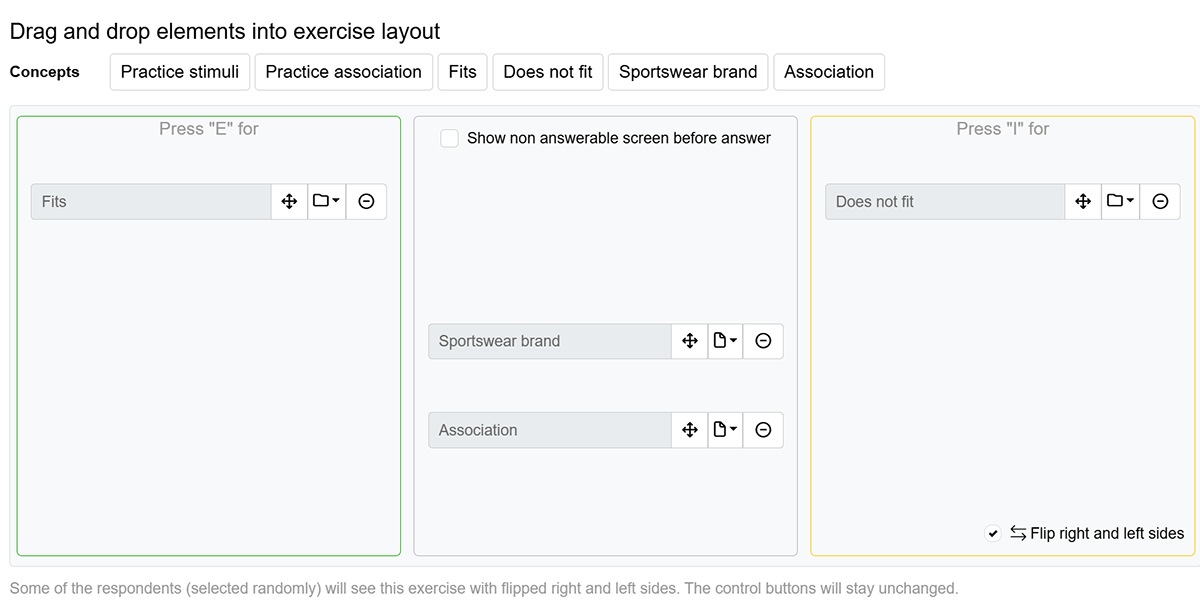
If you plan to export the data and run your own analysis, for example in R, you can arrange the layout however your analysis needs.
Set up correct answers and feedback (optional)
If some combinations fit and others never do, you can tell the test which answers are correct. Click in an exercise, add all the combinations that form correct answers from the list. You can also use this setting for attention checks.
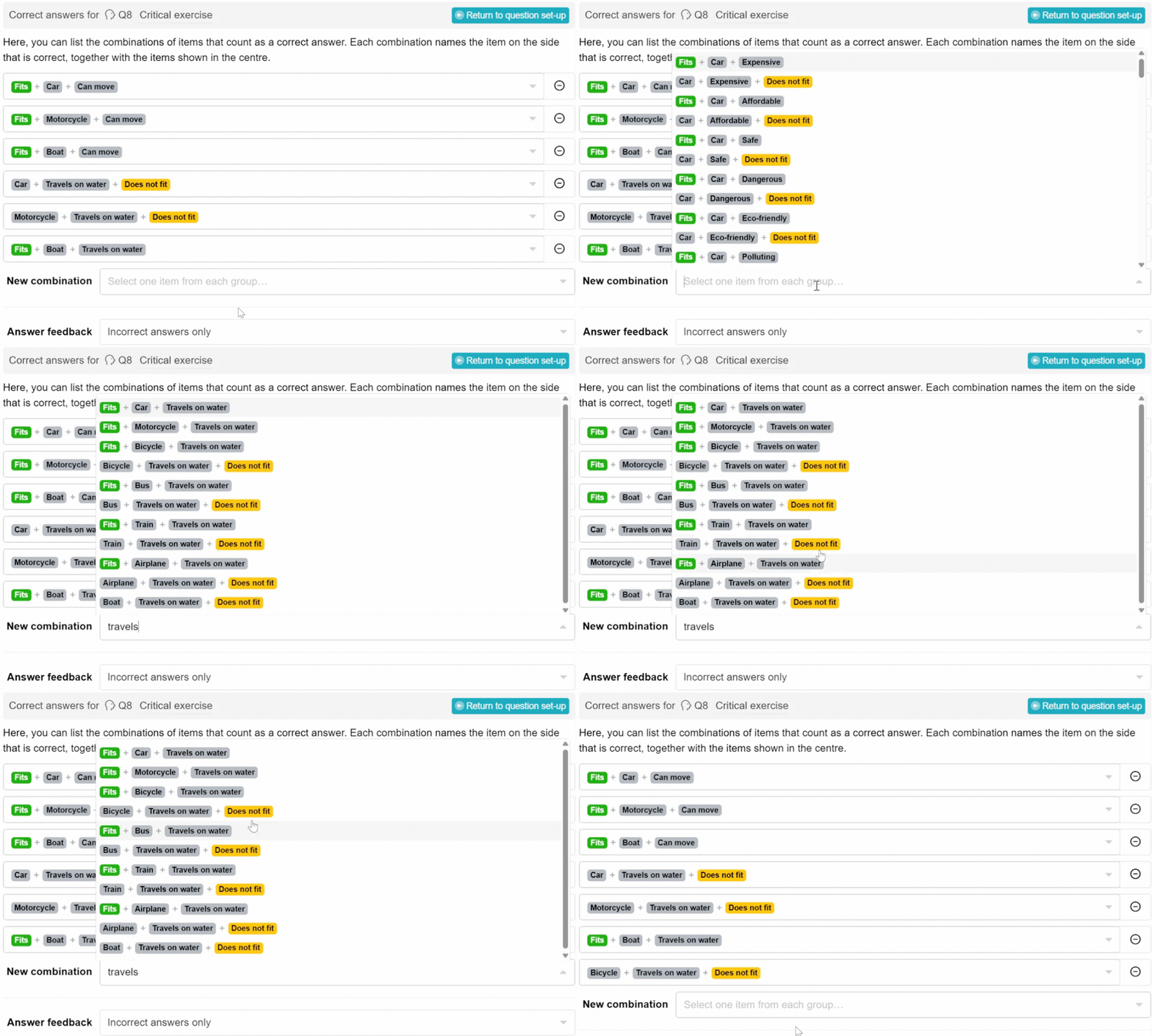
Set Answer feedback to show nothing, correct answers only, incorrect answers only, or both. If feedback is on but no combination is set as correct, a yellow message reminds you. With feedback on, a red X appears after a mistake and the respondent presses the other key to continue.
You can also choose whether to show screens that have no correct answer.
Review and launch your experiment
Check your concepts, layout and exercise settings before you launch. They are locked once your experiment is live. When you are ready to launch your experiment, click on .
Frequently asked questions
What are attention checks and how do I set them up?
An attention check is a pairing with an obvious answer, such as “Car” with “Can move”. Respondents who read each screen get these right, so wrong answers can show who is guessing.
To set them up:
- Add a few obvious items to your lists, such as “Car” and “Boat” as stimuli and “Can move” and “Travels on water” as associations.
- In your Critical exercise, click . Add each pairing and choose its correct answer. For example, “Car” with “Can move” is Fits, and “Car” with “Travels on water” is Does not fit.
- Choose to show screens that have no known answer, so respondents also see your real brands and attributes.
These pairings also appear in your results, so leave them out when you compare brands.
Can reaction time tasks be used to assess individuals, i.e. to measure individual differences in the strength of associations?
Not recommended. The existing body of research affirms that reaction time tasks reliably reveal trends across a sample or population, but are far less reliable for assessing any single person due to measurement error. Use the method to understand your audience, not to assign a score to any one respondent.
Can I insert a question or block into the implicit “Fit / Does not fit” block?
The implicit “Fit / Does not fit” test works as a standalone block that hosts only implicit exercises. You can, however, add other questions or blocks before and after it.