Image heatmap
The Image heatmap question type presents respondents with an image and asks them to select specific areas as their response. Respondents can also leave optional comments on their selections.
Some common use cases include asking respondents to identify areas they like, dislike, find clear, or find confusing when evaluating branding assets, digital advertisements, packaging designs, product concepts, shelf layouts, and more.
If you would like to gather similar feedback on text instead, check out our text highlighter questions.
Respondent view
Conjointly offers three types of image heatmap questions:
- Dots and Brushes both allow multiple selections across the image.
Dots highlight type
Dots allow pinpoint accuracy with an optional text box per dot, ideal for detailed feedback on specific elements.
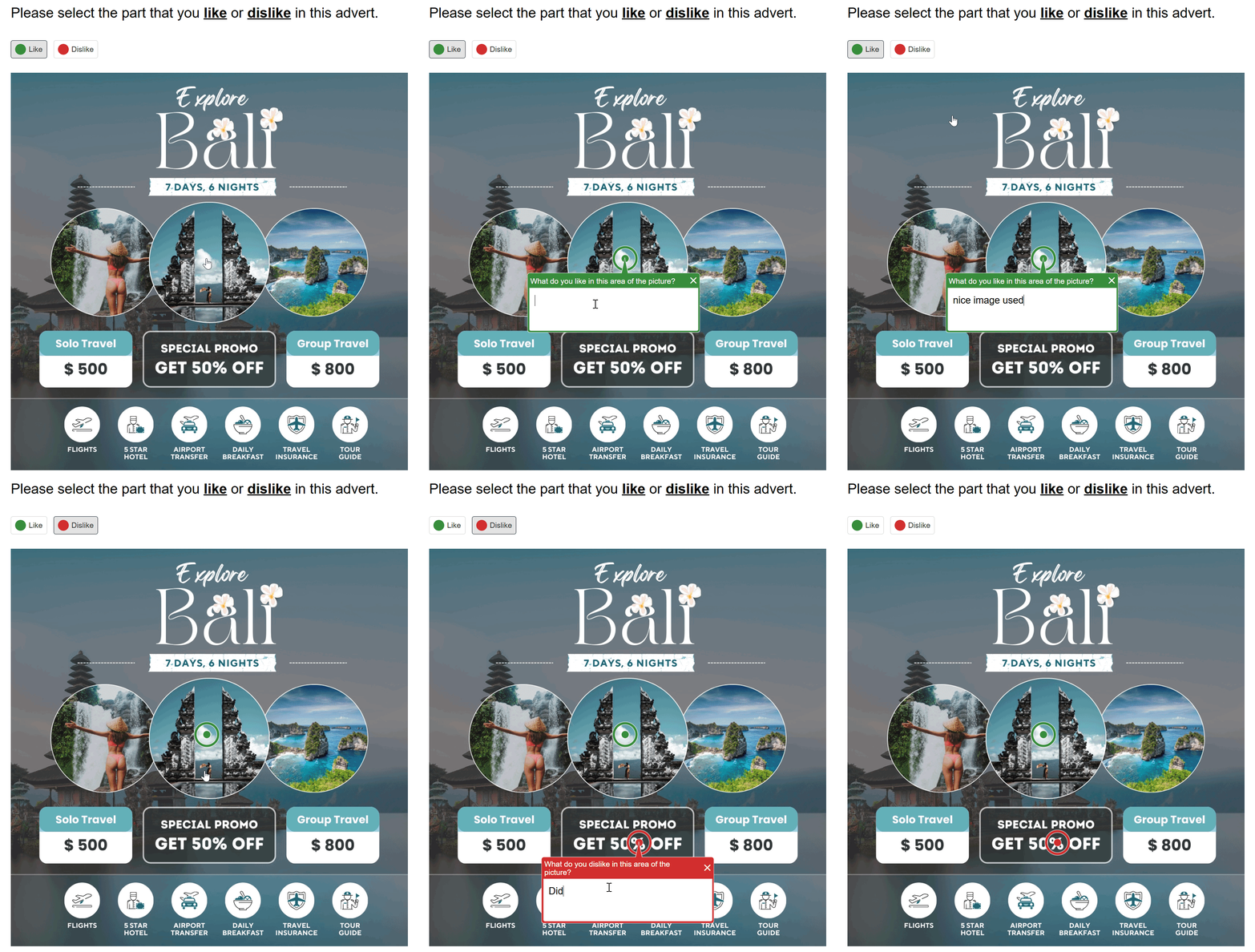
Brushes highlight type
Brushes allow quick highlighting of larger areas with an optional text box per colour, ideal for overall design evaluations.
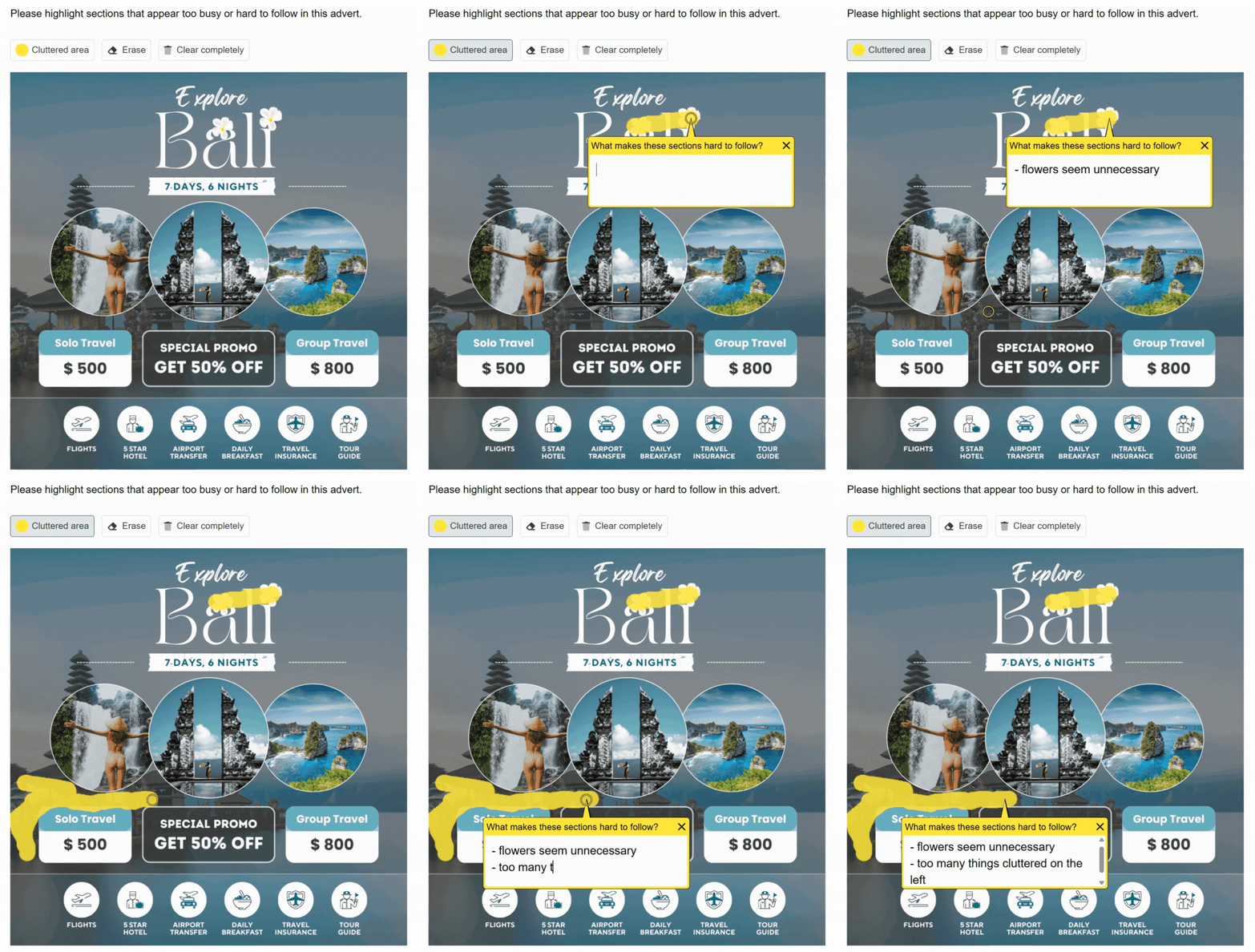
- First click works similarly to Dots but limits respondents to a single, non-editable marker. Use it to test which element first captures attention.
First click type
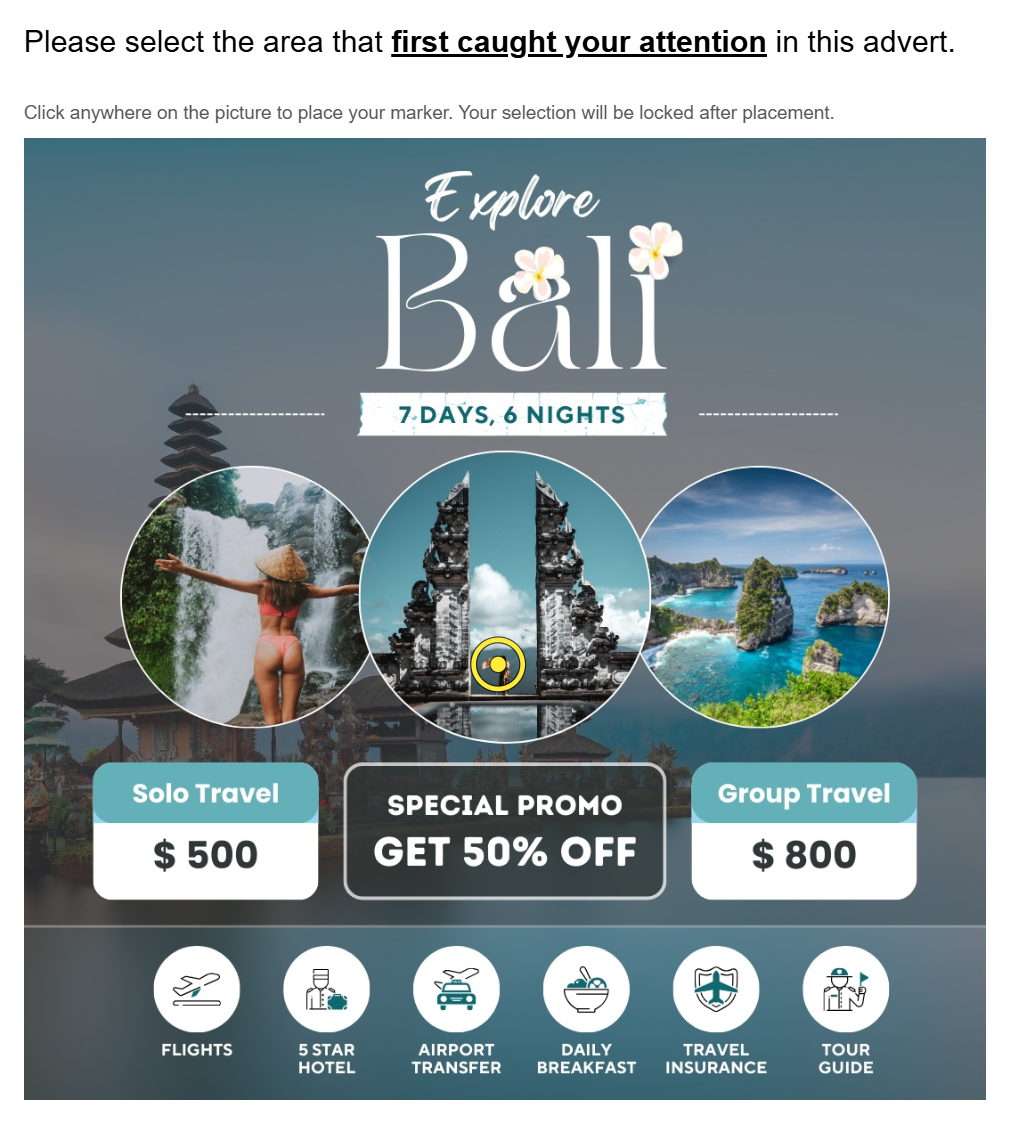
Image heatmap question outputs
An image heatmap question produces the following outputs:
- Heatmaps for areas that were selected by participants most often. The heatmaps are separated according to the dot/stroke types specified.
- AI summaries of open-ended text responses that outlines the distribution of sentiments and key themes in respondent comments.
- The number of participants who saw the question.
Dots highlight type
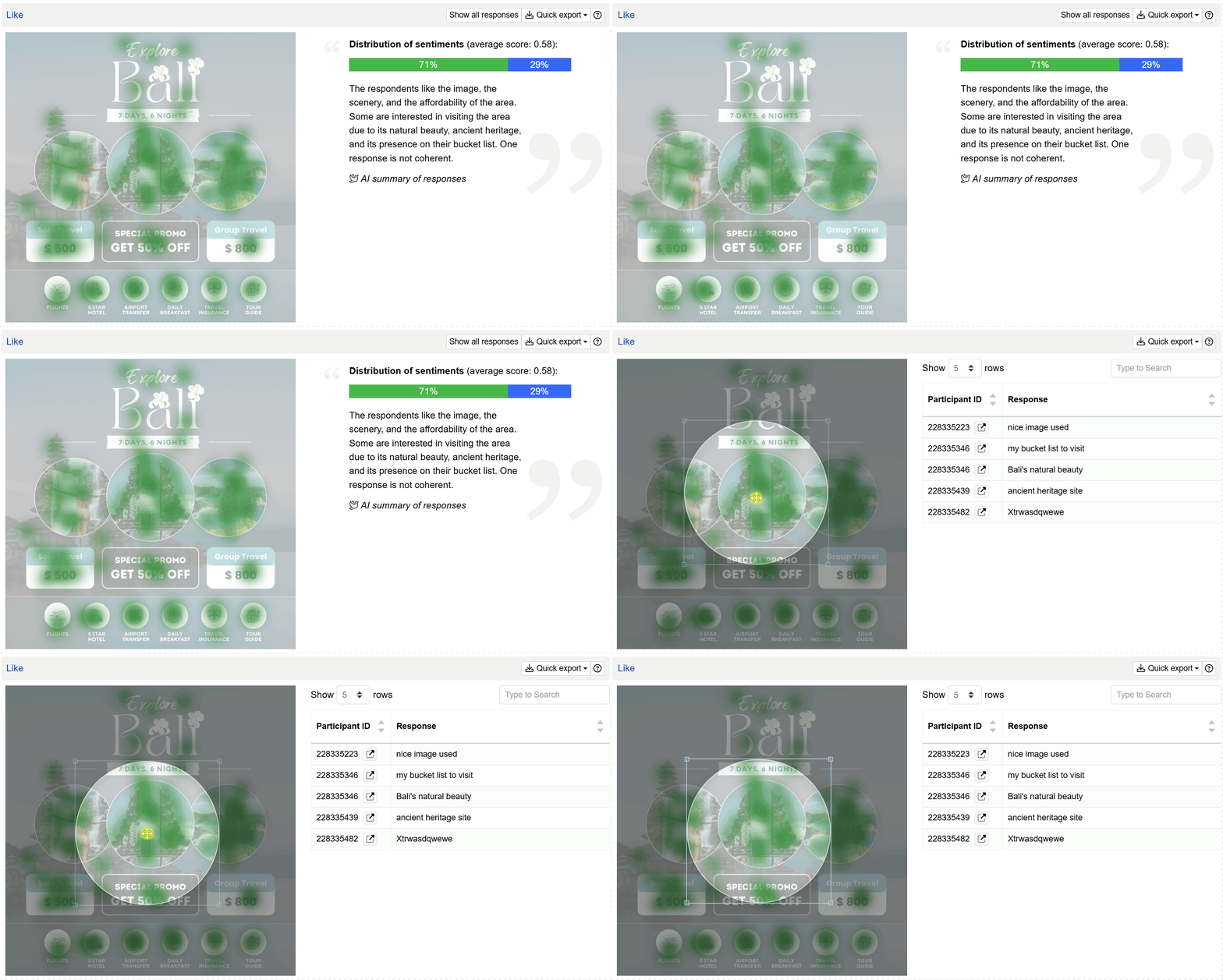
The dots highlight type output shows the specific areas respondents clicked, with darker regions resembling more clicks.
Click on any area on the heatmaps, and you can view the responses for that particular area.
It also provides descriptive statistics, including mean, standard deviation, median, minimum, maximum, and mode for each feedback type.
Brushes highlight type
The brushes highlight type output shows the entire areas respondents shaded, with darker regions resembling a higher frequency of overlapping.

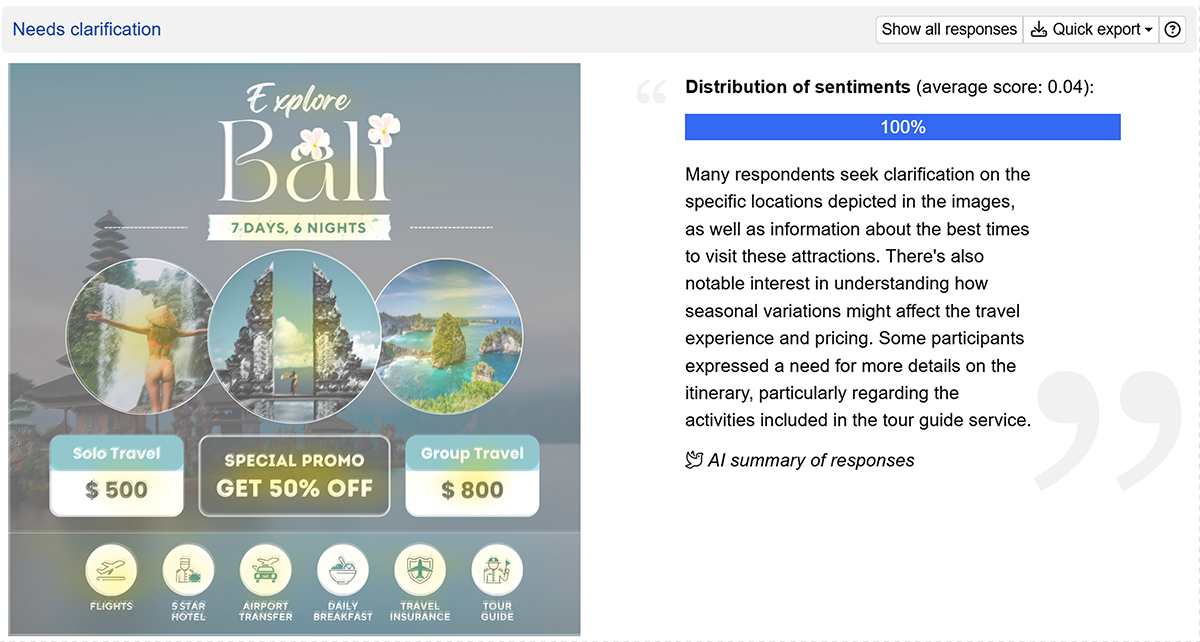
The First click output shares the same structure as Dots, covering the specific elements respondents clicked, AI summaries, and descriptive statistics. The key distinction is that each respondent contributes a single marker only, representing the first element they selected.
Remove participants directly
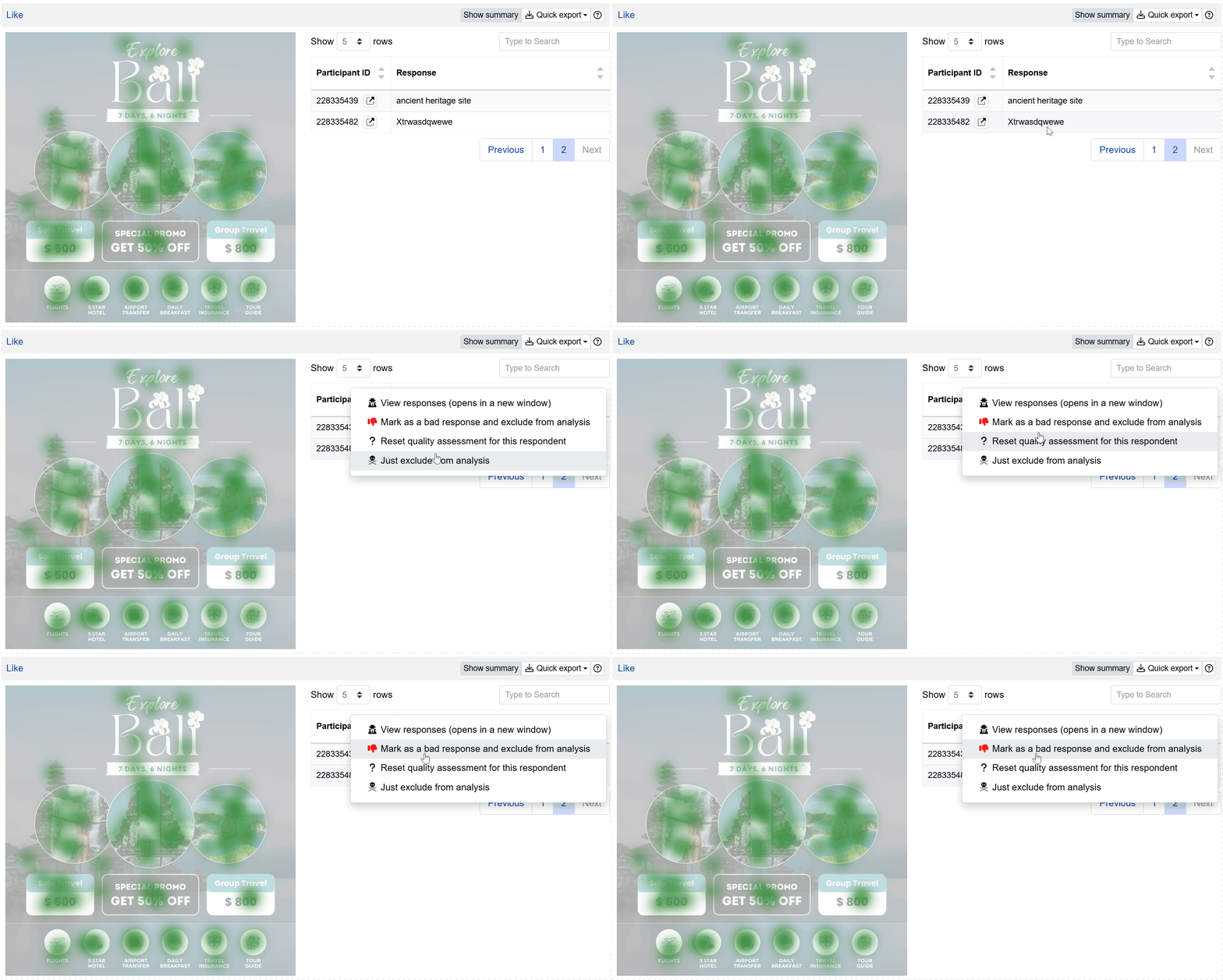
Once you see a nonsensical response, you can directly remove it from the outputs. Click on , then hover your mouse over the response you want to remove, right-click, and click on .
Setting up an image heatmap question
Follow these steps to set up an image heatmap question.
1. Add question
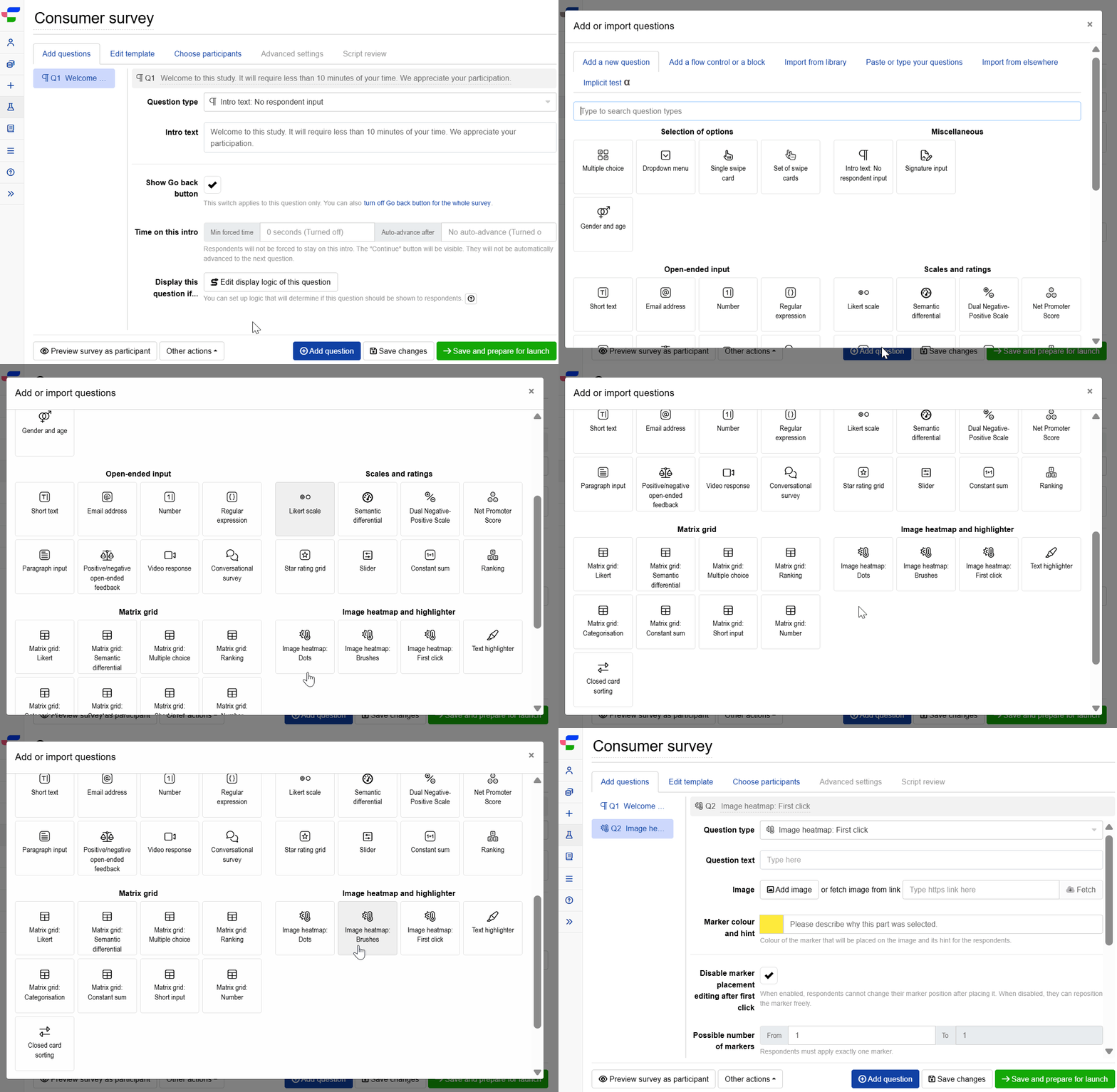
Navigate to the Add questions tab and click on the button at the bottom of the page.
On the Add or import questions pop-out, select the Add a new question tab. Under the Image heatmap and highlighter group, select your desired image heatmap question type to add it to your experiment.
2. Edit question options
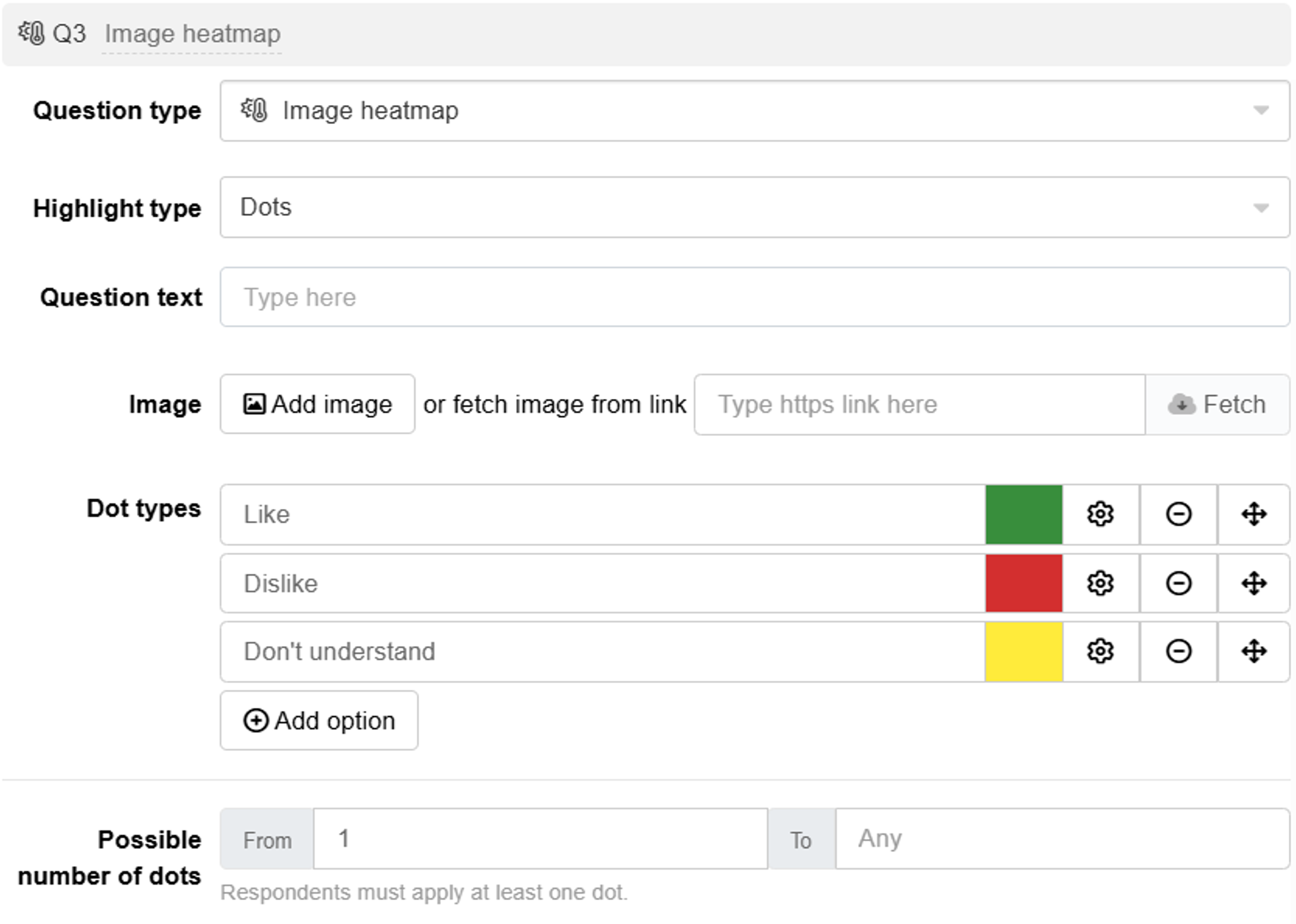
Once you add the question, edit the question text by typing in the question text box and upload an image from your computer by clicking on or fetch an image from a URL by copying the URL into the link section.
The remaining settings depend on the question type selected.
- For Dots and Brushes:
- Switch between the two using the highlight type selector.
- Set the dot or stroke types respondents can place on the image, including their colours.
- For Dots, set the possible number of dots allowed.
- For Brushes, set the default brush size.
Dots highlight type
Brushes highlight type
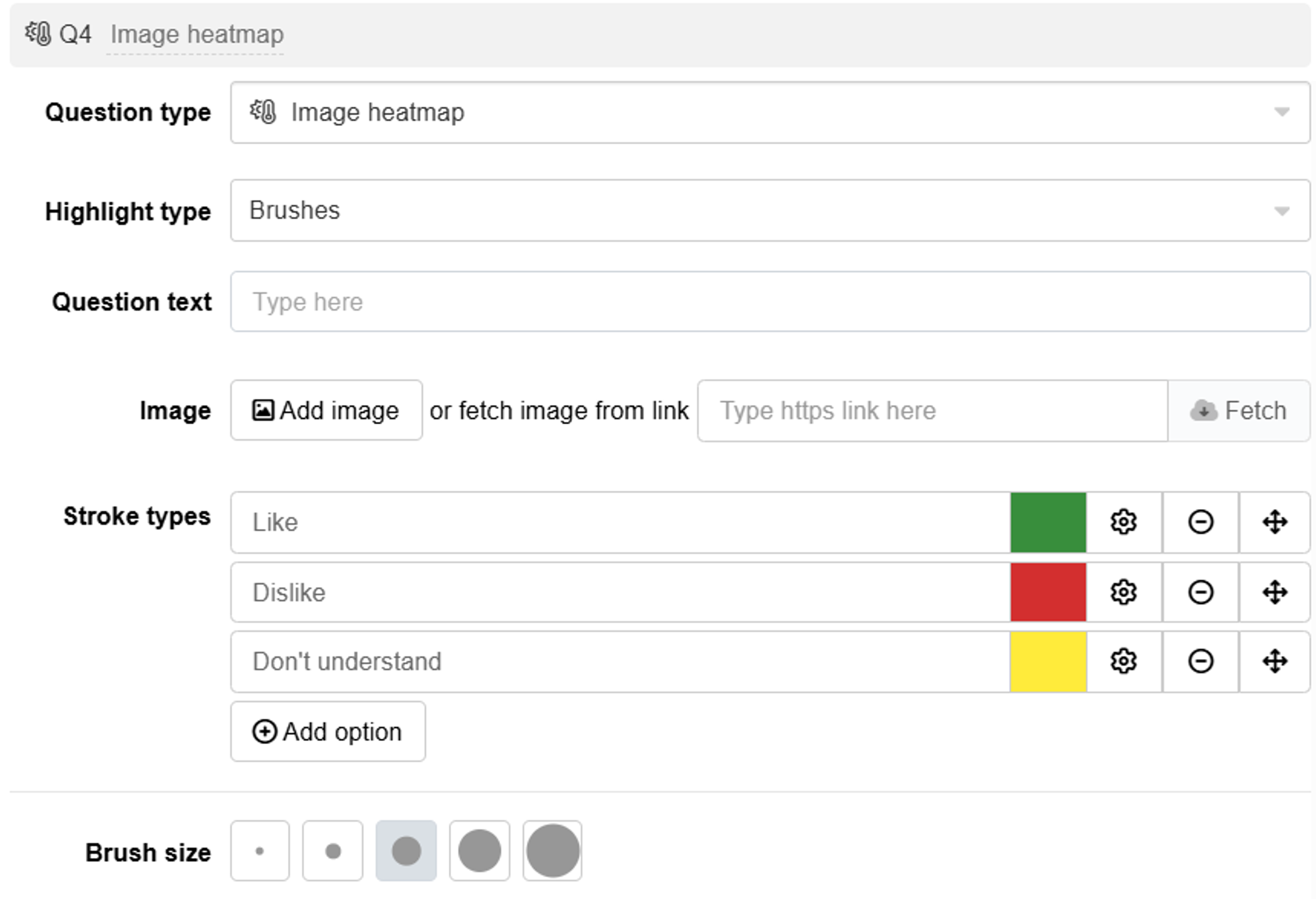
- For First click:
- Set the marker colour and edit the comment box hint text.
- Tick Disable marker placement editing after first click if you want to prevent respondents from repositioning their marker after placing it.
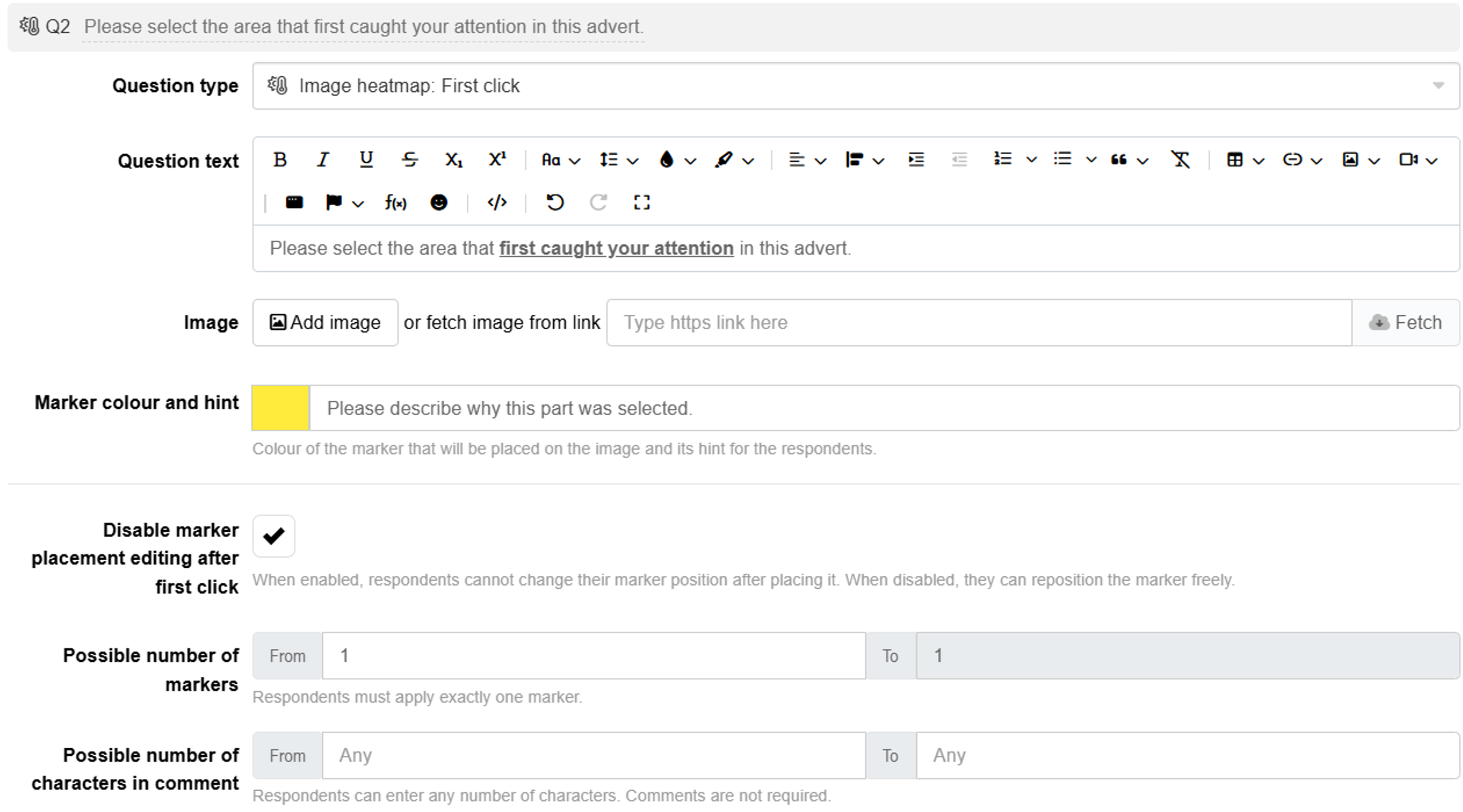
For all question types, you can set the minimum and maximum number of characters required in comments using the From and To fields next to the possible number of characters in comment. By default, both are set to Any, allowing respondents to skip comments entirely.
Setting up the monadic view of image heatmap questions
The Monadic Test is an effective and efficient way to survey respondents with multiple image heatmap questions, which allows focused testing of visuals. Check out our comprehensive guide to setting monadic image heatmap questions.
Please note that when two images are included as a single stimulus, the heatmap is generated based on the first image.
The monadic image heatmap questions generate a summary table of outputs for all questions within the block, and outputs for individual questions.
