Create a full survey from your description or document
You can create a complete market research survey in minutes by simply describing your study objectives or uploading an existing questionnaire file. When you import a document, you get a high-fidelity, ready-to-launch survey that preserves your original layout, text, and formatting.
This automated survey generation tool supports all Conjointly research tools and question types. You can use it to generate new experiments or update existing ones without building each question manually.
The feature is available on all licence tiers with unlimited usage for Professional and Ultimate plans (subject to fair use), provided your organisation has not disabled LLM features.
Create a survey from research descriptions
Creating a survey from plain-language descriptions is ideal when all you have is a topic, a research objective, or a handful of research questions. Here is how:
- On the Launch a new experiment page, access the AI Helper tab on the right side of the screen.
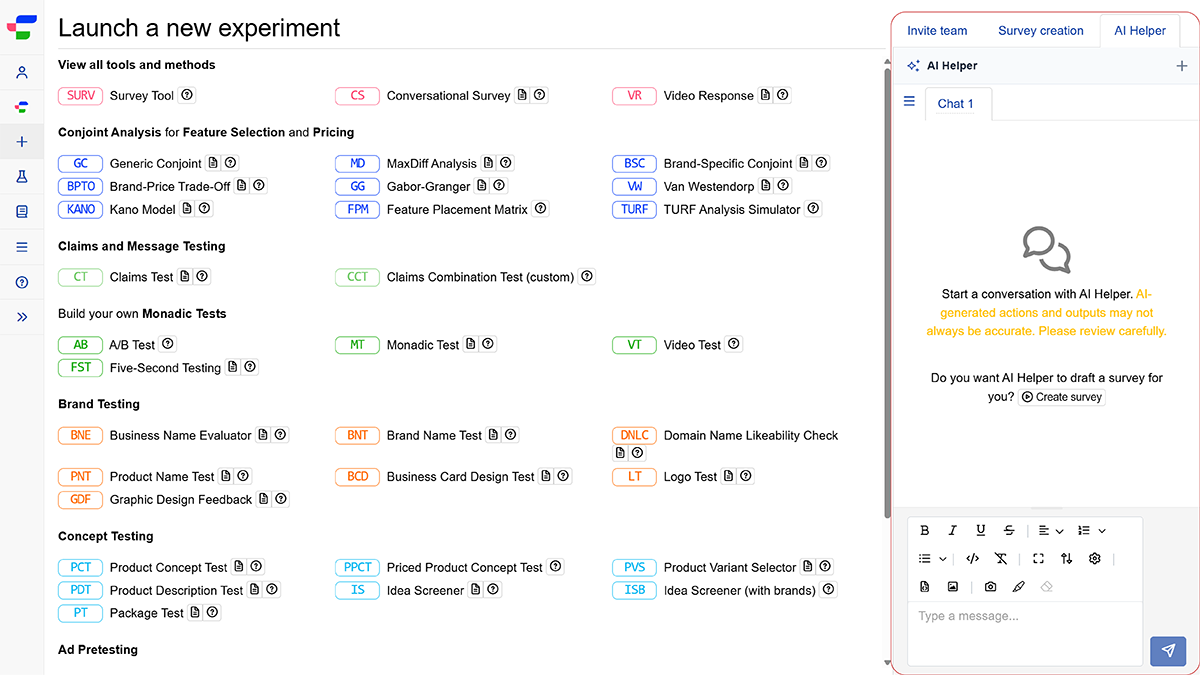
- Click the button or type your request directly into the chat box below.
- Input your research context, target audience, study goals, and any specific experiment types or questions you already know you want. For example,
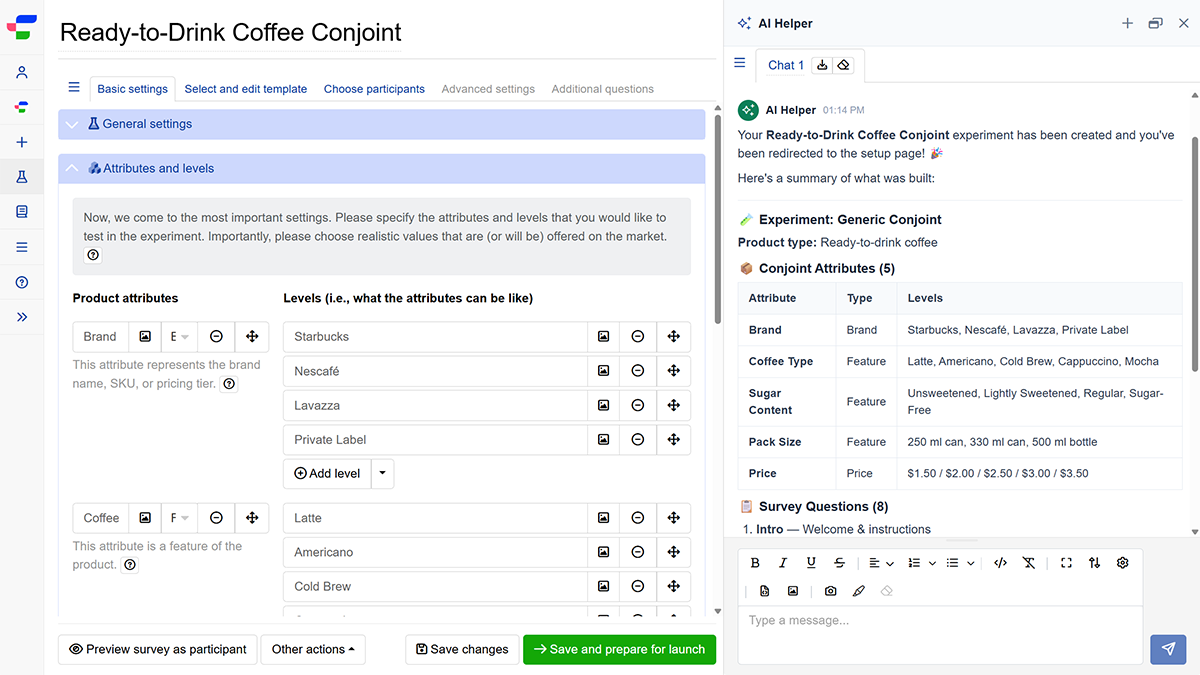
Create a conjoint analysis survey about ready-to-drink coffee products. You may also include your desired attributes and levels. - AI Helper generates the complete survey structure, including relevant question types, answer options, and other necessary configurations.
- Save the generated survey by clicking the button.
Create a survey from a questionnaire document
When you have an existing questionnaire specification document, import it directly into Conjointly to create a ready-to-launch experiment. Here is how:
- On the Launch a new experiment page, access the AI Helper tab on the right side of the screen.
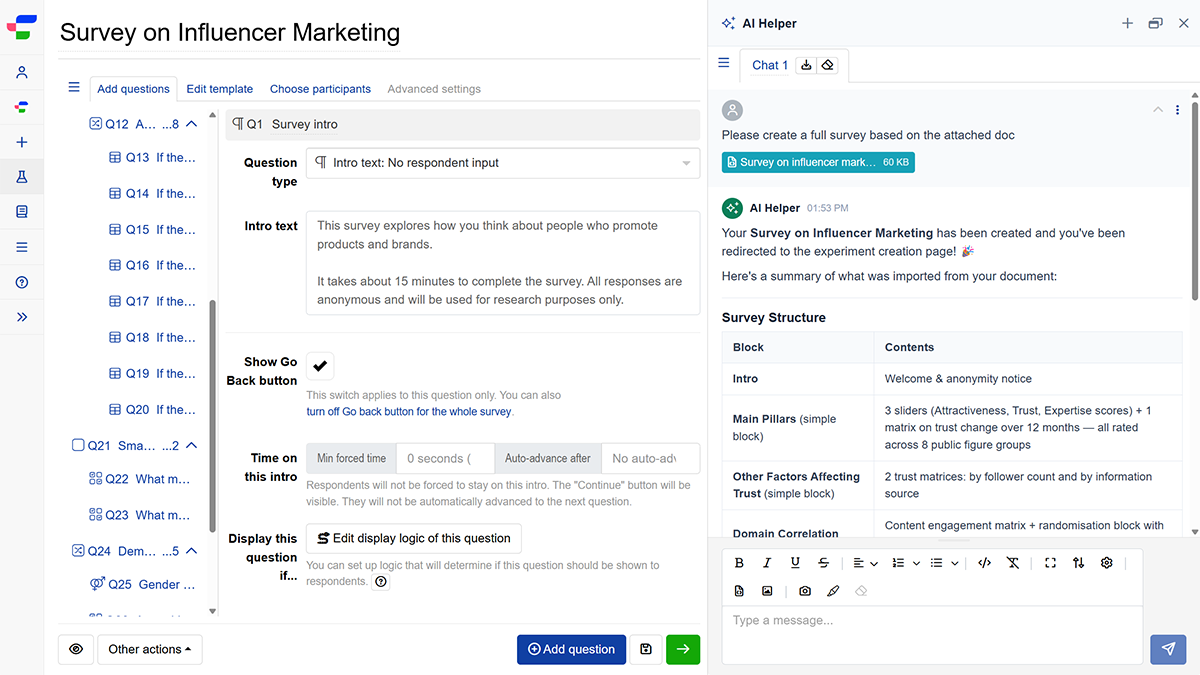
- Upload your question specifications by clicking on the icon or by dragging and dropping your files directly into the interface.
- Add any additional instructions in the same prompt or a follow-up message. You may specify to import the whole document, or ask for specific question numbers or sections.
- The functionality automatically structures the layout, incorporates the content and formatting, and maps questions to native question types to generate a survey with high fidelity to your original document.
- Save the generated survey by clicking the button.
The functionality supports a wide range of standard document and data formats:
- Documents: Word (
.doc,.docx), PDF (.pdf), Rich Text (.rtf), OpenDocument Text (.odt), and Plain Text (.txt). - Structured Data: JSON (
.json), XML (.xml), CSV (.csv), and Markdown (.md).
Please note:
- Most standard documents convert within 2 to 5 minutes. Files rich in images or complex formatting require additional processing time.
- Unmapped document elements default to an Intro Text placeholder.
- Generated surveys are not automatically saved. Save your draft before navigating away or closing the browser window to avoid losing progress.
Edit existing surveys using AI Helper
You can also apply any of the methods above to edit an existing survey. Simply click the button in the top-right corner of your screen to access the functionality.
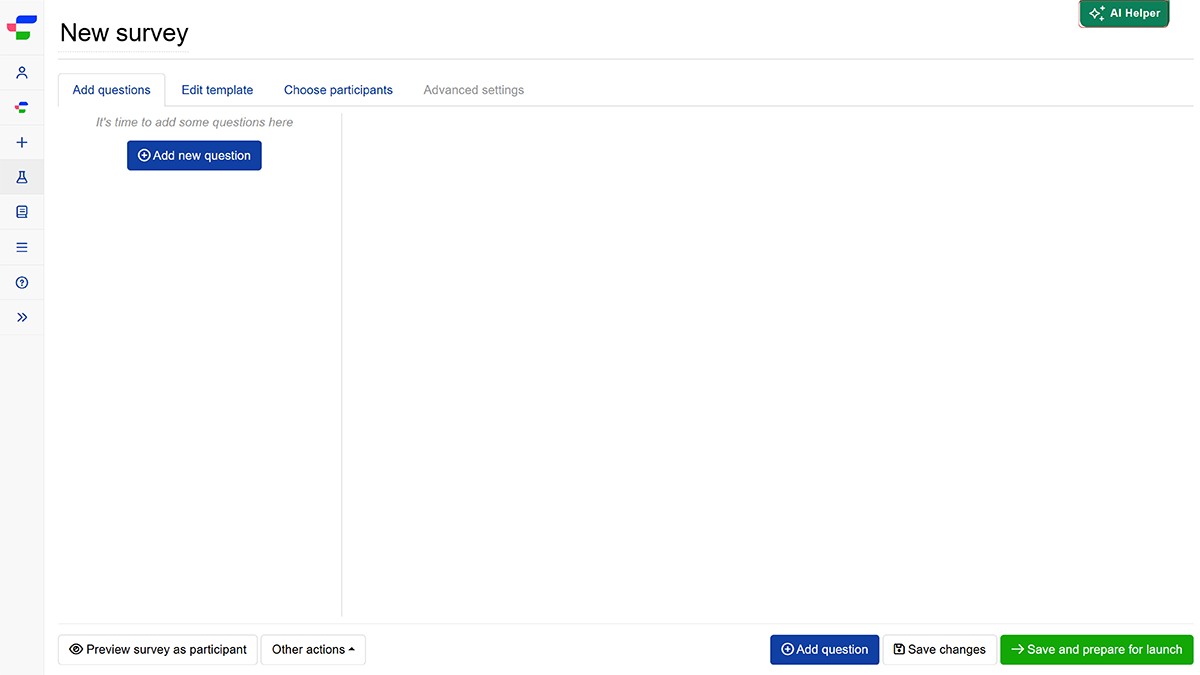
The same functionality is also available directly in the survey editor. Click , open the Paste or type your questions tab, paste your questions or describe what you need, then click .
Beyond text descriptions and document imports, you can also use the following built-in tools to make your survey editing faster and more precise.
Upload and insert image assets into your survey
Follow these steps to embed images into specific questionnaire elements or experiment blocks:
- Attach image files (
.jpg,.jpeg,.png,.webp,.svg) by clicking on the icon, or drag and drop them into the interface. - Add any additional instructions in the same prompt or a follow-up message. You may specify where each one goes, such as question text, an answer label, an experiment stimulus, or a discrete choice conjoint level, and it will be placed there automatically.
Point at exactly what to change with a screenshot
Instead of describing layout changes in text, show the exact changes required visually through these steps:
- Click the icon to capture what you are currently viewing.
- Use the icon to draw on the capture, circling the specific question, setting, or element to change.
- Allow your browser to share the tab or window if prompted.
- Send the annotated image with your request so the edit lands on the exact element you marked.
Below is an example of uploading images into the AI Helper and using an annotated screenshot to insert them directly into a question. Because responses are generated by an LLM, exact phrasing and execution details may differ slightly per session.
Request: Uploaded images with annotated screenshot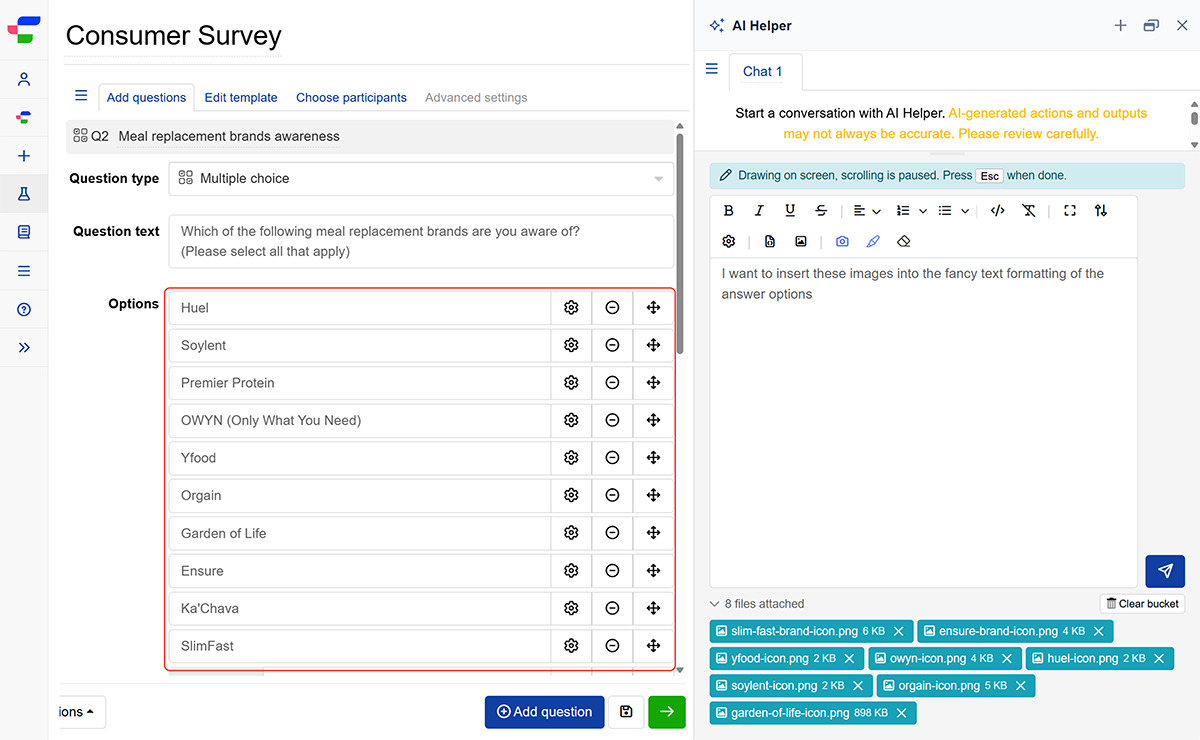
Result: Applied images in the survey builder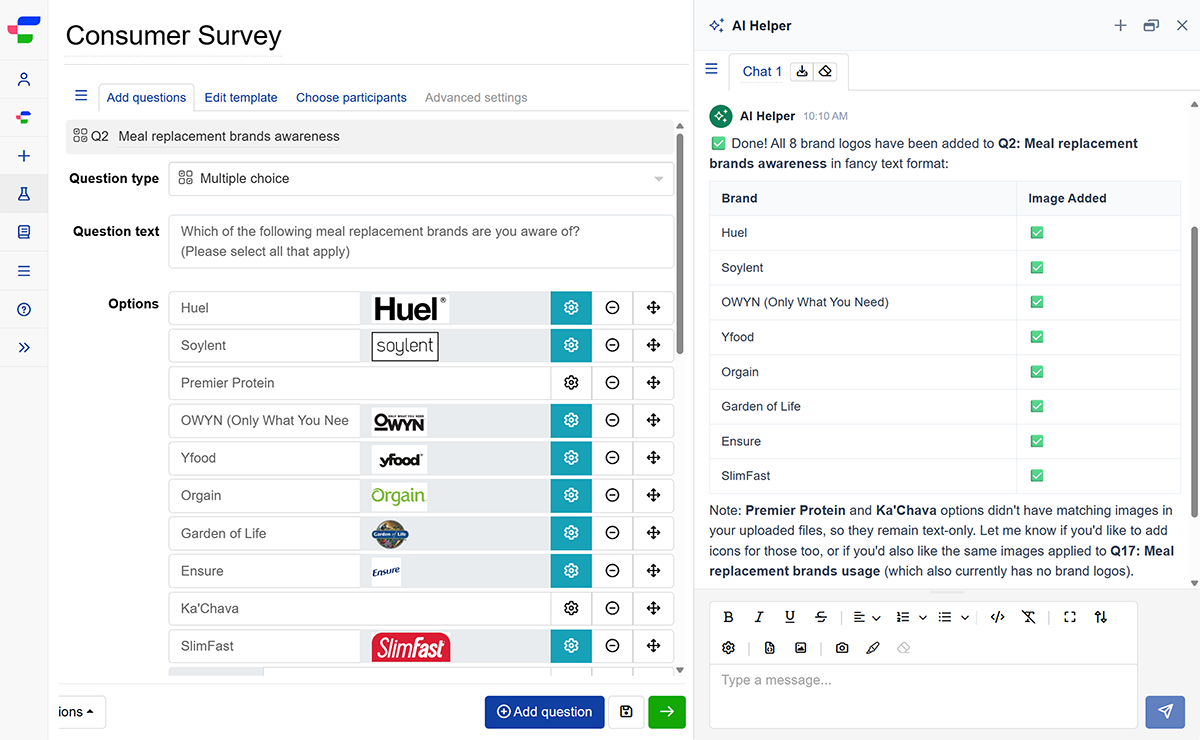
Next steps
After generating or editing your survey, review your survey question wording, choice options, and overall flow to confirm all elements and formatting align with your requirements.
Run the automated survey script review tool to check for typos, missing skip logic, or structural errors before launch.