Gender and age (question type)
The Gender and age question type lets you collect both demographics in a single question.
To optimise survey length, the platform automatically fills in responses and skips the question when:
- The respondent has answered it in a previous survey
- Demographic data is provided by a panel provider
Responses are saved in the respondent’s browser and are automatically reused for future surveys. Therefore, if you plan to collect data from different respondents on the same device, please use multiple choice and number input question types instead.
Respondent view
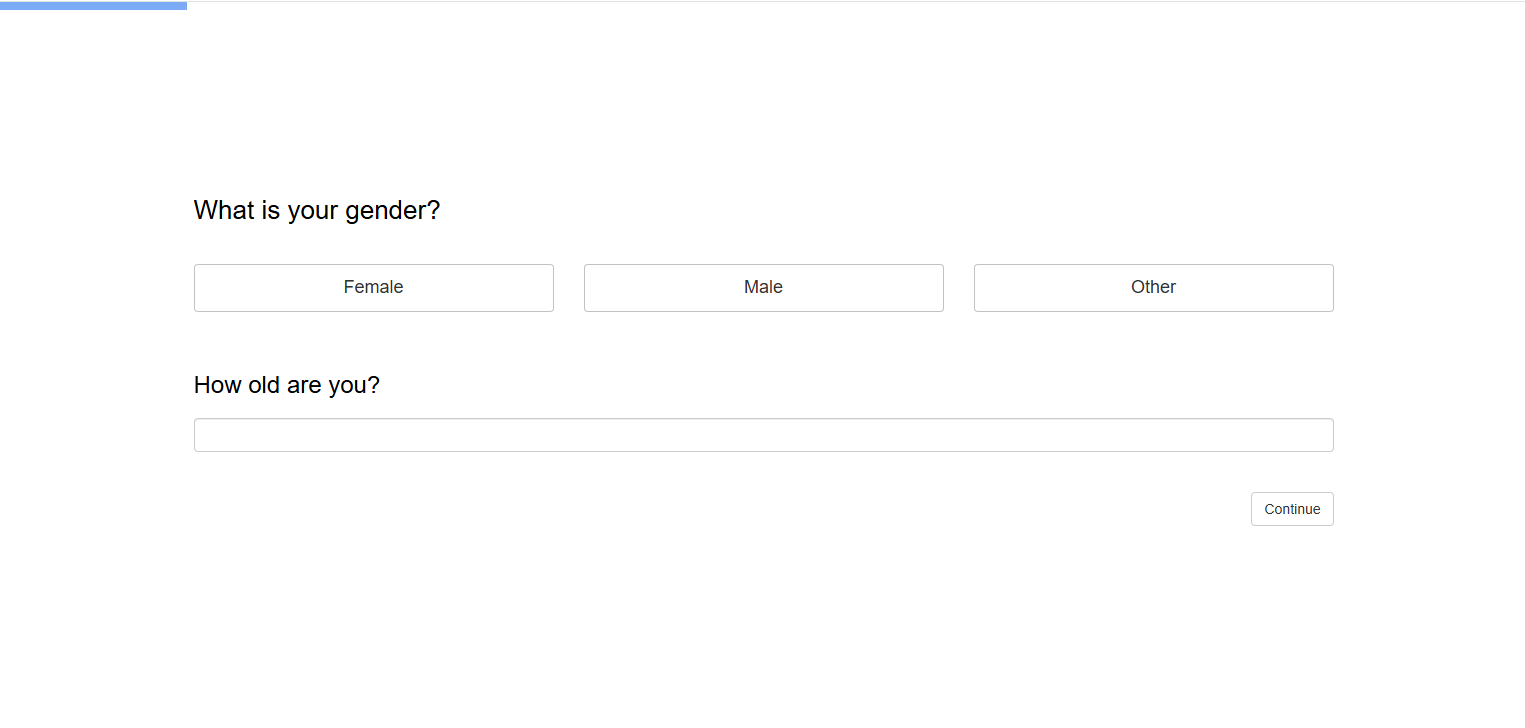
Question outputs
Gender and age questions produce the following outputs:
- The bar chart showing the distribution of gender.
- Descriptive statistics for age including the minimum, mean, 10% winsorised mean, median, mode, maximum, and standard deviation for the responses.
- The age and gender pyramid.
Setting up a gender and age question
Follow these steps to set up a gender and age question:
1. Add question
Navigate to the Add questions tab and click on the button at the bottom of the page.
On the Add or import questions pop-out, select the Add a new question tab and click on the question card to add it to the experiment.
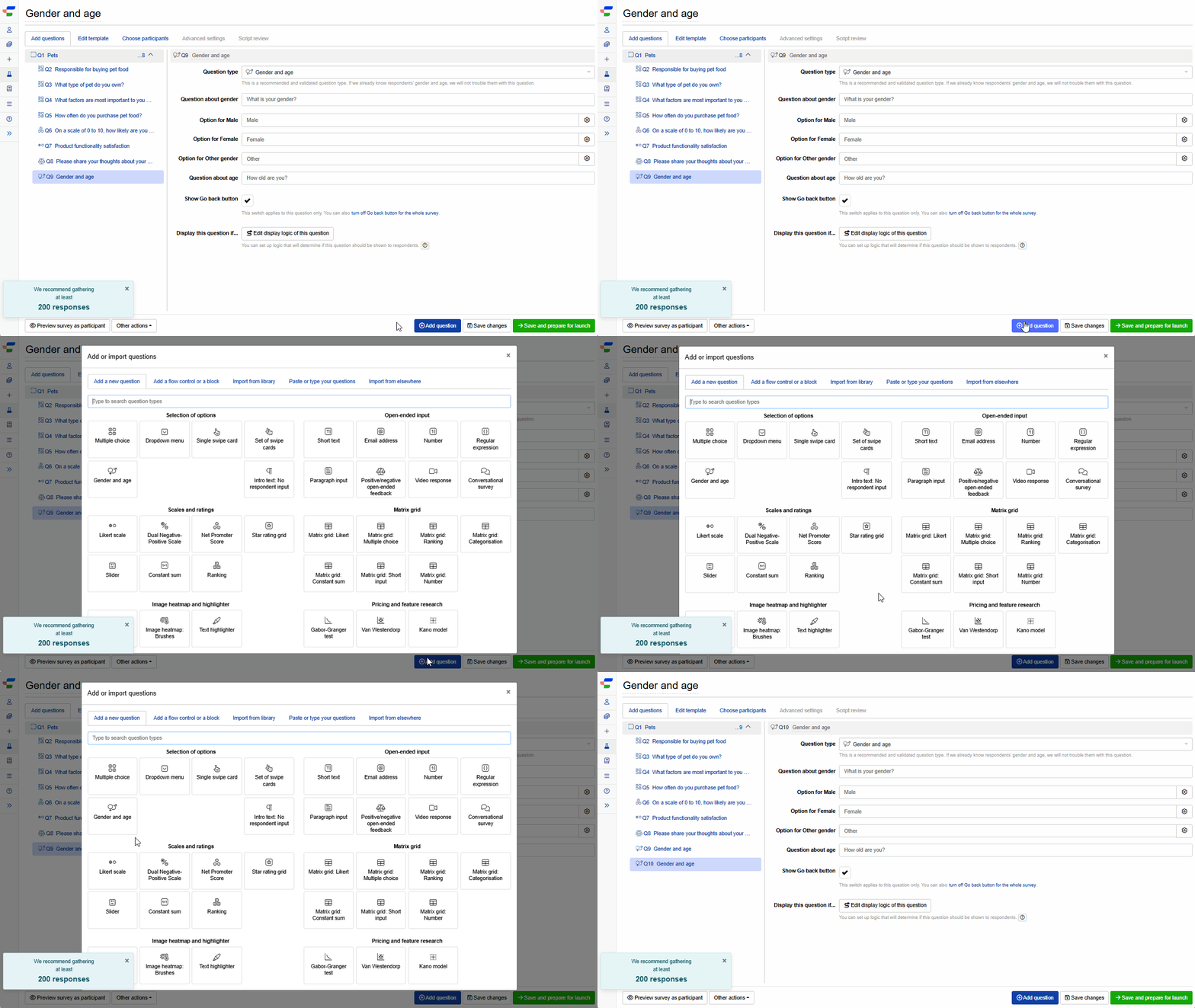
2. Edit question options
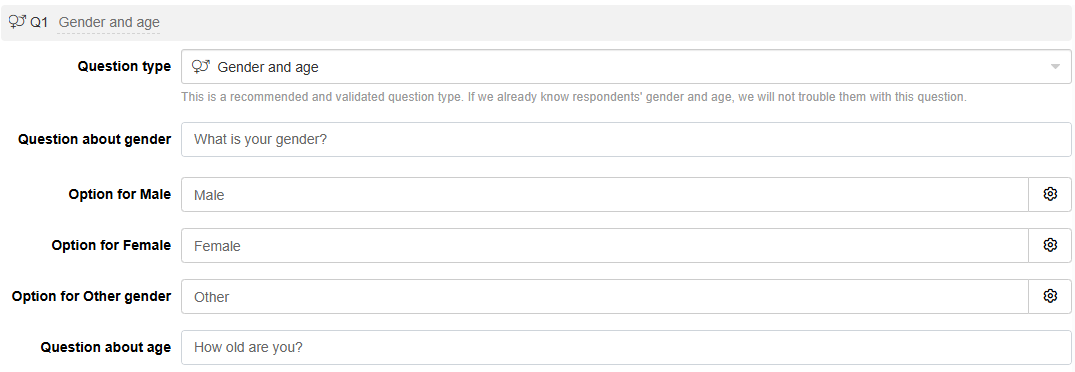
Once you add the question, you can adjust the following settings:
- Edit the question about gender.
- Change the text for gender options by editing the text box next to each option (Male, Female, Other). Click the settings icon next to each option and check the Add fancy formatting and pictures to option checkbox to add formatting or images to the option.
- Edit the question about age.
Previewing and testing
Stored answers are also reused when you preview or test your own survey:
- Why it happens: if you have answered a gender and age question in any live Conjointly survey in the same browser, the question is filled in and skipped silently. The survey appears to jump straight to the next question.
- Preview mode: preview does not store your answers, but it does reuse answers stored earlier.
- How to see the question: open the survey link in a private (incognito) window, or clear the browser’s site data for the domain shown in the survey link.
- Live surveys: if you test a live survey in a browser with stored answers, your test response records those stored answers.