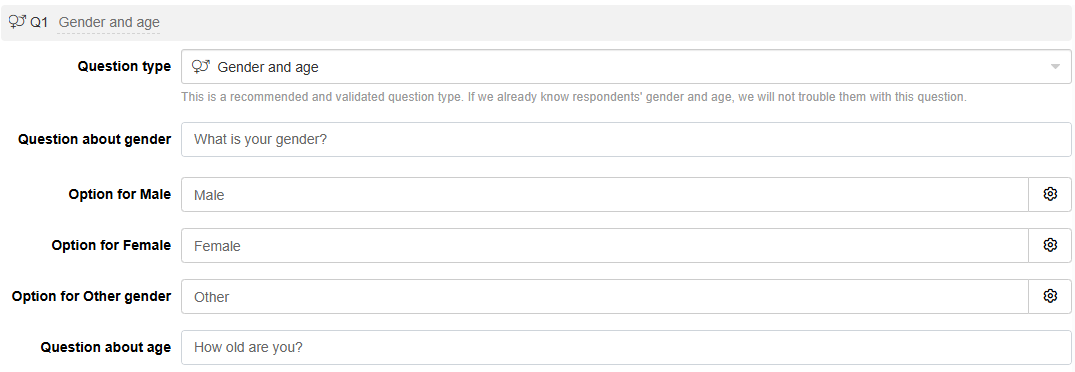
Gender and age (question type)
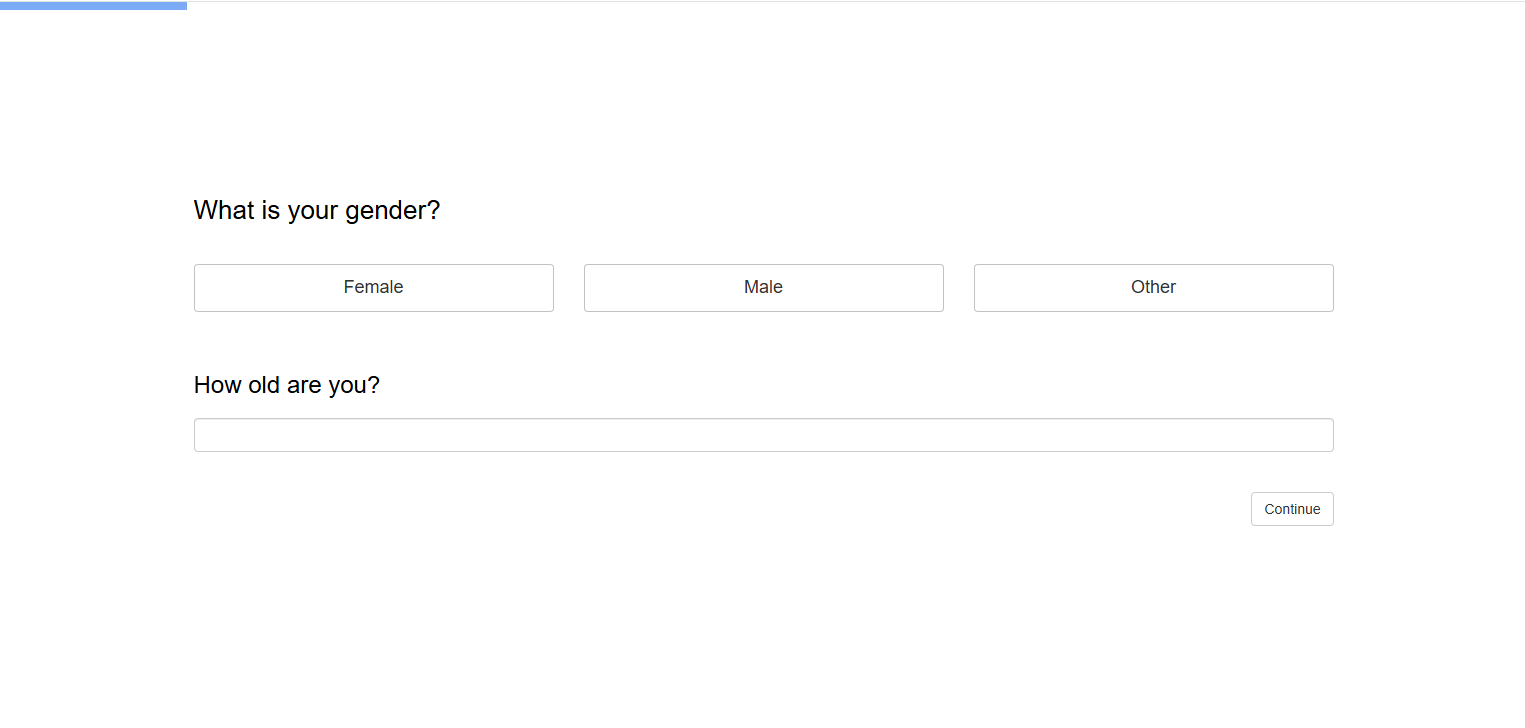
The Gender and age question type lets you collect both demographics in a single question.
To optimise survey length, the platform automatically fills in responses and skips the question when:
- The respondent has answered it in a previous survey
- Demographic data is provided by a panel provider
Responses are saved in the respondent’s browser and are automatically reused for future surveys. Therefore, if you plan to collect data from different respondents on the same device, please use multiple choice and number input question types instead.
Respondent view
Question outputs
Gender and age questions produce the following outputs:
- The bar chart showing the distribution of gender.
- Descriptive statistics for age including the minimum, mean, 10% windsorized mean, median, mode, maximum, and standard deviation for the responses.
- The age and gender pyramid.
Setting up a gender and age question
Follow these steps to set up a gender and age question:
1. Add question
Navigate to the Add questions tab and click on the button at the bottom of the page.
On the Add or import questions pop-out, select the Add a new question tab and click on the question card to add it to the experiment.
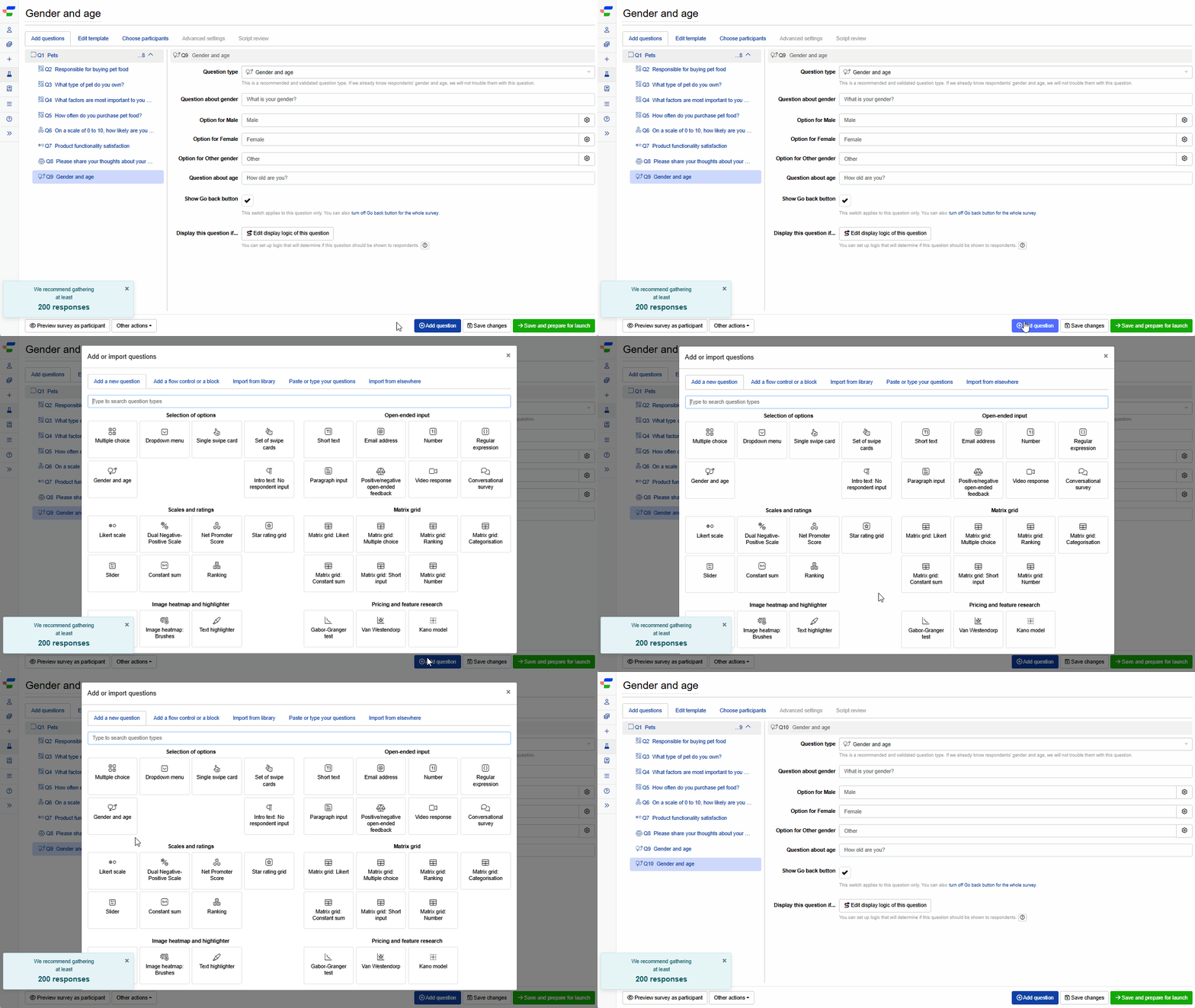
2. Edit question options
Once you add the question, you can adjust the following settings:
- Edit the question about gender.
- Change the text for gender options by editing the text box next to each option (Male, Female, Other). Click the settings icon next to each option and check the Add fancy formatting and pictures to option checkbox to add formatting or images to the option.
- Edit the question about age.