Using the formula editor
Formulas let you add custom logic across the Conjointly platform. You can use them for piping, calculated variables, calculated values, weighting, the simulator, and redirects.
Depending on where you are inserting a formula, you will use either the formula editor modal or the formula dropdown list.
Formula editor modal
When working in text editors and fancy formatting editors, click the button in the toolbar to open the formula editor modal. You can also click on an existing formula to edit it.
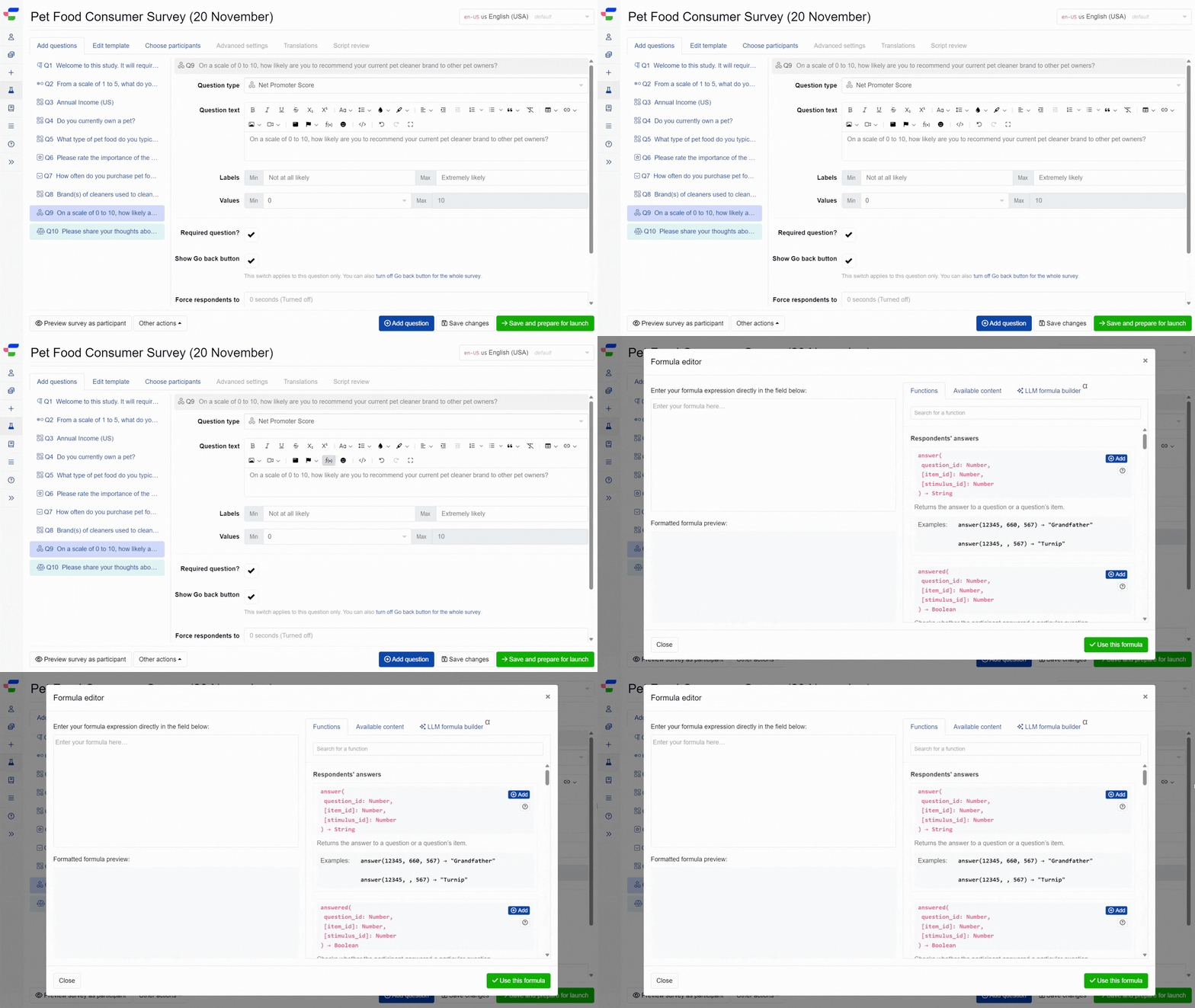
You can also open the formula editor modal directly from any field that supports formulas, such as when setting up calculated variables, calculated values, weighting, and redirects.
Formula input section
The left panel is where you build your formula. You can type directly into the main field or pick an expression from the formula dropdown list.
The editor validates your syntax in real time, displaying errors as you type, while the Formatted formula preview renders a clean, syntax-highlighted version of your code.
The right panel provides reference materials and tools across three helper tabs: Functions , Available content , and LLM formula builder .
Functions tab
The Functions tab (the default tab in the right panel) displays all available formulas organised into categories:
- Respondents’ answers
- Date and time formulas
- Text formulas
- Respondent properties
- Maths and logical functions
- Undefined values
Each formula shows its syntax, description, and example.
You can use the search field at the top to quickly find specific functions.
Click the button next to any formula to insert it into your expression.
Available content tab
The Available content tab shows all content that can be referenced in your formulas:
- Available questions: Questions from your survey with their question items displayed as subpills
- GET variables: Custom variables passed through survey links
- External variables: Variables available in reports
- Respondent information: Data such as locale, device, browser, location details, timestamps, and more
Click the button next to any item to automatically insert it into your formula with the appropriate function wrapper.
LLM formula builder tab
The LLM formula builder tab helps you create formulas using AI assistance. Simply describe what you want your formula to do, and the system will generate an expression for you.
To use the LLM formula builder:
- Describe your requirement (e.g. “get answers from Q3”).
- Click .
- Review the generated expression in the preview area.
- Click to add it to your formula.
Please remember to always review AI-generated formulas carefully before using them in a live survey.
Formula dropdown list
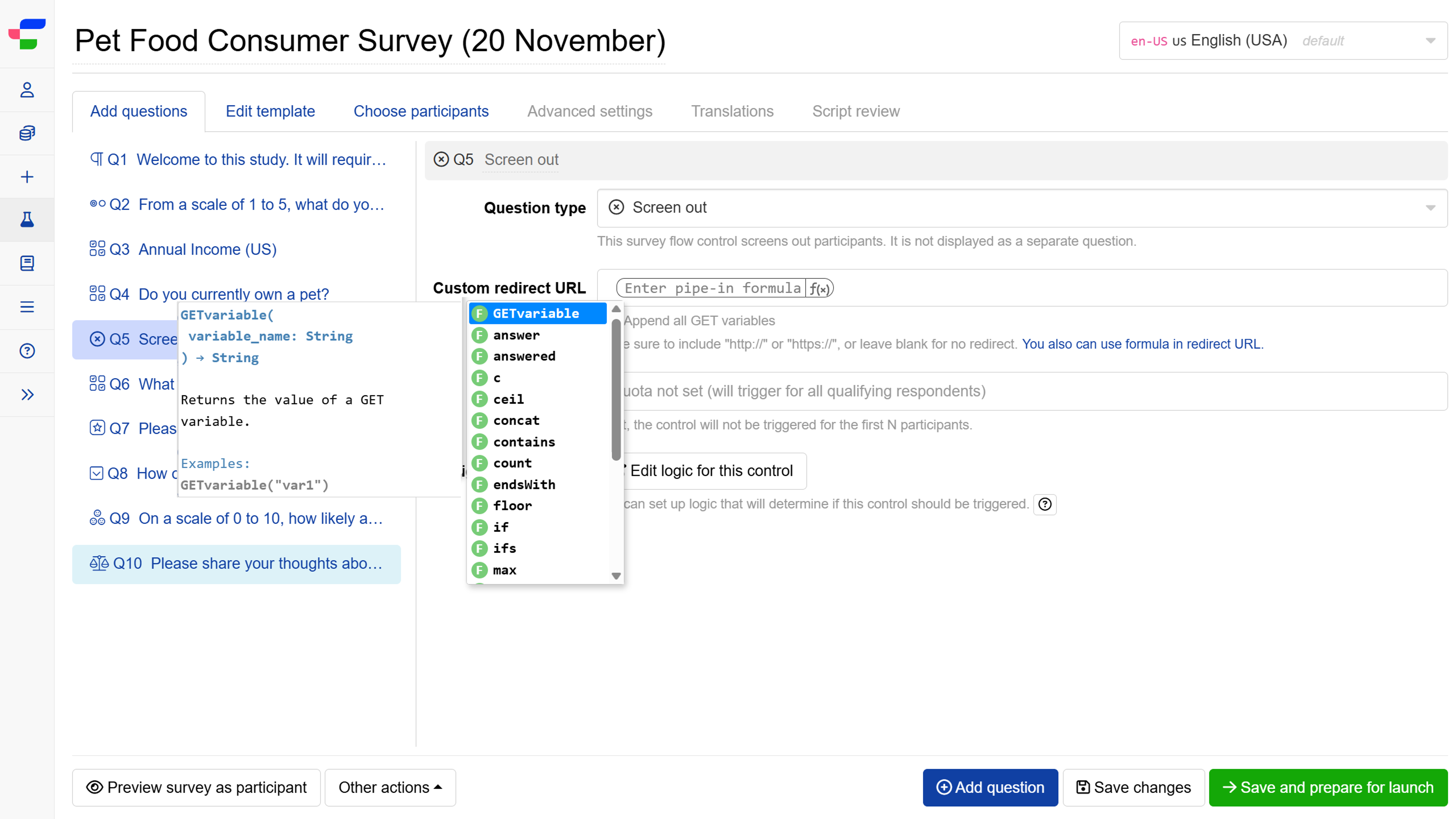
In other areas of the platform, clicking the displays a dropdown list of available formulas. Select the formula you want to add, and press the Tab key to see available inputs, then click to add your desired input.
When you hover over each formula in the dropdown, a tooltip appears showing what the formula does, required inputs, and examples.
Want to learn more about the functions themselves? Check out the guide to formulas in Conjointly.