File upload
You can collect supporting materials, such as receipts, product photos, or screenshots, with the File upload question. Respondents attach images, videos, or documents as their answer, with an optional comment on each.
Every file is scanned for malware before it reaches your report, and each respondent can upload up to 300 MB in total. File upload is a paid question type.
Respondent view
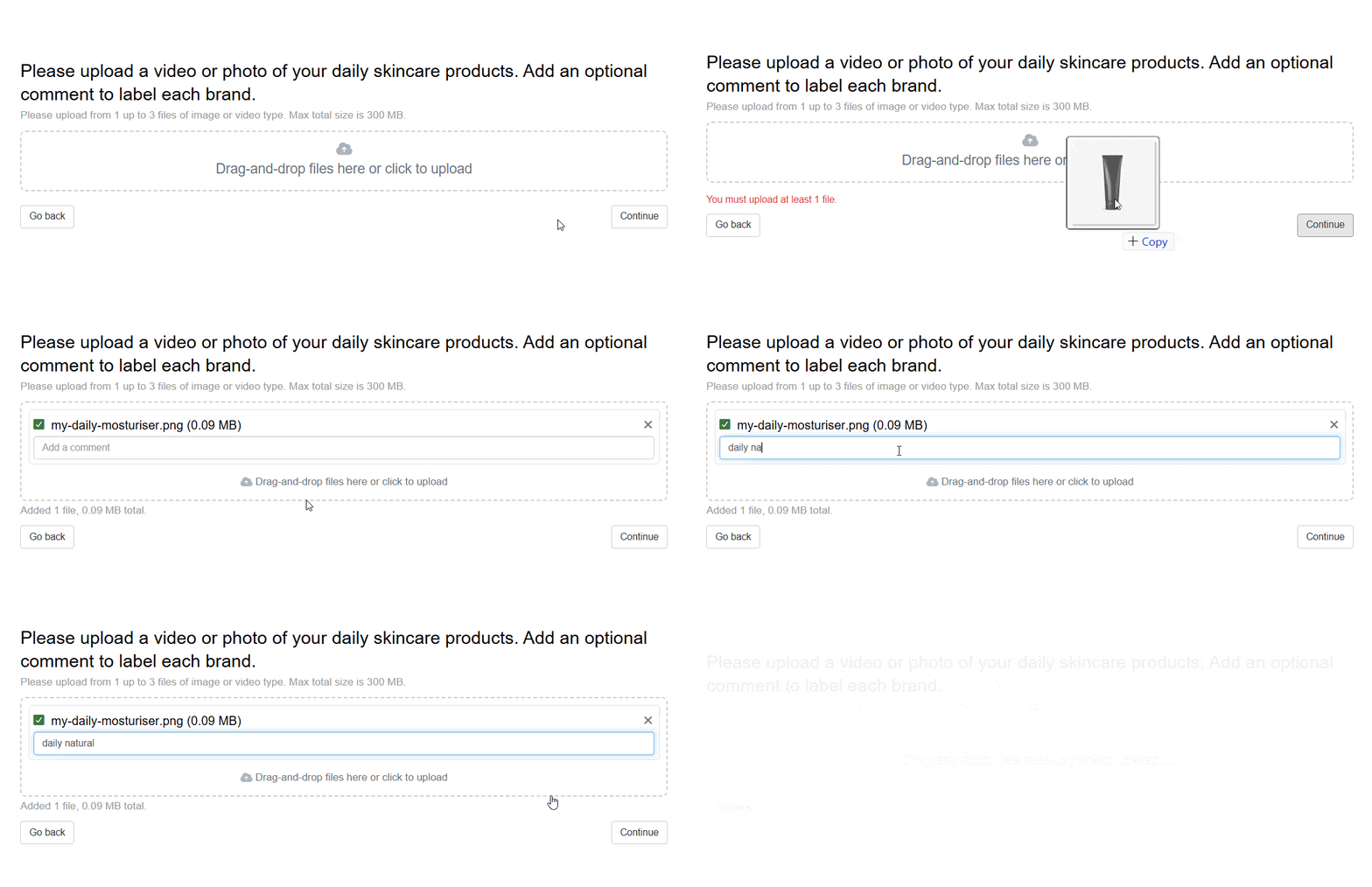
Respondents add files by dragging and dropping or clicking the upload area on desktop, or tapping it on mobile. Copy-paste from the clipboard isn’t supported.
A running counter shows how many files they’ve added and their total size so far. If their upload doesn’t meet your settings, such as too few files or an unsupported file type, they see an on-screen message explaining what to fix before they can continue.
What you get in the report
Each file upload question adds a grid of uploaded files to your report, with a thumbnail preview and any comment shown per file, plus a count of how many respondents saw and answered the question. You can instantly translate comments into English with one click. Just like video response questions, translation charges are shown upfront and billed automatically upon request.
From the grid you can:
- Download files individually, for a selection of respondents, or as one archive.
- Hide a file from the report without deleting it. Hidden files are excluded from bulk downloads and the visible file count (the report tracks how many are hidden), but stay retrievable from the file preview.
Setting up a file upload question
Follow these steps to set up a file upload question.
1. Add question
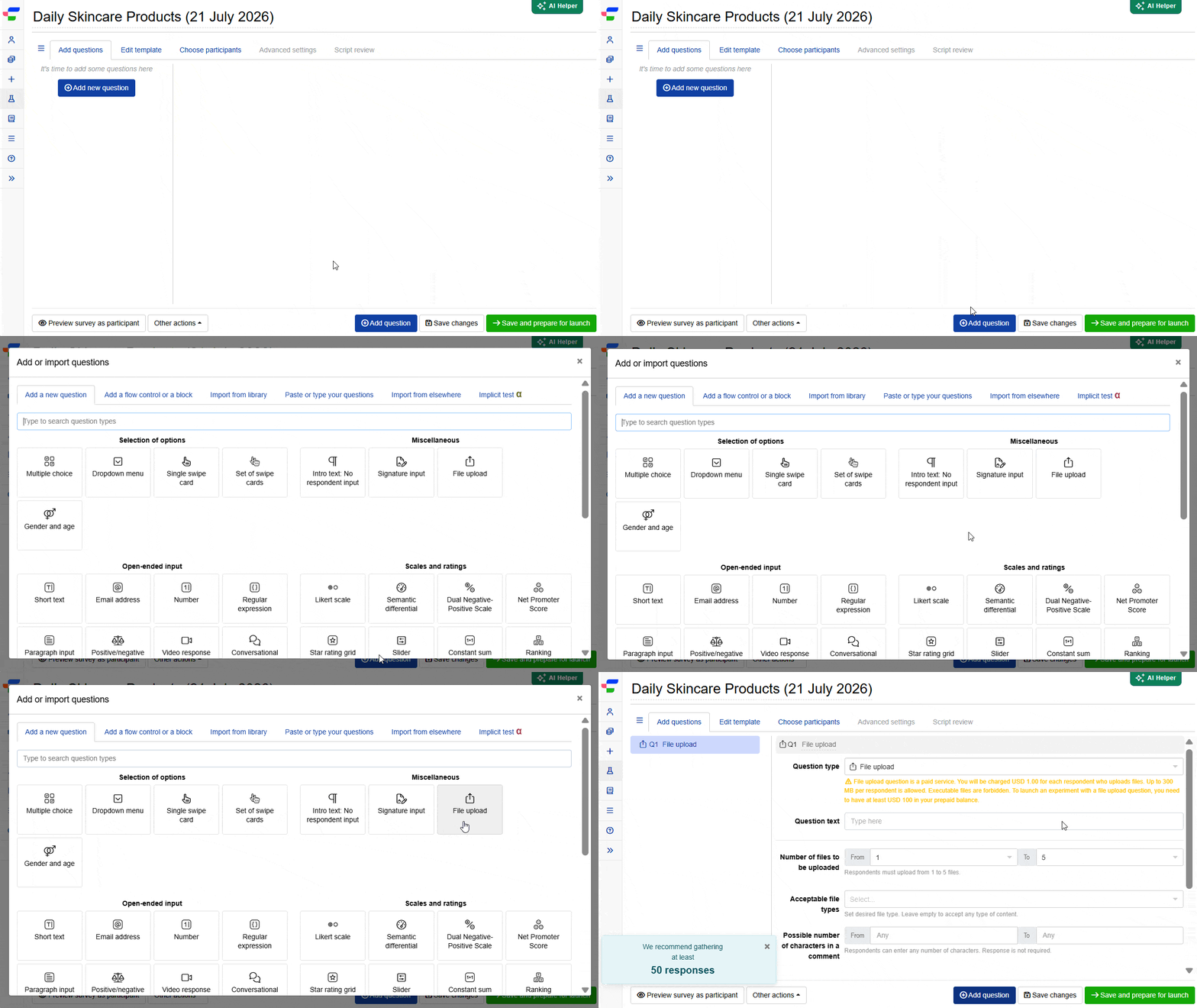
Navigate to the Add questions tab and click on the button at the bottom of the page.
On the Add or import questions pop-out, select the Add a new question tab and click on the question card to add it to the experiment.
2. Edit question options
Once you add the question, you can adjust the following settings:
- Insert the question text in the text box. You can also include formatting and images.
- Set the number of files respondents can or must upload using the From and To fields. From ranges from
Anyto10(default1); To ranges from1to10(default5). Leave From set toAnyif the question is optional. - Set the acceptable file types to
Image,Video,Document, or any combination, or leave this blank to accept any file type except executables. - Set the possible number of characters in a comment using the From and To fields, to require or cap a written comment per file. Both default to
Any, meaning comments are optional and uncapped.
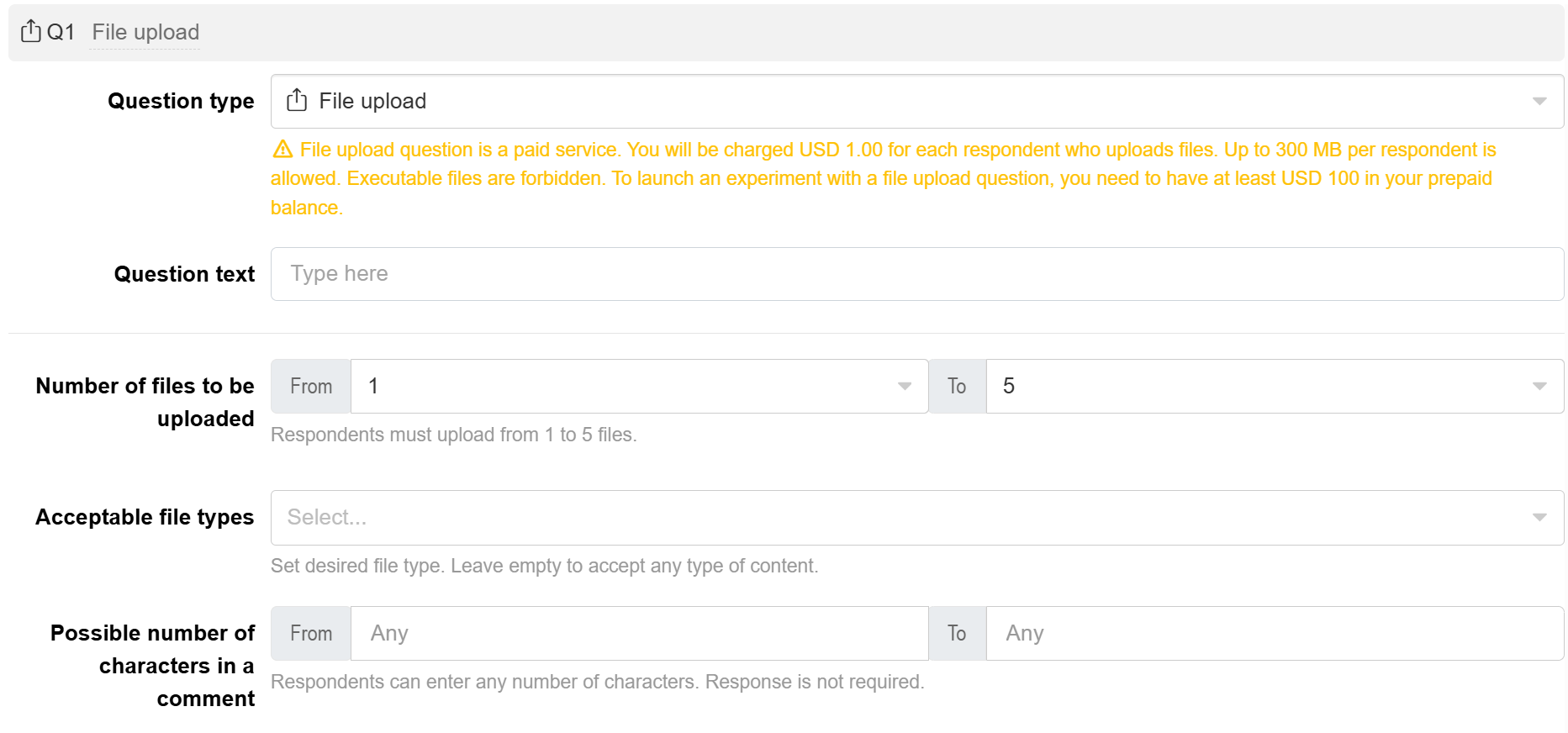
Total upload size is capped at 300 MB per respondent across all their files, and executable files are never accepted. Both are fixed and can’t be changed.
Once the survey is live, you can still edit these settings or hide the question, but you can’t change the question type itself.
FAQs
How is this priced?
The File upload question is charged at USD 1.00 per completed response that includes at least one accepted file, on top of your standard project fee. This charge applies to every completed response with an accepted file, whether or not that respondent’s data ends up in your analysis. The charge doesn’t apply if no file was accepted, for example, if the respondent skipped the question or all their files were rejected.
You need at least USD 100 in your prepaid balance to launch a survey with this question, and you’ll confirm the charge before launching. You can delete the question at any time regardless of balance, but you can’t add a new one to a live survey if your balance drops below USD 100.
What happens to uploaded files?
Every file is automatically checked for malware before it becomes visible in your report. Files that fail this check, or that don’t meet your file type or size settings, are rejected and won’t appear in your report. Whether that respondent is charged still follows the pricing rule above, based on whether any of their files made it through. Uploaded files are deleted if you delete the experiment or a respondent’s data.