Audio response
The Audio response question type lets respondents record a spoken answer instead of typing. It delivers the depth and detail of an in-person interview without complex setups, requiring respondents to have only a microphone-enabled device.
Respondents can speak naturally in their own language. Once submitted, each response is transcribed and translated into English, with automated summaries and sentiment analysis across all responses.
Respondent experience
After granting microphone access, respondents can switch to a different microphone if needed. They click to start and to stop. On mobile, they can also press and hold to record, like a voice note.
While recording, a customisable on-screen prompt shows the required length and updates once the minimum is met, so respondents know they can proceed. If Require voiced responses is on and less than 30% of the recording contains detected speech, respondents must re-record before they can proceed.
Before moving on, they can play back their recording, or click or to try again.
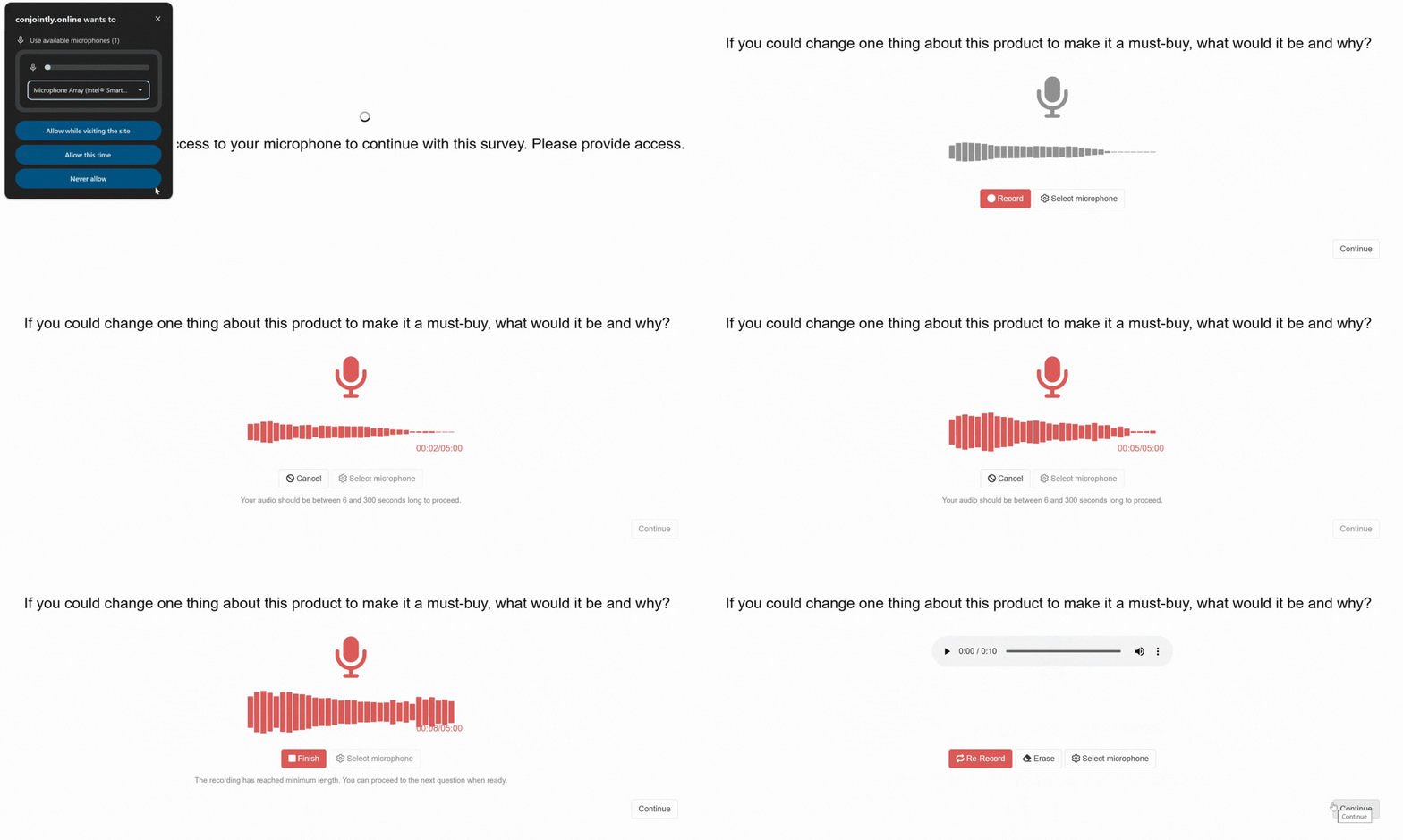
Audio response question outputs
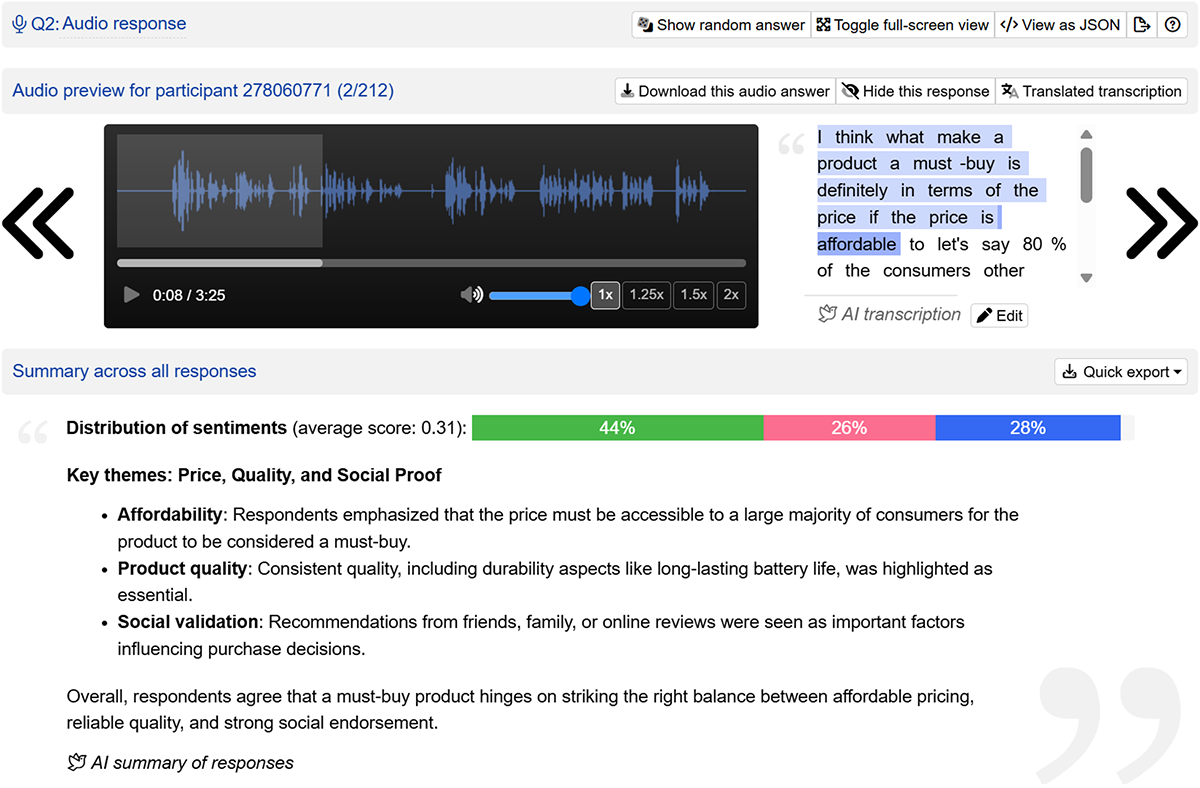
Each Audio response question has an audio player in your report. Use the left and right arrows to move between respondents’ recordings.
Alongside the player, you get an interactive transcript. Click any line to jump playback to that point. The current line is highlighted and scrolls into view as the recording plays. A toggle switches the transcript between the respondent’s original language and an English translation.
Transcription, translation, an auto-summary, and sentiment analysis across all responses are included in the per-minute price. If you edit a transcript or hide a response, an button appears so you can recalculate the summary and sentiment at no extra charge.
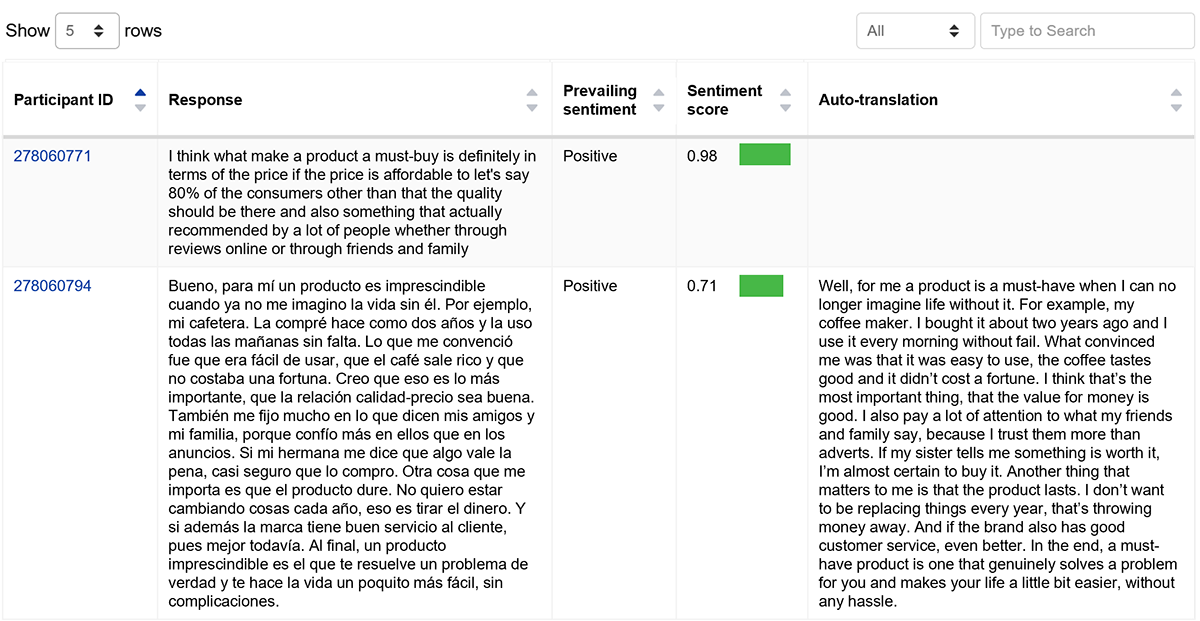
Below the player, a table lists every response with its Participant ID, transcript, prevailing sentiment, a coloured sentiment score bar, and an English auto-translation (left empty if the response was already in English). You can sort, search, and filter this table by sentiment.
You can hide a response from the report without deleting it. This is useful for excluding an answer from bulk views while keeping it retrievable later. Responses the system flags as mostly silent are hidden by default. You can also download the original audio file, unless you’re a view-only user or your team has PII hidden.
Setting up an Audio response question
Follow these steps to set up an Audio response question.
1. Add question
Navigate to the Add questions tab and click the button at the bottom of the page.
On the Add or import questions pop-out, select the Add a new question tab, find Audio response under the “Open-ended input” group, and click the question card to add it to the experiment.
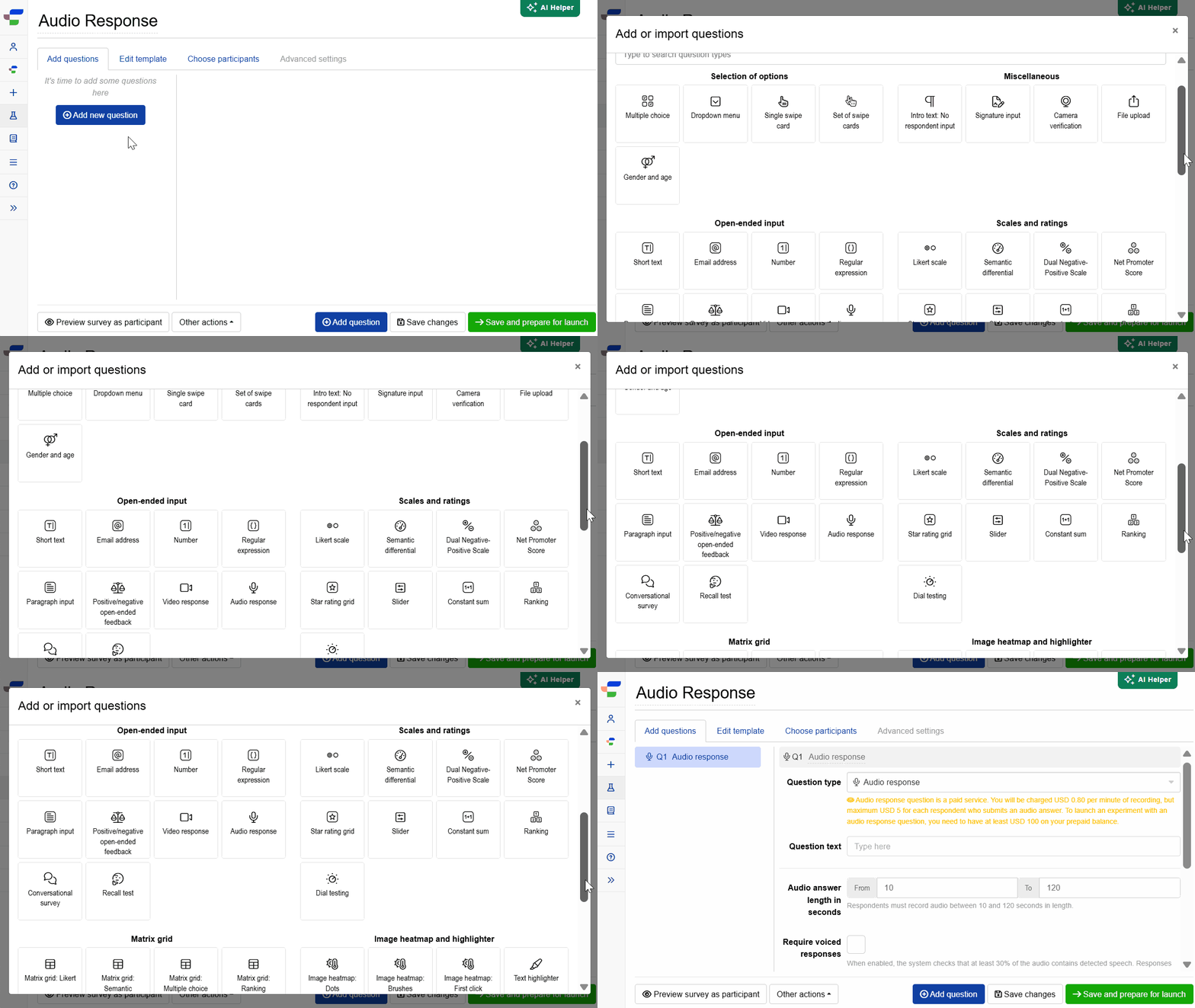
2. Edit question options
After adding the question, adjust the following settings:
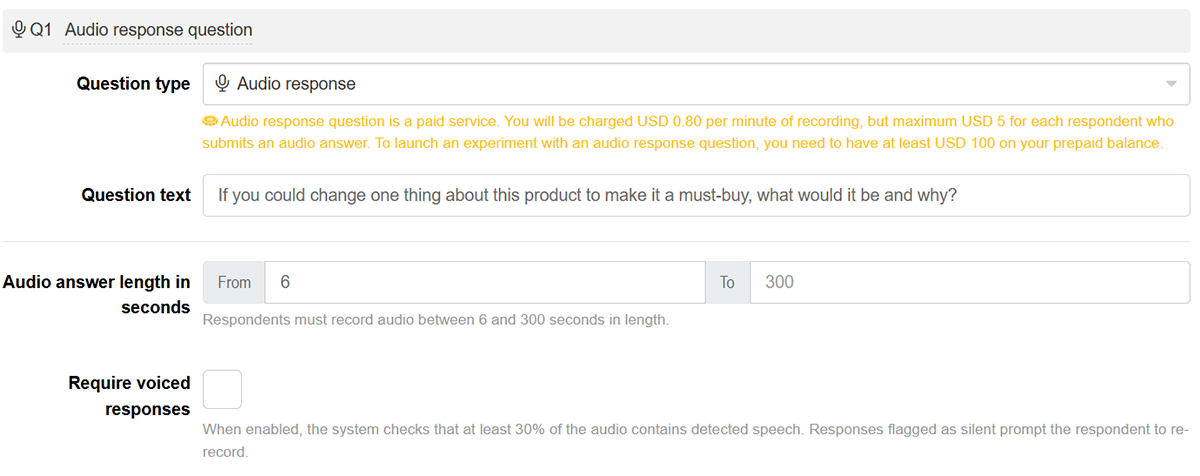
Insert the question text in the text box. You can also include formatting and images.
Set the audio answer length in seconds using the From and To fields. Both accept values from 6 to 300.
- Leave From blank to make the question optional. Respondents can skip it, but any recording they submit must still be at least 6 seconds long.
- Leave To blank to use the 300-second limit.
Toggle Require voiced responses to control audio validation. When enabled, respondents must re-record before proceeding if less than 30% of their recording contains detected speech. This filters out silent or accidental recordings. Turn it off to accept any recording.
This setting is locked once the survey launches.
To customise the button labels, length messages, and error prompts respondents see, go to the Edit template tab and open Hints for questions, then Audio response. The length messages use [min] and [max] placeholders, which are filled in automatically from your question settings.
The Audio response question collects personally identifiable information (PII), so it’s incompatible with the anonymise responses setting. If that setting is on, turn it off before saving the question.
FAQs
How is this priced?
The Audio response question is a paid question type, charged at USD 0.80 per minute of recording, capped at USD 5 per respondent who submits an answer, on top of your standard project fee.
You need at least USD 100 in your prepaid balance to launch a survey with this question. You can delete the question at any time regardless of balance, but you can’t add a new one to a live survey if your balance drops below USD 100.
Does this need any special sampling or panel setup?
Your sample source needs “Permission to collect PII” turned on, since a voice recording counts as PII. No other panel setup is needed.
What languages does Audio response support?
Audio response supports nearly 100 languages. The system auto-detects the respondent’s spoken language and generates a transcript in that language alongside an English translation in your report.
As with all automated speech processing, accuracy varies based on language data availability, accents, and linguistic characteristics, with widely spoken languages offering the highest precision.
What happens if a recording is mostly silent?
It depends on the Require voiced responses setting. When it’s on, respondents can’t proceed until at least 30% of their recording contains detected speech, so mostly silent recordings never reach your report.
When it’s off, mostly silent recordings are accepted, processed, and charged at the standard rate. In your report, each one:
- Is hidden by default, though you can unhide it
- Shows “Transcription unavailable: The respondent’s audio was too quiet to transcribe accurately.”
- Is excluded from sentiment analysis and the auto-summary
Can Audio response be used for segmentation, weighting, or other analysis?
Yes. Here is how to use Audio response with each analysis type:
- Segmentation: Filter by display logic (
Shown,Not shown), response status (Answered,Not answered), or transcribed text using text operators. - Weighting: Reference the transcript text in weighting formulas.
- Crosstabs and monadic blocks: Supported. Outputs include median audio duration, exposure count, and total completed responses.
Audio response is not currently supported in TURF or Time Series analyses, and doesn’t yet export to PowerPoint.
Can I export audio responses?
Yes, as text. Excel exports include each respondent’s transcript, and the “Answers to questions” sheet also includes the English translation. The question sheet adds recording-length statistics (minimum, mean, median, mode, maximum, and standard deviation) and participant counts. SPSS and R exports include the transcript only.
Audio files themselves are not included in any export. To keep a recording, download it from the report one response at a time. If your team hides respondents’ PII, transcripts and translations are left out of the “Answers to questions” sheet.
Can this question be added to a question block?
Yes. Audio response questions can be added to simple, randomisation, and monadic blocks. They aren’t supported in Conjoint, Kano, or other specialised blocks.