Anonymising responses and protecting privacy
You can protect respondent privacy and meet data protection requirements including GDPR with the following settings:
- Anonymise responses to prevent collection of technical identifiers during surveys.
- Manage team access to PII to limit who can view or export sensitive respondent data.
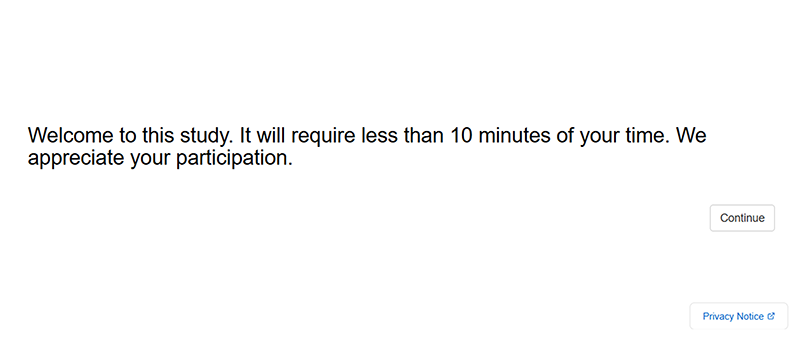
- Display standardised privacy notice across all team surveys automatically.
- Delete personal data permanently when required to fulfil regulatory and privacy obligations.
Anonymising responses
When you anonymise responses, Conjointly stops tracking technical respondent identifiers during data collection. To enable this, navigate to the Advanced settings tab of your experiment tab, and tick the Anonymise Responses checkbox within the Response quality management module.

By checking this box, your experiment will not record the following respondent details:
- IP address and associated location
- Browser location
- Browser cookies and identification strings
- Type of device used
Please note that:
- The “anonymise responses” setting is incompatible with certain question types, including video response and email questions, as well as most response quality management features.
- GET Variables included in survey links will still be captured, if you are using a GET variable to track respondents, their data may not be truly anonymous.
- To learn more about what information we store and how it is used, please refer to the Terms and Conditions and Privacy Policy.
Restricting access to personally identifiable information
What qualifies as PII
Personally Identifiable Information (PII) includes any data that can be used to identify an individual. This includes, but is not limited to:
- Email addresses
- Phone numbers
- IP addresses
- Cookies
- Browser information
- Referrer data
- Location data (city, region, postal code, country, latitude, longitude)
Survey timestamp information is not considered PII.
Hiding respondents’ PII from team members
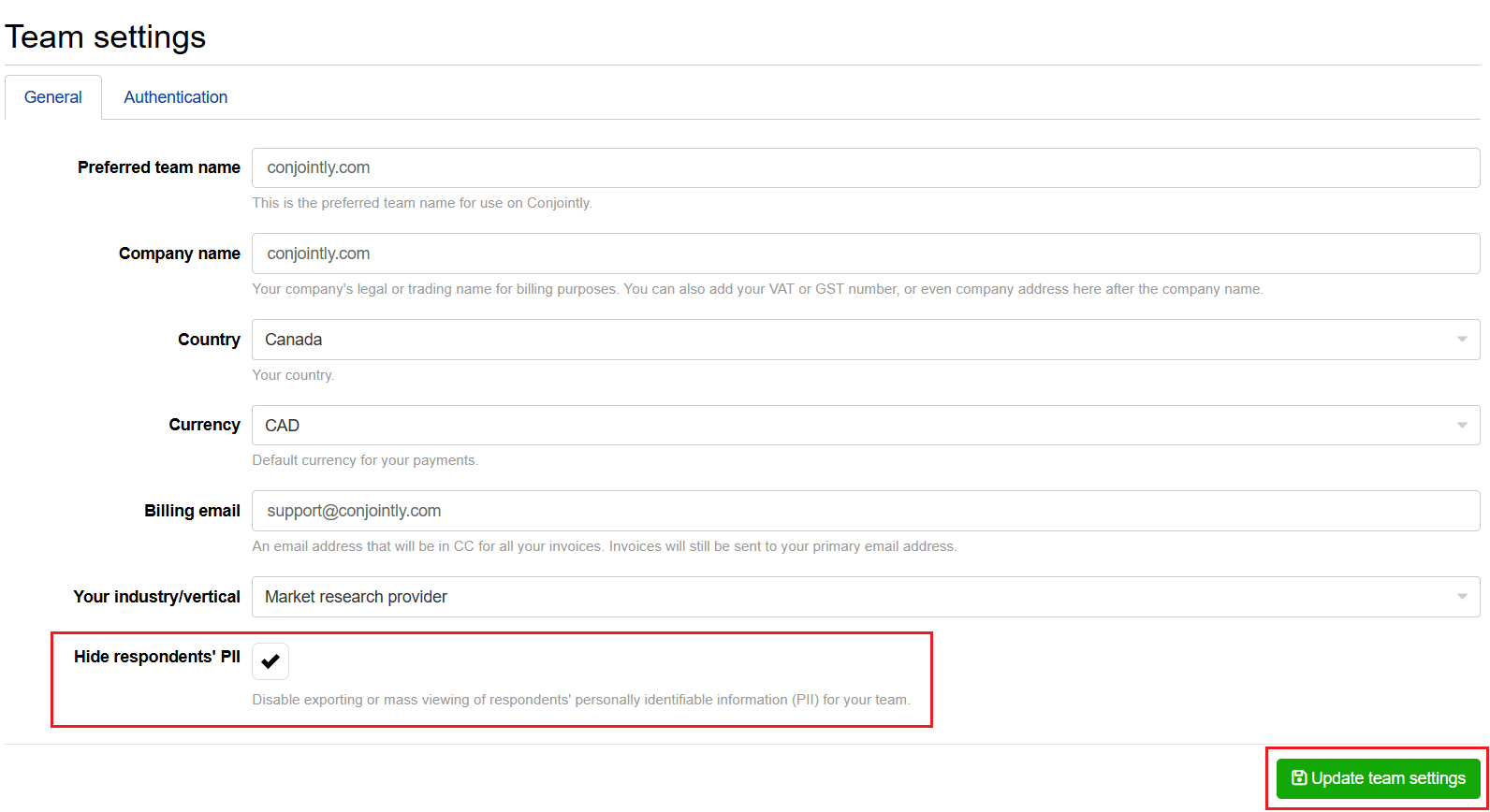
Team leaders can disable the exporting or mass viewing of respondents’ PII for their entire team with the following steps:
- Under Team settings, tick the box Hide respondents’ PII.
- Click on .
Displaying a custom privacy notice across all team surveys
Team leaders can establish a privacy notice that automatically appears on all surveys created by team members. This ensures consistent privacy communication across your organisation.
To set up a team-wide privacy notice:
- Navigate to Team settings and select the General tab.
- Locate the Custom privacy notice setting and tick the checkbox to enable it.
- Enter your privacy notice content in the rich text editor field that appears below the checkbox. Please note that the rich text editor has standard character limits and does not support tables, images, and videos. If images or videos are inadvertently added through code, they will display at full scale and may exceed the designated privacy notice area.
- This setting affects all surveys across your team, please review your implementation before applying changes.
- Click to apply the changes.

Once configured, the privacy notice will automatically appear in the bottom-right corner of the page footer for all experiments belonging to the primary owner of the team. This applies to both new and existing experiments.