How to preview your study as a respondent?
Before launch, click the button to view the survey from a respondent’s perspective. The preview opens the shareable link of the participant source selected on the Participant sources tab (or the first source if none is selected), so the survey runs as it would for respondents from that source.
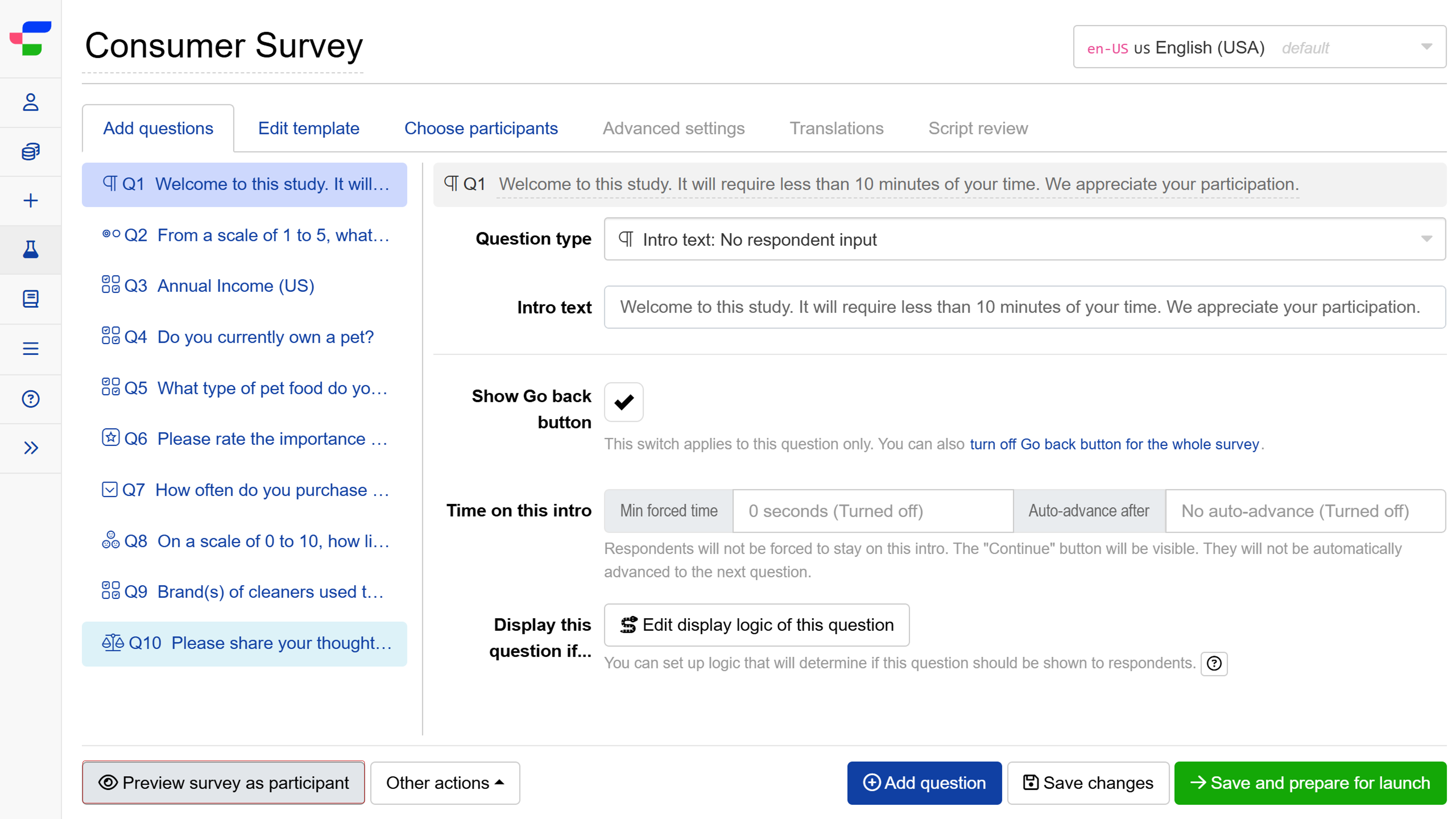
In preview mode, click the button to access the full preview tools. Three tabs are available:
- Jump to question lets you search and navigate directly to any question in the survey. Note that jumping to a question bypasses conditional logic and may disrupt the normal survey flow.
- Interactive debugger lets you test and debug formulas used in your survey, so you can verify that expressions and logic behave as expected before launch.
- Screen size lets you switch between device views to check how the survey appears on desktop, tablet, and mobile.
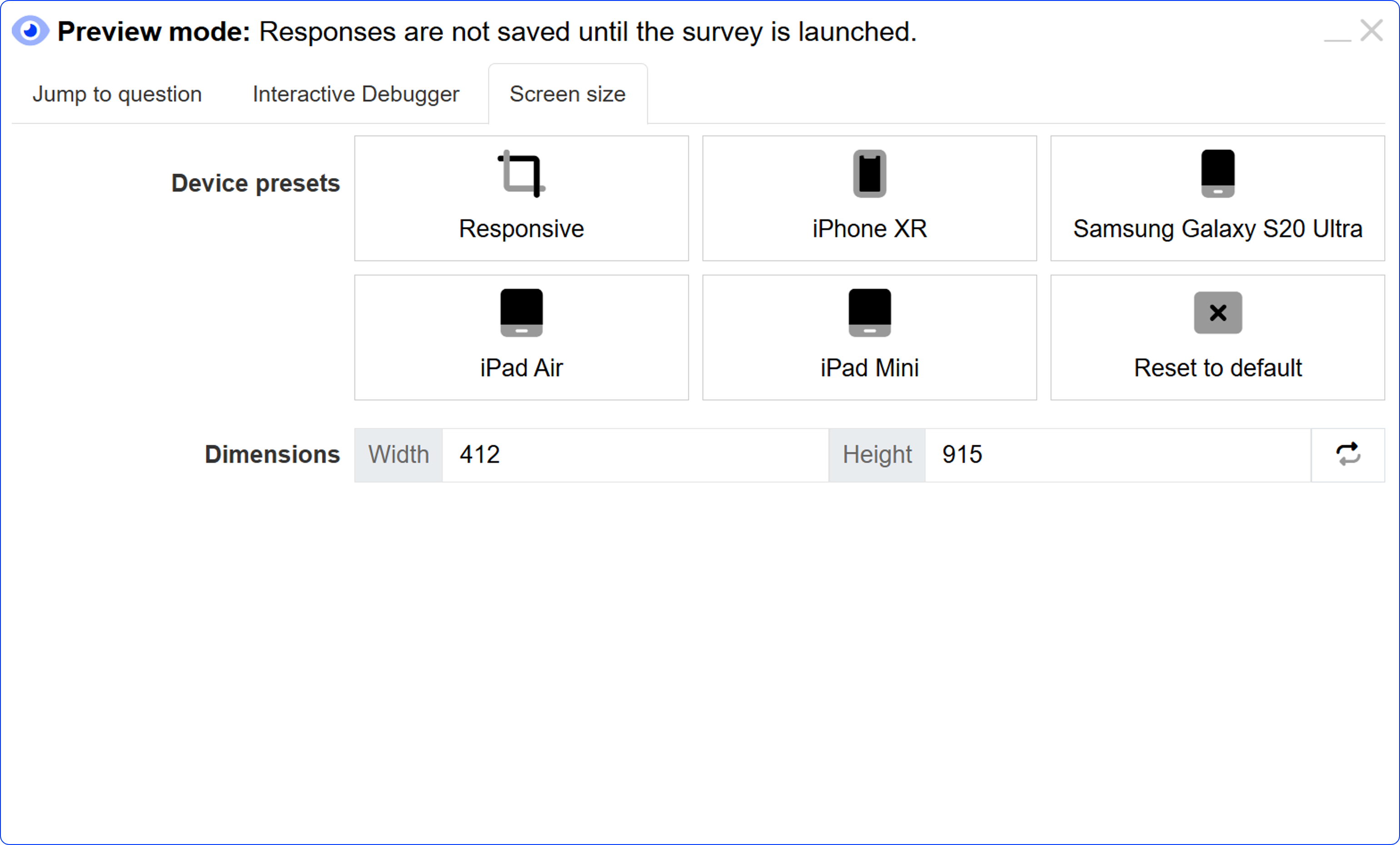
Please note that responses are not saved in preview mode, which is available only before the survey is launched.
Preview mode banner
Until the survey is launched, anyone who opens its link (including colleagues or clients you share it with for testing) sees a banner saying Preview mode: Responses are not saved until the survey is launched. This tells testers that the survey is not live yet, so you do not need to add your own notice.
The banner cannot be permanently disabled. It disappears for everyone once the survey is launched. Until then, you can hide it for the current page:
- The preview tools panel opens automatically the first time the link is opened in a browser. Collapse it with the minimise button or the Esc key.
- Close the banner with its close button. It comes back when the page is reloaded.
Previewing after launch
Once the survey is launched, the button is no longer shown and preview mode is no longer available. The same link now opens the live survey:
- Every visit is recorded as a real response, so exclude your own test responses from analysis afterwards.
- If the source is paused, the link shows (by default) “Sorry, we do not currently accept responses to this survey.”
- If duplicate checks (such as blocking the same IP address or cookie) are enabled, you may see (by default) “Sorry, you already took this survey.”
To check changes made after launch, open the shareable link from the Participant sources tab, keeping the points above in mind. It is best to preview and test thoroughly before launch.