How do I extract a list of respondents who saw a stimulus first in a monadic block?
While online reports provide high-level outputs for monadic tests, you may need more granular data for further analyses. In this FAQ, you will explore the way to extract the list of respondents mapped to the first stimulus they were exposed to within a monadic block.
You can identify which respondents were exposed to each stimulus first in a monadic block by working with your Excel report. Once you have extracted the relevant participant IDs, you can upload them as External Variables in your online report for further analysis.
If you prefer to do it manually in Excel, follow the steps below.
Step 1: Download the Excel export
Make an Excel export via the , make sure you have included “Data dumps” in the export cart.
Step 2: Open the ‘Answers to questions’ worksheet
In your Excel report, go to the Answers to questions worksheet.
Step 3: Filter for respondents included in the report
Create a new column next to Participant ID in column B. The new column is created to look up and filter respondents who were included in the report only.
You will use the formula XLOOKUP to get the data from the Respondents worksheet:
- Locate the column letter of
Is included in current reportin the Respondents worksheet. In this example, it is Column G. - To show only respondents included in the report, enter the following formula in the new column created:
=XLOOKUP(Participant ID cell, the 'Participant ID' column in 'Respondents' worksheet, the 'Is included in current report' column in 'Respondents' worksheet)
=XLOOKUP($B4,Respondents!$A:$A,Respondents!$G:$G)
Note: This formula links the Participant ID and Is included in current report columns in the Respondents.
- Then drag the formula to apply it to all rows.
- Filter for rows with a 1 value to show only respondents included in the current report.
Step 4: Filter by question and shown order
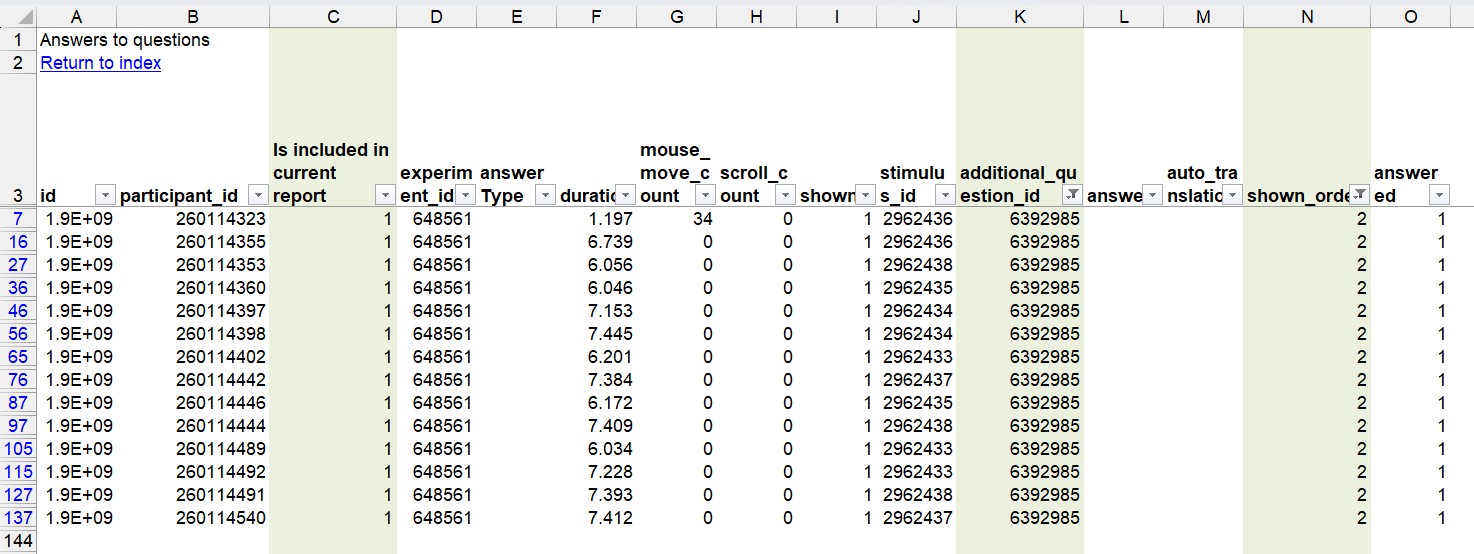
Next, filter for the relevant value in the additional_question_id column that corresponds to the monadic block question you are interested in. You can find and identify the ID of the question from the Questions worksheet. In the example below, the Additional Question ID interested is 6392985.
Then, filter the shown_order column for the lowest shown_order value associated with that question. This is the first occurrence of the monadic block question in the survey, and identifies the stimulus shown first to each respondent. The value depends on how many questions appear before the monadic block in your survey — for example, if there is one preceding question, the first monadic question will have shown_order = 2.
For more information about how shown_order is recorded, see How to view the order of questions shown to respondents?
Here is an example after you have performed the steps above:
Step 5: Identify stimulus IDs
Next, create a new column next to the column stimulus_id to look up and match the names of the stimuli. You will use the same XLOOKUP formula to perform the matching, but from the Stimuli in monadic blocks this time. Here is the example of the formula:
=XLOOKUP(stimulus_id cell, the 'id' column in 'Stimuli in monadic blocks' worksheet, the 'name' column in 'Stimuli in monadic blocks' worksheet)
=XLOOKUP($J4,'Stimuli in monadic blocks'!$A:$A,'Stimuli in monadic blocks'!$G:$G)
Note: This formula links the id and name columns in the Stimuli in monadic blocks.
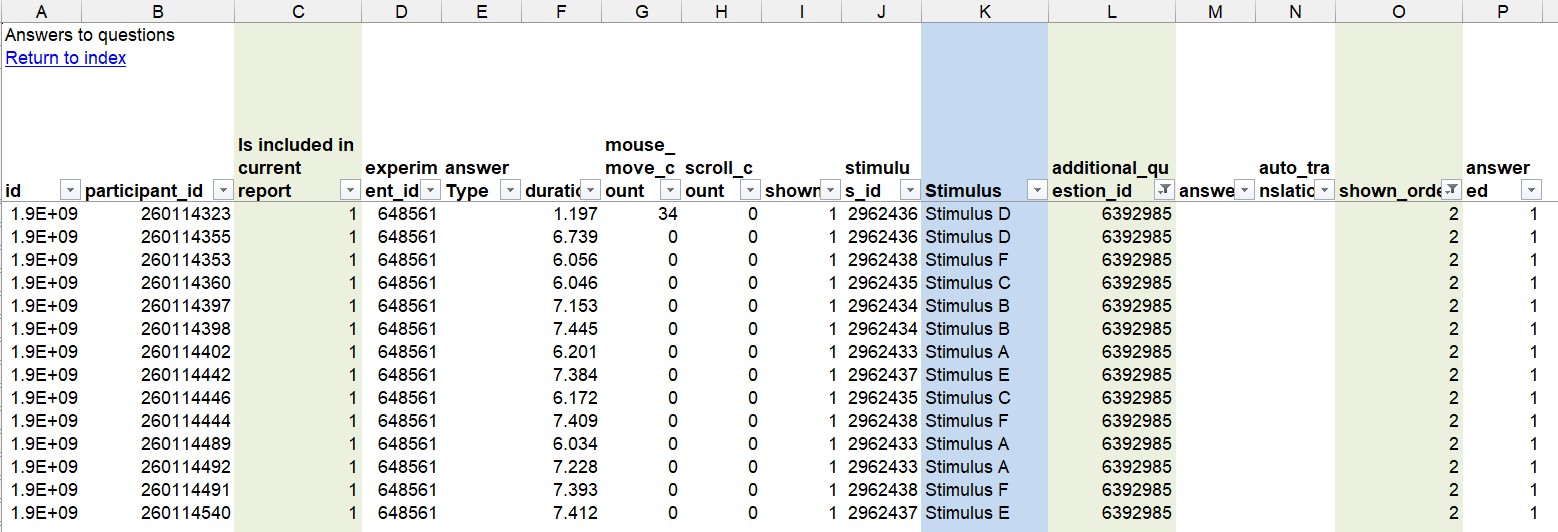
Step 6: Extract list of respondents
With the filtering and lookup steps above, you now have the list of respondents along with the first stimulus they were exposed to in the monadic block. You can copy this list (particularly the participant_id column and Stimulus column you created in Step 5) for further external analysis.
You can also upload this list back to your experiment as External Variables in your online report for further analysis.