How do I permanently delete specific respondent data?
When surveying your own contacts and mailing lists, you can permanently delete (i.e. irretrievably and irrevocably erase) specific respondent information and responses to comply with privacy and regulatory requirements, including GDPR. This data includes:
- Respondent email addresses and associated audiences and campaign data.
- Responses to specific questions for individual or all respondents.
- Selected respondents and all their associated information and responses.
Only primary owner and co-owners of the experiment can perform these deletions. These deletions are not available for Conjointly-supplied respondents from Predefined panels, Self-serve sample options, or custom projects.
All deletions require confirmations as they cannot be reversed. Please note that we store database backups for seven days, but we generally do not accept requests to restore deleted data from those backups. Report will be automatically reset after each deletion.
The following steps delete specific respondent data only. You can also read about how to delete the entire survey instead, or about the wider settings for anonymising responses and protecting privacy.
Accessing the Deletion mode
To delete the mentioned data, navigate to the Quality checker dashboard in your experiment and select the Other actions tab. Click on to access the available deletion options for your experiment.
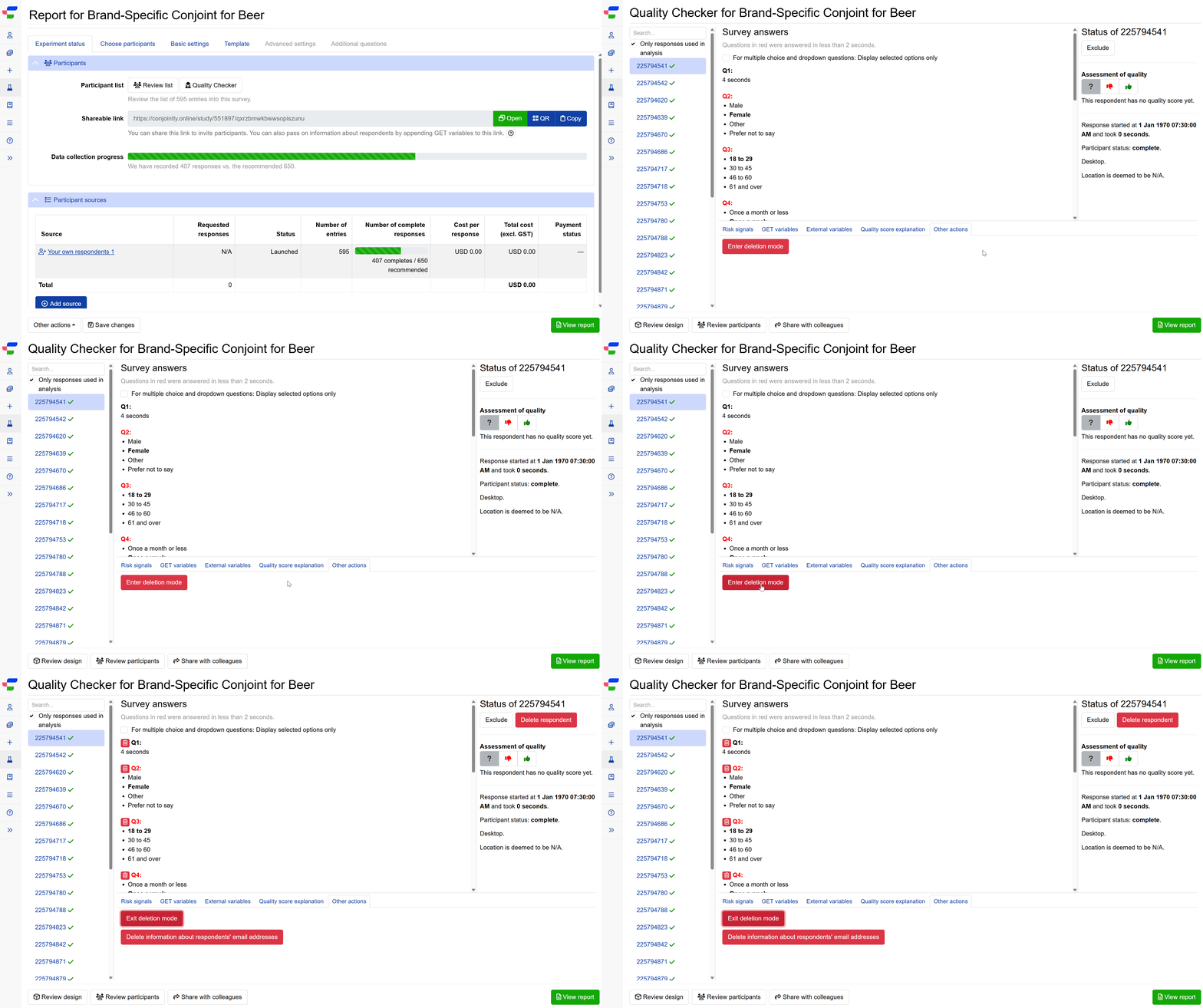
Delete information about respondents’ email addresses
When Deletion mode is enabled, you will see a button that lets you delete the related audiences and email campaigns.
Only audiences containing unlaunched or finished campaigns can be deleted.
When you proceed with the confirmation of deletion, the system will:
- Delete the associated audiences and campaigns.
- Convert the participant sources to Legacy type.
- Clear email addresses from external variables.
This may potentially affect other experiments using the same audiences.
Delete responses to specific questions
You can permanently remove responses to individual questions or all responses to a question across eligible respondents by clicking the trash buttons next to individual questions.
Complex question types like conjoint, monadic, and kano must be deleted with all their nested questions, while questions within simple or randomisation blocks can be deleted separately.
Check the Delete for all respondents checkbox to remove responses from all eligible respondents for that question.
When you proceed with the confirmation of deletion, the system will:
- Permanently remove the selected responses from your experiment.
- Delete any associated media files (videos, images).
Delete individual respondents
The button in the top-right corner of the respondent status panel lets you remove the selected respondent and associated data from your experiment.
When you proceed with the confirmation of deletion, the system will:
- Remove all responses provided by that respondent.
- Delete all technical data and metadata associated with them.
- Remove any linked media files.
- Clear associated risk signal entries.
If you need help working out which of these permanent deletions applies to your situation, please contact Conjointly support for assistance.