Segmentation for subgroup analysis
You can use Segmentation to categorise your respondents based on different variables and break down your report by segments accordingly. This process enables you to conduct detailed subgroup analysis, uncovering deeper insights into your data.
The report can be split by different types of variables:
- Respondent information recorded by Conjointly (such as location, device type, and participant source).
- Survey questions: Questions that you ask under the “Additional questions” (e.g. multiple choice or open ends).
- GET variables
- Externally supplied variables
- Segregation based on simulation
- Sentiment analysis
- Deep probes
You can set up segmentation manually using the steps below, or use the AI Helper.
Setting up segmentation in your report
Follow these steps to set up segments in your report.
- Navigate to the Segmentation tab, click on .
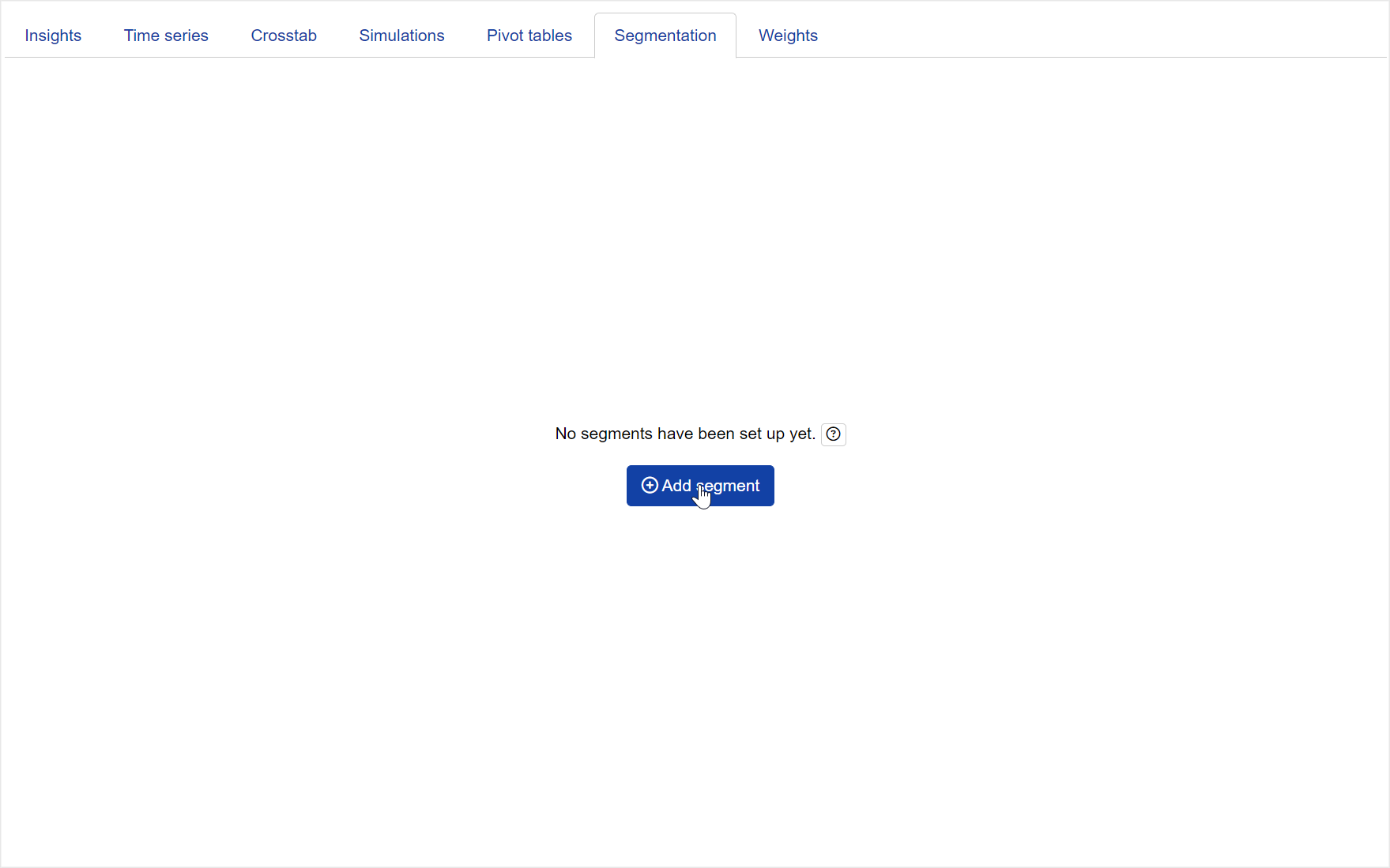
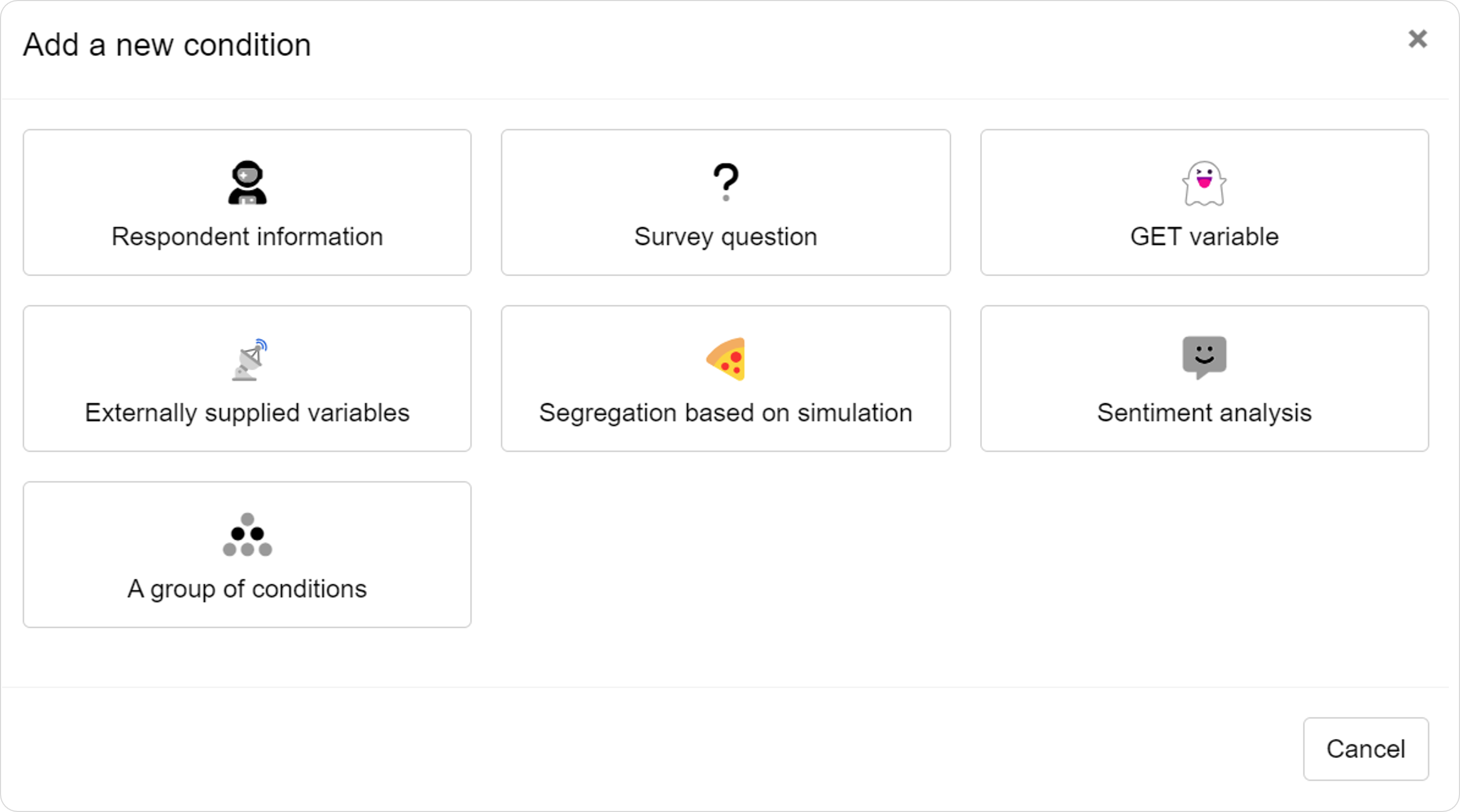
- Click on and you will be prompted to select which type of information to segment the report:
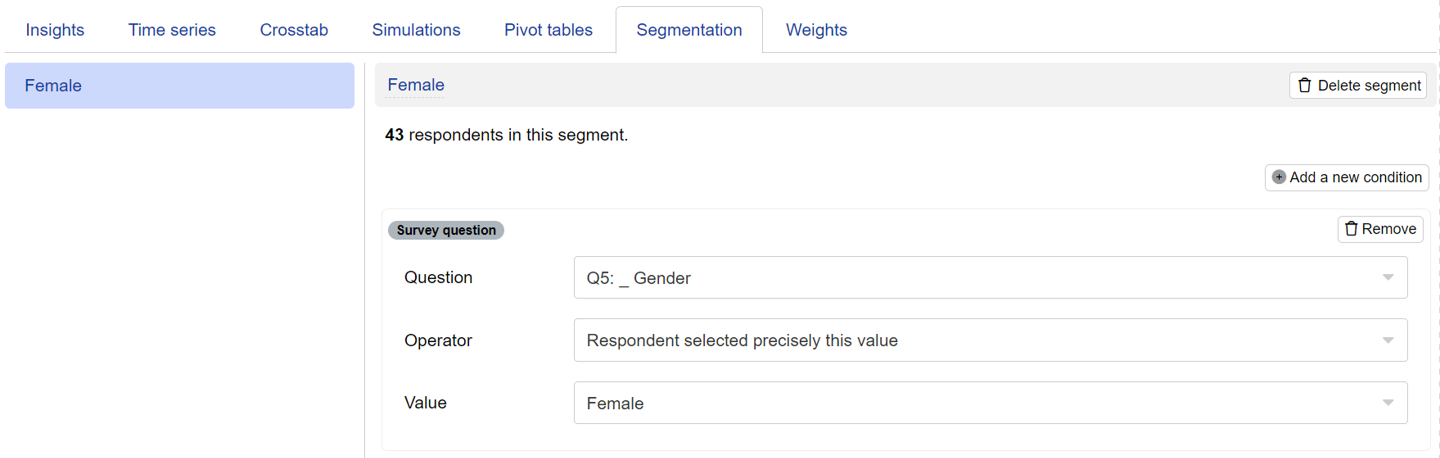
- Click on the default name to rename your segment appropriately:

- In this example we will use a Survey question asking the gender of respondents and select Respondent selected precisely this value as the operator and Female as the value:
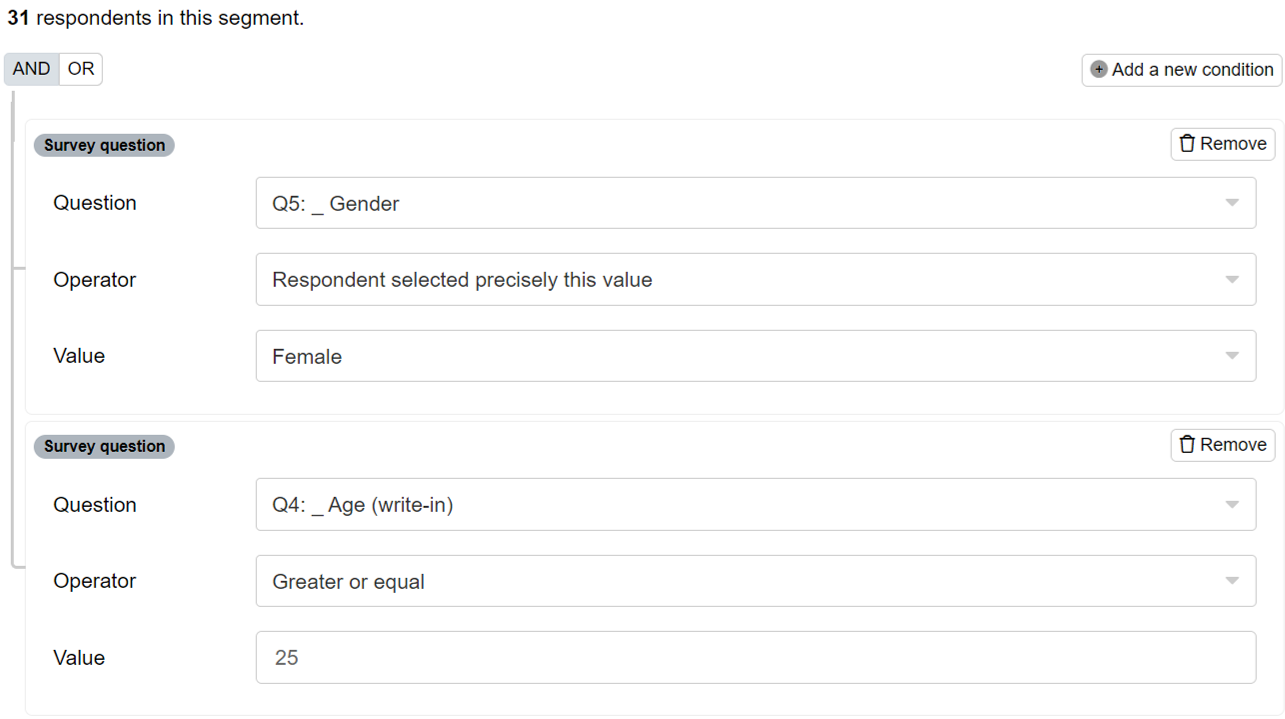
- If your segment definition is more complicated and involves condition from multiple questions with AND/OR logic, you can select after creating the first logical condition. You can then specify if these conditions should be combined through either an AND or OR statement. For example, this is how you can create the Segment: Female Age 25 and above.
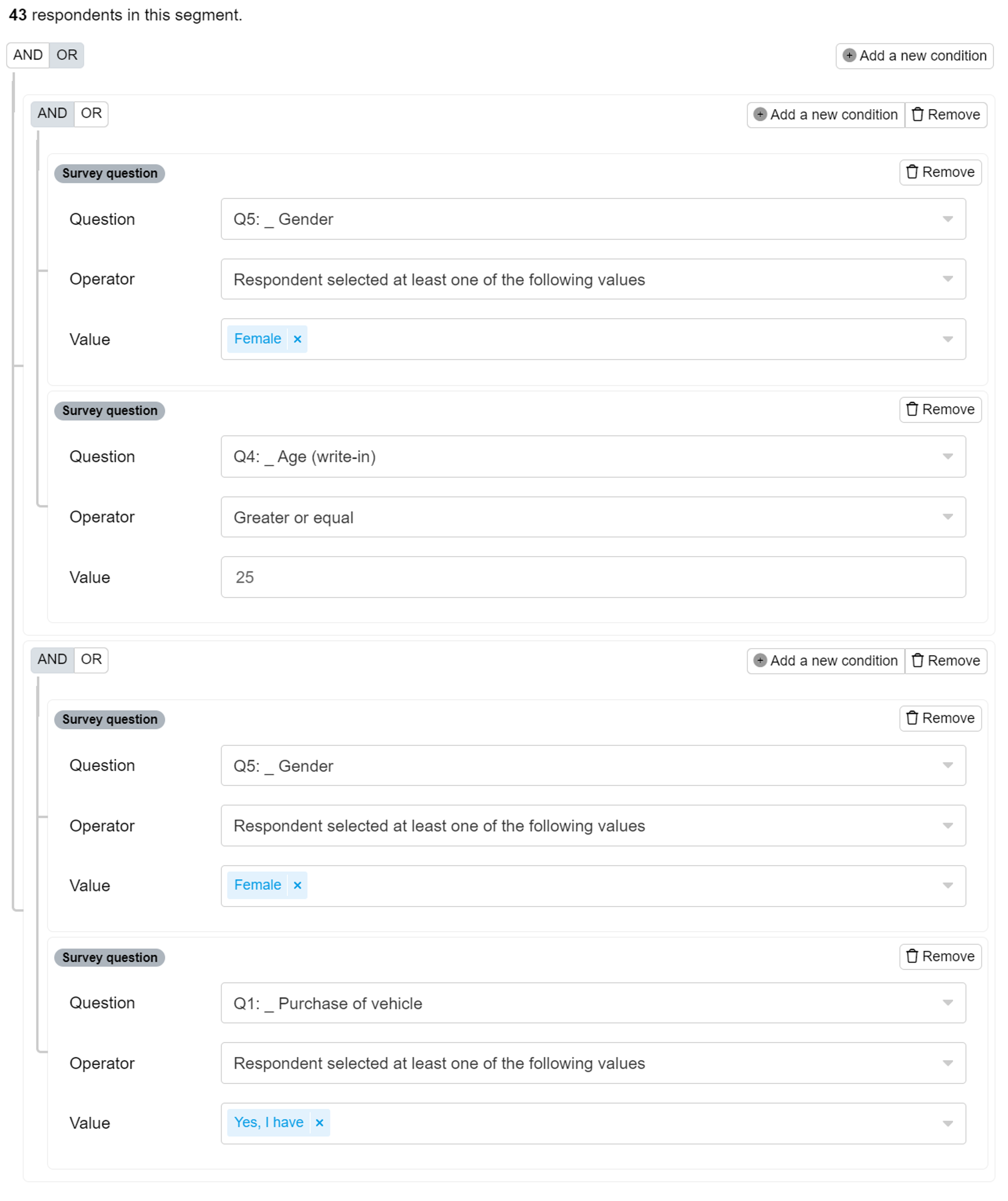
- You can also use nested logic when creating segments. When adding a new condition, you can select the option . This allows you to create more complex logical statements. For example, the below segment comprises all Female Age 25 and above, as well as Female who have purchased a car for herself, family or business.
- You can add another segment simply by repeating the above steps. Once you are done, click on and the system will apply your segmentation. Please allow for a couple of minutes for the segmentation tab to appear.
In conjoints, MaxDiffs, and specific claims tests and product variant selector reports, you can also utilise the segments as covariate for the HB calculation.
Viewing the segment results
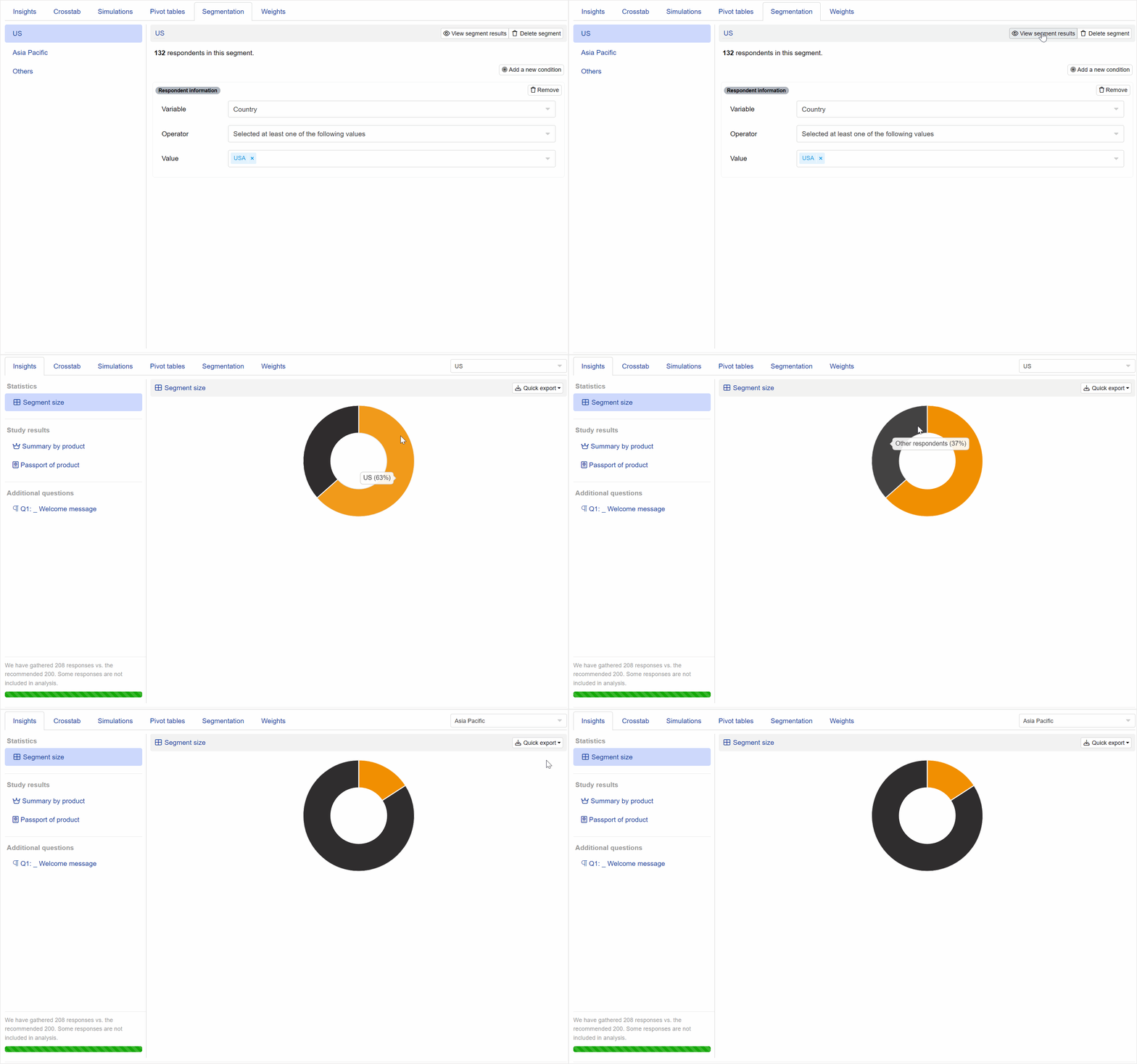
After setting up a segment, you can view its results by clicking the button, which will direct you to the Segment size section under Insights .
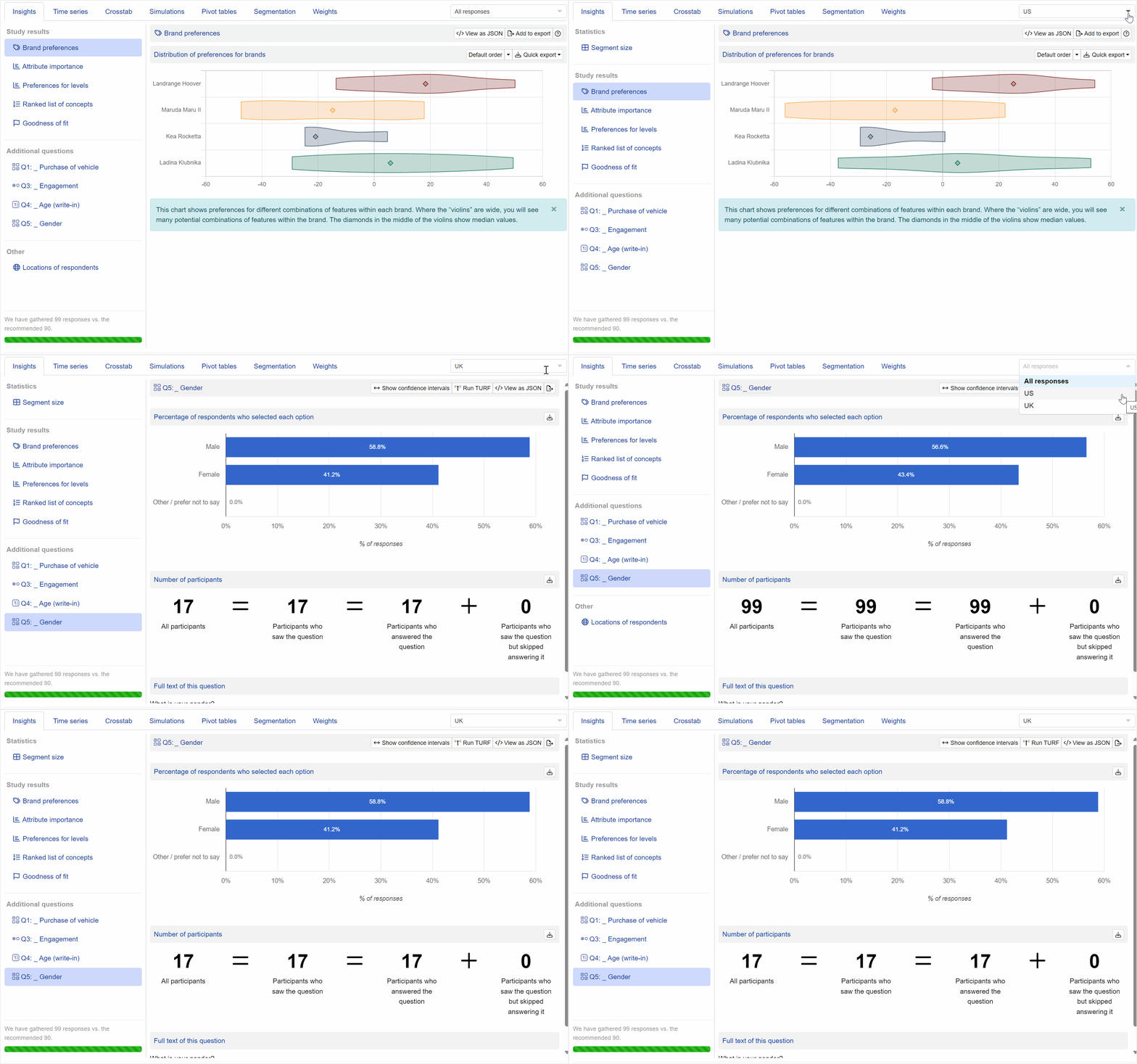
The study results and responses to the additional questions for each segment can also be accessed by selecting the segment from the drop-down box in the top right-hand corner.
Comparing results across multiple segments
Once multiple segments are setup, Crosstab results become automatically available. You can click on the Crosstab tab to view the results.
Set-up with monadics
When you include monadic blocks in your experiments, you can also set up segmentation based on questions embedded within the block.
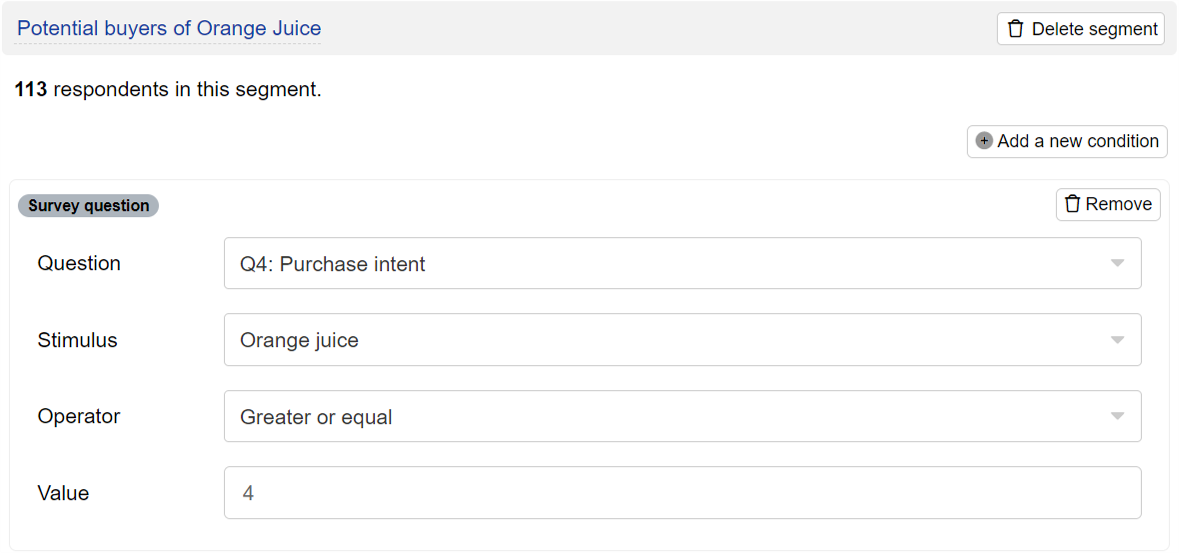
To do this, select the question and specify the stimulus, operator, and value. In this example, we are creating a segment made up of respondents who answered 4 or 5 for their purchase intent regarding orange juice.
Set-up using participant sources
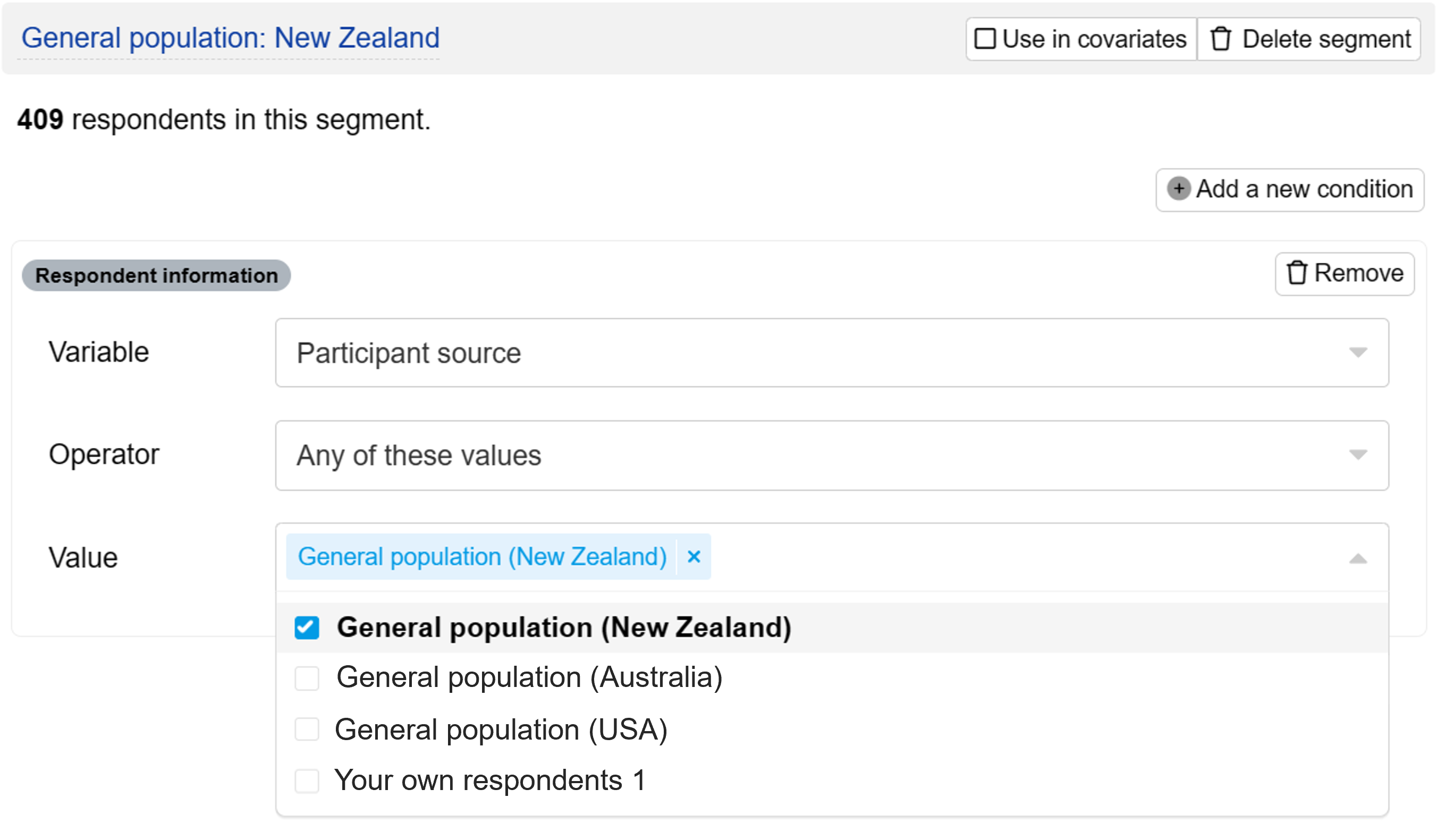
If your experiment includes multiple sources of participants, you can set up segmentation based on one or more participant sources to delve deeper into the results.
To do this, add a segment using Respondent information and select Participant source from the Variable dropdown list.
Set-up based on sentiment analysis
If your experiment contains open-ended questions, you can also apply segmentation based on the underlying emotions conveyed in the responses.
Set-up using the segregate function
You can quickly dive into the preferences of respondents who are willing to buy your products by setting up the segmentation using the segregation based on simulation option.